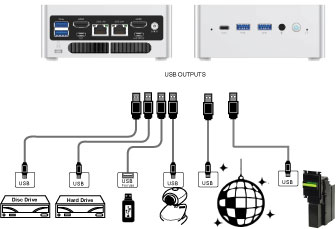
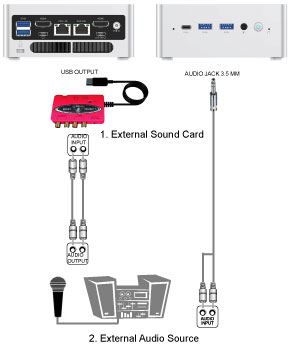
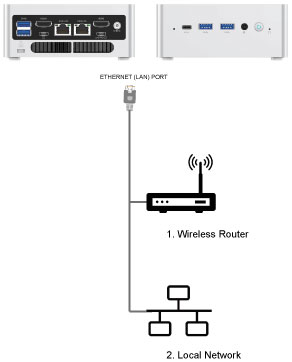
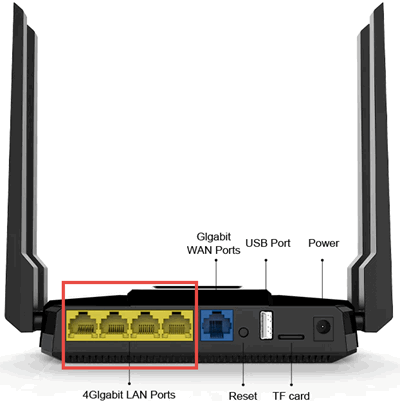
Moving the unit between extreme temperature my cause water dew inside and result in malfunctioning. If so turn off the unit and wait for one or two hours before restarting.
To avoid magnetic interference, place the unit away from speakers.
SAFETY
Be sure to read the user manual before operating the unit. Place the unit in an area well ventilated and with no heat.
Do not open the unit without first disconnecting the power cord. It is dangerous to touch the inside of the unit due to possible electric shock.
When not in use for long duration, be sure to unplug the power cord from the electric outlet. Also do not use the unit when the power cord is damaged as it may cause electric shock.
The unit and its power cord should be arranged safely at all times and never be handled with wet hands due to danger of electric shock.
Check the outlet supply voltage before turning on the unit. The unit uses 100 - 240V AC.
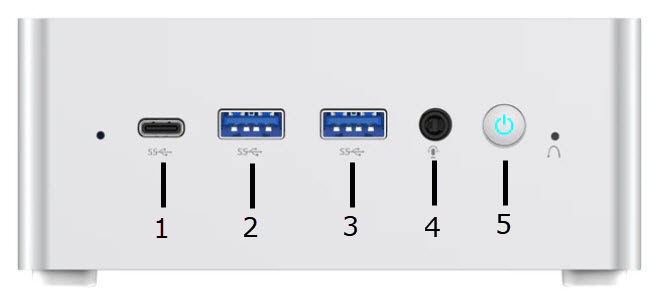
1. USB-C 3.2 Gen 1
2. USB-A 3.2 Gen 2
3. USB-A 3.2 Gen 2
4. 3.5 mm Speaker/Headphone Jack
5. Power Switch and Power LED
1. USB-A 3.2 Gen 2
2. USB-A 3.2 Gen 2
3. HDMI
4. USB-C 3.2 Gen 1
5. RJ45 2.5 Gigabit
6. RJ45 2.5 Gigabit
7. HDMI
8. USB-C 3.2 Gen 1
9. 19V DC Power Inlet
10. Kensington Lock
No Buttons
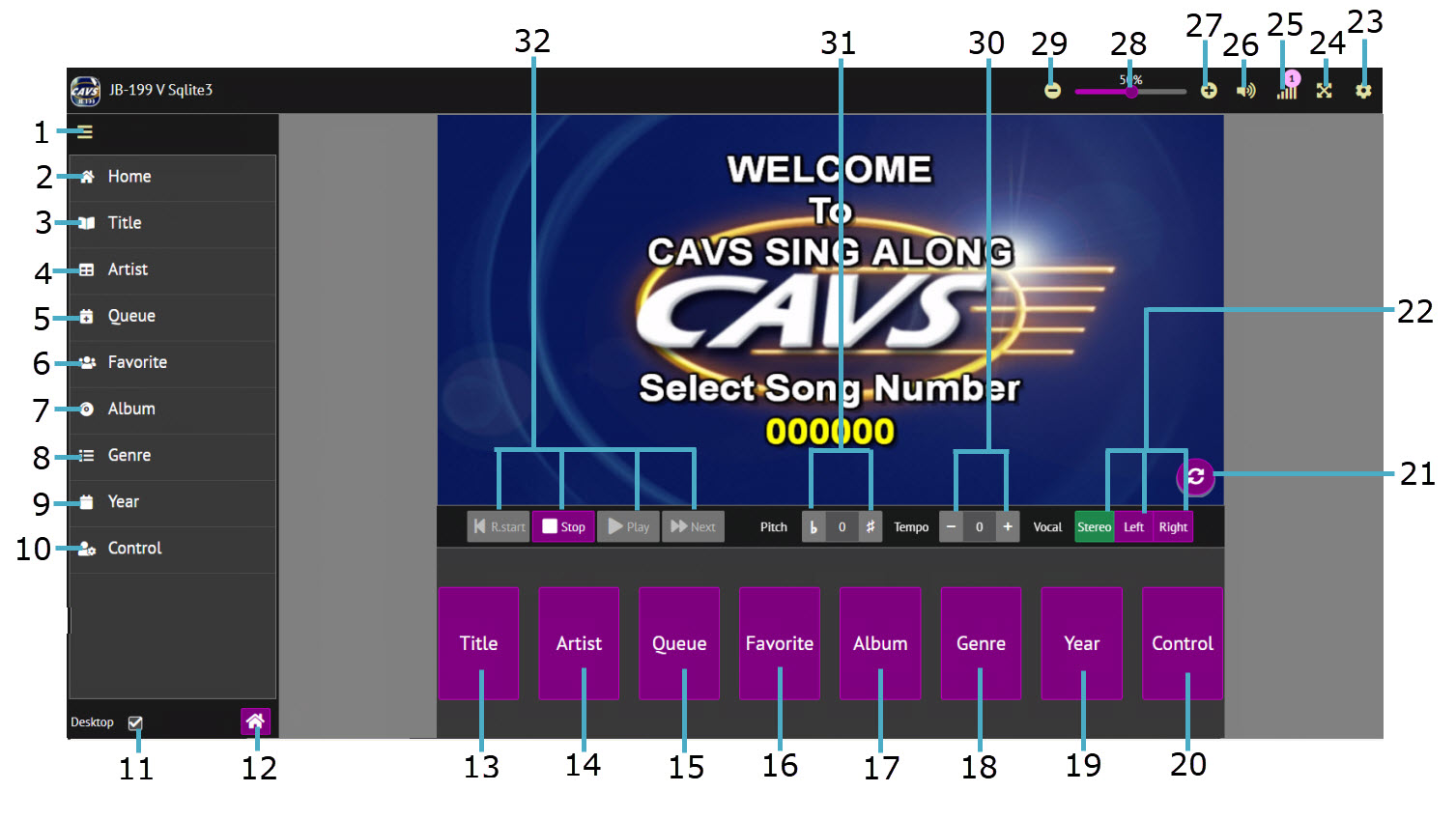
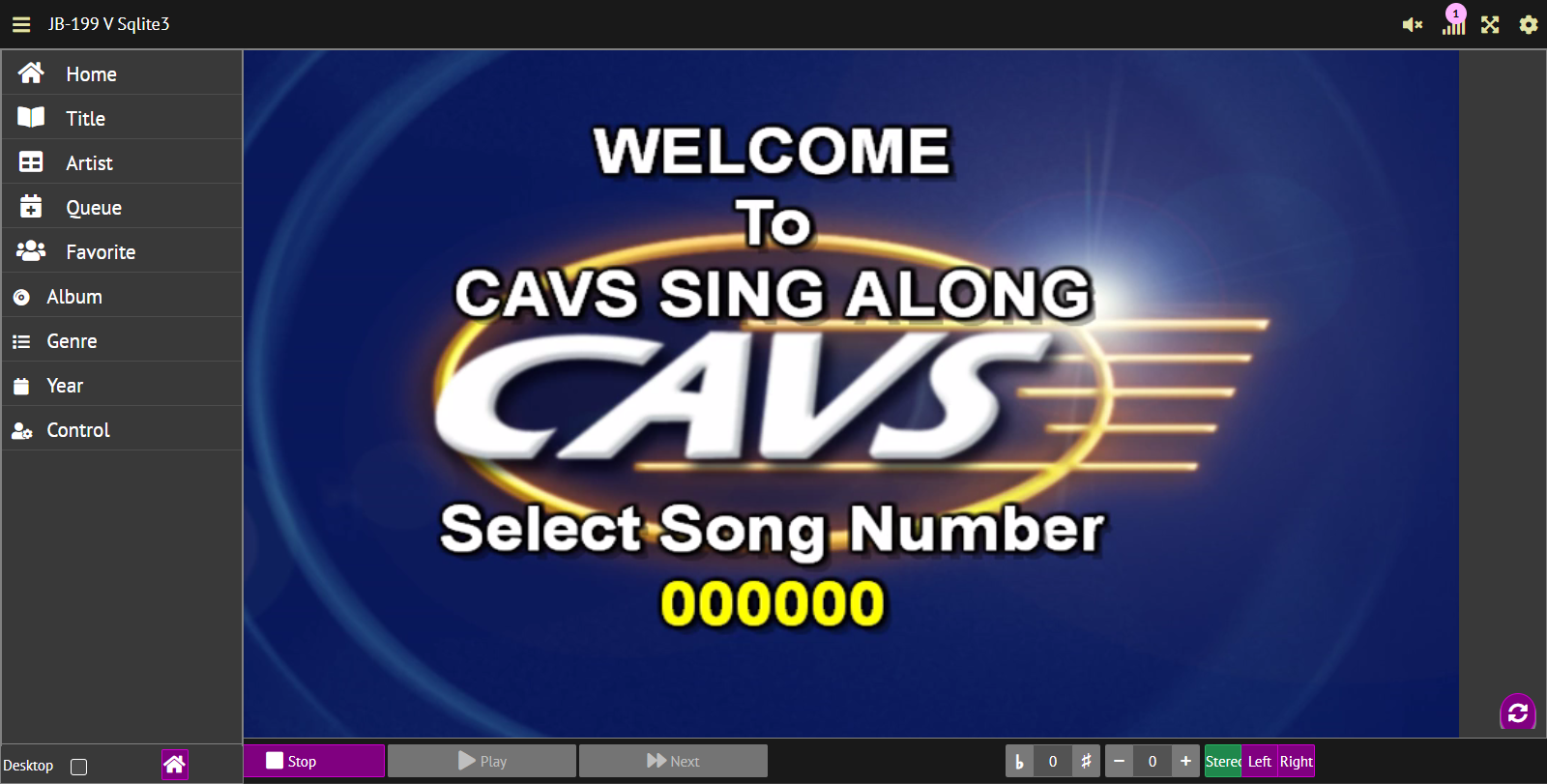
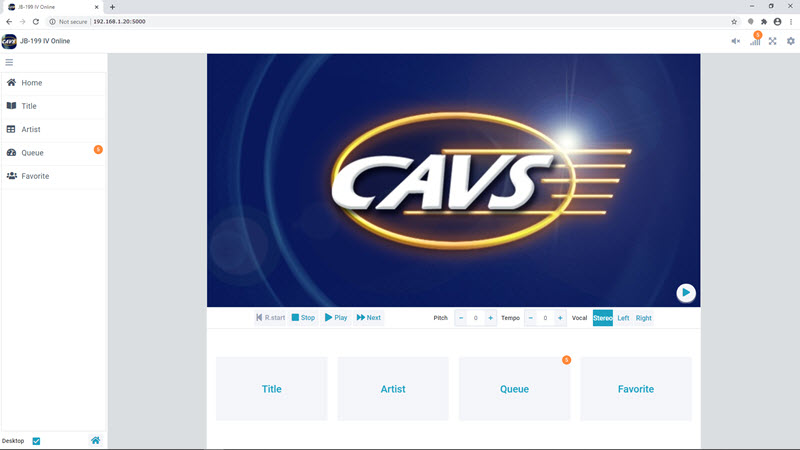
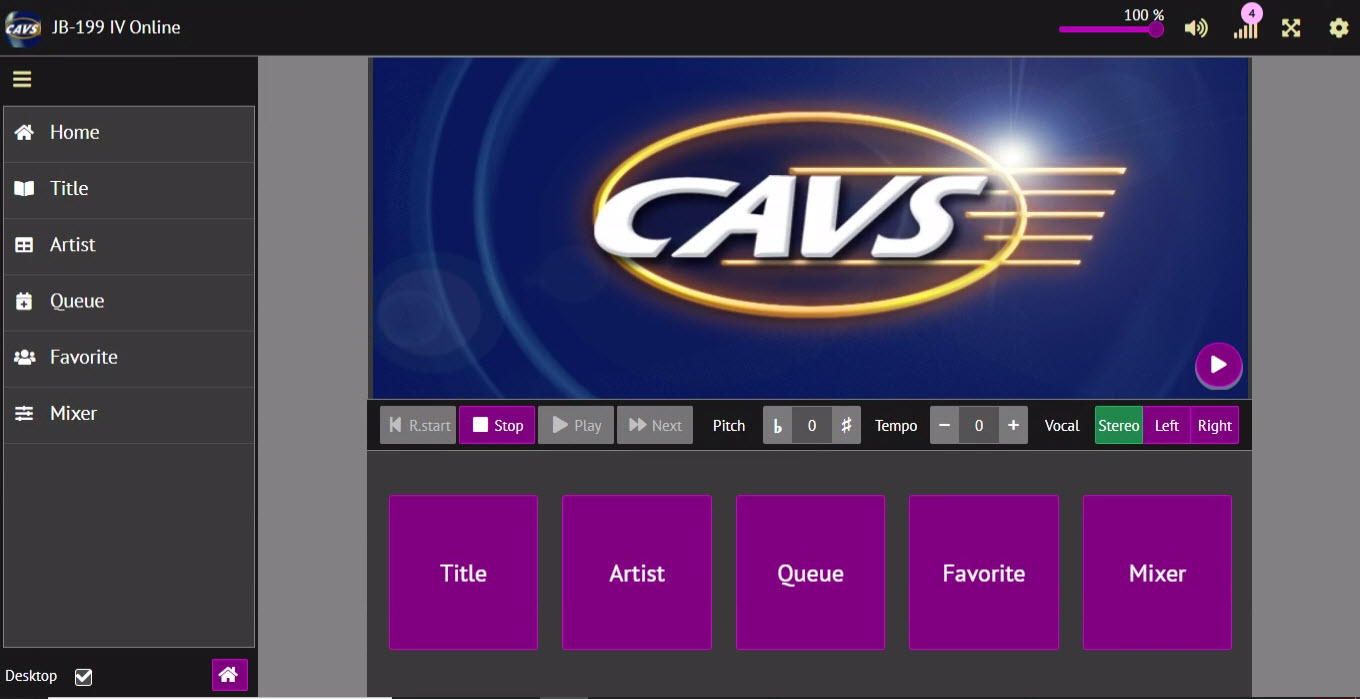
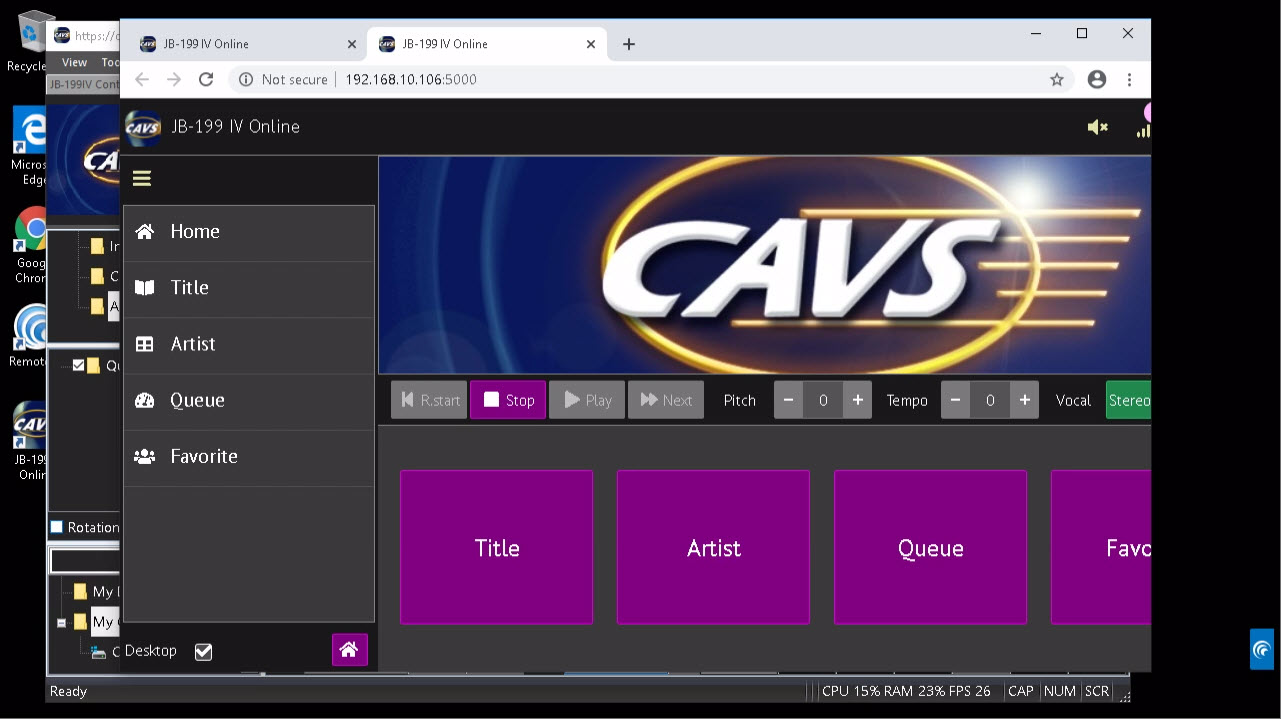
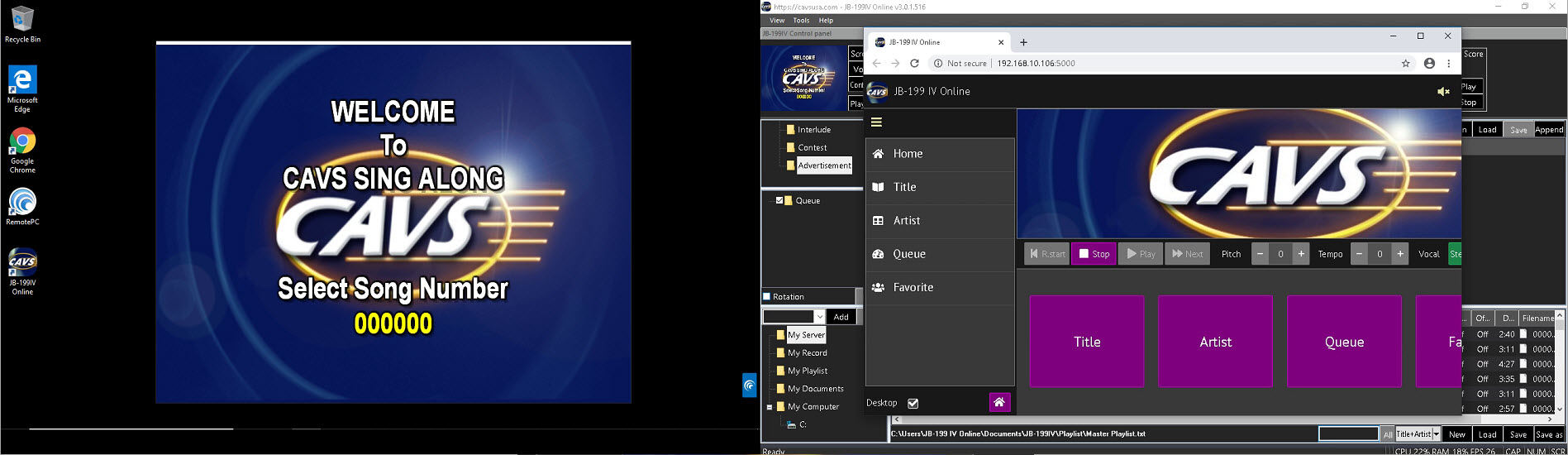
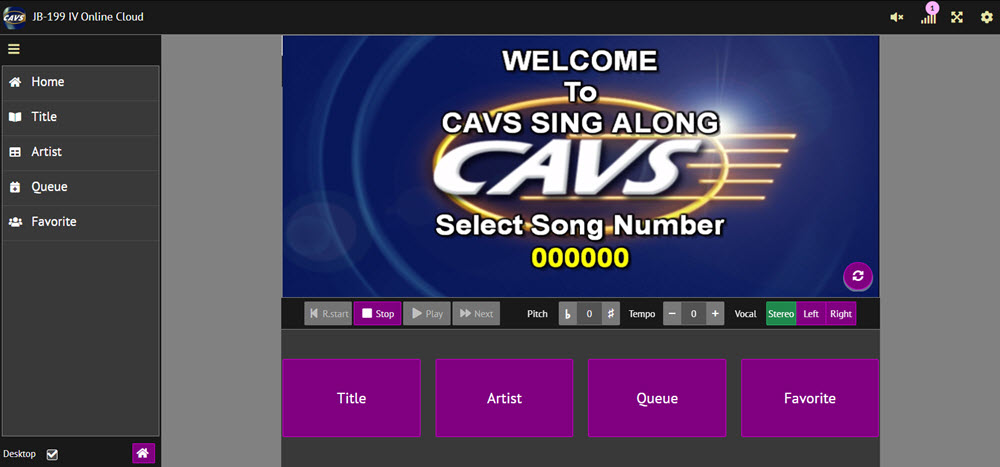
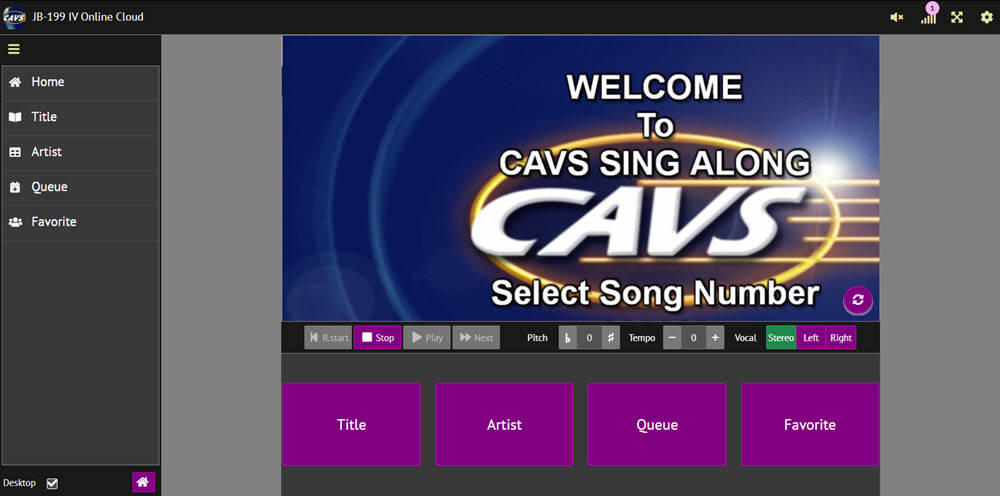
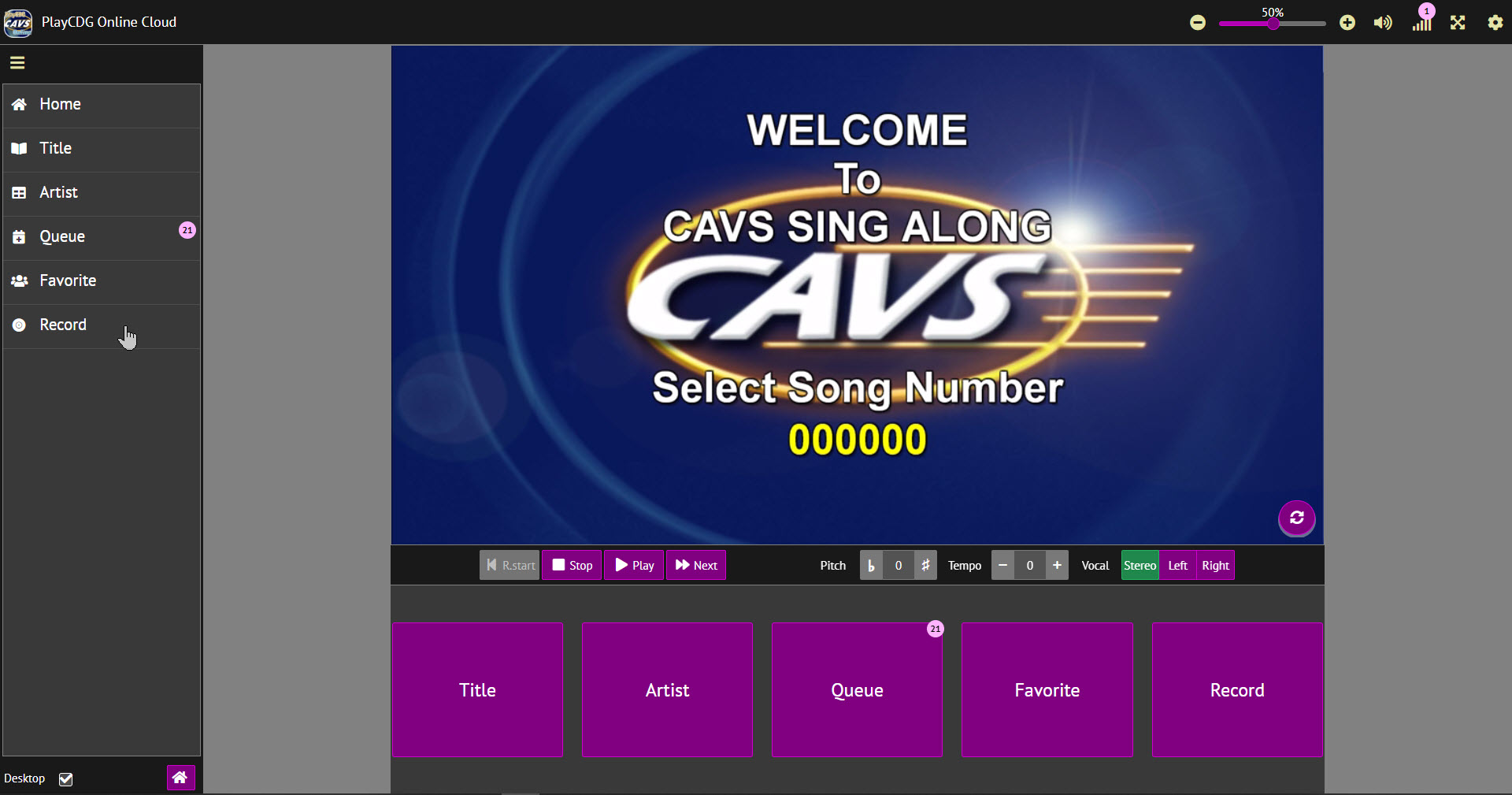
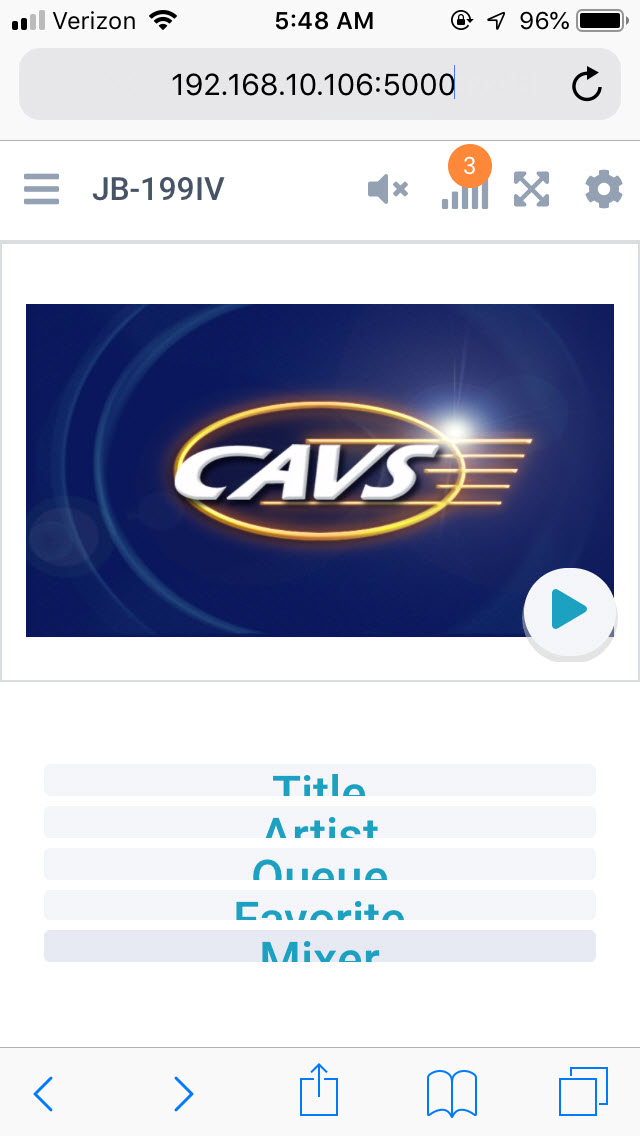
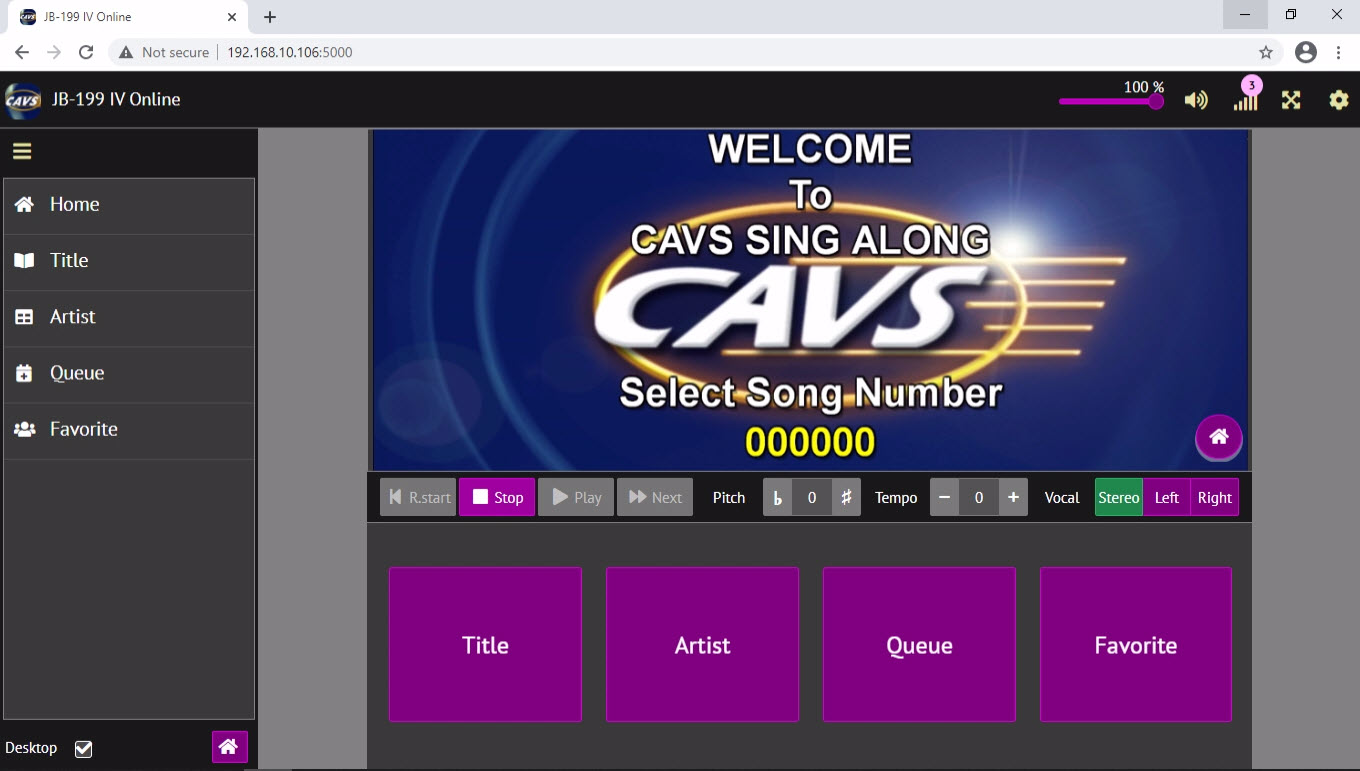
The Customer Interface is the screen that appears when a customer is using a phone or tablet to connect to the JB-199 V karaoke player.
This screen can also be emulated locally by the JB-199 V karaoke player by enabling the Local Customer Interface in the Setting.
The screen may vary in color or proportion depending on the device used.
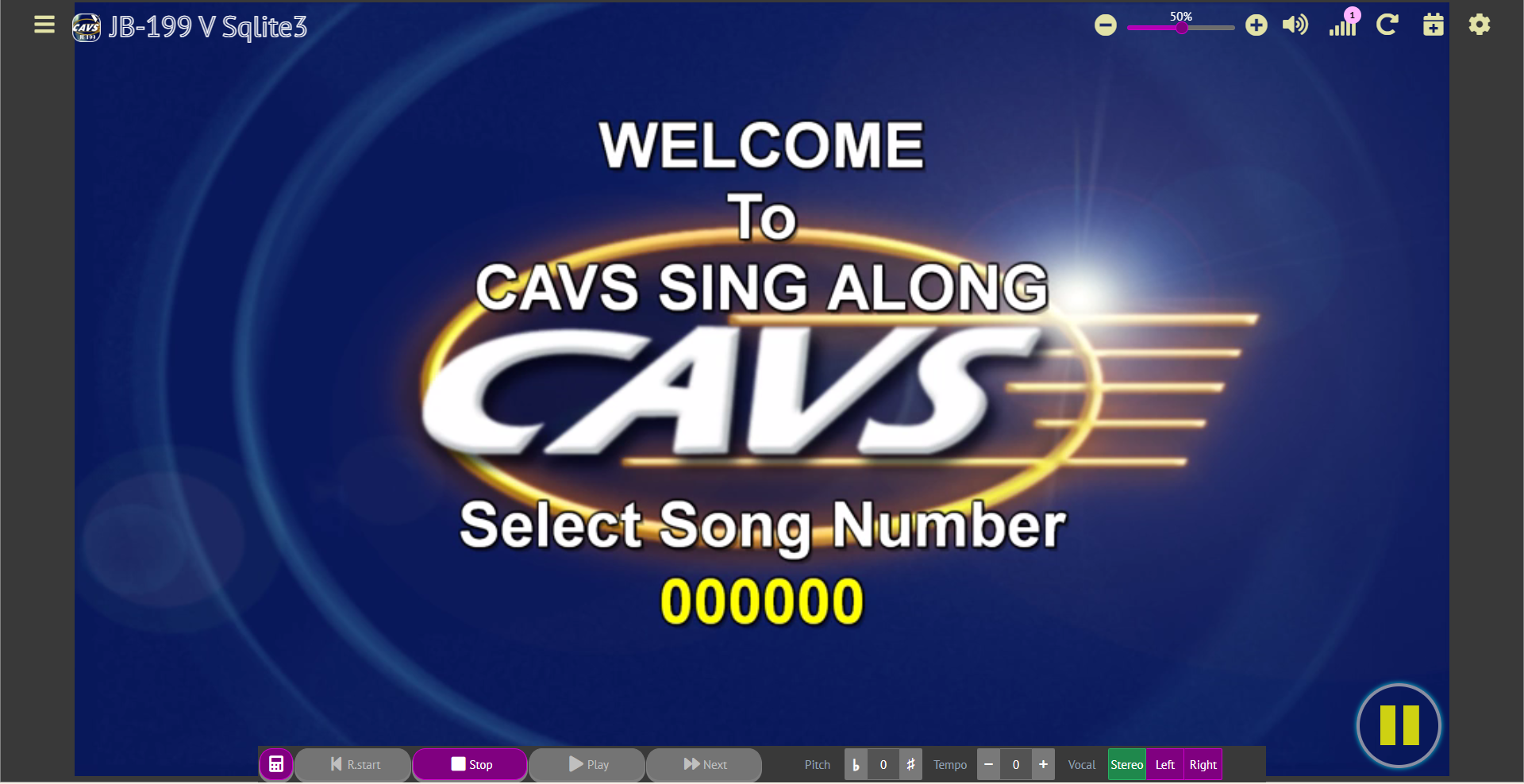
1. Main menu
2. Home
3. Title
4. Artist
5. Queue
6. Favorite
7. Album
8. Genre
9. Year
10. Control
11. Desktop
12. Home
13. Title
14. Artist
15. Queue
16. Favorite
17. Album
18. Genre
19. Year
20. Control
21. Refresh
22. Vocal - stereo, left, right
23. Setting
24. Full screen
25. Connection(s)
26. Music mute
27. Volume up
28. Volume level
29. Volume down
30. Tempo up, down
31. Pitch/Key up, down
32. Previous, Stop, Play, Next
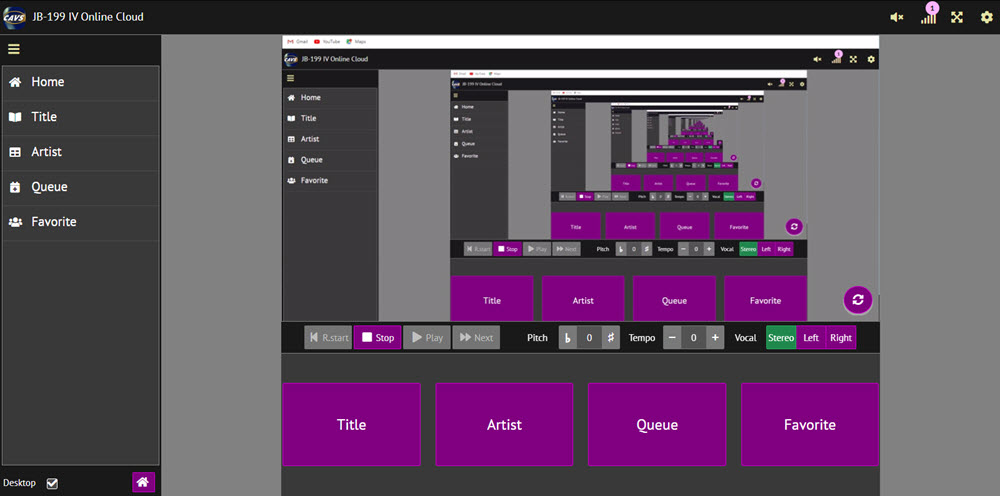
When the 11.Desktop is unchecked, the Customer Interface will change as follows without showing the menu .
Press the Main menu to show the menu.
Press the Main menu again to hide the menu.
To keep showing the menu permanently, place a checkmark on 11.Desktop.
Press the Home to return to the Home page.
The Home page will display the lyrics when a song is in play.
Press the Title to view, scroll, and search the songs by title. Following popup window will appear.
Song list by Title
3.1 Song number
3.2 Number Field
3.3 Return/Back
3.4 Search field status
3.5 Search field drop-down menu
3.6 Title field
3.7 Song title
3.8 Search input
3.9 Artist field
3.10 Song artist
3.11 Search
3.12 Storage status
3.13 Storage drop-down menu
3.14 Language status
3.15 Language drop-down menu
3.16 Scroll up by page
3.17 Scroll bar
3.18 Preview
3.19 Song language
3.20 Song producer
3.21 Scroll down by page
3.1 Song number
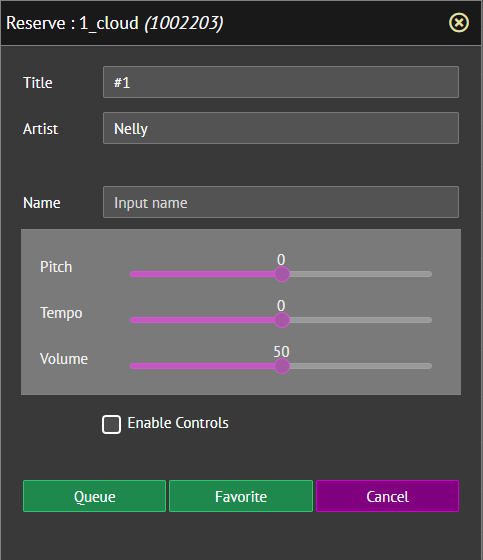
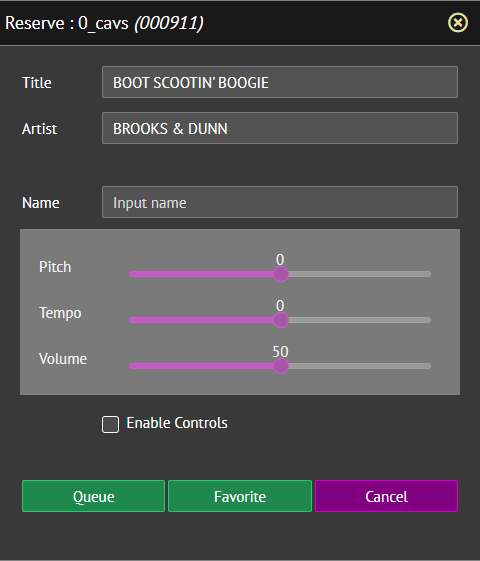
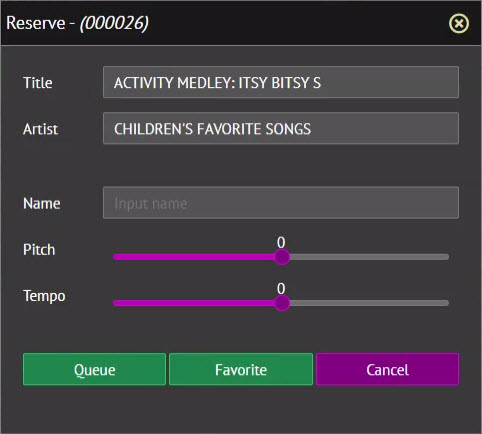
Press the Song number or 3.7 Song title to reserve the song. Following popup window will appear.
Input the guest name into the Name. (optional)
Preset the Pitch, Tempo, and Volume. To move the sliders, you must first check the the Enable Controls box. (optional)
Press Queue to reserve the song. The screen will return to the Title page.
Press Favorite to add the song to a Favorite list.
The guest name must be entered; the Favorite list will appear under the corresponding guest name.
3.2 Number field Press to sort the songs by song number in ascending order. Press again to sort in descending order.
3.3 Return/Back Press to return to previous page.
3.4 Search field status Curent field from which the search will find matches.
3.5 Search field drop-down menu Press to view and select the field to search by, including Title, Artist, Number, Title & Artist.
3.6 Title field Press to sort the songs by Title in ascending order. Press again to sort in descending order.
3.7 Song title Press to reserve the song. Following popup window will appear.
Input the guest name into the Name. (optional)
Preset the Pitch, Tempo, and Volume. To move the sliders, you must first check the the Enable Controls box. (optional)
Press Queue to reserve the song. The screen will return to the Title page.
Press Favorite to add the song to a Favorite list.
The guest name must be entered; the Favorite list will appear under the corresponding guest name.
3.8 Search input Enter the word(s) to search for. Matching results will be found based on the selected Search field.
3.9 Artist field Press to sort the songs by artist in ascending order. Press again to sort by descending order.
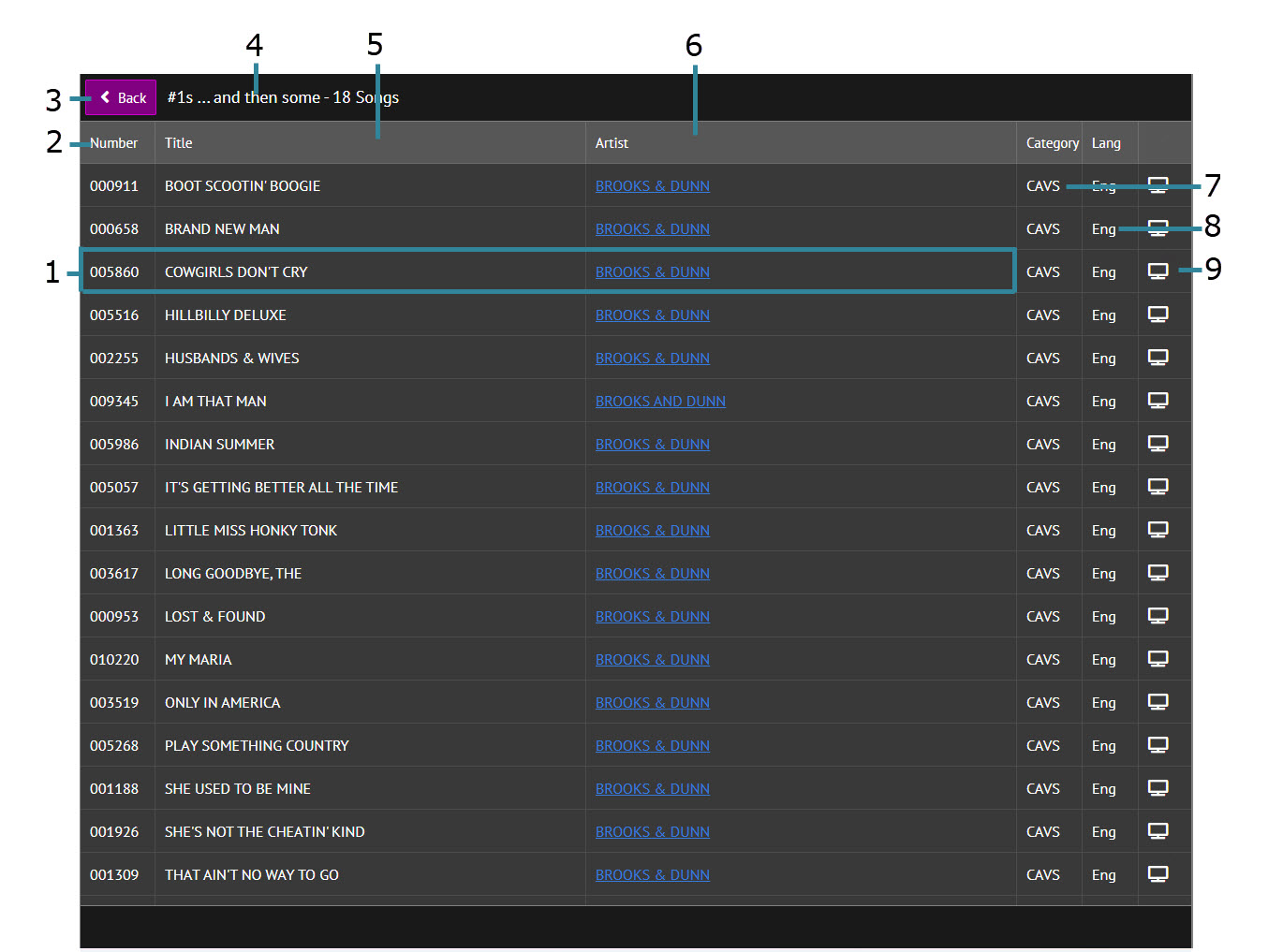
3.10 Song artist Press to view all songs of the selected artist. Following popup window will appear.
Song list by Artist
3.10.1 Song number
3.10.2 Number field
3.10.3 Return/Back
3.10.4 Artist name - number of songs
3.10.5 Title field
3.10.6 Song title
3.10.7 Artist field
3.10.8 Song artist
3.10.9 Song producer field
3.10.10 Song language field
3.10.11 Preview
3.10.12 Song language
3.10.13 Song producer
3.10.1 Song number Press to reserve the song. Following popup window will appear.
Input the guest name into the Name. (optional)
Preset the Pitch, Tempo, and Volume. To move the sliders, you must first check the the Enable Controls box. (optional)
Press Queue to reserve the song. The screen will return to the Title page.
Press Favorite to add the song to a Favorite list.
The guest name must be entered; the Favorite list will appear under the corresponding guest name.
3.10.2 Number field Press to sort the songs by number in ascending order. Press again to sort in descending order.
3.10.3 Return/Back Press to return to previous page
3.10.4 Artist name - number of songs Indicates the selected artist name and the number of songs by the artist
3.10.5 Title field Press to sort the songs by Title in ascending order. Press again to sort in descending order.
3.10.6 Song title Press to reserve the song. Following popup window will appear.
Input the guest name into the Name. (optional)
Preset the Pitch, Tempo, and Volume. To move the sliders, you must first check the the Enable Controls box. (optional)
Press Queue to reserve the song. The screen will return to the Title page.
Press Favorite to add the song to a Favorite list.
The guest name must be entered; the Favorite list will appear under the corresponding guest name.
3.10.7 Artist field Press to sort the songs by artist in ascending order. Press again to sort by descending order.
3.10.8 Song artist Press to reserve the song. Following popup window will appear.
Input the guest name into the Name. (optional)
Preset the Pitch, Tempo, and Volume. To move the sliders, you must first check the the Enable Controls box. (optional)
Press Queue to reserve the song. The screen will return to the Title page.
Press Favorite to add the song to a Favorite list.
The guest name must be entered; the Favorite list will appear under the corresponding guest name.
3.10.9 Song producer field Press to sort the songs by producer in ascending order. Press again to sort by descending order.
3.10.10 Song language field Press to sort the songs by language in ascending order. Press again to sort by descending order.
3.10.11 Preview
Press to preview the song.
The song will play in a separate popup screen which will not be shared with other guests.
The preview playback time is limited by the setting in 4.5.A.2.1.5 Server & Browser.
When set to No Time Limit, the preview functions as karaoke-on-demand, allowing each guest to select and play different songs independently.
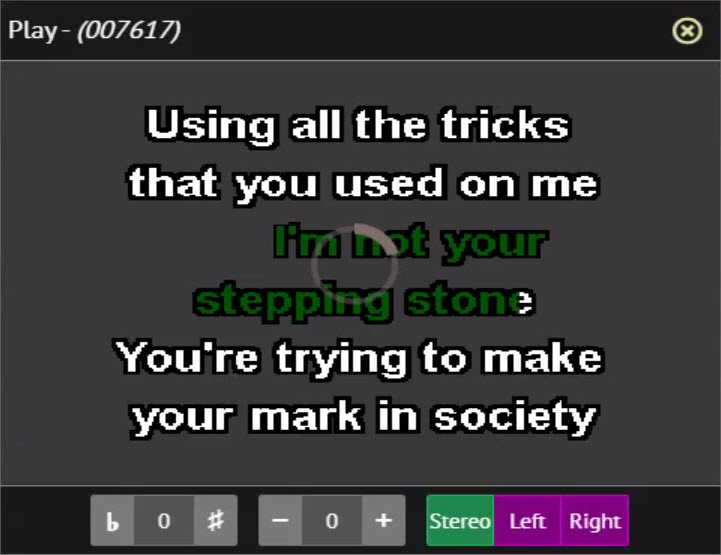
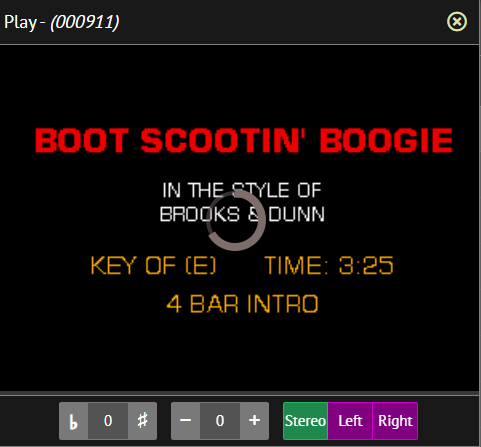
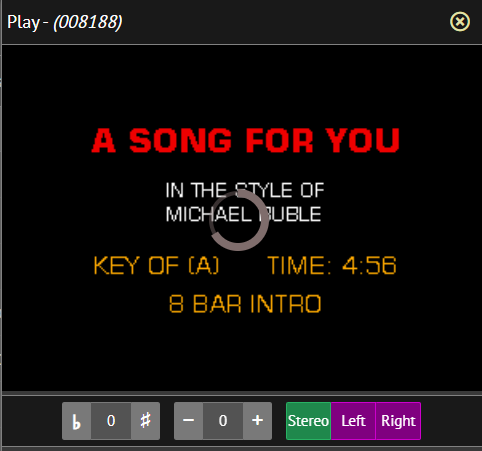
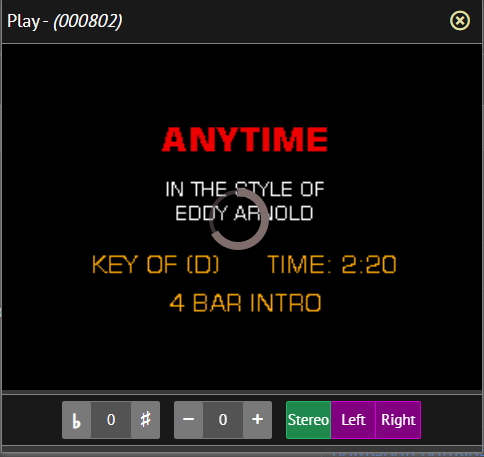
The preview includes independent pitch control, tempo control, and voice cancel functions.
Below is a screenshot of the preview.
3.10.12 Song language Indicate the song language.
3.10.13 Song producer Indicates the song producer.
3.11 Search
Press to begin the search.
The search also starts automatically as each letter or character is entered into the search field.
Matching songs will be listed in real time.
To return to the full song list, click the "X" icon to clear the search word(s).
3.12 Storage status
Indicates the song file storage location currently in effect to filter the songs.
Available locations depend on the songs loaded.
3.13 Storage drop-down menu
Press to select songs by their file storage location.
The menu will include CAVS when song files are stored locally within the karaoke player.
The menu will include CLOUD when songs are provided by the streaming services.
To view all songs, select the default option STORAGE.
3.14 Language status
Indicates the song language currently in effect to filter the songs.
Available languages depend on the songs loaded.
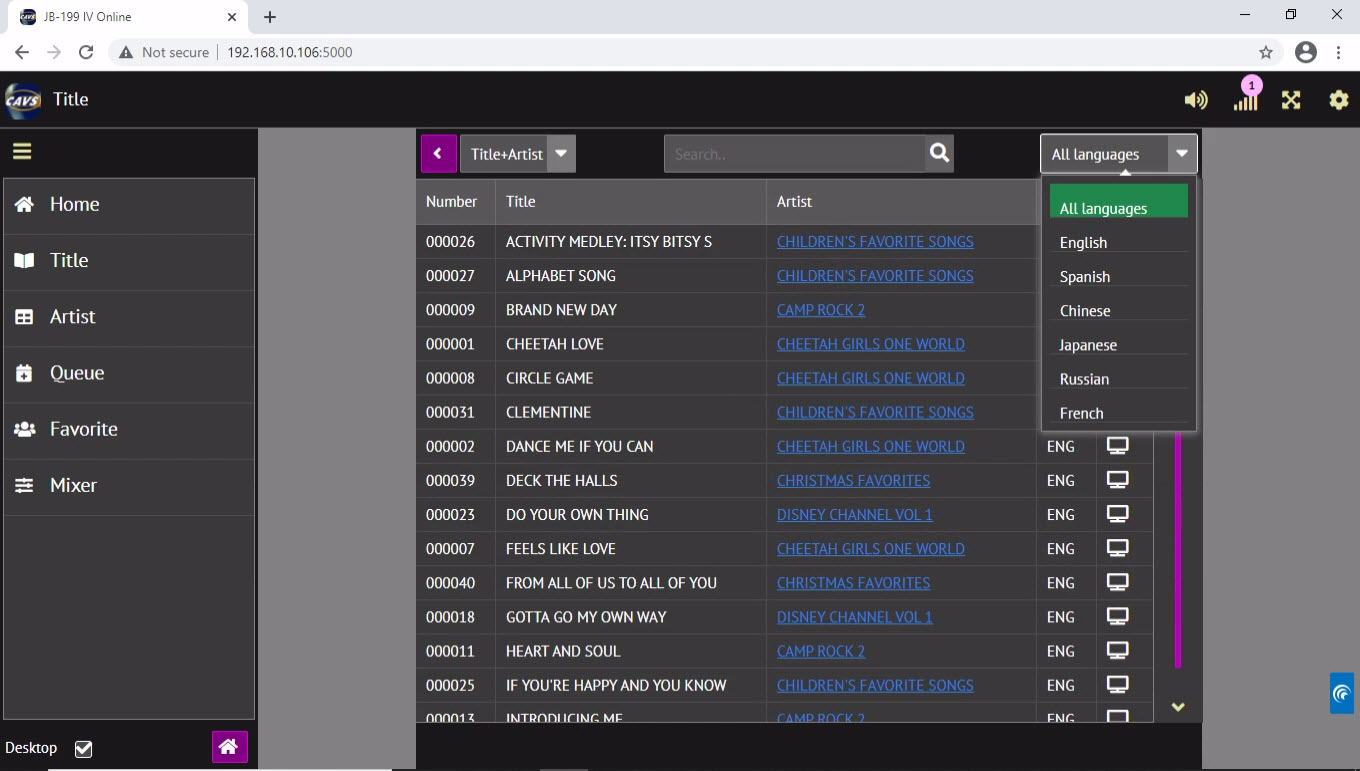
3.15 Language drop-down menu
Press to select songs by their language.
To view all songs, select All languages.
3.16 Scroll up by page Press to scroll up by a page in the song list.
3.17 Scroll bar Drag up and down to scroll through the song list.
3.18 Preview
Press to preview the song.
The song will play in a separate popup screen which will not be shared with other guests.
The preview playback time is limited by the setting in 4.5.A.2.1.5 Server & Browser.
When set to No Time Limit, the preview functions as karaoke-on-demand, allowing each guest to select and play different songs independently.
The preview includes independent pitch control, tempo control, and voice cancel functions.
Below is a screenshot of the preview.
3.19 Song language Indicate the song language.
3.20 Song producer Indicate the song producer.
3.21 Scroll down by page Press to scroll down by a page in the song list.
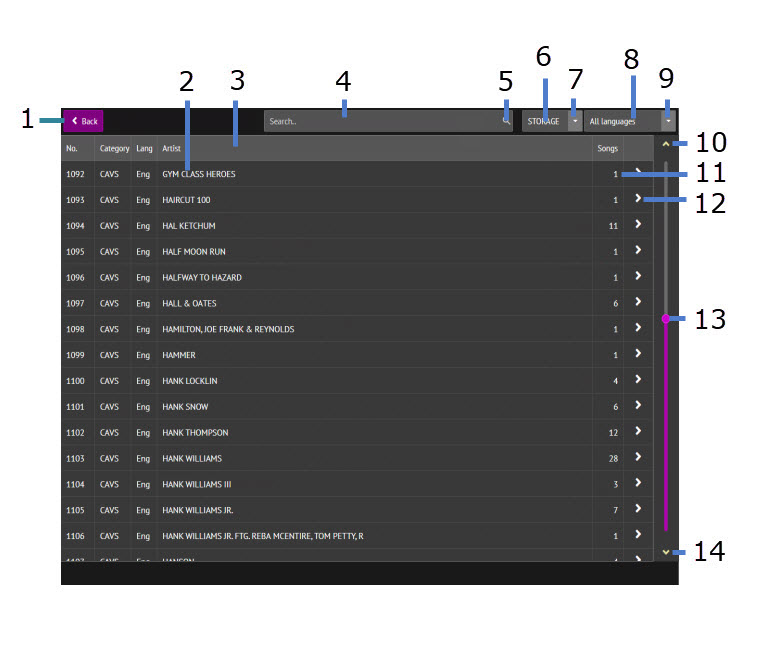
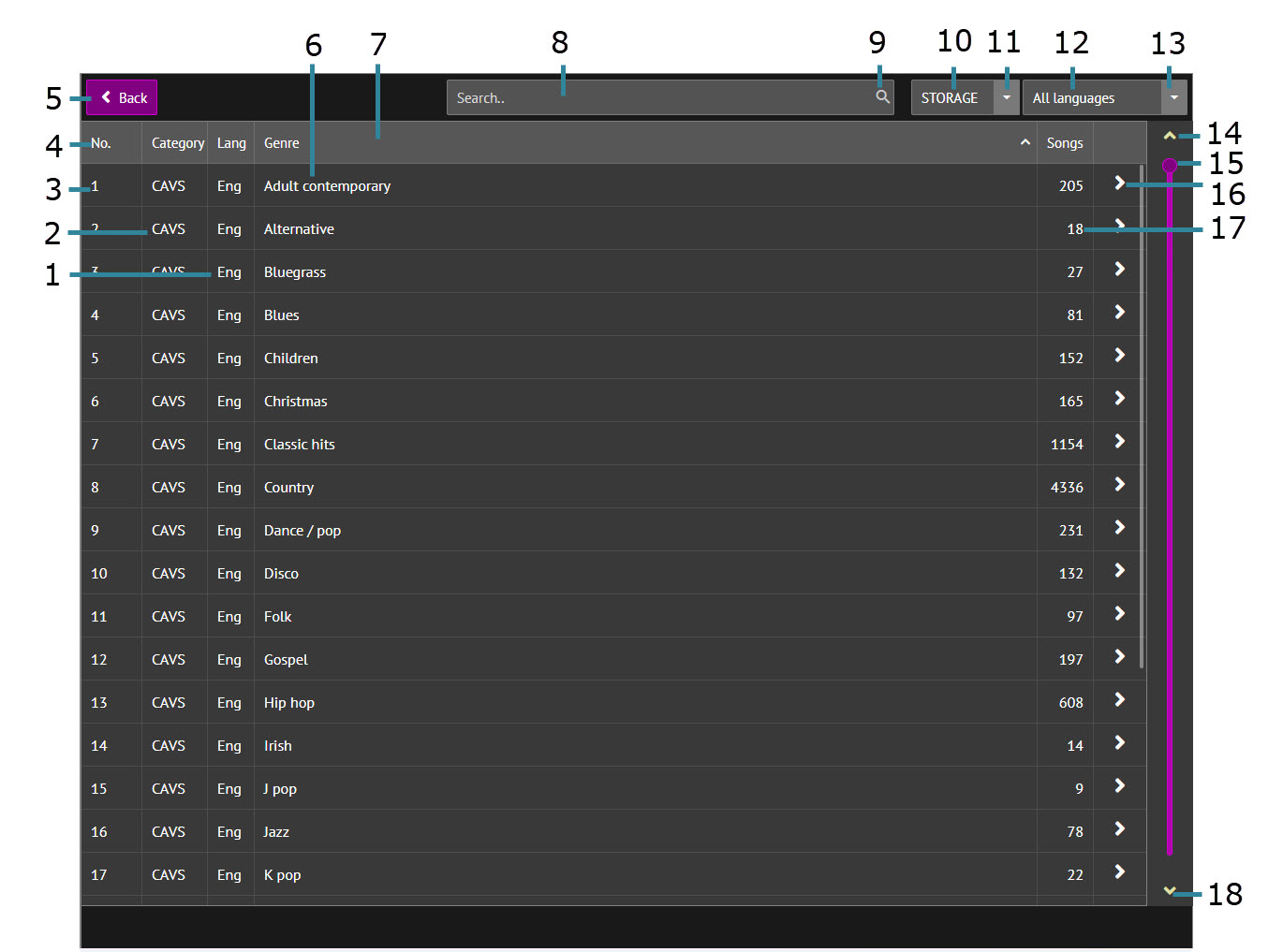
Press to view, scroll, and search the songs by artist. Following popup window will appear.
Song list by Title
4.1 Back/Return
4.2 Artist name
4.3 Artist field
4.4 Search input
4.5 Search
4.6 Storage status
4.7 Storage drop-down menu
4.8 Language status
4.9 Language drop-down menu
4.10 Scroll up by page
4.11 Number of song(s) by artist
4.12 Next/Proceed
4.13 Scroll bar
4.14 Scroll down by page
4.1 Back/Return Press to return to previous page
4.2 Artist name Press to go to the list of songs by the artist. Following popup window will appear.
Song list by Artist
4.2.1 Song number
4.2.2 Number field
4.2.3 Return/Back
4.2.4 Artist name - number of songs
4.2.5 Title field
4.2.6 Song title
4.2.7 Artist field
4.2.8 Song artist
4.2.9 Song producer field
4.2.10 Song language field
4.2.11 Preview
4.2.12 Song language
4.2.13 Song producer
4.2.1 Song number Press to reserve the song. Following popup window will appear.
Input the guest name into the Name. (optional)
Preset the Pitch, Tempo, and Volume. To move the sliders, you must first check the the Enable Controls box. (optional)
Press Queue to reserve the song. The screen will return to the Title page.
Press Favorite to add the song to a Favorite list.
The guest name must be entered; the Favorite list will appear under the corresponding guest name.
4.2.2 Number field Press to sort the songs by number in ascending order. Press again to sort in descending order.
4.2.3 Return/Back Press to return to previous page
4.2.4 Artist name - number of songs Indicates the selected artist name and the number of songs by the artist
4.2.5 Title field Press to sort the songs by Title in ascending order. Press again to sort in descending order.
4.2.6 Song title Press to reserve the song. Following popup window will appear.
Input the guest name into the Name. (optional)
Preset the Pitch, Tempo, and Volume. To move the sliders, you must first check the the Enable Controls box. (optional)
Press Queue to reserve the song. The screen will return to the Title page.
Press Favorite to add the song to a Favorite list.
The guest name must be entered; the Favorite list will appear under the corresponding guest name.
4.2.7 Artist field Press to sort the songs by artist in ascending order. Press again to sort by descending order.
4.2.8 Song artist Press to reserve the song. Following popup window will appear.
Input the guest name into the Name. (optional)
Preset the Pitch, Tempo, and Volume. To move the sliders, you must first check the the Enable Controls box. (optional)
Press Queue to reserve the song. The screen will return to the Title page.
Press Favorite to add the song to a Favorite list.
The guest name must be entered; the Favorite list will appear under the corresponding guest name.
4.2.9 Song producer field Press to sort the songs by producer in ascending order. Press again to sort by descending order.
4.2.10 Song language field Press to sort the songs by language in ascending order. Press again to sort by descending order.
4.2.11 Preview
Press to preview the song.
The song will play in a separate popup screen which will not be shared with other guests.
The preview playback time is limited by the setting in 4.5.A.2.1.5 Server & Browser.
When set to No Time Limit, the preview functions as karaoke-on-demand, allowing each guest to select and play different songs independently.
The preview includes independent pitch control, tempo control, and voice cancel functions.
Below is a screenshot of the preview in play.
4.2.12 Song language Indicate the song language.
4.2.13 Song producer Indicates the song producer.
4.3 Artist field Press to sort the artist names in ascending order. Press again to sort in descending order.
4.4 Search input Enter an artist name to search for. You may input any part of the name.
4.5 Search
Press to begin the search.
The search also starts automatically as each letter or character is entered into the search field.
Matching artists will be listed in real time.
When an artist is found, press 4.12 Next/Proceed to view all songs by the artist.
To return to the full list of artists, press the "X" icon to clear the search word(s).
4.6 Storage status
Indicates the song file storage location currently in effect to filter the songs.
Available locations depend on the songs loaded.
4.7 Storage drop-down menu
Press to select songs by their file storage location.
The menu will include CAVS when song files are stored locally within the karaoke player.
The menu will include CLOUD when songs are provided by the streaming services.
To view all songs, select the default option STORAGE.
4.8 Language status
Indicates the song language currently in effect to filter the songs.
Available languages depend on the songs loaded.
4.9 Language drop-down menu
Press to select songs by their language.
To view all songs, select All languages.
4.10 Scroll up by page Press to scroll up by a page in the song list.
4.11 Number of song(s) by artist Indicates the number of songs by the selected artist.
4.12 Next/Proceed Press to go to the list of songs by the artist. Following popup window will appear.
Song list by Artist
4.12.1 Song number
4.12.2 Number field
4.12.3 Return/Back
4.12.4 Artist name - number of songs
4.12.5 Title field
4.12.6 Song title
4.12.7 Artist field
4.12.8 Song artist
4.12.9 Song producer field
4.12.10 Song language field
4.12.11 Preview
4.12.12 Song language
4.12.13 Song producer
4.12.1 Song number Press to reserve the song. Following popup window will appear.
Input the guest name into the Name. (optional)
Preset the Pitch, Tempo, and Volume. To move the sliders, you must first check the the Enable Controls box. (optional)
Press Queue to reserve the song. The screen will return to the Title page.
Press Favorite to add the song to a Favorite list.
The guest name must be entered; the Favorite list will appear under the corresponding guest name.
4.12.2 Number field Press to sort the songs by number in ascending order. Press again to sort in descending order.
4.12.3 Return/Back Press to return to previous page
4.12.4 Artist name - number of songs Indicates the selected artist name and the number of songs by the artist
4.12.5 Title field Press to sort the songs by Title in ascending order. Press again to sort in descending order.
4.12.6 Song title Press to reserve the song. Following popup window will appear.
Input the guest name into the Name. (optional)
Preset the Pitch, Tempo, and Volume. To move the sliders, you must first check the the Enable Controls box. (optional)
Press Queue to reserve the song. The screen will return to the Title page.
Press Favorite to add the song to a Favorite list.
The guest name must be entered; the Favorite list will appear under the corresponding guest name.
4.12.7 Artist field Press to sort the songs by artist in ascending order. Press again to sort by descending order.
4.12.8 Song artist Press to reserve the song. Following popup window will appear.
Input the guest name into the Name. (optional)
Preset the Pitch, Tempo, and Volume. To move the sliders, you must first check the the Enable Controls box. (optional)
Press Queue to reserve the song. The screen will return to the Title page.
Press Favorite to add the song to a Favorite list.
The guest name must be entered; the Favorite list will appear under the corresponding guest name.
4.12.9 Song producer field Press to sort the songs by producer in ascending order. Press again to sort by descending order.
4.12.10 Song language field Press to sort the songs by language in ascending order. Press again to sort by descending order.
4.12.11 Preview
Press to preview the song.
The song will play in a separate popup screen which will not be shared with other guests.
The preview playback time is limited by the setting in 4.5.A.2.1.5 Server & Browser.
When set to No Time Limit, the preview functions as karaoke-on-demand, allowing each guest to select and play different songs independently.
The preview includes independent pitch control, tempo control, and voice cancel functions.
Below is a screenshot of the preview in play.
4.12.12 Song language Indicate the song language.
4.12.13 Song producer Indicates the song producer.
4.13 Scroll bar Indicates the number of songs by the selected artist.
4.14 Scroll down by page Press to scroll down by a page in the artist list.
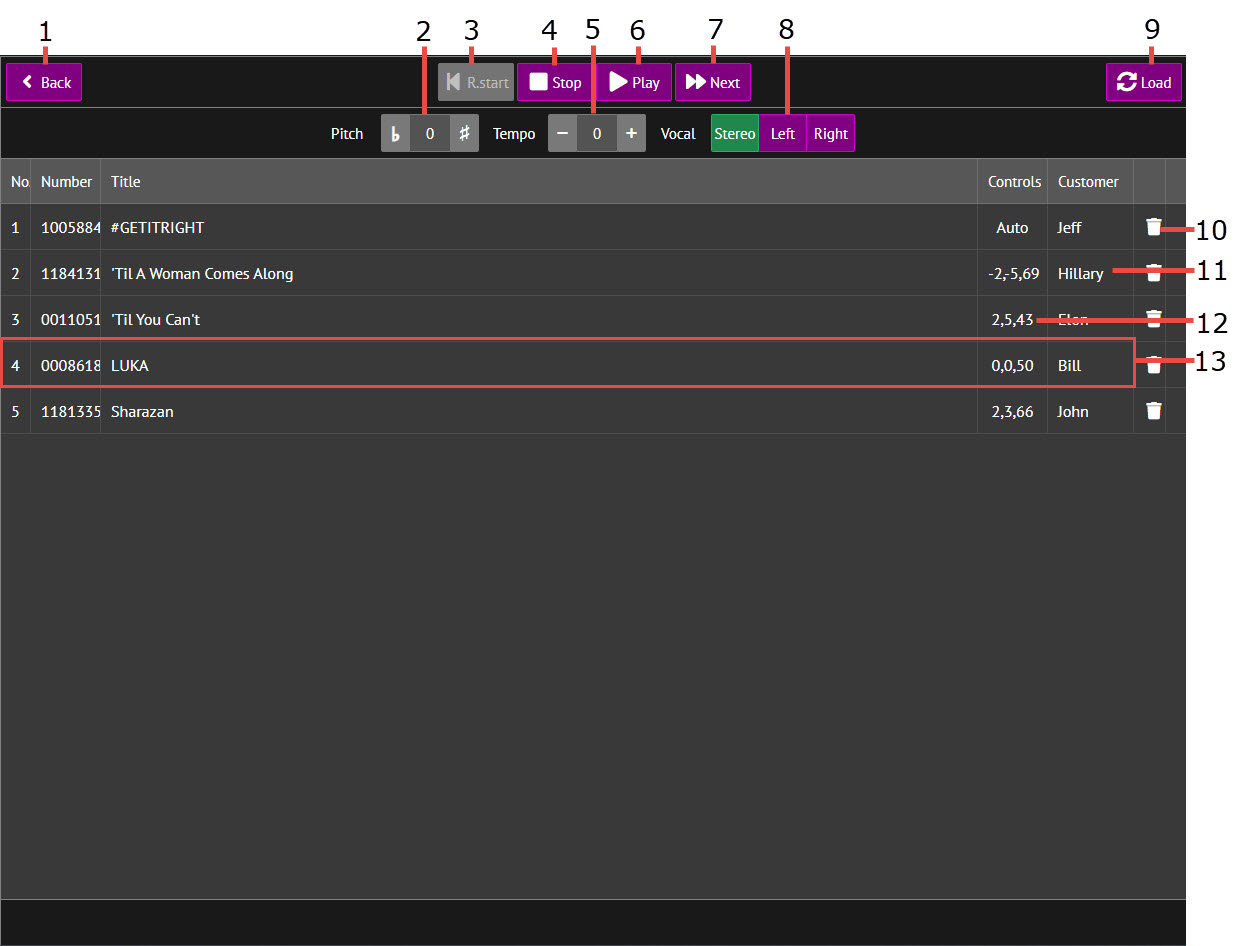
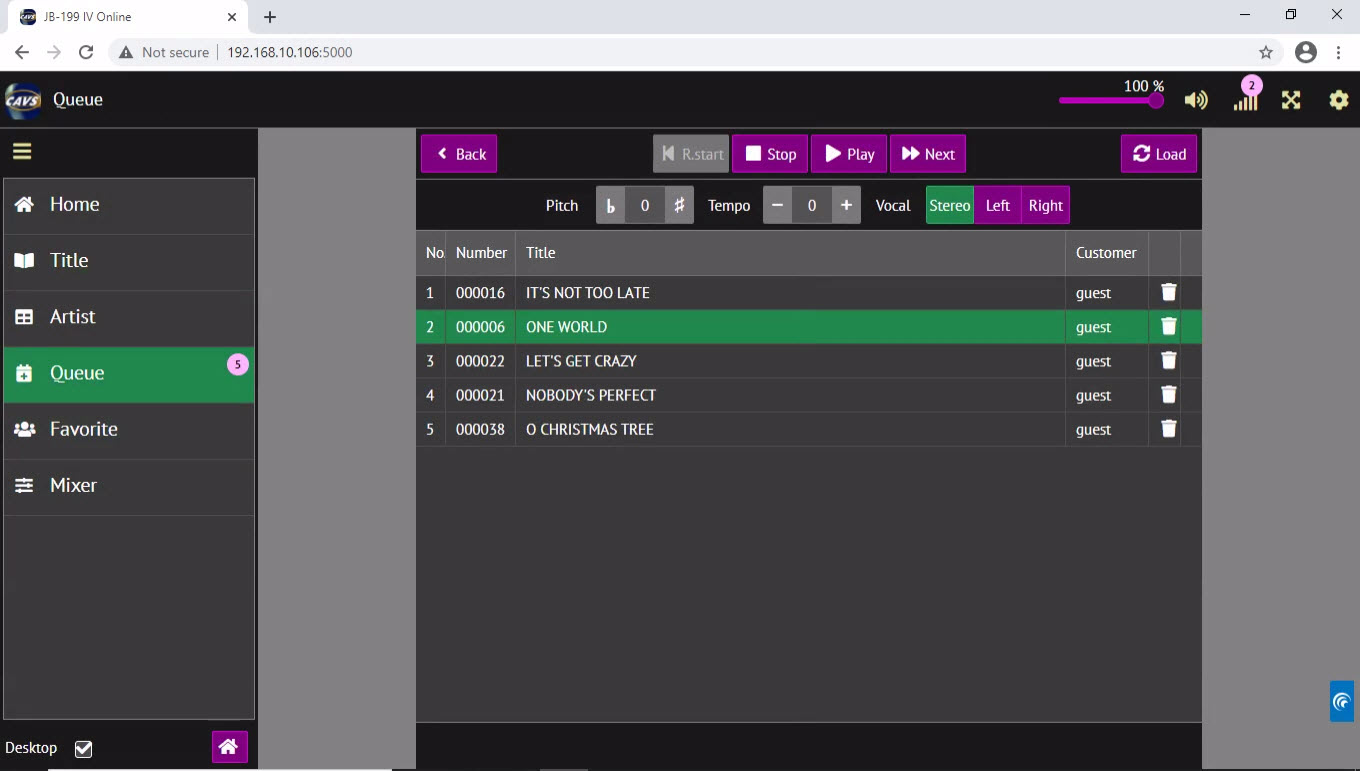
Press to display the reserved songs in the Queue. Following popup window will appear
Queue
5.1 Return/Back
5.2 Pitch control
5.3 Previous/Restart
5.4 Stop
5.5 Tempo control
5.6 Play
5.7 Next
5.8 Voice Cancel
5.9 Refresh
5.10 Delete
5.11 Customer name
5.12 Controls
5.13 Shuffle
5.1 Return/Back Press to go to previous page.
5.2 Pitch control Press # to raise and ♭ to lower the pitch of the song in play.
5.3 Restart Press to restart the song in play.
5.4 Stop Press to stop the song in play.
5.5 Tempo control Press + to increase and - to decrease the tempo of the song in play.
5.6 Play Press to play the song at the top of the queue.
5.7 Next Press to skip to the next song while a song is in play. The next song would be the one at the top of the queue.
5.8 Voice cancel
Press Left, Right, or Stereo to play the left, right, or both channels of music.
In a multiplex song, the left channel contains a singing voice and so playing only the right channel removes the singing voice.
Playing a single channel does not mean playing from a single speaker. The single channel would still play from both the left and right speakers but lack the stereo quality.
5.9 Refresh Press to refresh the screen.
5.10 Delete Press to delete the song from the Queue.
5.11 Customer name Displays the customer/guest name to sing the song.
5.12 Controls Displays preset values of pitch, tempo, and volume levels.
5.13 Shuffle Drag the song up and down to change its position in the Queue.
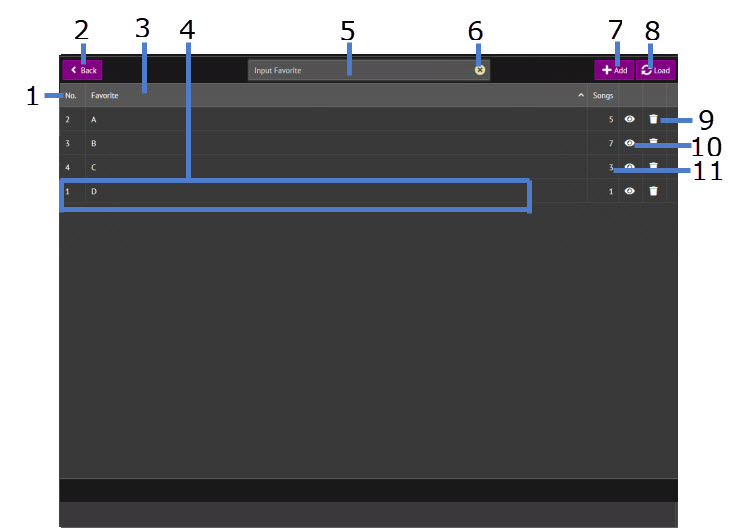
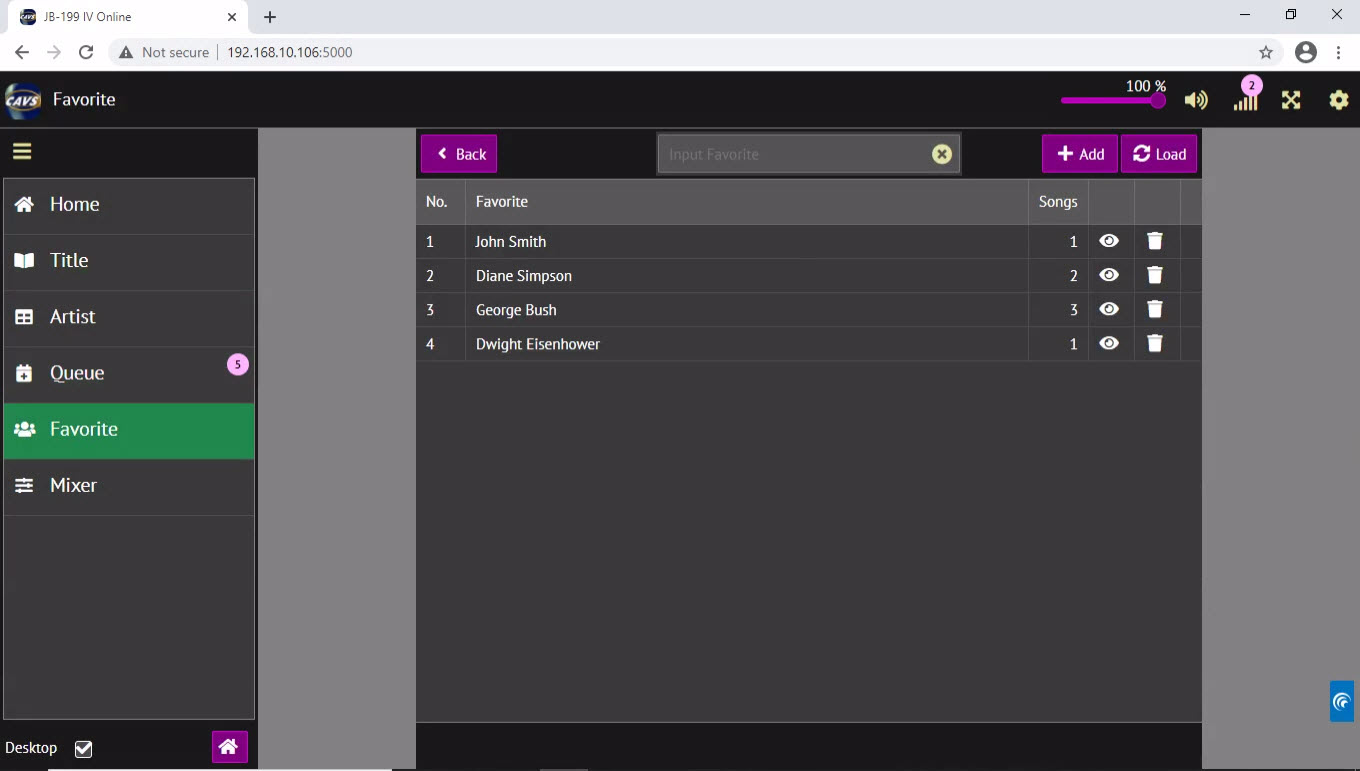
Press to see the Favorite lists. Following popup window will appear.
Favorite Lists
6.1 Favorite list number field
6.2 Return/Back
6.3 Favorite list name field
6.4 Favorite list
6.5 Favorite list input
6.6 Clear
6.7 Add
6.8 Refresh
6.9 Delete
6.10 Edit/View
6.11 Number of songs
6.1 Favorite list number field Press to sort the Favorite lists by number in ascending order. Press again to sort in descending order.
6.2 Return/Back Press to return to previous page.
6.3 Favorite list name field Press to sort the Favorite lists by name in ascending order. Press again to sort in descending order.
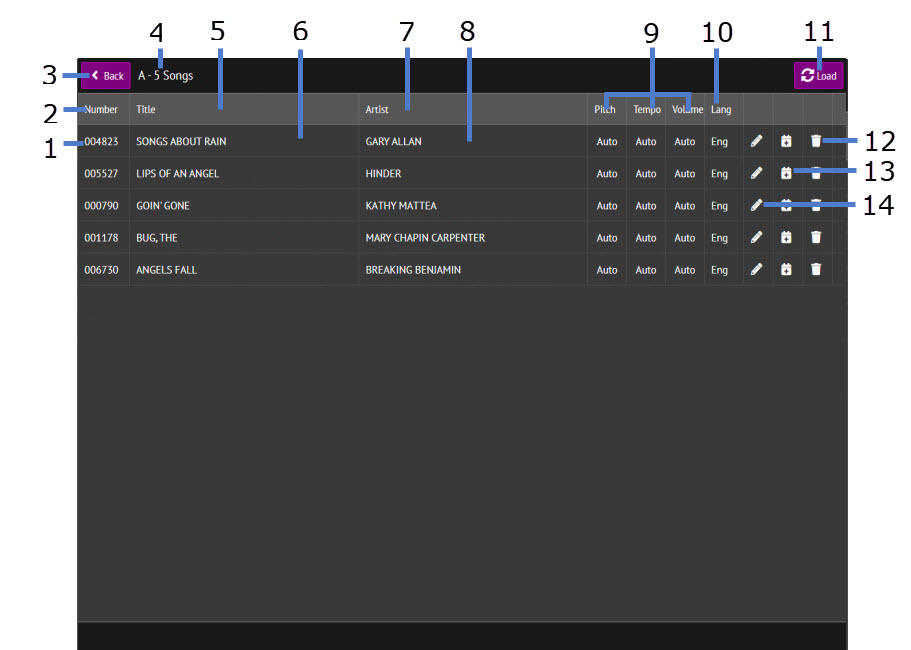
6.4 Favorite list Press to view/edit the songs in the selected Favorite list. Following popup window will appear.
6.4.1 Song number
6.4.2 Number field
6.4.3 Return/Back
6.4.4 Favorite list status
6.4.5 title field
6.4.6 Song title
6.4.7 Artist field
6.4.8 Song artist
6.4.9 Controls status
6.4.10 Language status
6.4.1 Song number Press to reserve the selected song in Queue. Following popup window will appear.
the customer name automatically fills in from the Favorite list name.
The control values of pitch, tempo, and volume also fill in from the favorite list.
Editing the customer name or the control values further is optional.
Press Queue to reserve the song. The screen will return to the Favorite list.
Press Cancel to return to the Favorite list without reserving the song.
6.4.2 Number field Press to sort the songs by number in ascending order. Press again to sort the songs in descending order.
6.4.3 Return/Back Press to return to previous page.
6.4.4 Favorite list status Indicates the name of the selected Favorite list and the number of songs within.
6.4.5 Title field Press to sort the songs by title in ascending order. Press again to sort the songs in descending order.
6.4.6 Song title Press to reserve the selected song in Queue. Following popup window will appear.
The customer name automatically fills in from the Favorite list name.
The control values of pitch, tempo, and volume also fill in from the favorite list.
Editing the customer name or the control values further is optional.
Press Queue to reserve the song. The screen will return to the Favorite list.
Press Cancel to return to the Favorite list without reserving the song.
6.4.7 Artist field Press to sort the songs by artist in ascending order. Press again to sort the songs in descending order.
6.4.8 Song artist Press to reserve the selected song in Queue. Following popup window will appear.
The customer name automatically fills in from the Favorite list name.
The control values of pitch, tempo, and volume also fill in from the favorite list.
Editing the customer name or the control values further is optional.
Press Queue to reserve the song. The screen will return to the Favorite list.
Press Cancel to return to the Favorite list without reserving the song.
6.4.9 Controls status Indicates the preset values of pitch, tempo, and volume levels.
6.4.10 Language status Indicates the language of the song.
6.4.11 Load/Refresh Press to refresh the Favorite list.
6.4.12 Delete Press to delete the song from the Favorite list.
6.4.13 Queue Press to reserve the selected song in Queue. Following popup window will appear.
The customer name automatically fills in from the Favorite list name.
The control values of pitch, tempo, and volume also fill in from the favorite list.
Editing the customer name or the control values further is optional.
Press Queue to reserve the song. The screen will return to the Favorite list.
Press Cancel to return to the Favorite list without reserving the song.
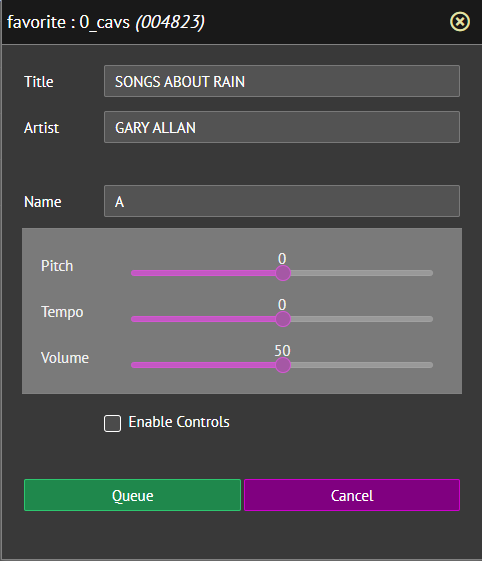
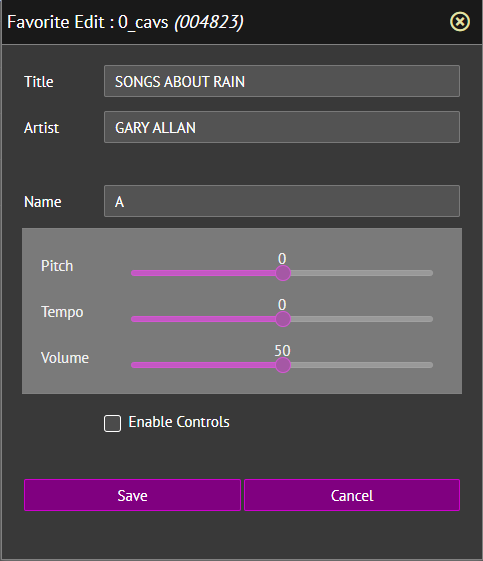
6.4.12 Edit/View Press to edit/view the song from the Favorite list. Following popup window will appear.
The customer name automatically fills in from the Favorite list name.
The control values of pitch, tempo, and volume also fill in from the favorite list.
Edit the customer name or the control values.
Press Save to save the changes. The screen will return to the Favorite list.
Press Cancel to return to the Favorite list without saving.
6.5 Favorite list input Input a name for a new Favorite list.
6.6 Clear Press to clear the input.
6.7 Add
Press to create a new Favorite list.
A name is required in the 6.5 Favorite list input.
6.8 Refresh Press to refresh the Favorite lists.
6.9 Delete Press to delete the Favorite list.
6.10 Edit/View
Press to view/edit the Favorite list.
See 6.4 Favorite list for detail description of the Favorite list.
6.11 Number of songs Indicate the number of songs within the Favorite list.
Press the Album to view, scroll, and search the songs by album. Following popup window will appear.
7.1 Album language
7.2 Album storage
7.3 Album number
7.4 Album number field
7.5 Return/Back
7.6 Album name
7.7 Album name field
7.8 Search input
7.9 Search
7.10 Album storage status
7.11 Album storage drop-down menu
7.12 Album language status
7.13 Album language drop-down menu
7.14 Scroll up by page
7.15 Next/Proceed
7.16 Number of songs in album
7.17 Scroll bar
7.18 Scroll down by page
7.1 Album language
Indicates the song language of the song(s) in the selected album.
7.2 Album storage
Indicates the song storage location of the song(s) in the selected album.
Available locations depend on the songs loaded.
7.3 Album number Indicates the album number.
7.4 Album number field
Press to sort the albums by the Album number in ascending order. Press again to sort in descending order
7.5 Return/Back Press to return to previous page.
7.6 Album name Press to view the songs uner the selected album. Following popup window will appear.
7.6.1 Song number, title, and artist
7.6.2 Song number field
7.6.3 Return/Back
7.6.4 Album name and number of songs
7.6.5 Song title field
7.6.6 Song artist field
7.6.7 Song producer
7.6.8 Song language
7.6.9 Preview
7.6.1 Song number, title, and artist
Press the song number, title, or artist to reserve the song. Following popup window will appear.
Input the guest name into the Name. (optional)
Preset the Pitch, Tempo, and Volume. To move the sliders, you must first check the the Enable Controls box. (optional)
Press Queue to reserve the song. The screen will return to the Title page.
Press Favorite to add the song to a Favorite list.
The guest name must be entered; the Favorite list will appear under the corresponding guest name.
7.6.2 Song number field
Press to sort the songs by number in ascending order. Press again to sort in descending order.
7.6.3 Return/Back Press to return to previous page.
7.6.4 Album name and number of songs
Indicates the album name and the number of songs under the album.
7.6.5 Song title field
Press to sort the songs by title in ascending order. Press again to sort in descending order.
7.6.6 Song artist field
Press to sort the songs by artist number in ascending order. Press again to sort in descending order.
7.6.7 Song producer Indicates the song producer.
7.6.8 Song language
Indicates the song language.
7.6.9 Preview
Press to preview the song.
The song will play in a separate popup screen which will not be shared with other guests.
The preview playback time is limited by the setting in 4.5.A.2.1.5 Server & Browser.
When set to No Time Limit, the preview functions as karaoke-on-demand, allowing each guest to select and play different songs independently.
The preview includes independent pitch control, tempo control, and voice cancel functions.
Below is a screenshot of the preview.
7.7 Album name field
Press to sort the albums by name in ascending order. Press again to sort in descending order.
7.8 Search input Enter the word(s) to search for. Matching results will be found from the album list.
7.9 Search
Press to begin the search.
The search also starts automatically as each letter or character is entered into the search field.
Matching albums will be listed in real time.
To return to the full album list, click the "X" icon to clear the search word(s).
7.10 Album storage status
Indicates the song storage location currently in effect to filter the songs.
Available locations depend on the songs loaded.
7.11 Album storage drop-down menu
Press to select albums by the song file storage location.
The menu will include CAVS when songs are stored locally within the karaoke player.
The menu will include CLOUD when songs are provided by the streaming services.
To view all albums, select the default option STORAGE.
7.12 Album language status
Indicates the song language currently in effect to filter the songs.
Available languages depend on the songs loaded.
7.13 Album language drop-down menu
Press to select albums by the song language.
To view all albums, select the default option All languages.
7.14 Scroll up by page Press to scroll up by a page in the album list.
7.15 Next/Proceed Press to view the song list uner the selected album. Following popup window will appear.
7.15.1 Song number, title, and artist
7.15.2 Song number field
7.15.3 Return/Back
7.15.4 Album name and number of songs
7.15.5 Song title field
7.15.6 Song artist field
7.15.7 Song producer
7.15.8 Song language
7.15.9 Preview
7.15.1 Song number, title, and artist
Press the song number, title, or artist name to reserve the selected song. Following popup window will appear.
Input the guest name into the Name. (optional)
Preset the Pitch, Tempo, and Volume. To move the sliders, you must first check the the Enable Controls box. (optional)
Press Queue to reserve the song. The screen will return to the Title page.
Press Favorite to add the song to a Favorite list.
The guest name must be entered; the Favorite list will appear under the corresponding guest name.
7.15.2 Song number field
Press to sort the songs by number in ascending order. Press again to sort in descending order.
7.15.3 Return/Back Press to return to previous page.
7.15.4 Album name and number of songs
Indicates album name of the selected album and the number of songs under the album.
7.15.5 Song title field
Press to sort the songs by title in ascending order. Press again to sort in descending order.
7.15.6 Song artist field
Press to sort the songs by artist number in ascending order. Press again to sort in descending order.
7.15.7 Song producer Indicates the song producer.
7.15.8 Song language
Indicates the song language.
7.15.9 Preview
Press to preview the song.
The song will play in a separate popup screen which will not be shared with other guests.
The preview playback time is limited by the setting in 4.5.A.2.1.5 Server & Browser.
When set to No Time Limit, the preview functions as karaoke-on-demand, allowing each guest to select and play different songs independently.
The preview includes independent pitch control, tempo control, and voice cancel functions.
Below is a screenshot of the preview.
7.16 Number of songs in album
Indicates the number of songs in the selected album.
7.17 Scroll bar
Drag up and down to scroll through the album list.
7.18 Scroll down by page
Press to scroll down by a page in the album list.
Press the Genre to view, scroll, and search the songs by genre. Following popup window will appear.
8.1 Genre language
8.2 Genre storage
8.3 Genre number
8.4 Genre number field
8.5 Return/Back
8.6 Genre name
8.7 Genre name field
8.8 Search input
8.9 Search
8.10 Genre storage status
8.11 Genre storage drop-down menu
8.12 Genre language status
8.13 Genre language drop-down menu
8.14 Scroll up by page
8.15 Scroll bar
8.16 Next/Proceed
8.17 Number of songs in album
8.18 Scroll down by page
8.1 Genre language
Indicates the song language of the song(s) in the selected genre.
8.2 Genre storage
Indicates the song storage location of the song(s) in the selected genre.
Available locations depend on the songs loaded.
8.3 Genre number Indicates the genre number.
8.4 Genre number field
Press to sort the genres by number in ascending order. Press again to sort in descending order
8.5 Return/Back Press to return to previous page.
8.6 Genre name Press to view to the songs uner the selected genre name. Following popup window will appear.
8.6.1 Song number, title, and artist
8.6.2 Song number field
8.6.3 Return/Back
8.6.4 Album name and number of songs
8.6.5 Song title field
8.6.6 Song artist field
8.6.7 Song producer
8.6.8 Song language
8.6.9 Preview
8.6.1 Song number, title, and artist
Press to reserve the song. Following popup window will appear.
Input the guest name into the Name. (optional)
Preset the Pitch, Tempo, and Volume. To move the sliders, you must first check the the Enable Controls box. (optional)
Press Queue to reserve the song. The screen will return to the Title page.
Press Favorite to add the song to a Favorite list.
The guest name must be entered; the Favorite list will appear under the corresponding guest name.
8.6.2 Song number field
Press to sort the songs by number in ascending order. Press again to sort in descending order.
8.6.3 Return/Back Press to return to previous page.
8.6.4 Genre name and number of songs
Indicates the selected genre name and the number of songs under the genre.
8.6.5 Song title field
Press to sort the songs by title in ascending order. Press again to sort in descending order.
8.6.6 Song artist field
Press to sort the songs by artist number in ascending order. Press again to sort in descending order.
8.6.7 Song producer Indicates the song producer.
8.6.8 Song language
Indicates the song language.
8.6.9 Preview
Press to preview the song.
The song will play in a separate popup screen which will not be shared with other guests.
The preview playback time is limited by the setting in 4.5.A.2.1.5 Server & Browser.
When set to No Time Limit, the preview functions as karaoke-on-demand, allowing each guest to select and play different songs independently.
The preview includes independent pitch control, tempo control, and voice cancel functions.
Below is a screenshot of the preview.
8.7 Genre name field
Press to sort the genres by name in ascending order. Press again to sort in descending order.
8.8 Search input Enter the word(s) to search for. Matching results will be found from the genre list.
8.9 Search
Press to begin the search.
The search also starts automatically as each letter or character is entered into the search field.
Matching genres will be listed in real time.
To return to the full album list, click the "X" icon to clear the search word(s).
8.10 Genre storage status
Indicates the song storage location currently in effect to filter the genres.
Available locations depend on the songs loaded.
8.11 Album storage drop-down menu
Press to select genres by their song file storage location.
The menu will include CAVS when song files are stored locally within the karaoke player.
The menu will include CLOUD when songs are provided by the streaming services.
To view all genres, select the default option STORAGE.
8.12 Genre language status
Indicates the song language currently in effect to filter the genres.
Available languages depend on the songs loaded.
8.13 Genre language drop-down menu
Press to select genres by their song language.
To view all albums, select the default option All languages.
8.14 Scroll up by page Press to scroll up by a page in the genre list.
8.15 Scroll bar
Drag up and down to scroll through the genre list.
8.16 Next/Proceed Press to view the songs uner the selected genre name. Following popup window will appear.
8.16.1 Song number, title, and artist
8.16.2 Song number field
8.16.3 Return/Back
8.16.4 Album name and number of songs
8.16.5 Song title field
8.16.6 Song artist field
8.16.7 Song producer
8.16.8 Song language
8.16.9 Preview
8.16.1 Song number, title, and artist
Press to reserve the song. Following popup window will appear.
Input the guest name into the Name. (optional)
Preset the Pitch, Tempo, and Volume. To move the sliders, you must first check the the Enable Controls box. (optional)
Press Queue to reserve the song. The screen will return to the Title page.
Press Favorite to add the song to a Favorite list.
The guest name must be entered; the Favorite list will appear under the corresponding guest name.
8.16.2 Song number field
Press to sort the songs by number in ascending order. Press again to sort in descending order.
8.16.3 Return/Back Press to return to previous page.
8.16.4 Genre name and number of songs
Indicates the selected genre name and the number of songs under the genre.
8.16.5 Song title field
Press to sort the songs by title in ascending order. Press again to sort in descending order.
8.16.6 Song artist field
Press to sort the songs by artist number in ascending order. Press again to sort in descending order.
8.16.7 Song producer Indicates the song producer.
8.16.8 Song language
Indicates the song language.
8.16.9 Preview
Press to preview the song.
The song will play in a separate popup screen which will not be shared with other guests.
The preview playback time is limited by the setting in 4.5.A.2.1.5 Server & Browser.
When set to No Time Limit, the preview functions as karaoke-on-demand, allowing each guest to select and play different songs independently.
The preview includes independent pitch control, tempo control, and voice cancel functions.
Below is a screenshot of the preview.
8.17 Number of songs in genrem
Indicates the number of songs in the selected genre.
8.18 Scroll down by page
Press to scroll down by a page in the album list.
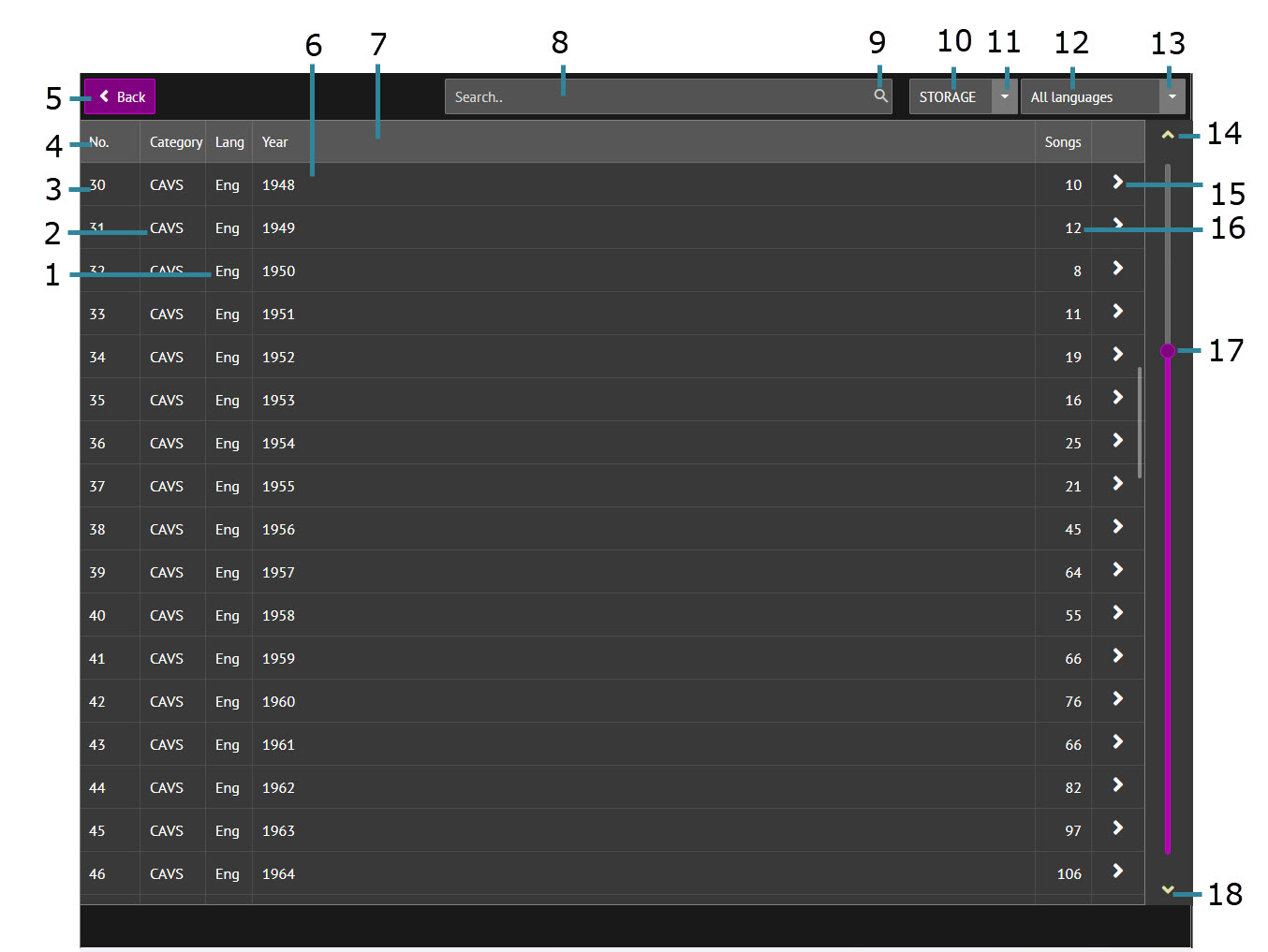
Press the Year to view, scroll, and search the songs by year. Following popup window will appear.
9.1 Genre language
9.2 Genre storage
9.3 Genre number
9.4 Genre number field
9.5 Return/Back
9.6 Genre name
9.7 Genre name field
9.8 Search input
9.9 Search
9.10 Genre storage status
9.11 Genre storage drop-down menu
9.12 Genre language status
9.13 Genre language drop-down menu
9.14 Scroll up by page
9.15 Next/Proceed
9.16 Number of songs in album
9.17 Scroll bar
9.18 Scroll down by page
9.1 Year language
Indicates the song language of the song(s) in the selected year.
9.2 Year storage
Indicates the song storage location of the song(s) in the selected year.
Available locations depend on the songs loaded.
9.3 Year number Indicates the year number.
9.4 Year number field
Press to sort the years by number in ascending order. Press again to sort in descending order
9.5 Return/Back Press to return to previous page.
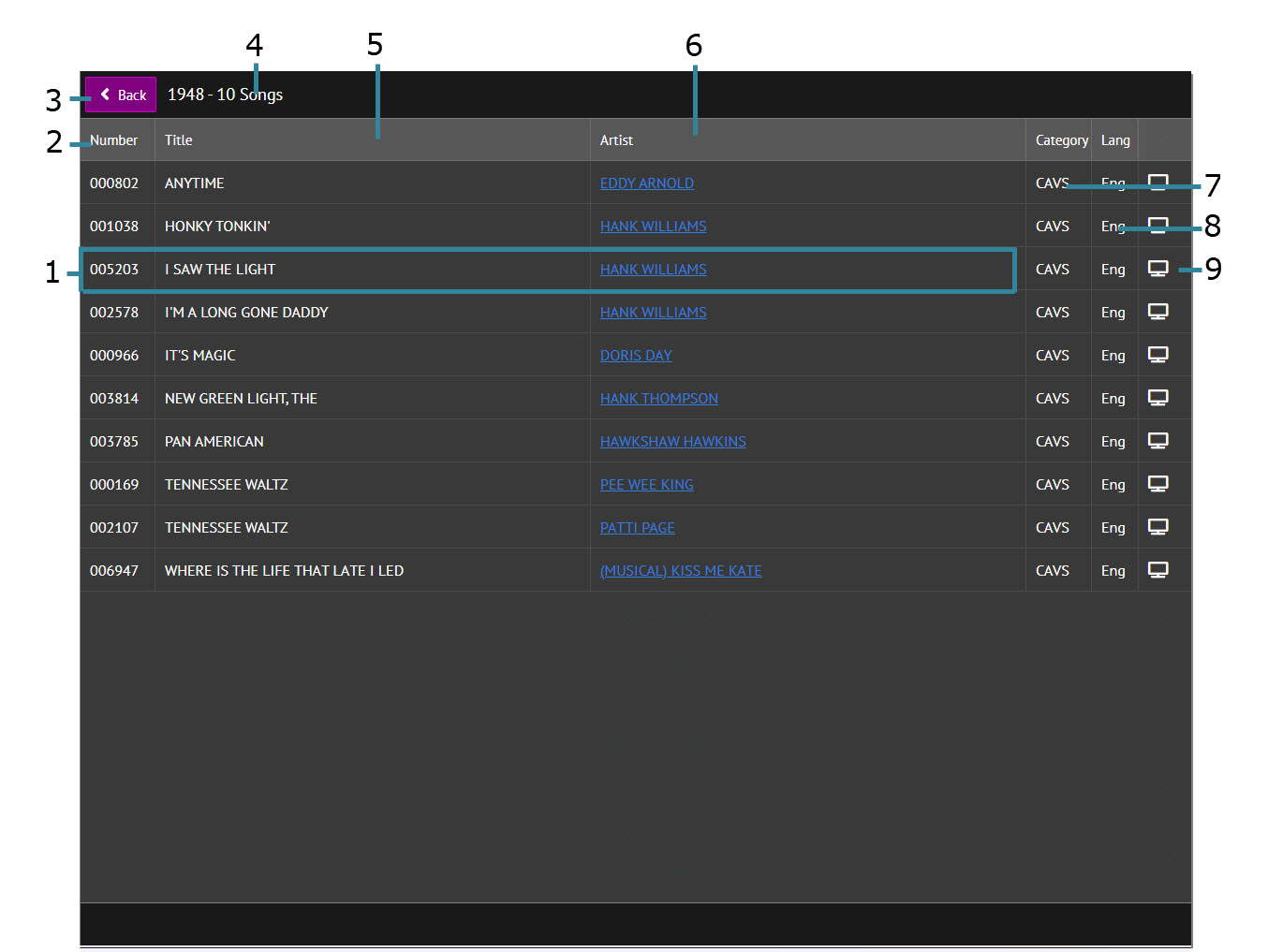
9.6 Year name Press to view to the songs uner the selected year name. Following popup window will appear.
9.6.1 Song number, title, and artist
9.6.2 Song number field
9.6.3 Return/Back
9.6.4 Album name and number of songs
9.6.5 Song title field
9.6.6 Song artist field
9.6.7 Song producer
9.6.8 Song language
9.6.9 Preview
9.6.1 Song number, title, and artist
Press to reserve the song. Following popup window will appear.
Input the guest name into the Name. (optional)
Preset the Pitch, Tempo, and Volume. To move the sliders, you must first check the the Enable Controls box. (optional)
Press Queue to reserve the song. The screen will return to the Title page.
Press Favorite to add the song to a Favorite list.
The guest name must be entered; the Favorite list will appear under the corresponding guest name.
9.6.2 Song number field
Press to sort the songs by number in ascending order. Press again to sort in descending order.
9.6.3 Return/Back Press to return to previous page.
9.6.4 Year name and number of songs
Indicates the selected year name and the number of songs under the year.
9.6.5 Song title field
Press to sort the songs by title in ascending order. Press again to sort in descending order.
9.6.6 Song artist field
Press to sort the songs by artist number in ascending order. Press again to sort in descending order.
9.6.7 Song producer Indicates the song producer.
9.6.8 Song language
Indicates the song language.
9.6.9 Preview
Press to preview the song.
The song will play in a separate popup screen which will not be shared with other guests.
The preview playback time is limited by the setting in 4.5.A.2.1.5 Server & Browser.
When set to No Time Limit, the preview functions as karaoke-on-demand, allowing each guest to select and play different songs independently.
The preview includes independent pitch control, tempo control, and voice cancel functions.
Below is a screenshot of the preview.
9.7 Year name field
Press to sort the years by name in ascending order. Press again to sort in descending order.
9.8 Search input Enter the word(s) to search for. Matching results will be found from the year list.
9.9 Search
Press to begin the search.
The search also starts automatically as each letter or character is entered into the search field.
Matching genres will be listed in real time.
To return to the full album list, click the "X" icon to clear the search word(s).
9.10 Yeear storage status
Indicates the song storage location currently in effect to filter the years.
Available locations depend on the songs loaded.
9.11 Year storage drop-down menu
Press to select years by their song file storage location.
The menu will include CAVS when song files are stored locally within the karaoke player.
The menu will include CLOUD when songs are provided by the streaming services.
To view all years, select the default option STORAGE.
9.12 Year language status
Indicates the song language currently in effect to filter the years.
Available languages depend on the songs loaded.
9.13 Year language drop-down menu
Press to select years by their song language.
To view all years, select the default option All languages.
9.14 Scroll up by page Press to scroll up by a page in the year list.
9.15 Next/Proceed Press to view the songs uner the selected year name. Following popup window will appear.
9.15.1 Song number, title, and artist
9.15.2 Song number field
9.15.3 Return/Back
9.15.4 Year name and number of songs
9.15.5 Song title field
9.15.6 Song artist field
9.15.7 Song producer
9.15.8 Song language
9.15.9 Preview
9.15.1 Song number, title, and artist
Press to reserve the song. Following popup window will appear.
Input the guest name into the Name. (optional)
Preset the Pitch, Tempo, and Volume. To move the sliders, you must first check the the Enable Controls box. (optional)
Press Queue to reserve the song. The screen will return to the Title page.
Press Favorite to add the song to a Favorite list.
The guest name must be entered; the Favorite list will appear under the corresponding guest name.
9.15.2 Song number field
Press to sort the songs by number in ascending order. Press again to sort in descending order.
9.15.3 Return/Back Press to return to previous page.
9.15.4 Year name and number of songs
Indicates the selected year name and the number of songs under the year.
9.15.5 Song title field
Press to sort the songs by title in ascending order. Press again to sort in descending order.
9.15.6 Song artist field
Press to sort the songs by artist number in ascending order. Press again to sort in descending order.
9.15.7 Song producer Indicates the song producer.
9.15.8 Song language
Indicates the song language.
9.15.9 Preview
Press to preview the song.
The song will play in a separate popup screen which will not be shared with other guests.
The preview playback time is limited by the setting in 4.5.A.2.1.5 Server & Browser.
When set to No Time Limit, the preview functions as karaoke-on-demand, allowing each guest to select and play different songs independently.
The preview includes independent pitch control, tempo control, and voice cancel functions.
Below is a screenshot of the preview.
9.16 Number of songs in year
Indicates the number of songs in the selected year.
9.17 Scroll bar
Drag up and down to scroll through the year list.
9.18 Scroll down by page
Press to scroll down by a page in the album list.
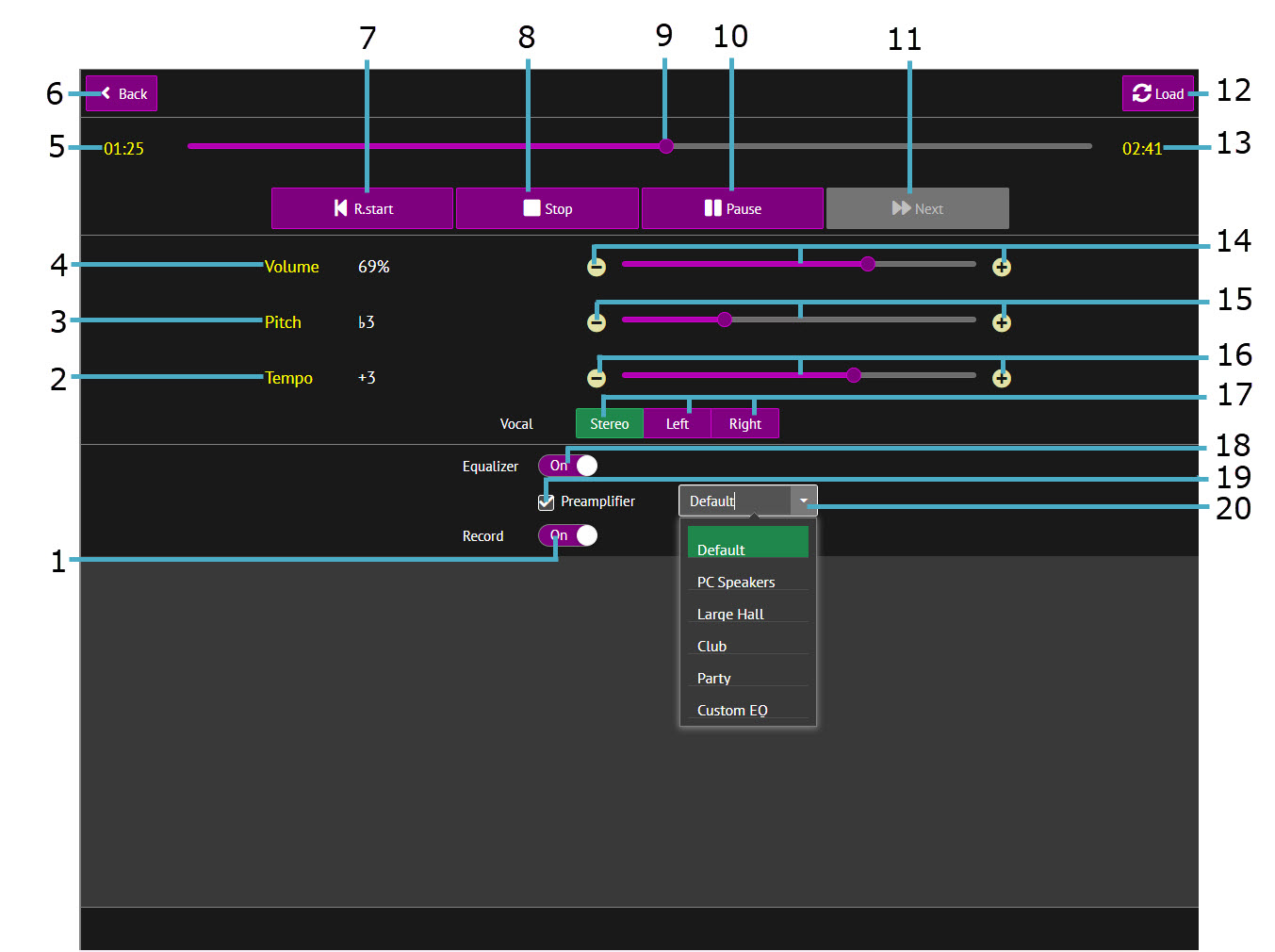
Press the Control to view and change the control settings of the song in play. Following popup window will appear.
10.1 Record
10.2 Tempo status
10.3 Pitch status
10.4 Volume status
10.5 Replay time
10.6 Return/Back
10.7 Restart
10.8 Stop
10.9 Replay bar
10.10 Play/Pause
10.11 Next
10.12 Refresh
10.13 Remaining time
10.14 Volume control
10.15 Pitch control
10.16 Tempo control
10.17 Voice cancel
10.18 Equalizer
10.19 Preamplifier
10.20 Equalizer presets
10.1 Record
Press to turn recording on or off.
See 7.2.9 Recording for more details.
10.2 Tempo status
Indicates the tempo level of the song in play.
10.3 Pitch status Indicates the pitch/key level of the song in play.
10.4 Volume status
Indicates the music volume level of the song in play.
10.5 Replay time Indicates the elapsed time of the song in play.
10.6 Return/Back
Press to return to previous page.
10.7 Restart
Press to restart the song in play.
10.8 Stop Press to stop the song in play.
10.9 Replay bar
Slide left or right to jump to any point in the song.
10.10 Play/Pause Press to play the song. Press again to pause the song.
10.11 Next
Press to play the next song in Queue.
10.12 Refresh
Press to refresh the page.
10.13 Remaining time Indicates the remaining time in the song.
10.14 Volume status
Drag slider or use + / – buttons to adjust volume.
10.15 Pitch control Drag slider or use + / – buttons to adjust pitch/key.
10.16 Tempo control
Drag slider or use + / – buttons to adjust tempo.
10.17 Voice cancel
Select audio mode: Stereo, Left channel, or Right channel.
MPX karaoke files place the singing voice in the right channel only. Select "Left channel only" to play the instrumental version without vocals.
When a single channel is selected, the music is still output to both right and left speakers.
However, both speakers play the exact same channel audio, resulting in mono playback without stereo quality or separation.
10.18 Equalizer
Press to turn on or off the equalizer.
Tunring on the eqaulitzer also enables the 19. Preamplifier and the 20. Equalizer presets.
See 4.5.D Equalizer for more details, including how to set the equalizer manually.
10.19 Preamplifier
Check to turn on the preamplifier.
It regulates the volume level of the song in play to be consistent with other songs.
10.20 Equalizer presets Select an equalizer preset from the drop-down menu.
Uncheck the Desktop button to switch the customer interface to Tablet mode.
11.1 Menu
11.1 Menu
Press to display the menu.
Place a checkmark on the Desktop button to return to the Customer Interface in Desktop mode.
Return to Home page.
The home page display the karaoke lyrics when 4.5.A.2.1.5.3 Enable Video Streaming For All option is checked.
See 3.Title. This button is designed to be more touch-friendly.
See 4. Artist. This button is designed to be more touch-friendly.
See 5. Queue. This button is designed to be more touch-friendly.
See 6. Favorite. This button is designed to be more touch-friendly.
See 7. Album. This button is designed to be more touch-friendly.
See 8. Genre. This button is designed to be more touch-friendly.
See 9. Year. This button is designed to be more touch-friendly.
See 10. Control. This button is designed to be more touch-friendly.
Refresh the page.
Select audio mode: Stereo, Left channel, or Right channel.
MPX karaoke files in particular place the singing voice in the right channel only.
Select "Left channel only" to play the instrumental version without vocals.
When a single channel is selected, the music is still output to both right and left speakers. However, both speakers play the exact same channel audio, resulting in mono playback without stereo quality or separation.
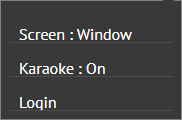
Press to view or change the setting. Following window will appear.
Click on Screen:Window to change the screen to Tablet mode.
Click again on the Setting > Screen:Full to return to Desktop mode.
Click on Karaoke:On to
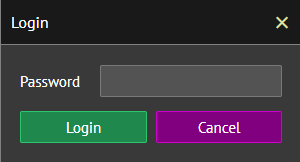
Click on Login and the following windows will appear.
Input the password and press Login.
The password must first be enabled at 4.5.A.2.1.1.5 Enable Password for Tools Setting.
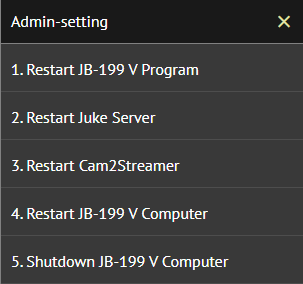
The following drop-down menu will appear.
Click to proceed with any command.
Press to expand the screen fully in the Google Chrome browser.
Press again to reduce the screen.
indicates the numbder of devices/guests currently connected to the server.
The Customer Interface when locally enabled in the karaoke player is counted as one.
Tap to mute / unmute music.
Tap to increase the music volume.
Slide the bar to increase or decrease the music volume.
Tap to reduce the music volume.
Tap to increase or decrease the music tempo level.
Tap to increase or decrease the music pitch/key.
Tap Previous to restart the song in play.
Tap Stop to stop the song in play.
Tap Play to start the song.
Tap Next to start the next song.
All settings are saved and retained after restarting the JB-199 karaoke program or rebooting the JB-199 player.
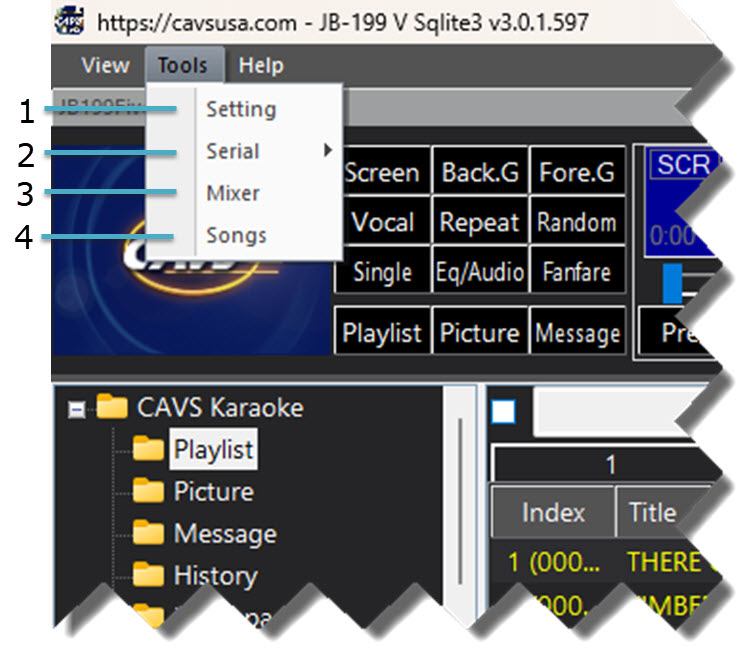
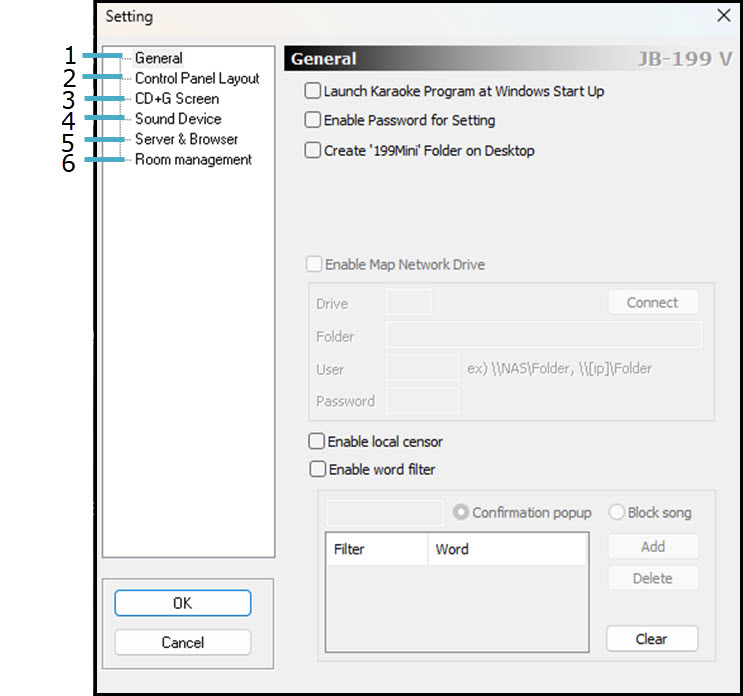
Select Setting and a popup window will appear as below.
General
Control Panel Layout
CD+G Screen
Sound Device
Server & Browser
Room management
A.2.1.1 General
1. Launch karaoke program at Windows start up.
2.
Enable password for Setting.
See 7. How to Operate for details.
3. Create '199V' Folder on Desktop.
4.
Enable Map network drive.
See 7. How to Operate for details.
5. Input Map network drive name.
6 Connect the Map network drive.
7 Input the Map network drive folder name.
8 Input the Map network username.
9. Input the Map network drive user password.
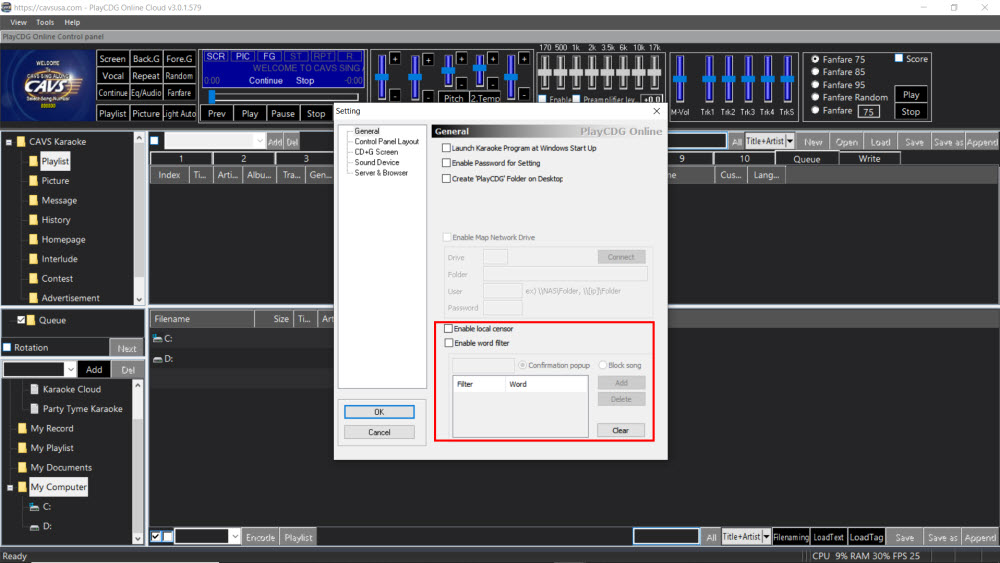
10.
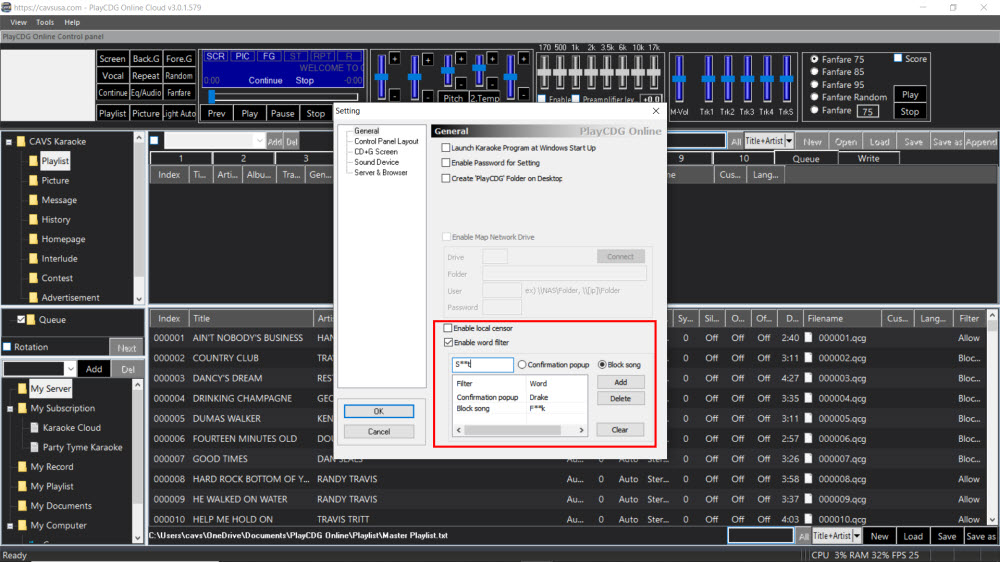
Enable local censor.
See 7. How to Operate for details.
11. Enable word filer.
12. Input the word to filter.
13 Select between "Confirmation popup" or "Block song".
14 Add the word in the filter.
15 Delete the word from the filter.
16. List of words currently in the filter.
17. Clear the word in the Add field.
18 OK.
19. Cancel.
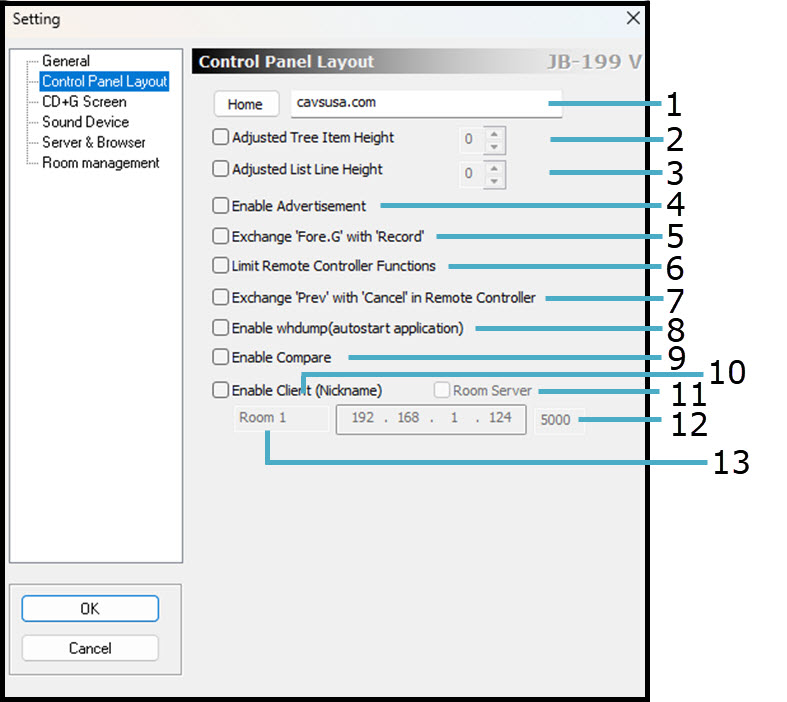
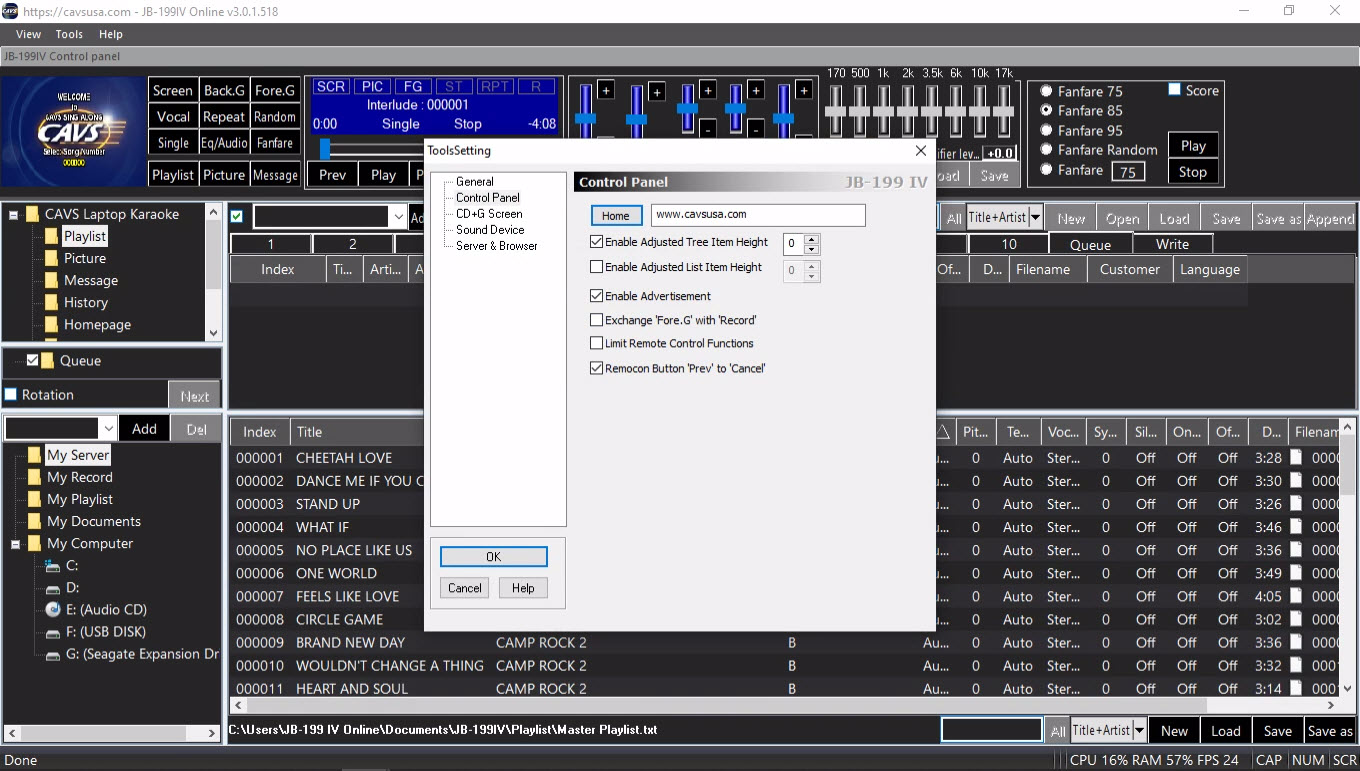
A.2.1.2 Control Panel Layout
1. Input the Homepage URL address.
2. Adjust the file tree line height.
3. Adjust the song list line height.
4. Enable Advertisement. See 7.How to Operate for details.
5. Replace 'Fore G' with 'Record'.
6.
Disable the following buttons in the remote controller.
Power
Reserve
7. Replace 'Prev' with 'Cancel' in the remote controller.
8. Enable whdump for debugging.
9. Enable Compare. See 7.How to Opereate for details.
10. Enable Client (Nickname). See 7. How to Operate for details.
11. Enable Room Server.
12. Room IP address and port number.
13. Room nickname
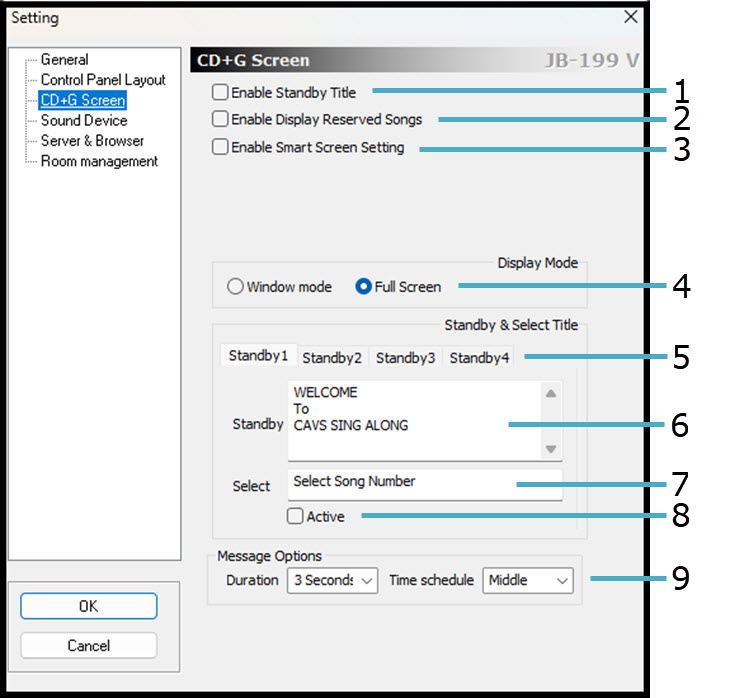
A.2.1.3 CD+G Screen
This section shows the controls in the CD+G screen, also known as the Lyrics screen.
1. Enable Standby Title to display on the CD+G screen.
2.
Enable the reserved songs to display on the CD+G Screen.
When unchecked, the display will turn off 15 seconds after a song starts playing or is reserved.
3. Check to automatically assign the CD+G screen and the Control Panel to the connected monitors.
4.
Select a display mode:
Window Mode - for dual monitors
Full Screen - for single monitor
5. Select from the Standby1 - Standby4 titles.
6. View / edit the Standby Title.
7. View / edit Select Title.
8. Check to activate one of Standby1 - Standby4 titles.
9
Select the duration time and position of a message during play.
The message is set by default as "CAVS Inside".
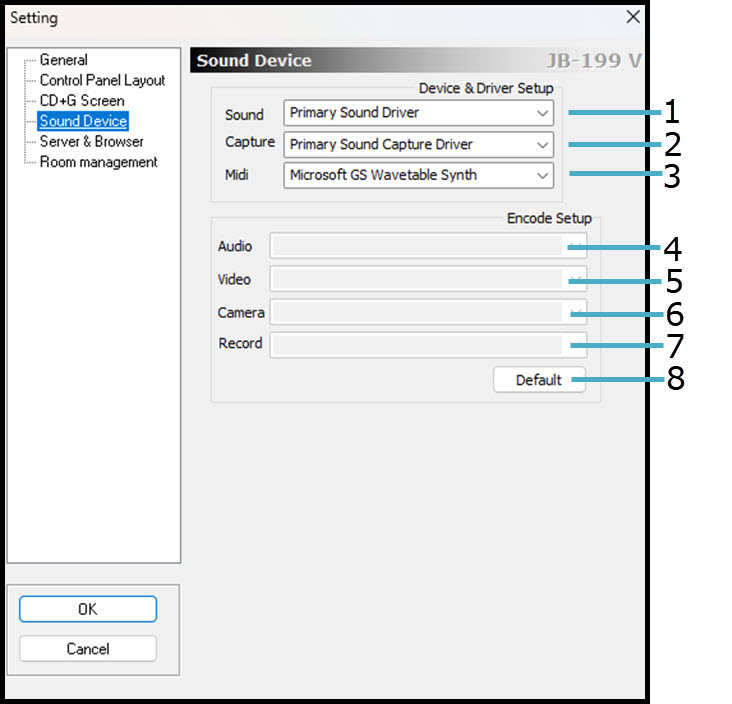
A.2.1.4 Sound Device
1. Select a sound driver from the drop-down menu to output the music. Primary Sound Driver defaults to the sound driver selected in the Windows OS.
2. Select a sound capture driver from the drop-down menu to record the music and singing. Primary Sound Capture Driver defaults to the sound capture driver selected in the Windows OS.
3. Select a MIDI driver from the drop-own menu to play the MIDI files.
4 Select an audio encoding setup from the drop-down menu.
5. Select a video encoding setup from the drop-down menu.
6. Select a camera encoding setup from the drop-down menu.
7. Select a record encoding setup from the drop-own menu.
8 Select the default encoding setups for all.
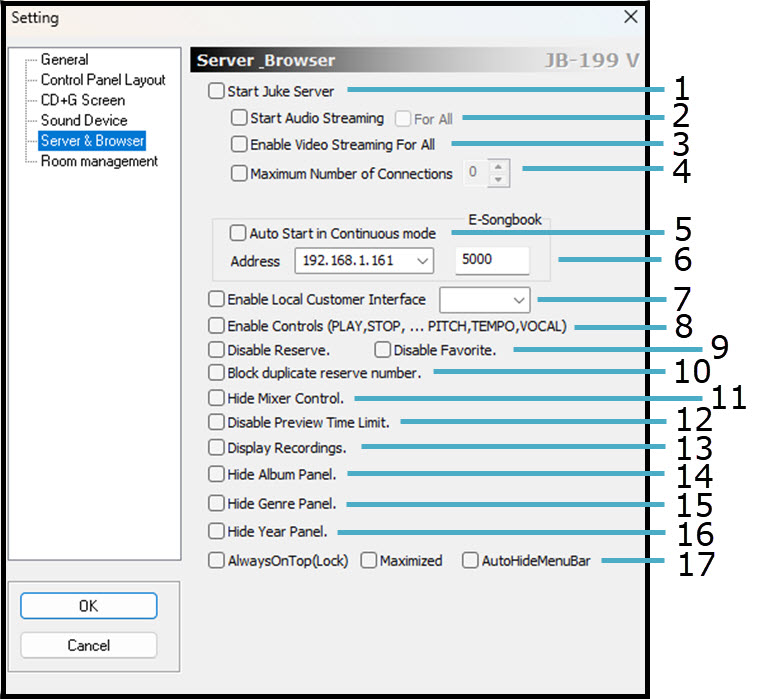
A.2.1.5 Server & Browser
1.
Start the Juke server.
The server enables connection to and from all devices, including E-Songbooks, smart phones and tablets to connect.
2.
Start streaming music to the connected devices.
The streaming can be specific to only the device that reserved a song or to all devices by checking For All option.
3. Start streaming the video to all connected devices.
4.
Limit the maximum number of connections, i.e., the number of devices.
5. Auto play songs when reserved in Queue. This option also requires the play mode to be continuous at 4.5.B.15 Play Mode.
6
Display the local IP address and the port number of the Juke server.
All devices can login to the same network/router as the Juke server and navigate to the IP address and the port number to connect.
When a Port-forarding is established in the network/router, devices can also connect using the public IP of the Juke server.
7.
Open Customer Interface within the JB-199 karaoke player using Google Chrome browser.
This option does not effect the Customer Interface that is seen when external devices connect to the Juke server.
8.
Enable the controls to play, stop, cancel, adjust pitch, adjust tempo, and change vocal in Customer Interface.
When unchecked, the Customer Interface only allows browsing and reserving songs.
9.
Disable Reserve: Disable the control to reserve songs in the Customer Interface.
Disable Favorite: Remove the Favorite menu from the Customer Interface.
10.
Prevent reserving same songs in the Queue.
11.
Remove the Mixer menu from the Customer Interface.
12.
Disable any time limit when playing a song in Preview.
13.
Display the Recordings menu in the Customer Interface.
14.
Remove the Album menu in the Customer Interface.
15.
Remove the Genre menu in the Customer Interface.
16.
Remove the Year menu in the Customer Interfacec.
17.
Options to display the Customer Interface within the JB-199 karaoke player.
AlwaysOnTop(Lock): Always on top
Maximized: Full screen
AutoHideMenuBar: Auto Hide
A.2.1.6 Room management
1.
Require Join Code to connect to the Juke server.
2.
Input a Join Code manually.
3. Generate a Join Code automatically.
4.
Add to the currently active Join Codes.
5. Display the active Join Codes.
6
Remove a Join Code.
Highlight an active Join Code and press Delete.
7.
Remove all active Join Codes.
8.
Enter an email address and press SendMail to send the Join Codes.
Serial port communication is available to connect and control external devices such as bill acceptor, lighting controller, or remote controller.
It can use two types of connectors, first the traditional RS232 or 5-pin din connectors and second the USB port connector emulating the first.
The choice of the connector will depend on the hardware configuration of the karaoke player.
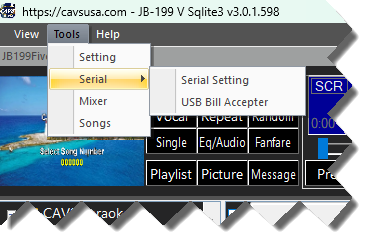
Select Serial Setting to set the communication using RS232 or 3-pin din connectors (unavailable in JB-199 V).
Select USB Bill Acceptor to set the communication using USB connector.
A.2.2.1 Serial Setting
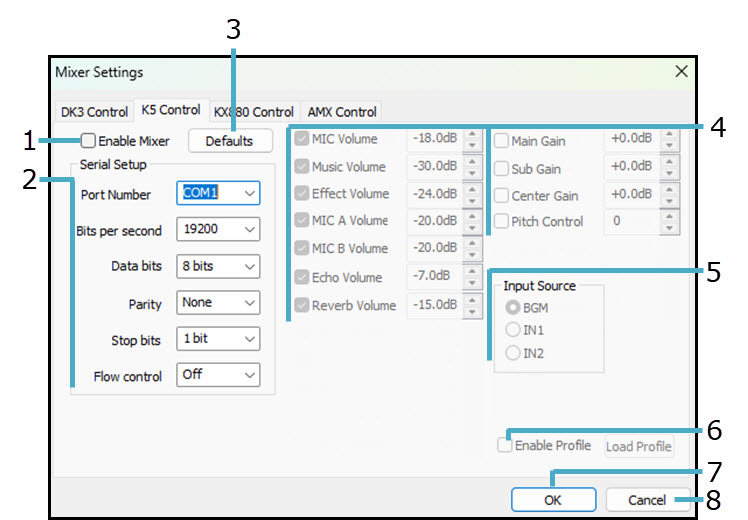
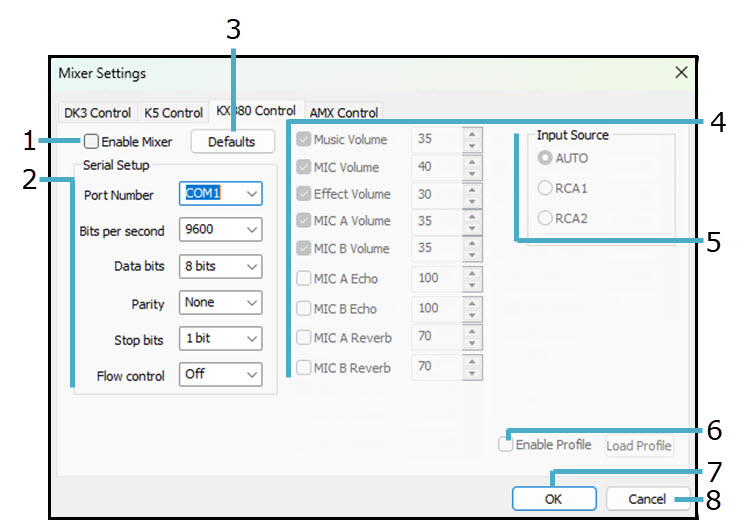
1. Enable Serial Open Serial Port Communication.
2. Scanner Enable QR code Scanner.
3. COM Port Number Select COM port number.
4. Bits per second Select data transmission speed rate.
5. Data bits Select data bits.
6. Parity Select Parity.
7. Stop bits Select stop bits.
8. Flow control Select Flow control.
9. Defaults Revert Bill Acceptor settings to factory default.
10. Enable Bill Acceptor Open the 5-Pin DIN connector for Bill Acceptor.
11. Song / Time Select the debit per song / debit per time.
12. Credit per $1 Set credit per $1.
13. Time per $1 Set time (minutes) per $1.
14. Debit per Karaoke Set debit per karaoke song.
15. Debits per Music Set debit per music (non-karaoke song).
16. Debits per Disc Write Set debits per recording onto CD.
17. Location Location number.
18. Clear Clear Location number
19. QR code Display the QR code on display.
20. QR code 2 Display the QR code 2 on display.
21. NUMLOCK button enable on Numlock enabled on numberic keypad.
22. OK Close with the setting changes.
23. Cancel Close without the setting changes.
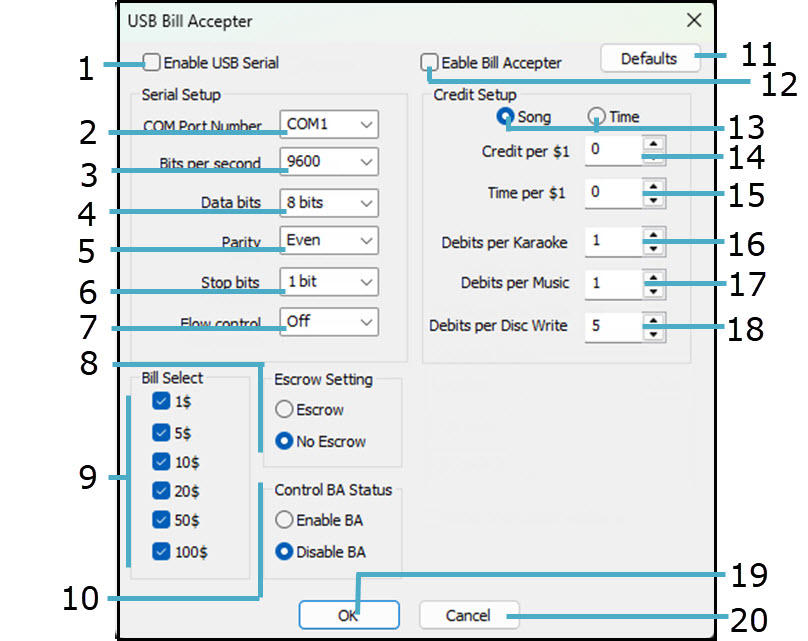
A.2.2.2 USB Bill Acceptor
This setting is for USB bill acceptors, such as ICT PA7. For a current list of compatible devices, contact Techsupport@cavsusa.com.
1. Enable USB Serial Open USB Serial Communication.
2. COM Port Number Select COM port number.
3. Bits per second Select data transmission speed rate.
4. Data bits Select data bits.
5. Parity Select Parity.
6. Stop bits Select stop bits.
7. Flow control Select Flow control.
8. Escrow SettingK Select Escrow / No Escrow mode.
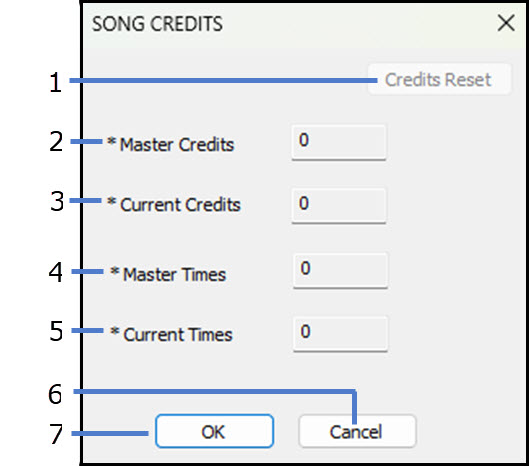
Select Songs and the following popup window will appear.
The master credits and master times count the total credit and total time used in the karaoke player.
The current credits and current times count the credit and time used since the last reset.
1. Credits Reset Reset the Current Credits and Current Times to zeros after adding their values to the Total Credits and Total Times.
2. Master Credits Display the total credits used in the karaoke player. This value cannot be changed.
3. Current Credits Display the credits used since the last reset.
4. Master Times Display the total times used in the karaoke player. This value cannot be changed..
5. Current Times Display the times used since the last reset.
6. Cancel Exit without saving.
7. OK Save and exit.
A.3 Help Press Help and the following popup window will appear.
1. Online User Manual Open the User Manual at www.cavsusa.com.
2. User Manual Display the User Manual stored within the karaoke player.
3. User Manual Upgrade Upgrade the User Manual stored within the karaoke player.
4. Online Upgrade Upgrade the karaoke program to the latest version.
5. Online Downgrade Downgrade the karaoke program to the last released version.
6. Online Remote Support Download the CAVS RemotePC program. Install and notify CAVS techsupport team the 9 digit passcode to remote in.
7. Save Config Save the current setting of the karaoke player.
8. Load Config Load the previously saved setting of the karaoke player.
9. Restart JB-199 V Restart the karaoke program.
10. Restart JukeServer Restart the Juke Server.
11. Restart Streaming Restart Cam2Streamer.
12. Restart Customer Interface Restart the Customer interface.
13. About JB-199 V Display the karaoke player information.
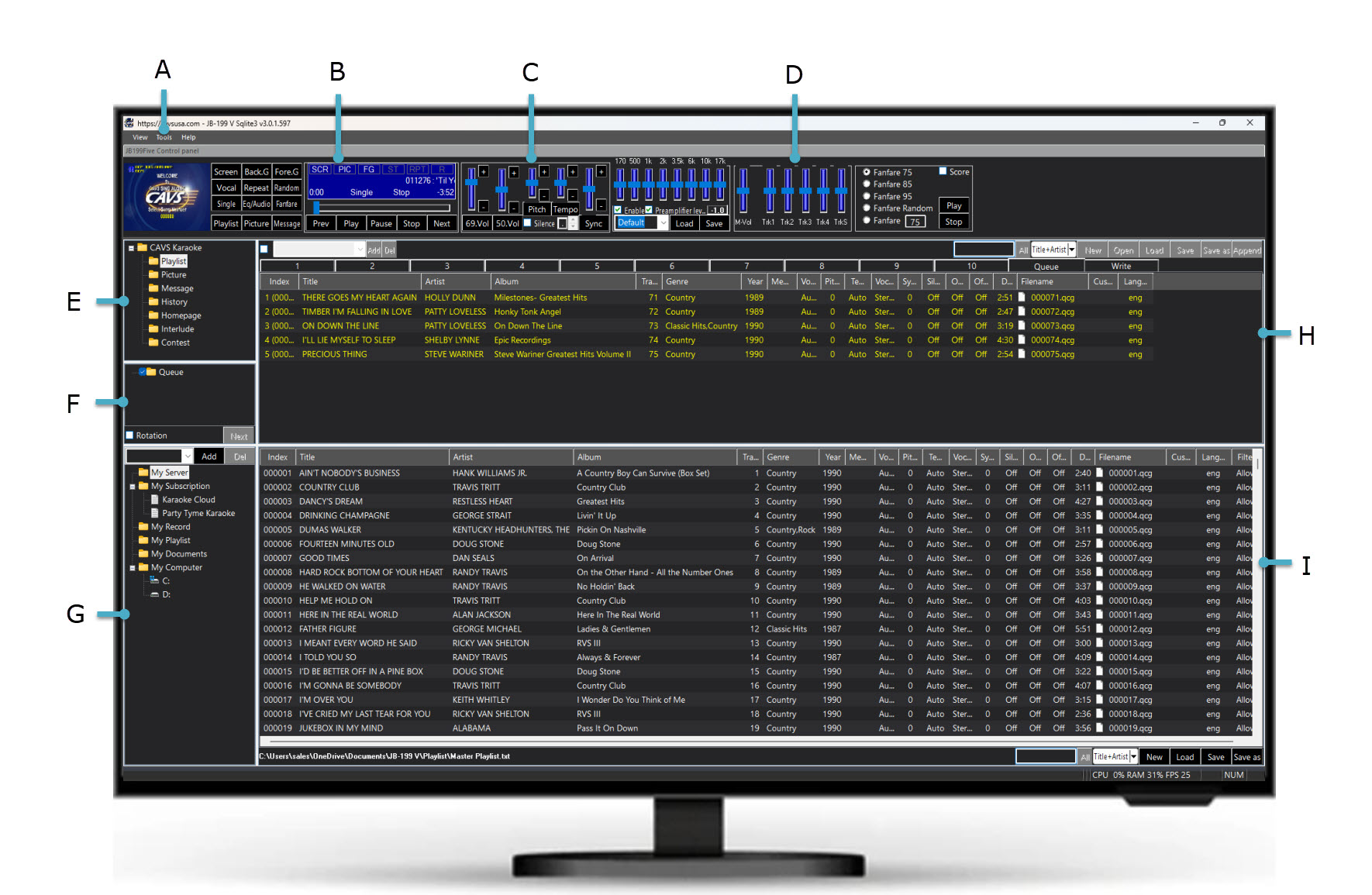
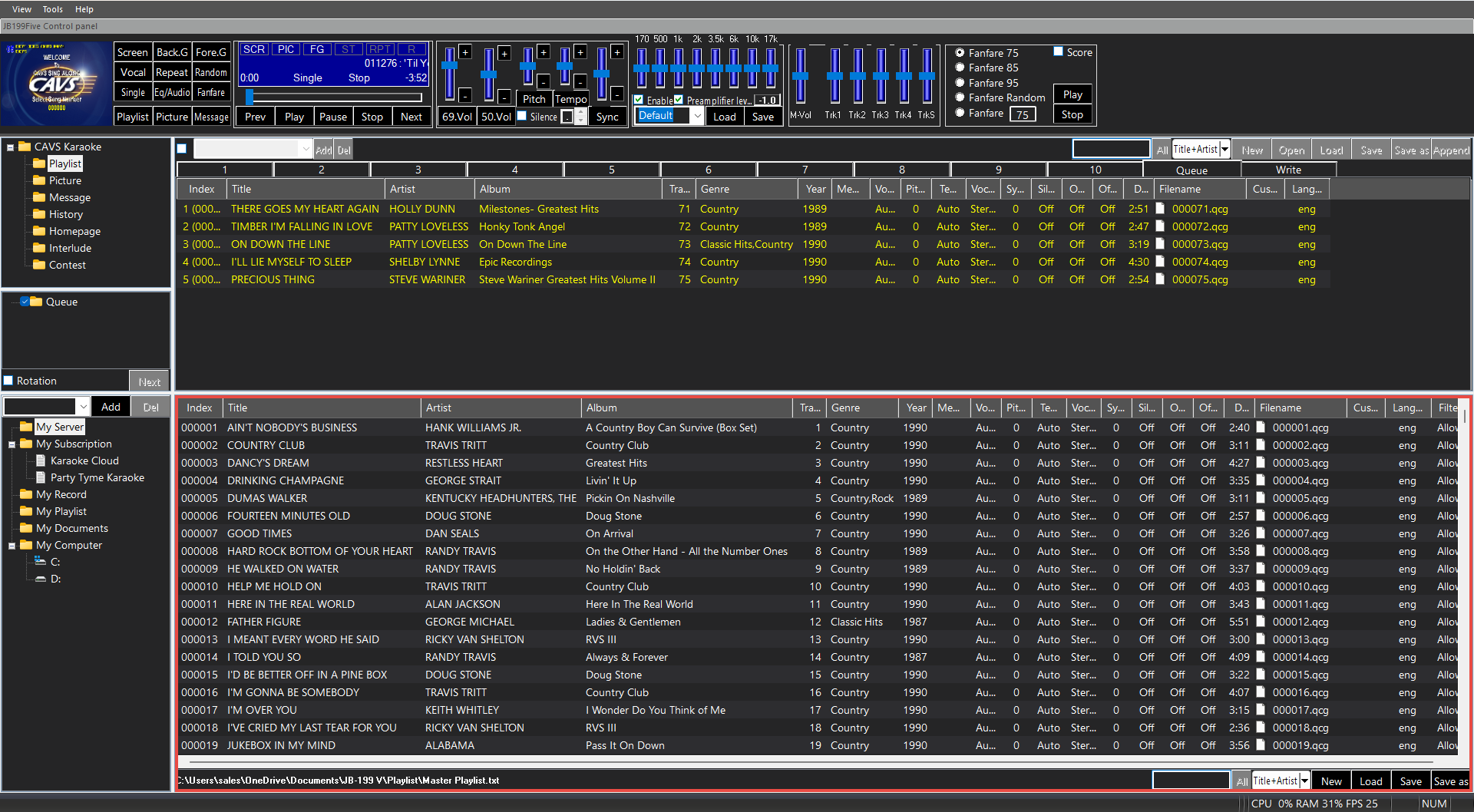
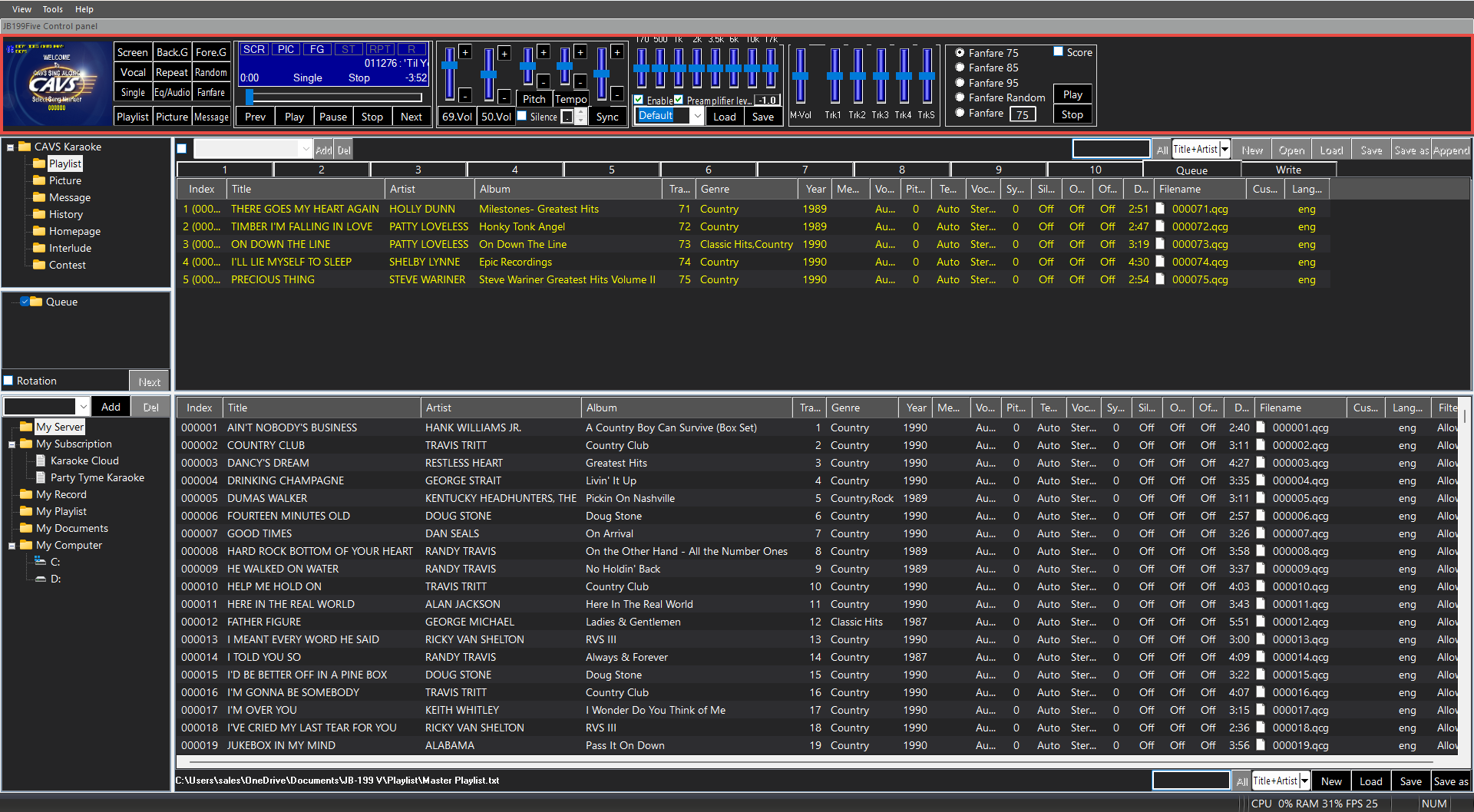
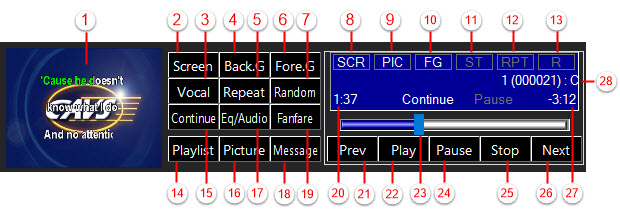
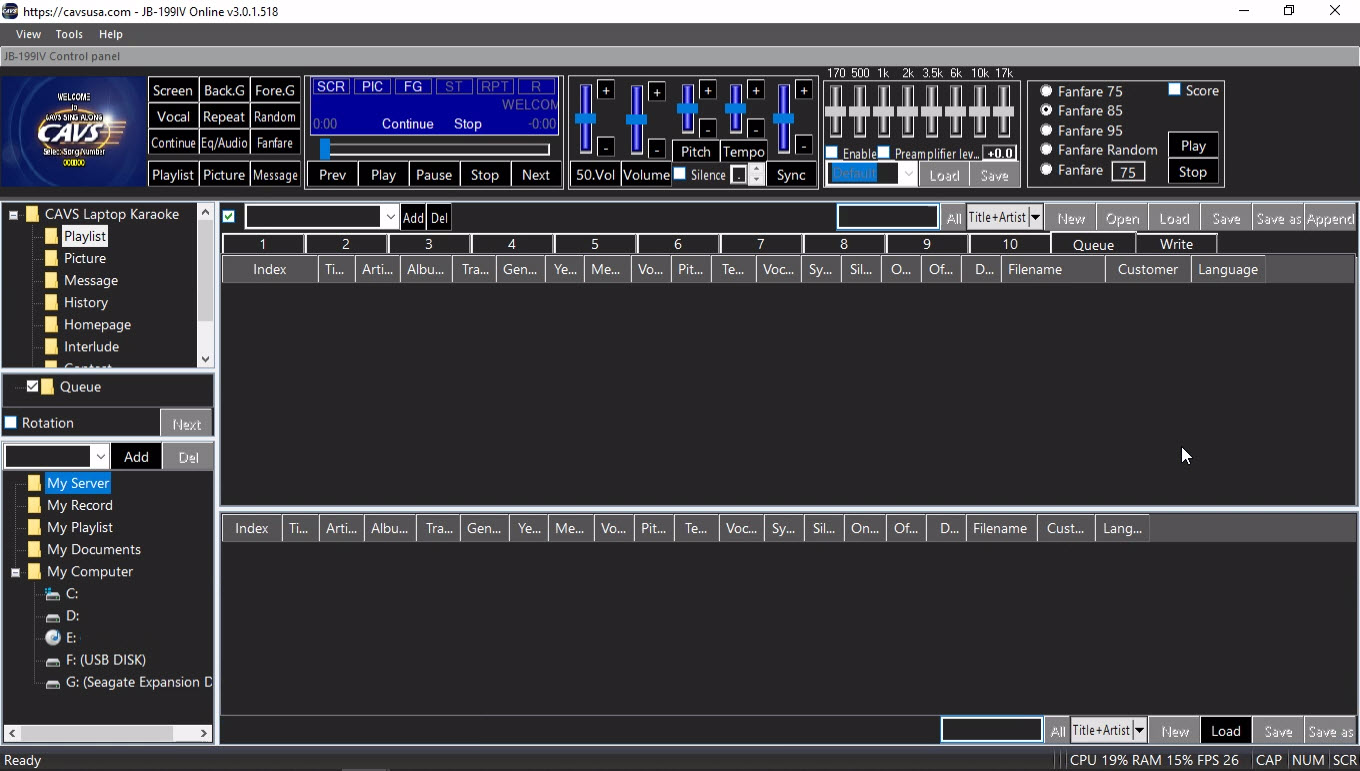
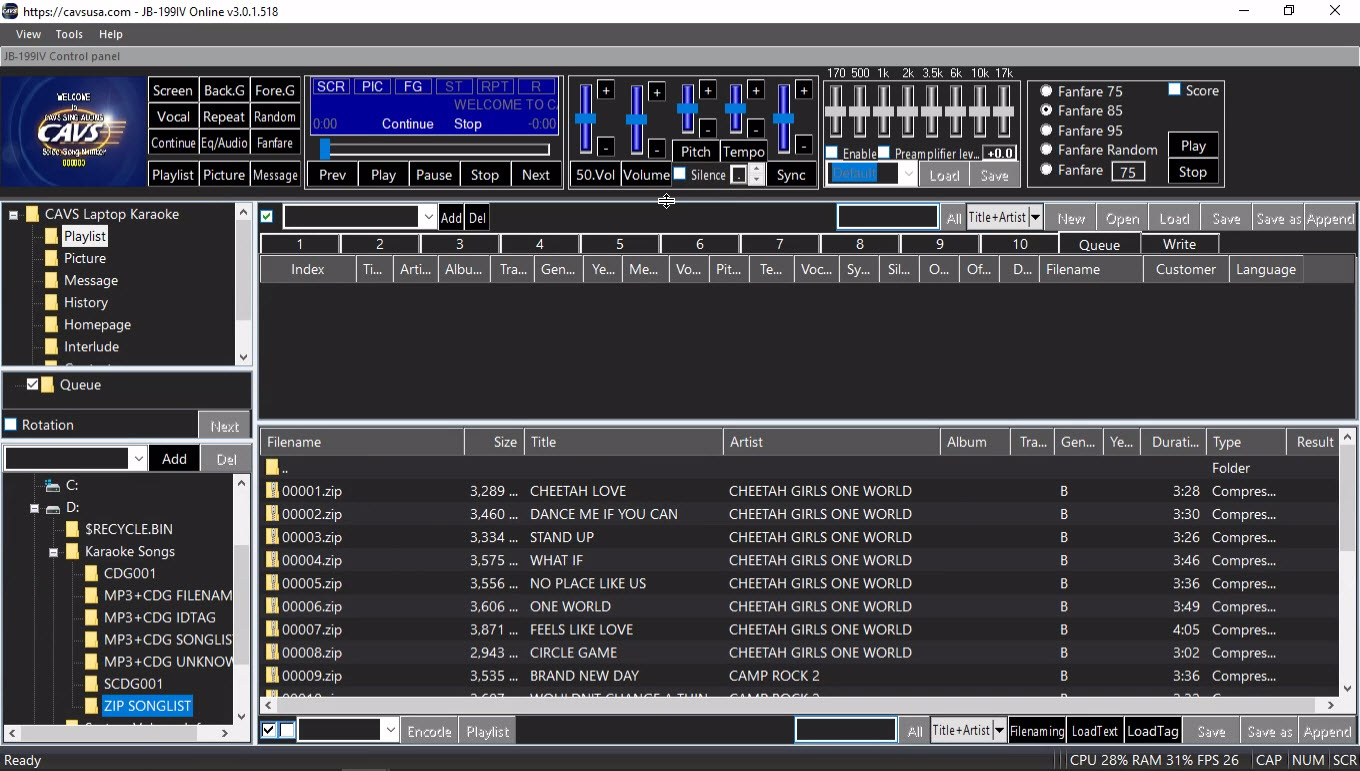
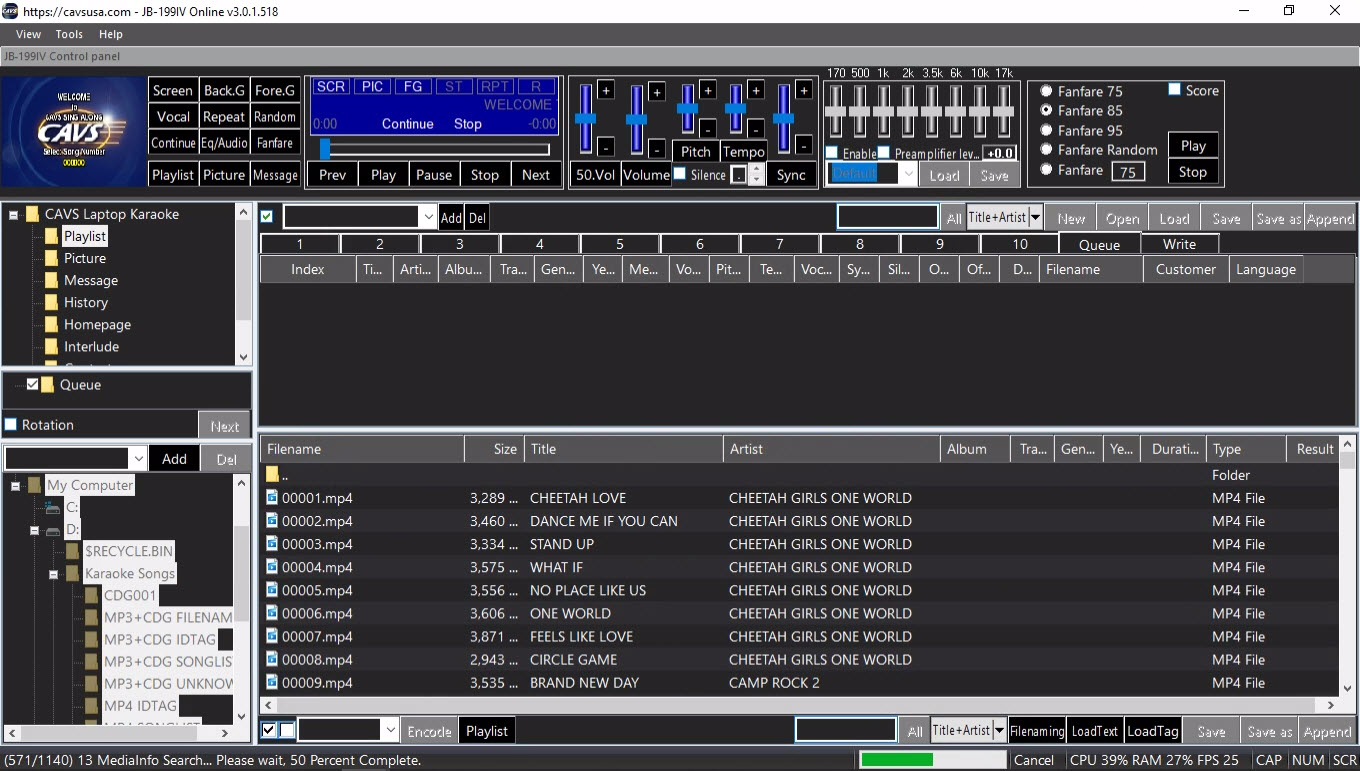
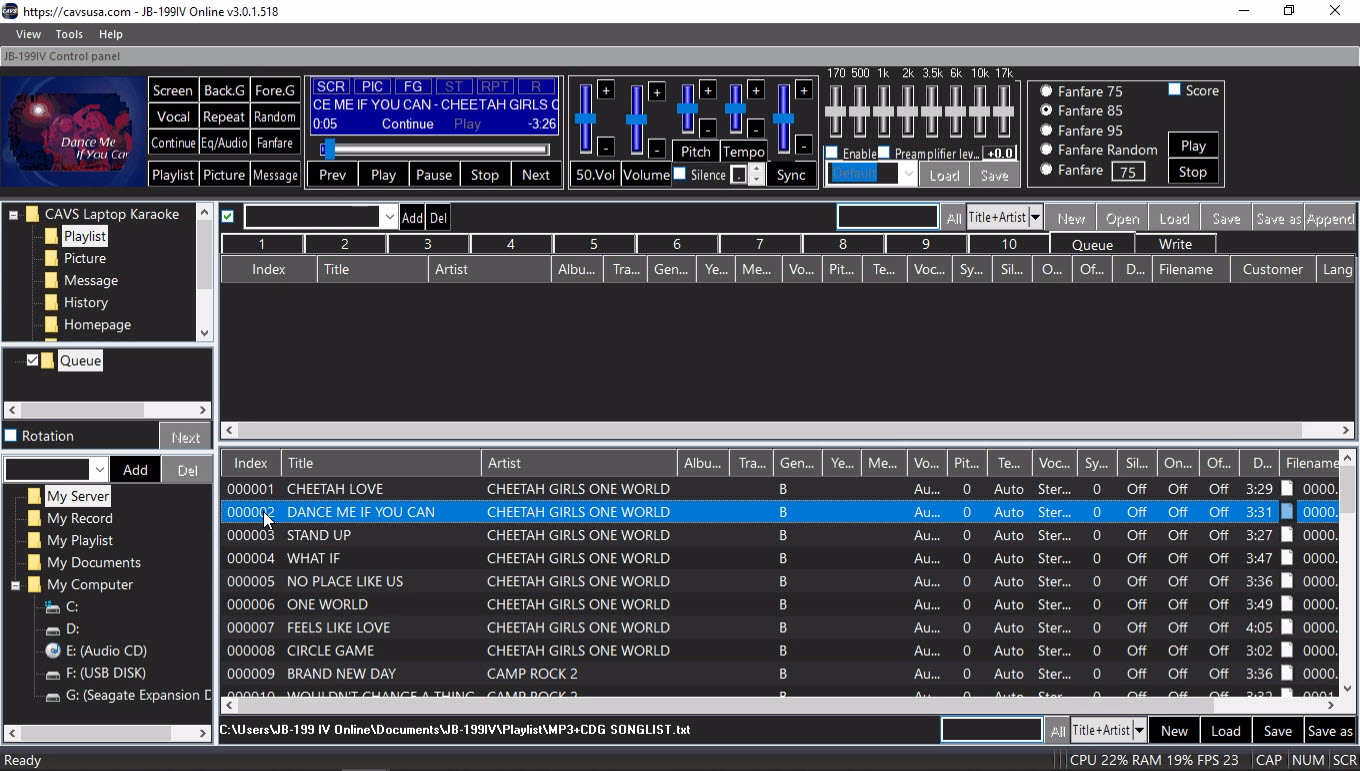
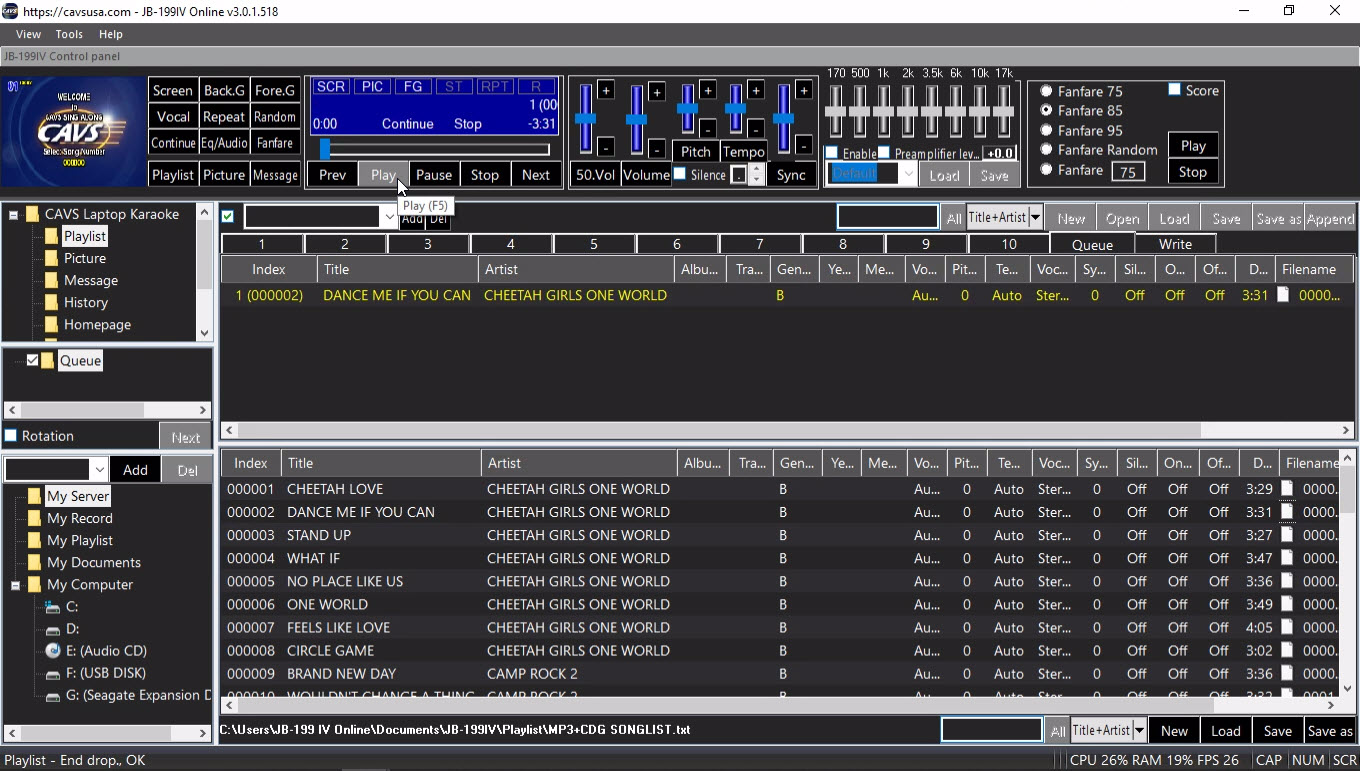
Monitoring CD+G screen
Turn on/off CD+G screen (does not affect monitoring)
Voice cancel - Select Stereo/Left/Right channels
Background video - Select Off/Picture/Video/Webcam
Repeat - Select Off/One/All
Fore.G: Turn on/off Foreground video (affect CD+G screen)
Record: Turn on/off Record
Turn on/off Random song selection
Status of CD+G screen - SCR(On)/Off
Status of Background video - Off/PIC (Picture)/VID (Video)/WEC (Webcam)
Status of Foreground video - FG(On)/Off
Status of Voice cancel - Stereo/L(Left)/R(Right)
Status of Repeat - Off/One/All
Status of Random - R(On)/Off
Show Playlist in 4.5.H. List Browser
Select Play mode - Continue/Single
Show Picture in 4.5.H. List Browser
Select Equalizer - Audio/MIDI
Message: Show Message in H. List Browser
Fanfare On/Off
Progressed time in play
Play previous song
Play
Play progress bar - Slide forward or backward
Pause
Stop
Play next song
Remaining time in play
Song in play (Song number, title, artist)
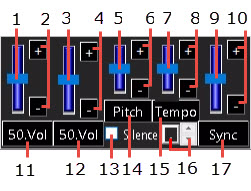
Karaoke Volume slider
Karaoke Volume buttons
Interlude Volume slider
Interlude Volume buttons
Pitch level slider
Pitch level buttons
Tempo level slider
Tempo level buttons
Synch level slider: Controls the timing of lyric coloring relative to music
Synch level buttons: Controls the timing of lyric coloring relative to music
Mute (0)/Reset to default (50) Karaoke volume
Mute (0)/Reset to default (50) Interlude volume
Silence Gap Remover On/Off
Reset Pitch level to default (0)
Reset Tempo level to default (0)
Silence Gap Remover Setting: Before(-) / After(+) music in second(s)
Reset Sync level to default (0)
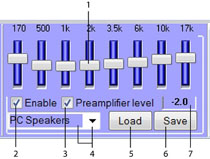
The Equalizer contains 8 frequency blocks and a preamplifier.
The preamplifier evens out the music volume levels which may vary between different songs.
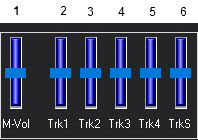
The Equalizer changes automatically to MIDI Mixer when playing a MIDI song.
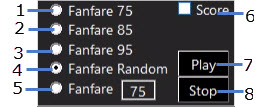
It also changes automatically to Fanfare controls when the FANFARE button in 4.5.B. PLAYER is pressed.
If the screen showing the Control Panel is large enough, all three controls (Equalizer, MIDI mixer, and Fanfare) will appear together.
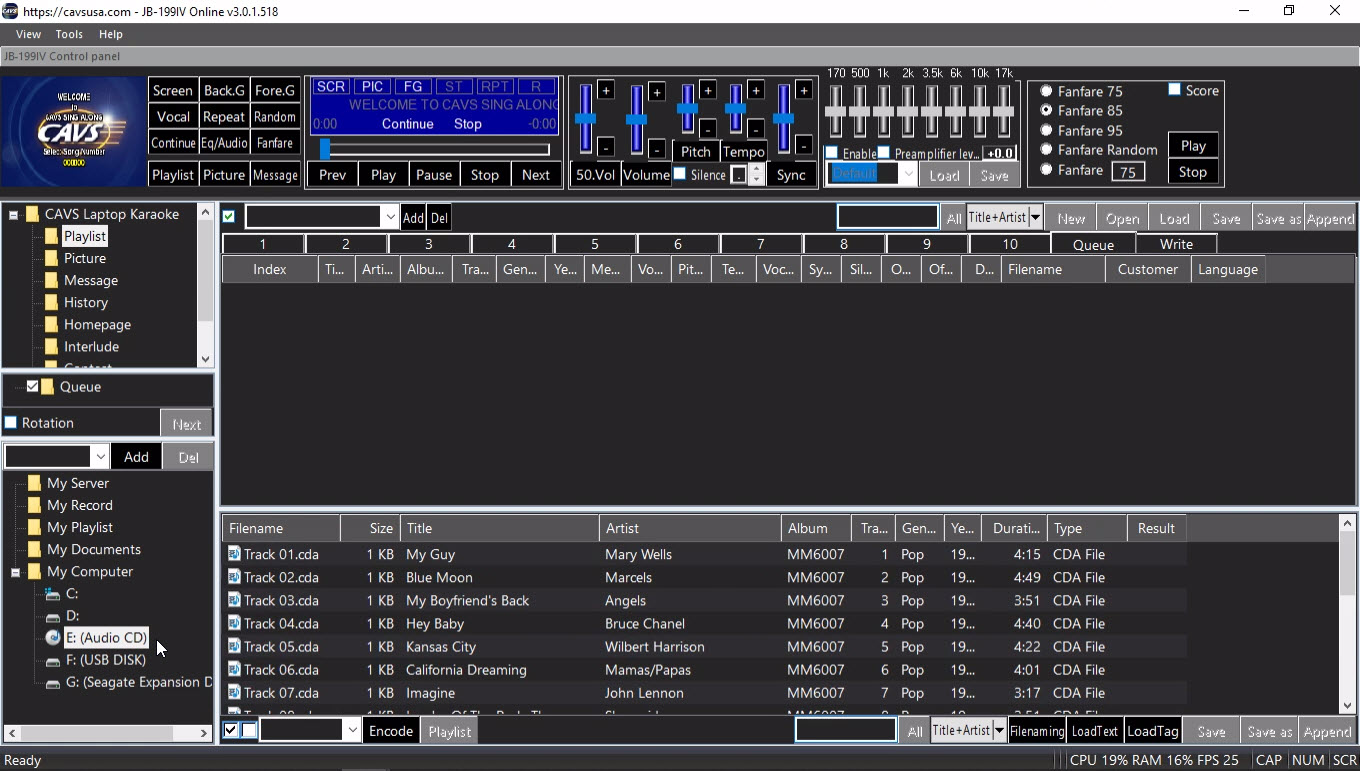
This section shows how to operate and customize the following functions.
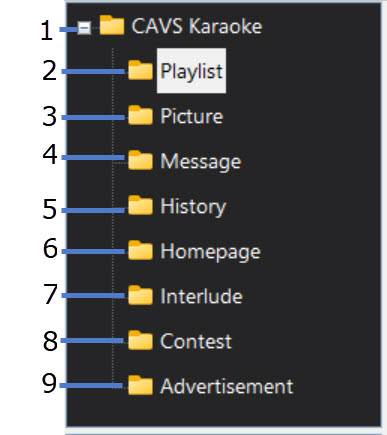
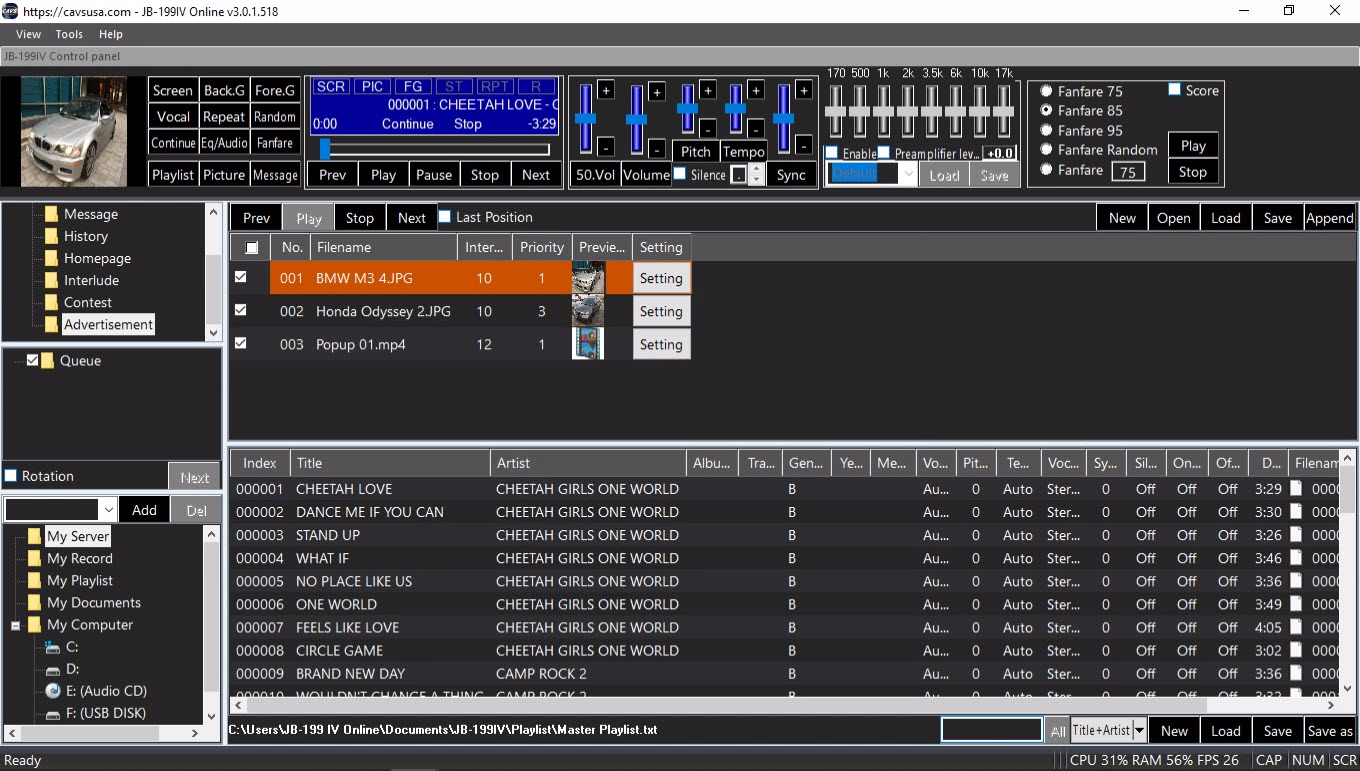
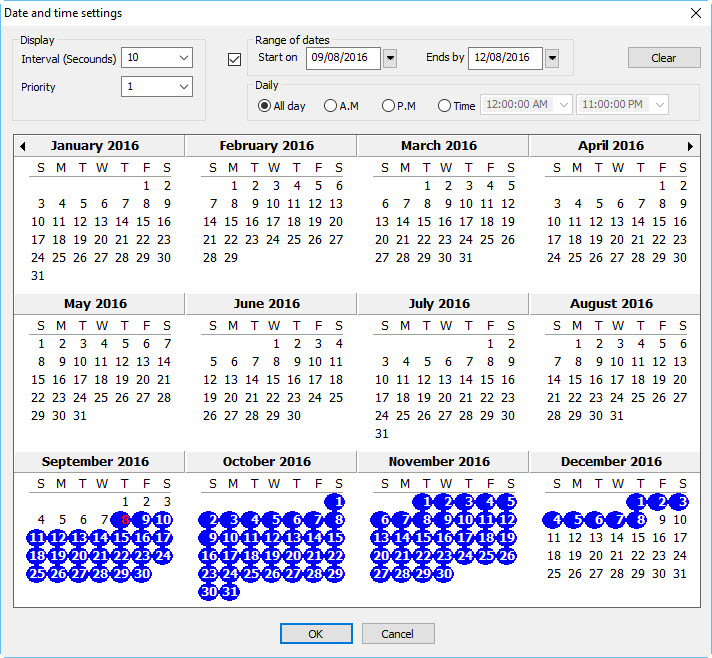
1. CAVS Karaoke Click to open/close the Function Menu. To see the 9. Advertisement in the menu, you must first check the option Enable Advertisement in 4.5.A.2.1.2 Control Panel.
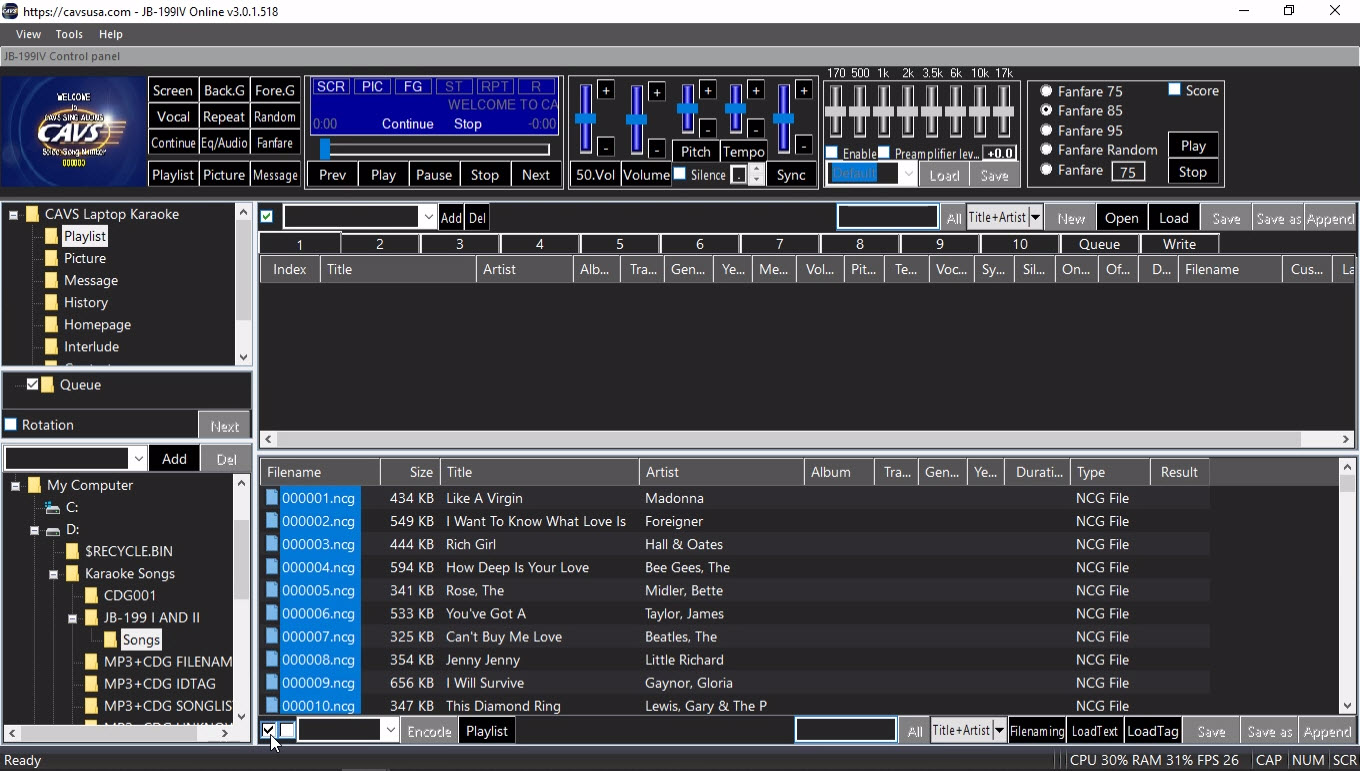
2. Playlist
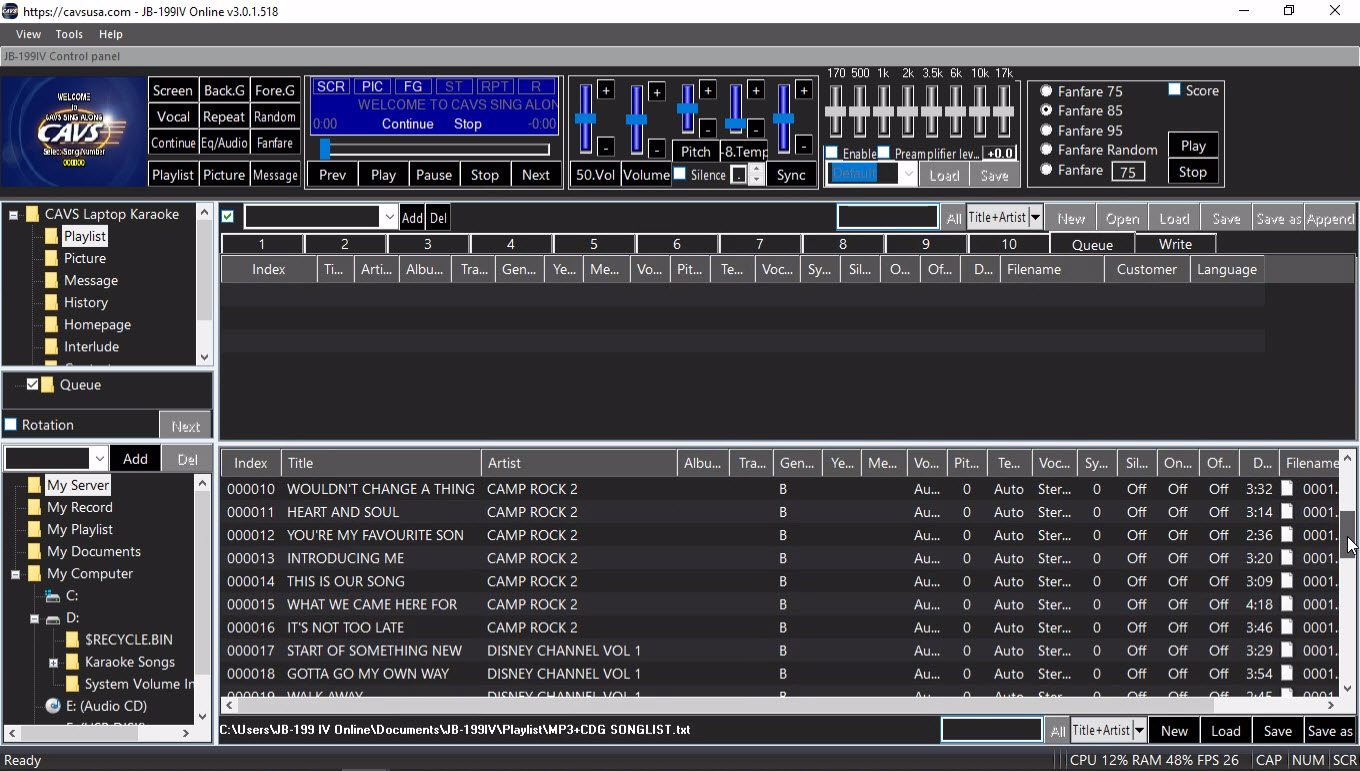
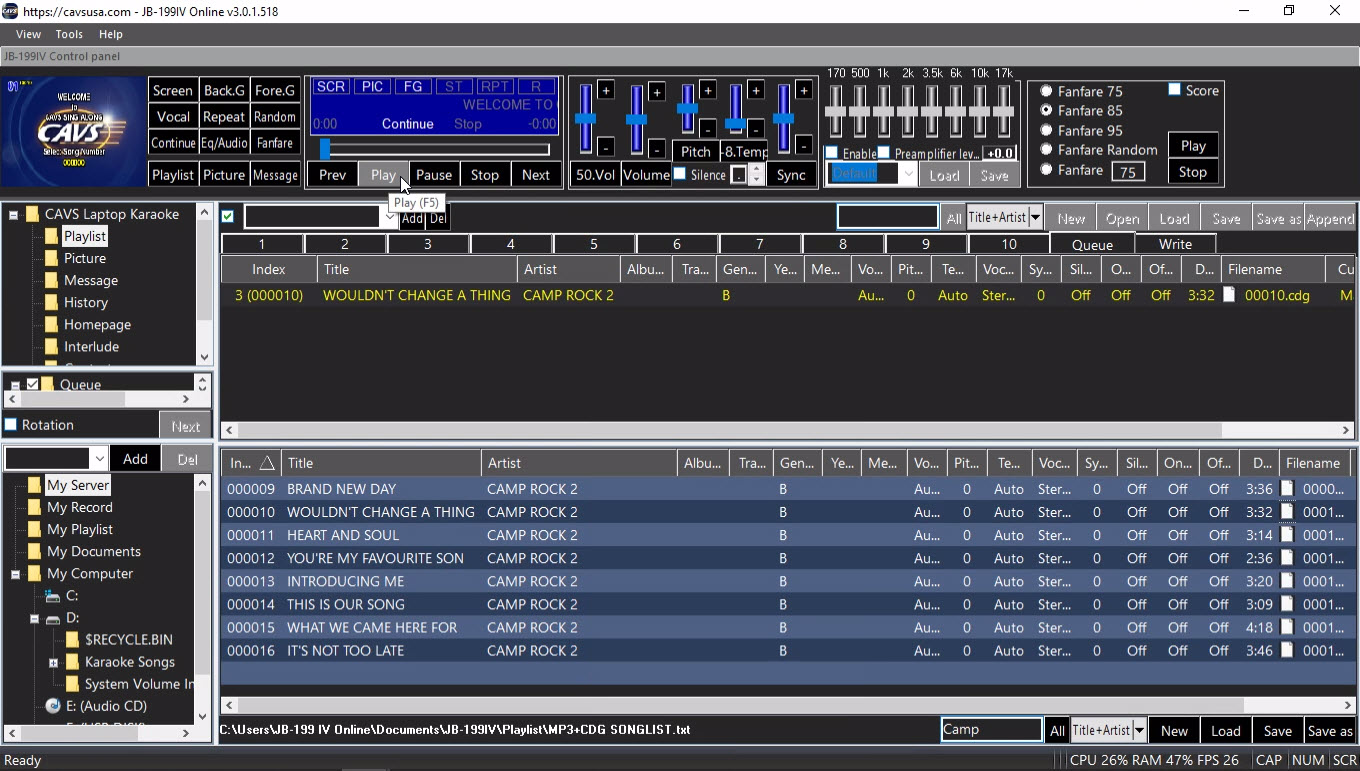
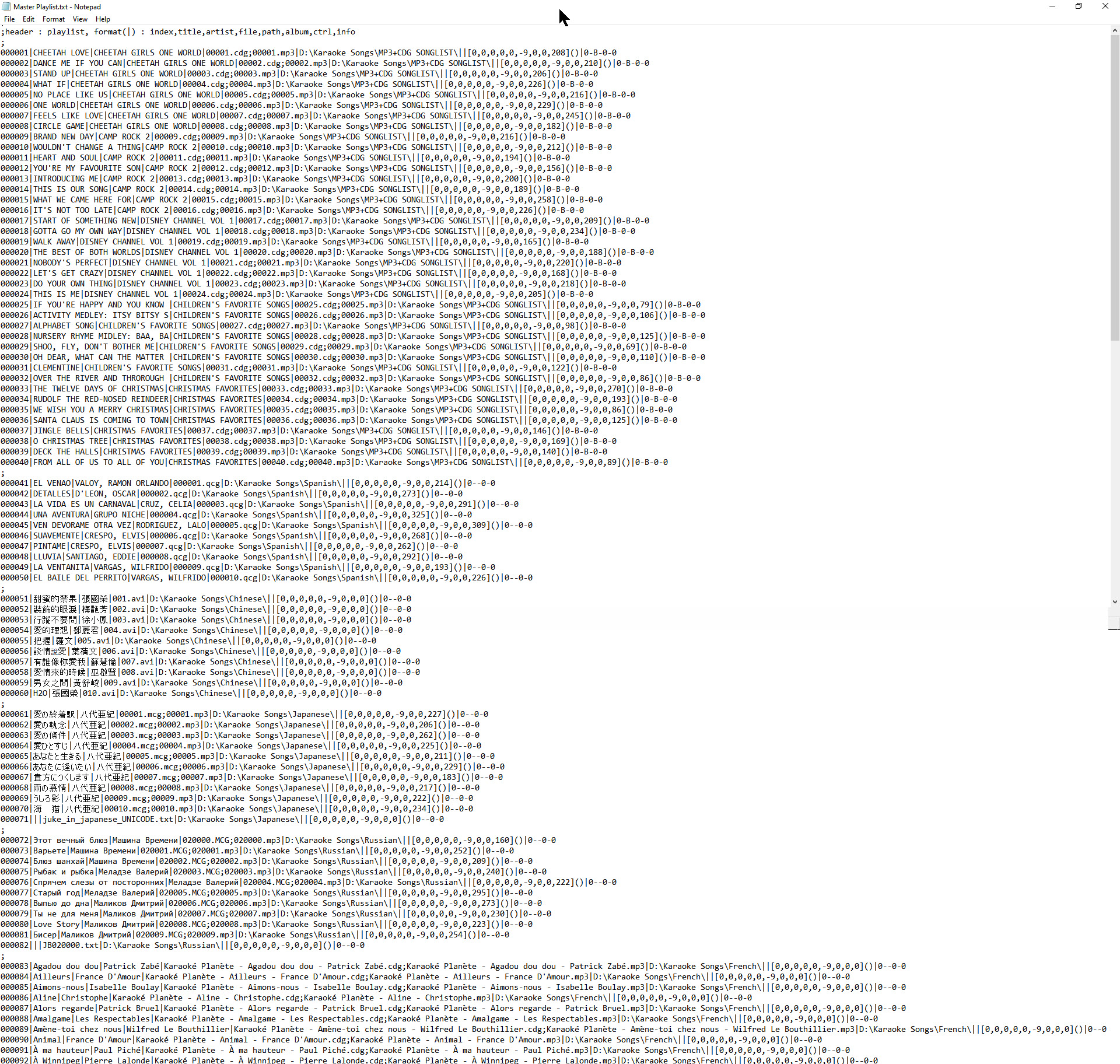
A playlist is just a simple text file that lists the paths to song files.
Instead of the karaoke player directly handling hundreds or thousands of individual audio files, it works exclusively with these playlists. That makes searching, sorting, filtering, rearranging, and editing the song list dramatically faster and more efficient.
It also provides real protection for your original song files: everyday playlist operations (add, remove, reorder, rename entries, etc.) never touch or risk modifying the actual audio files themselves. Accidental deletion, overwriting, or corruption of songs becomes far less likely.
This advantage grows more important the larger your collection becomes—managing thousands of files directly would quickly turn slow, cumbersome, and dangerously error-prone. Playlists keep everything organized, responsive, and safe.
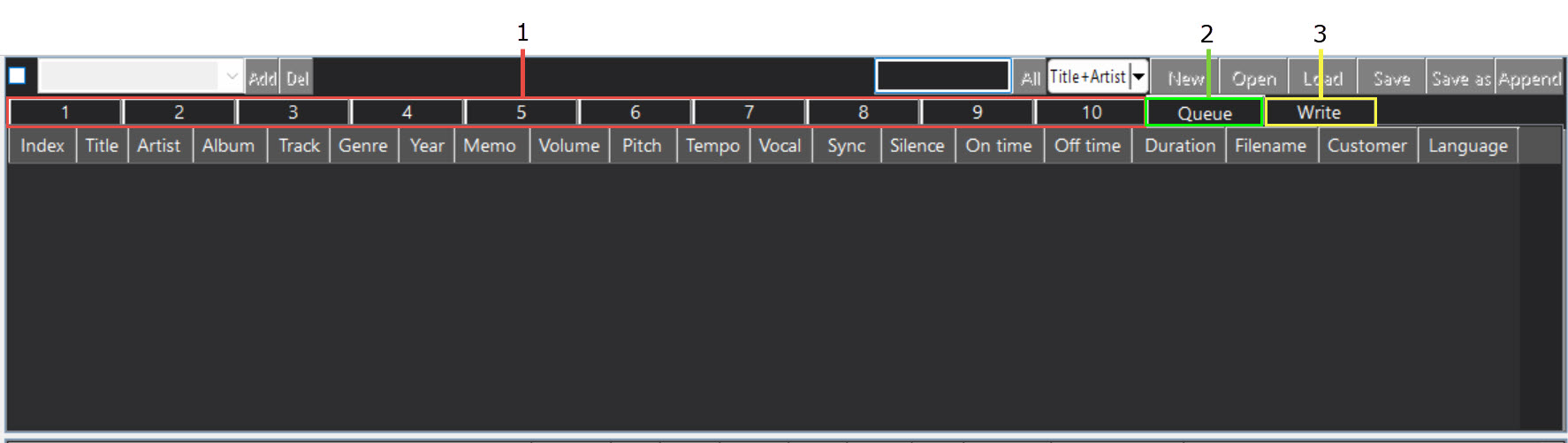
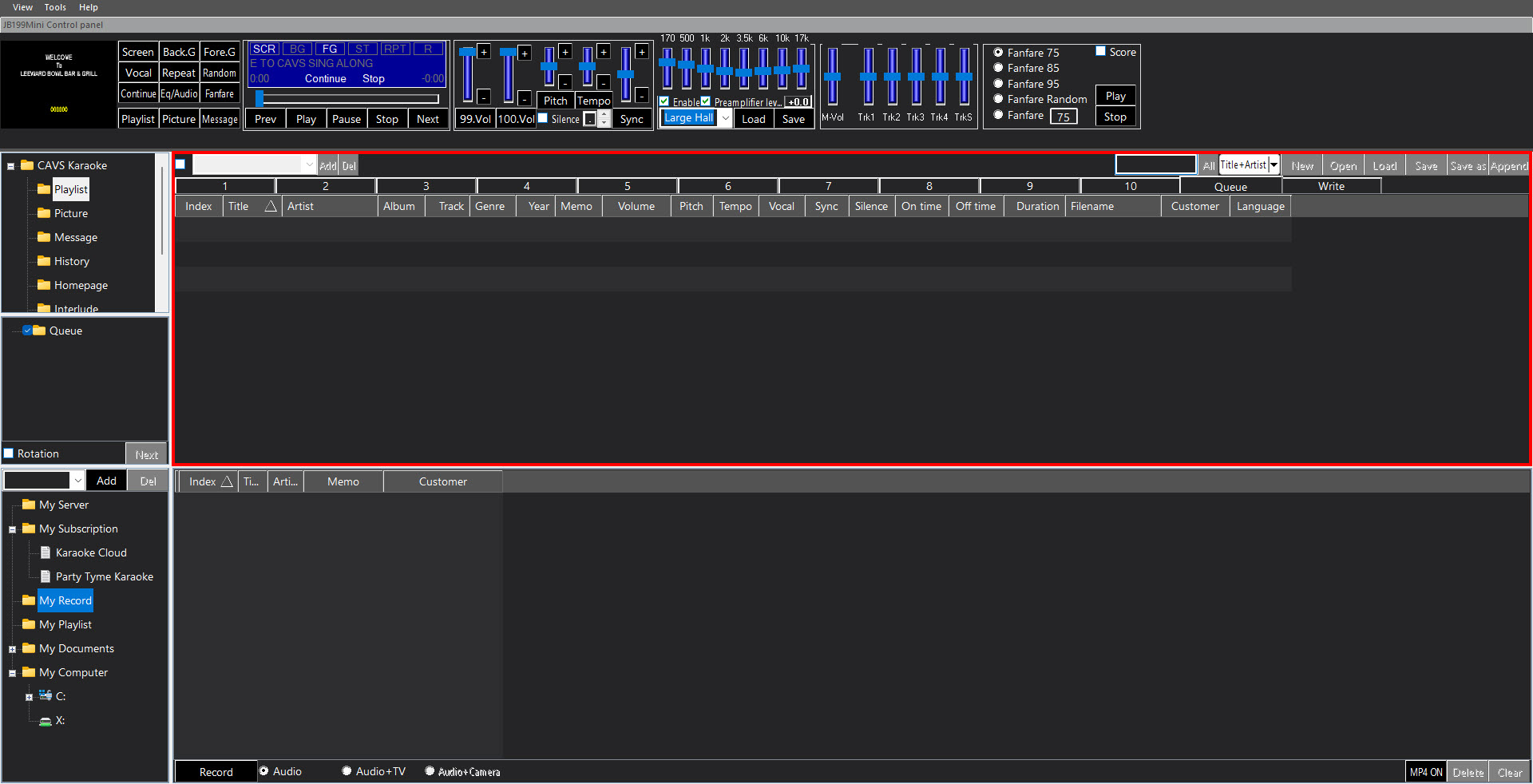
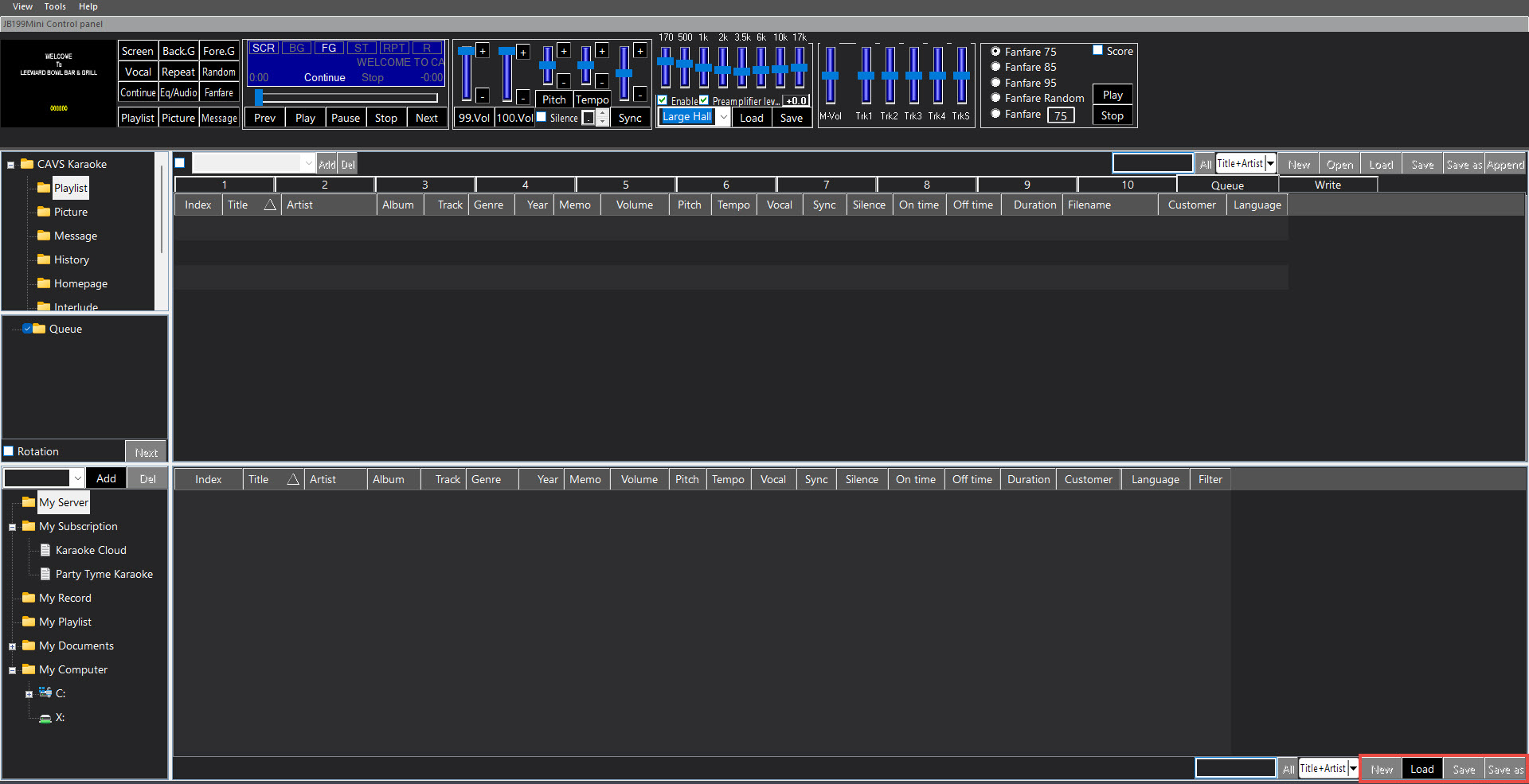
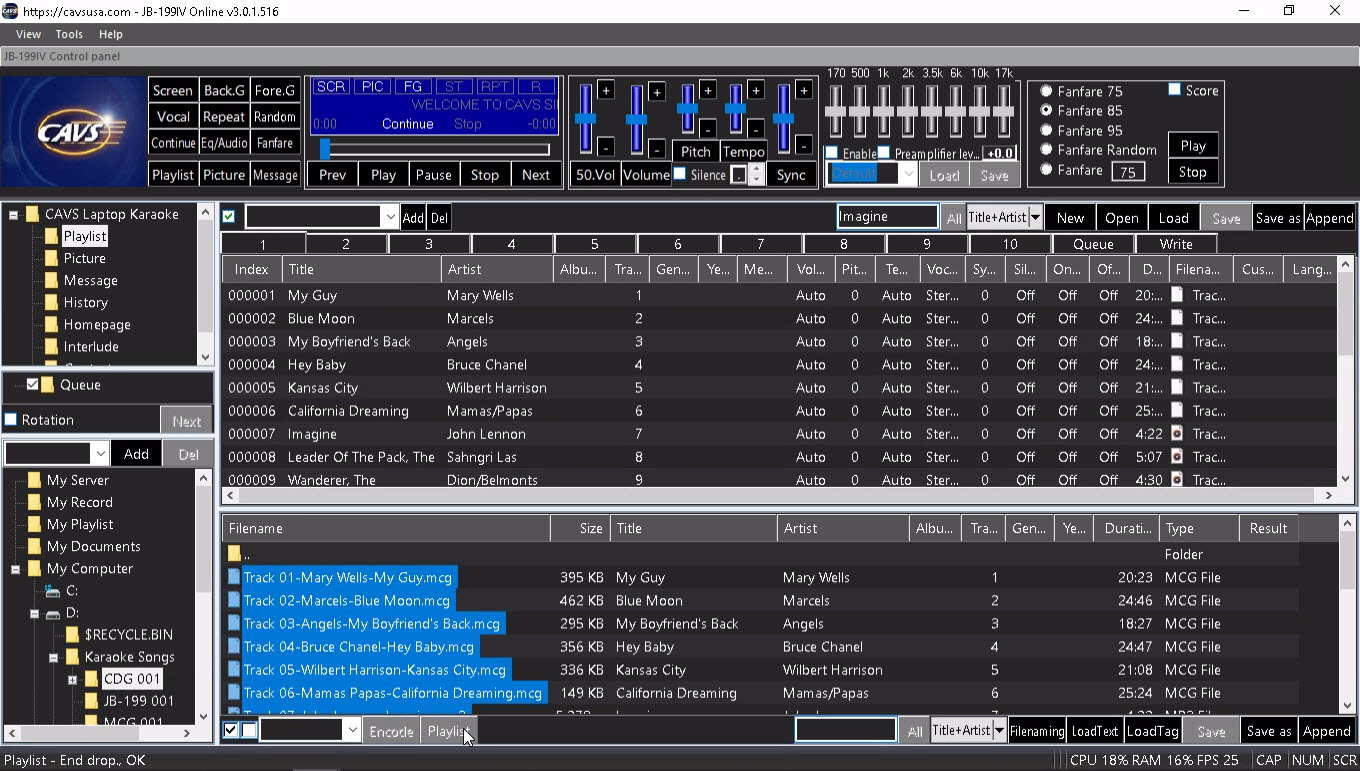
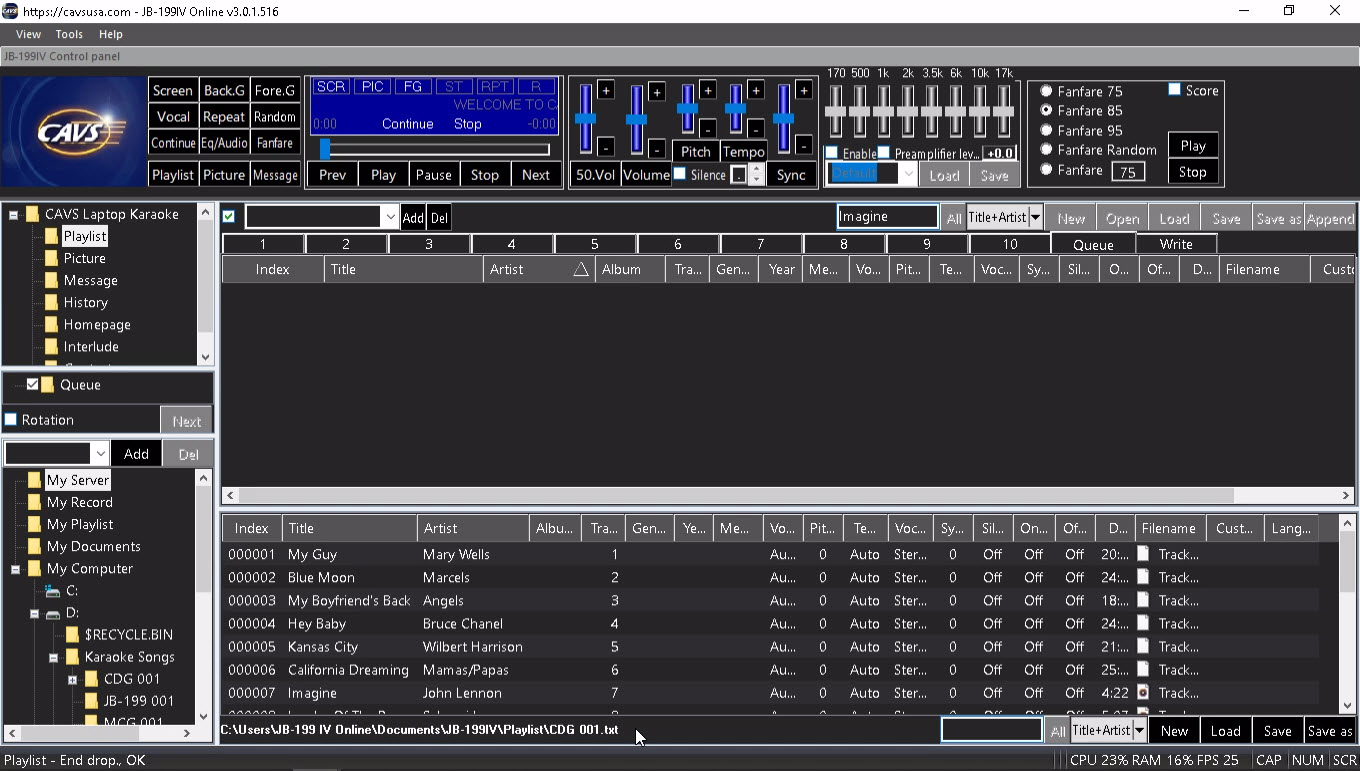
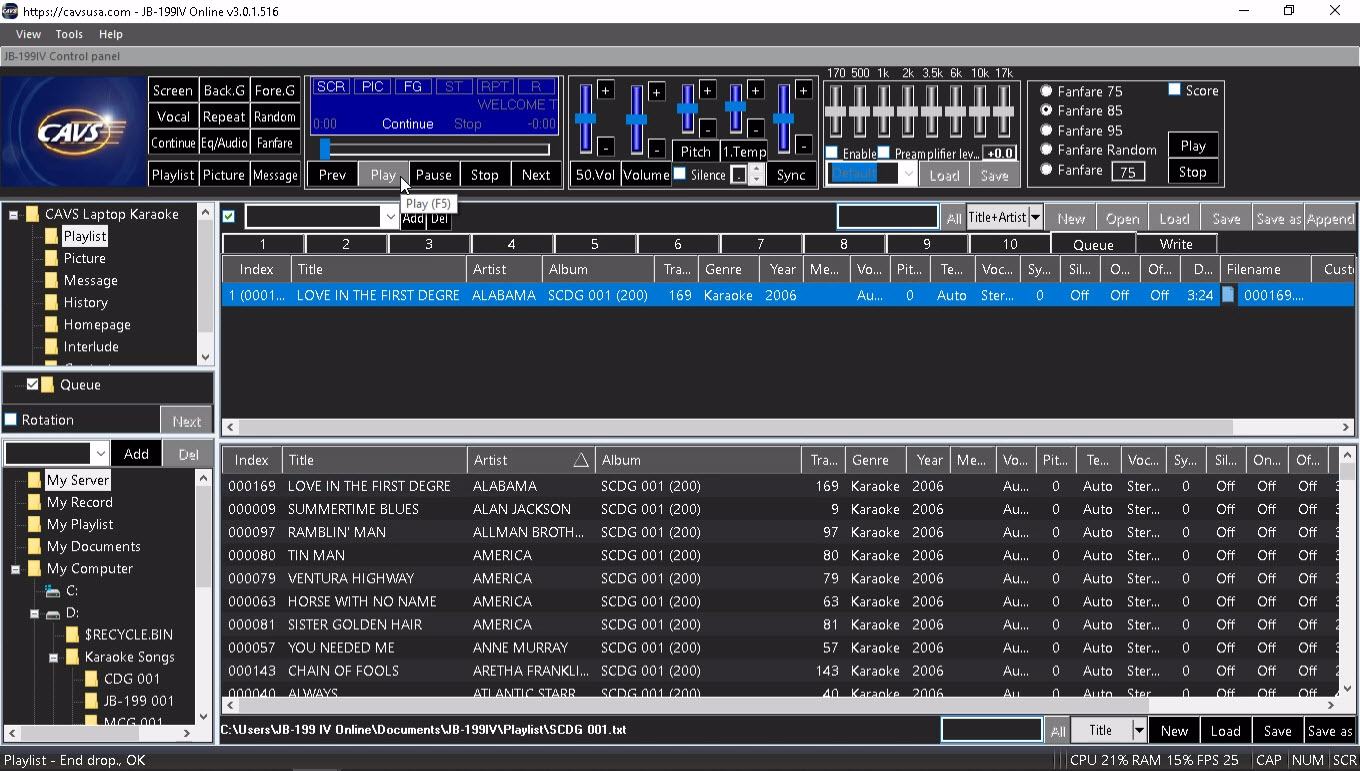
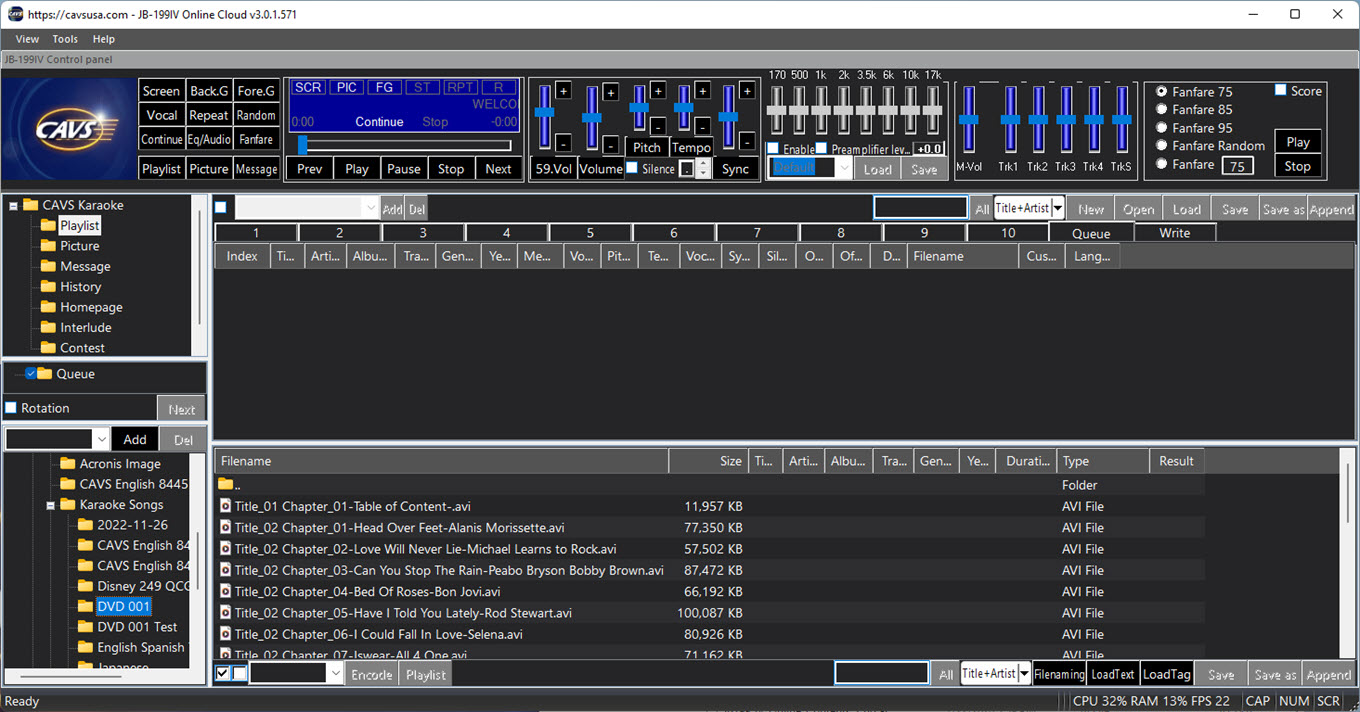
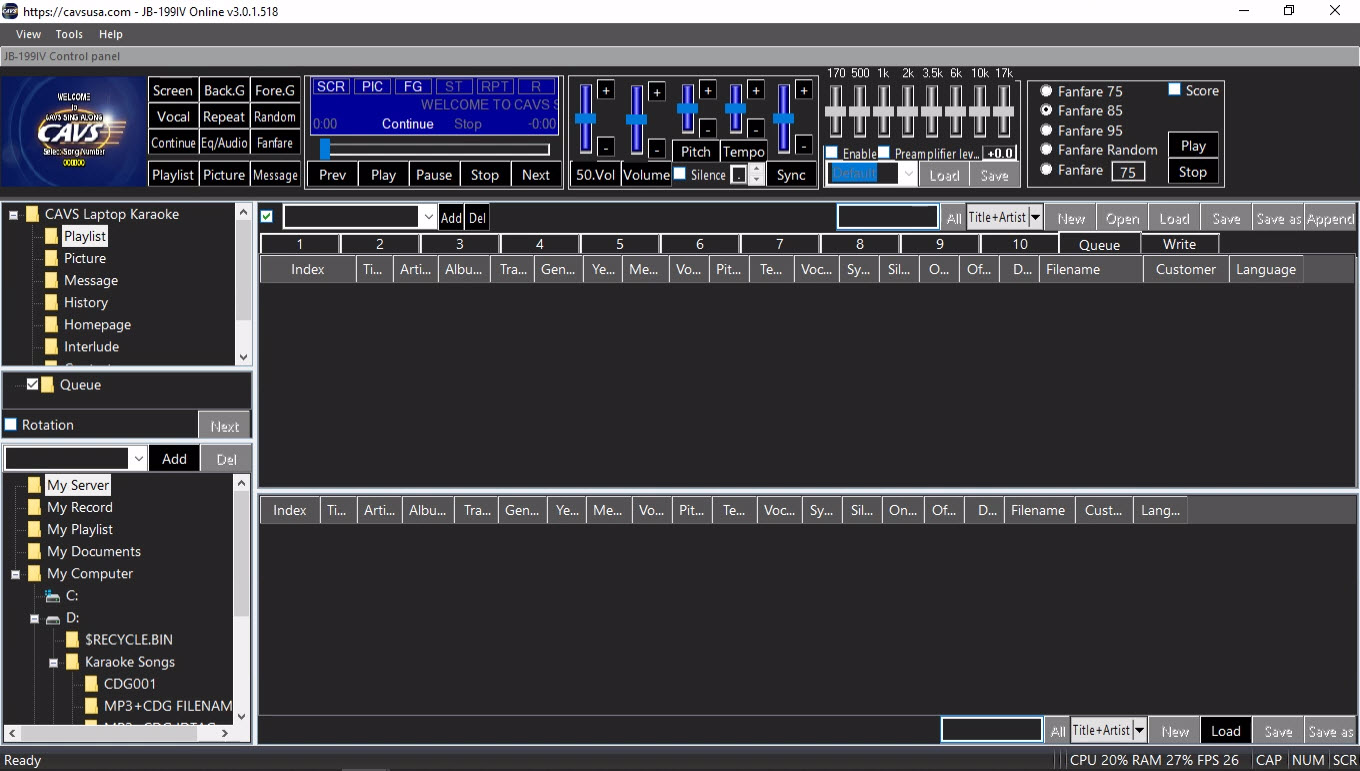
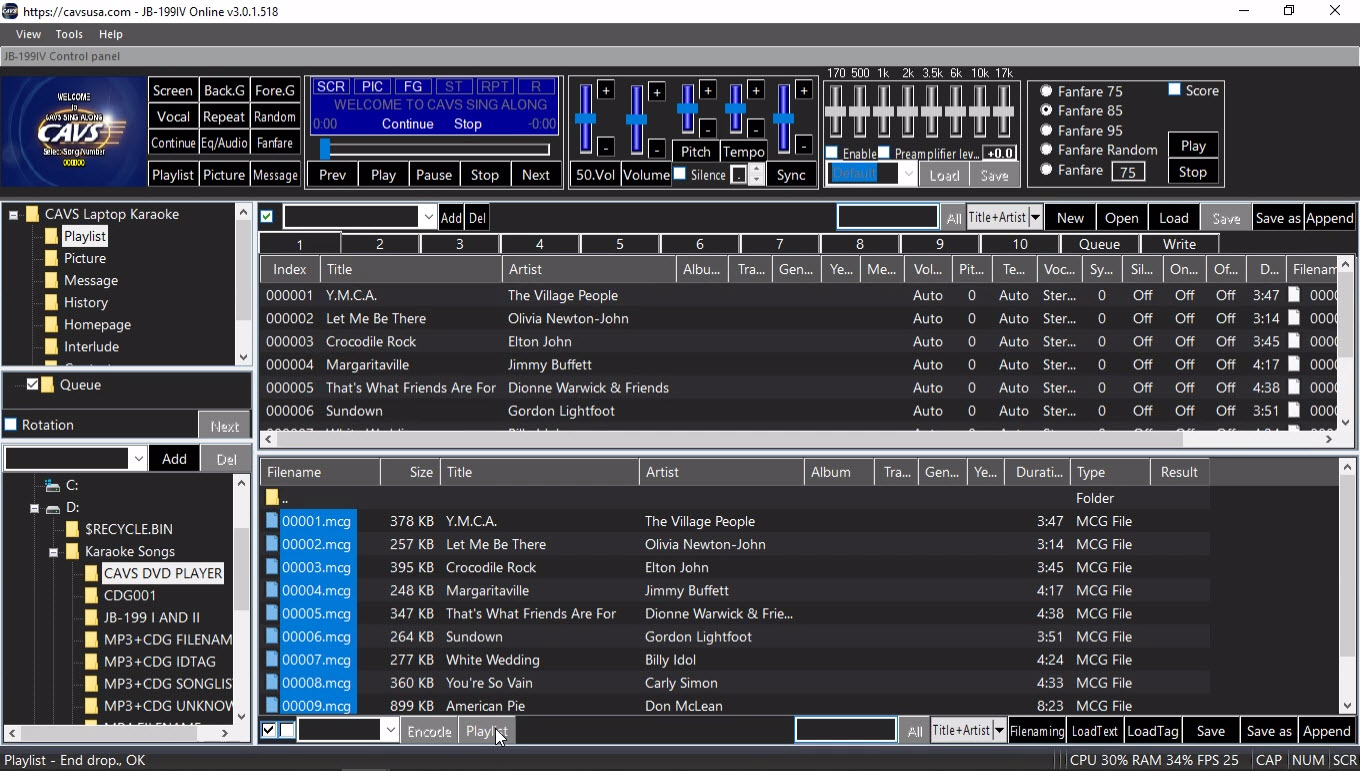
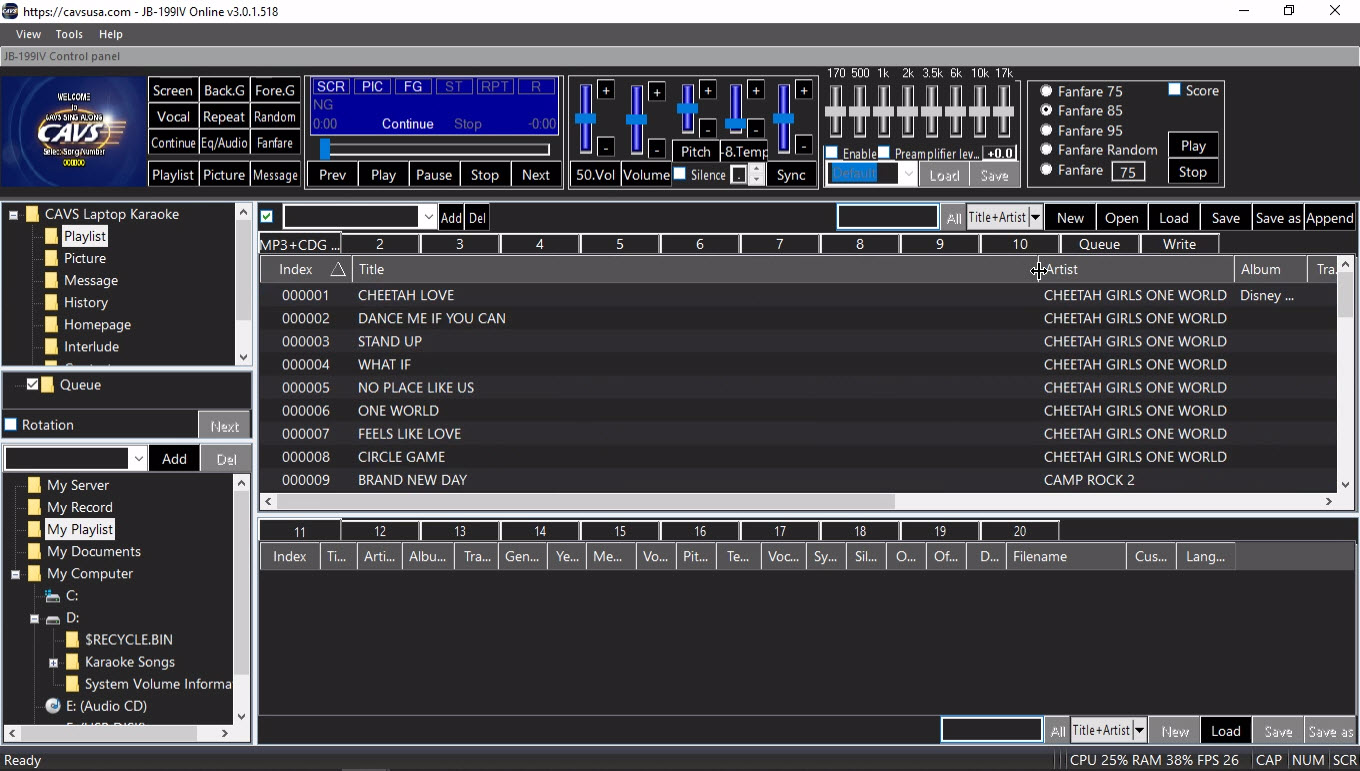
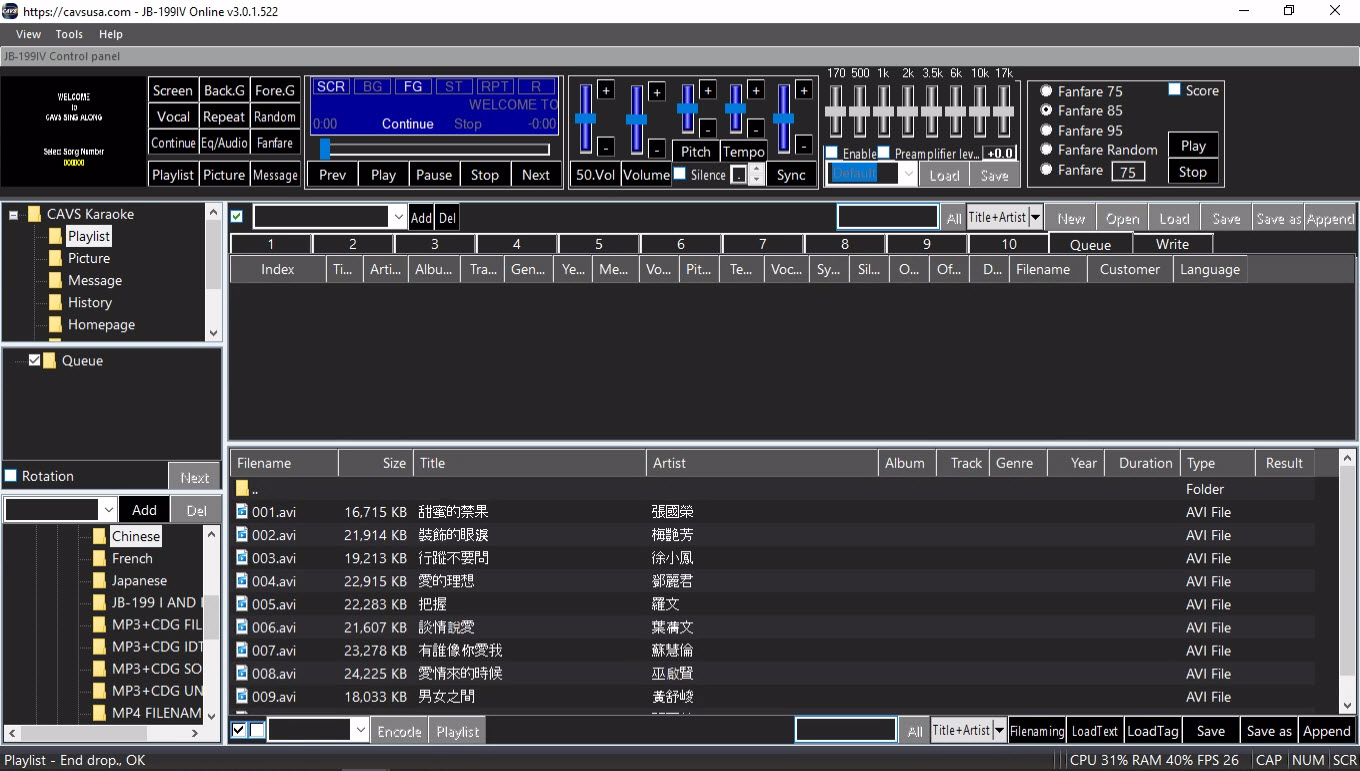
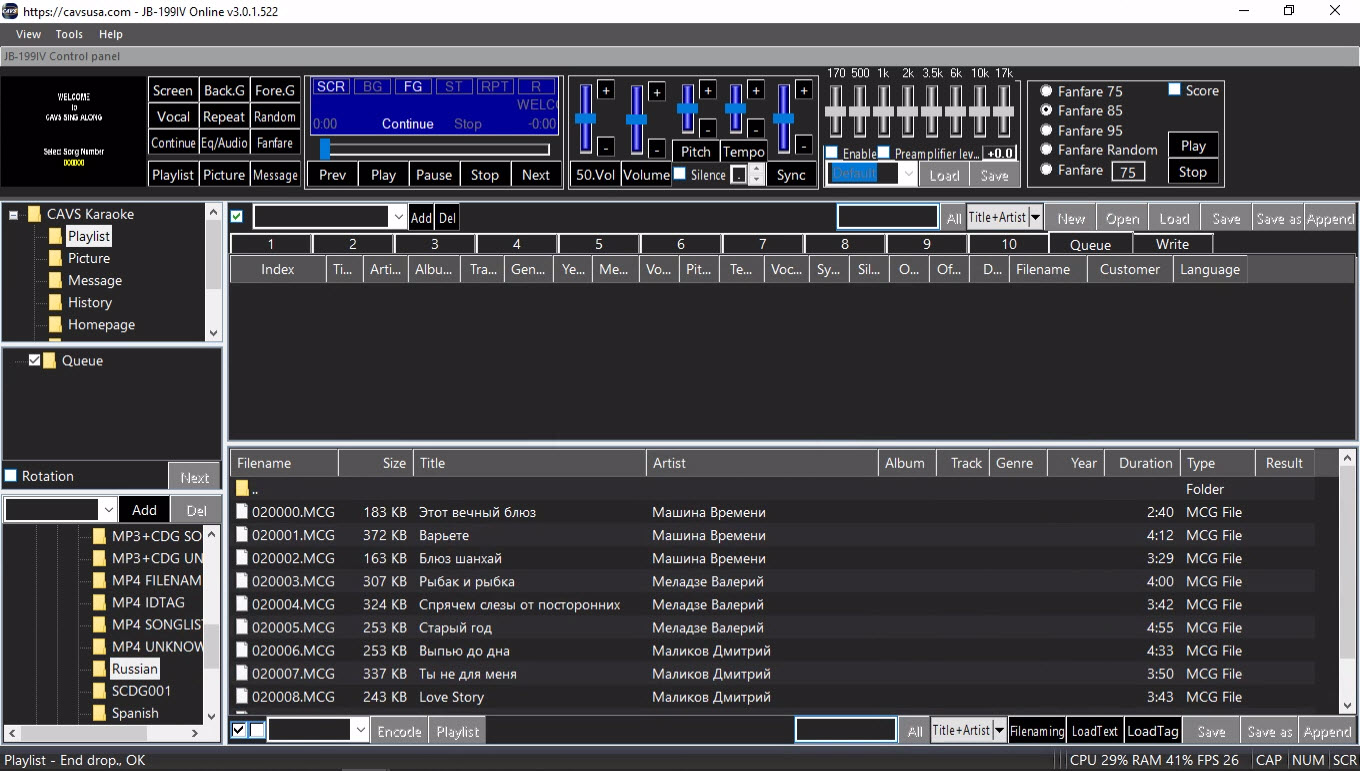
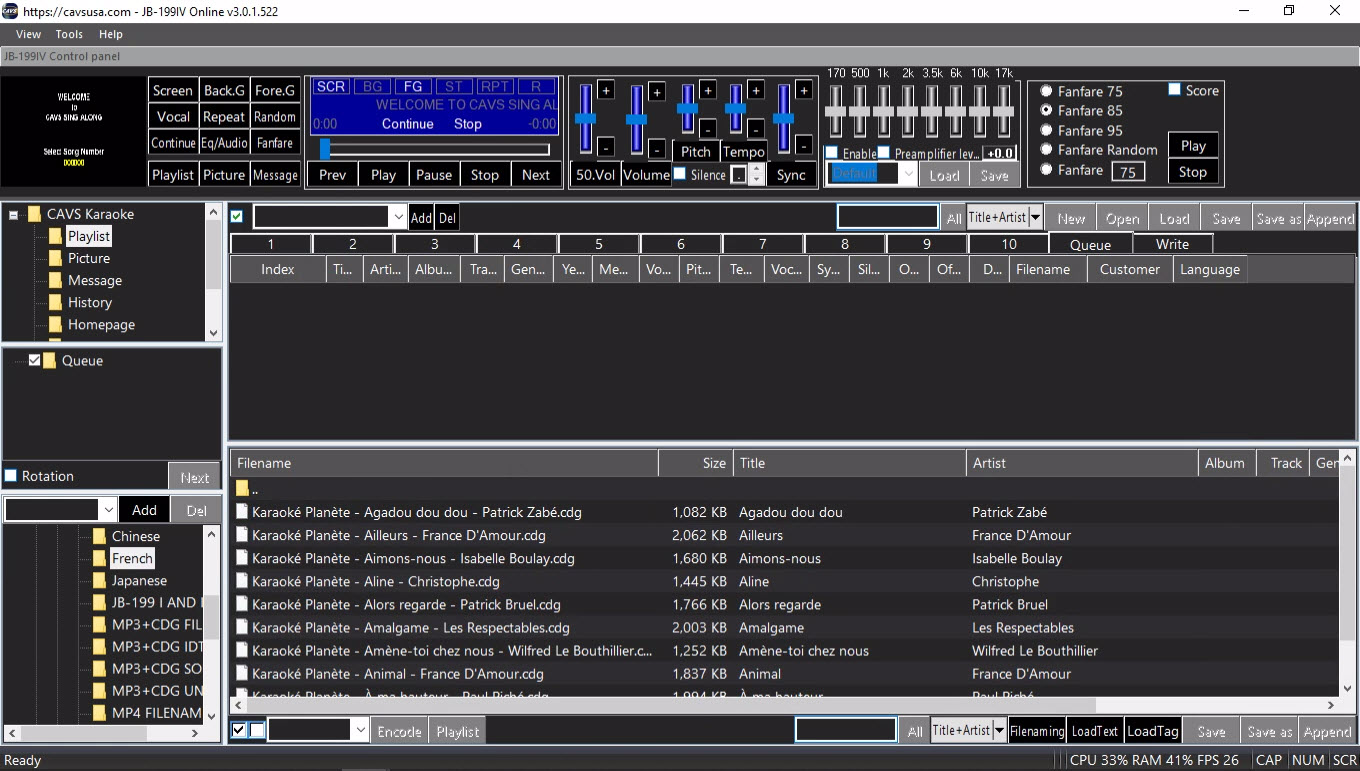
Click Playlist to open the following window on the right side.
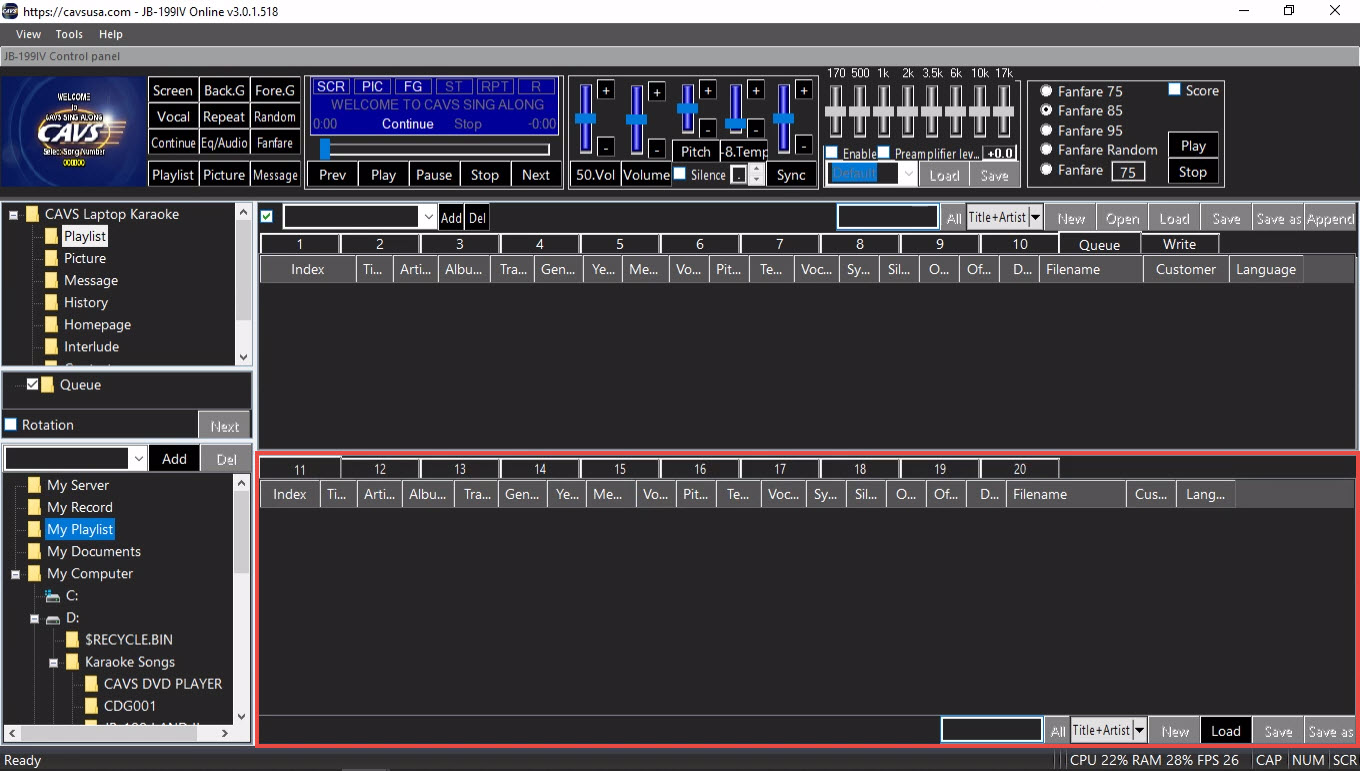
Playlists (1 - 10)
Queue (Default)
Write
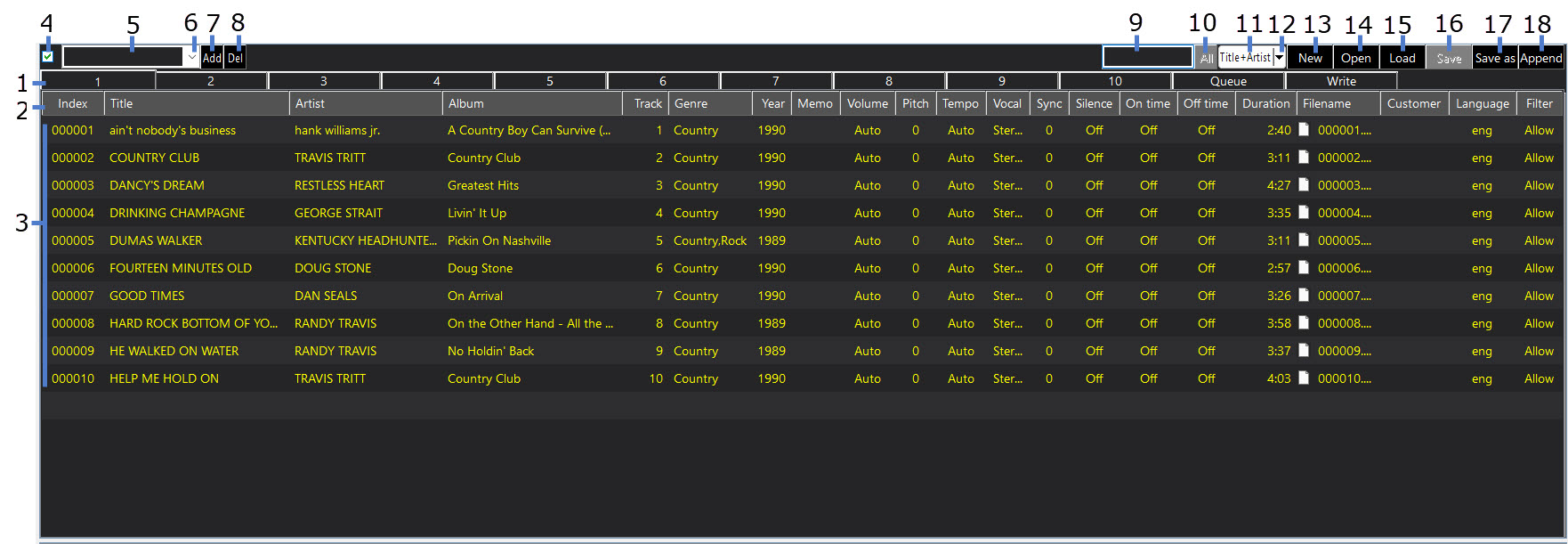
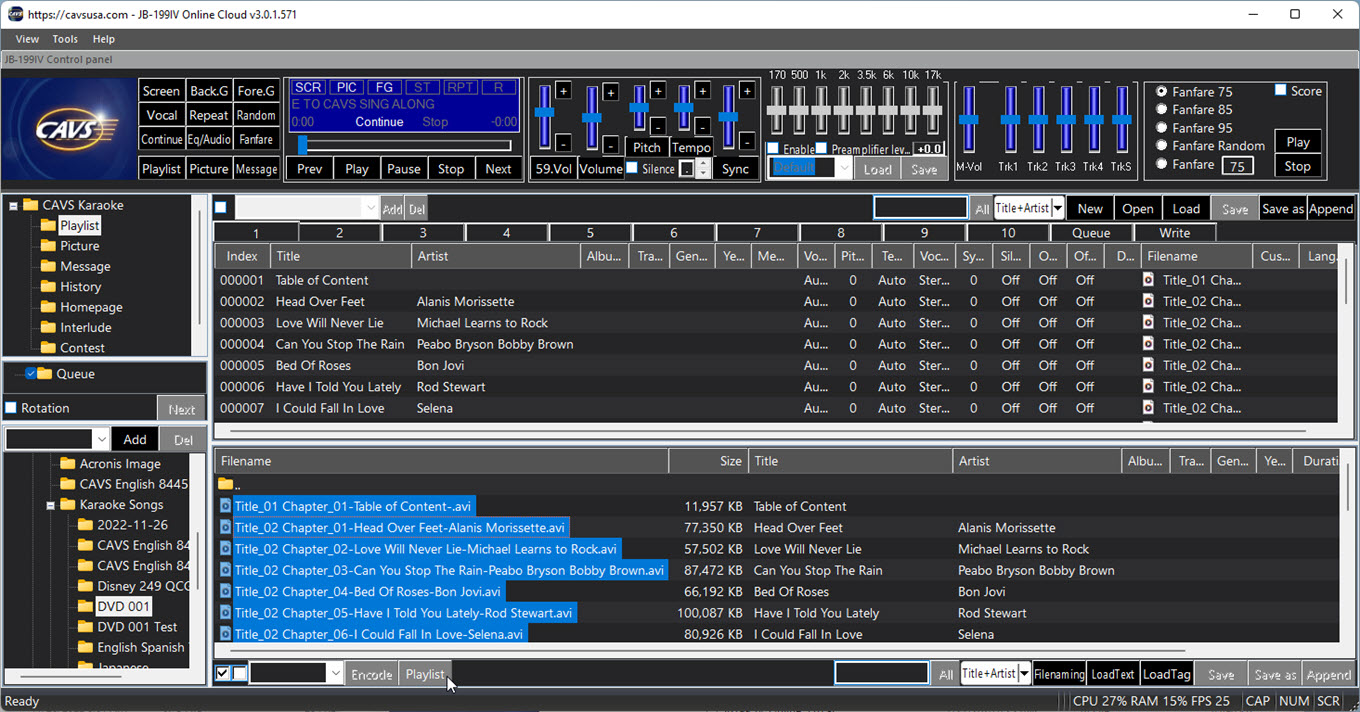
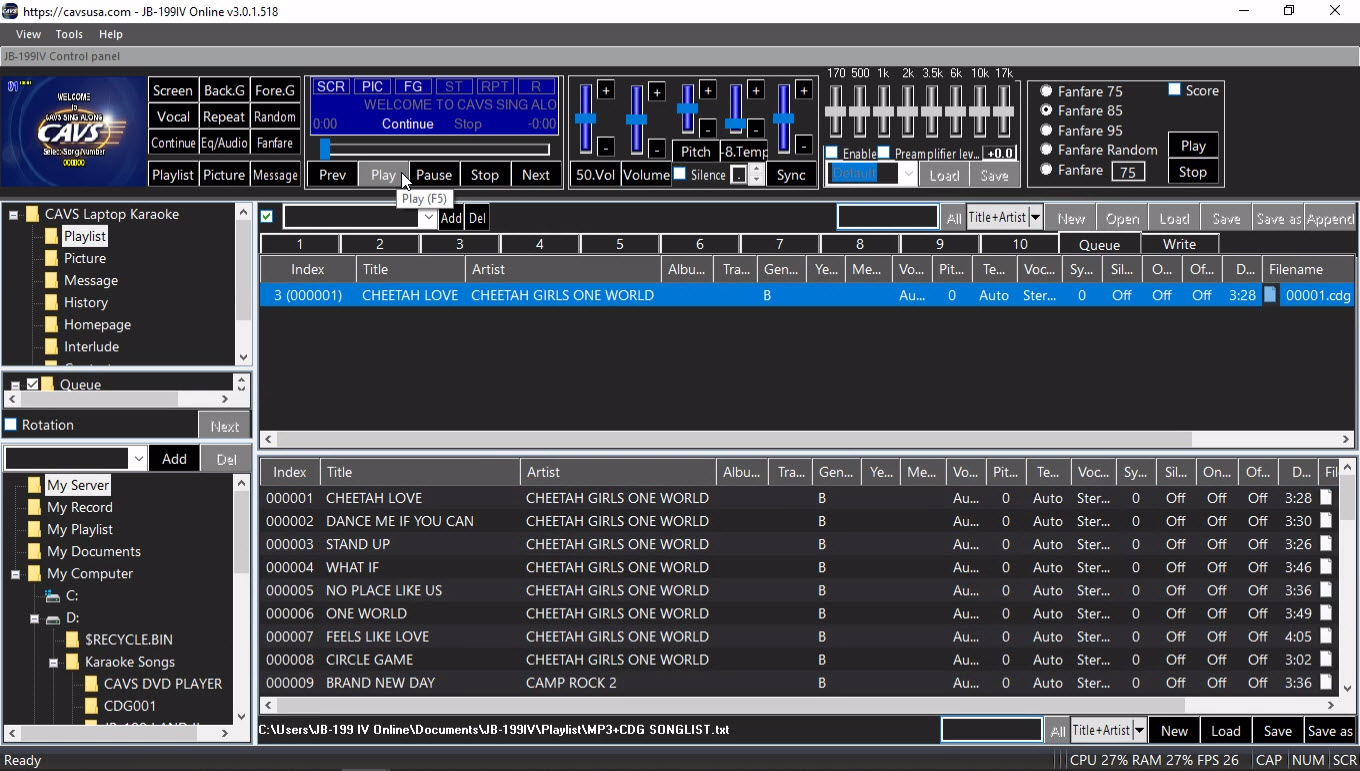
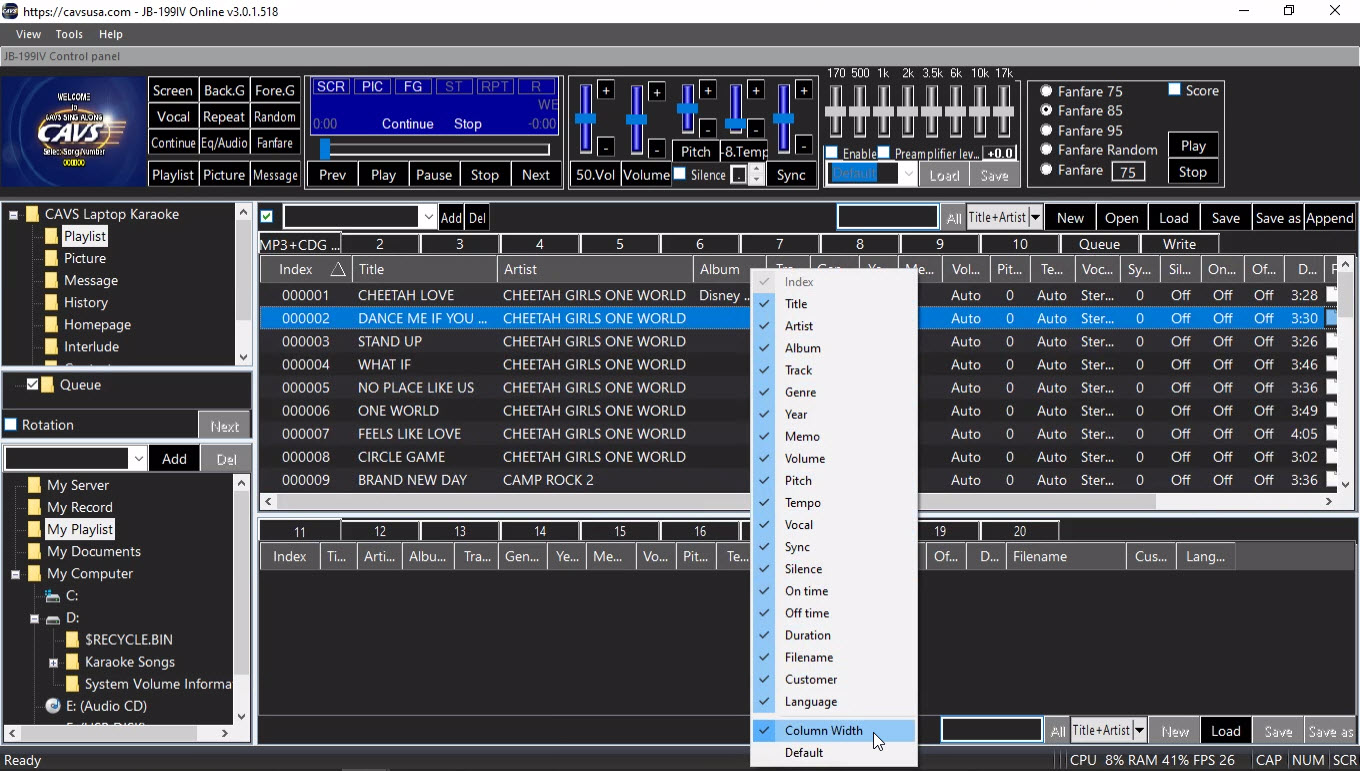
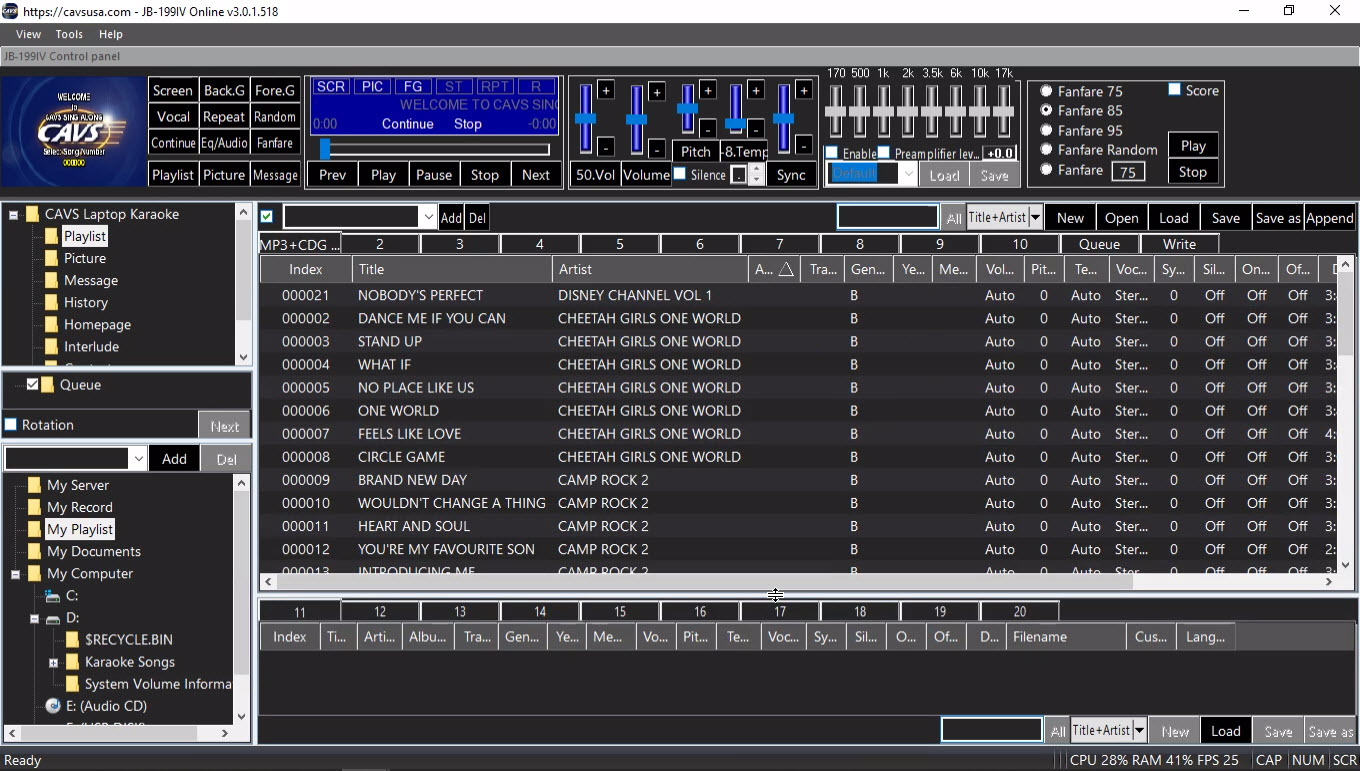
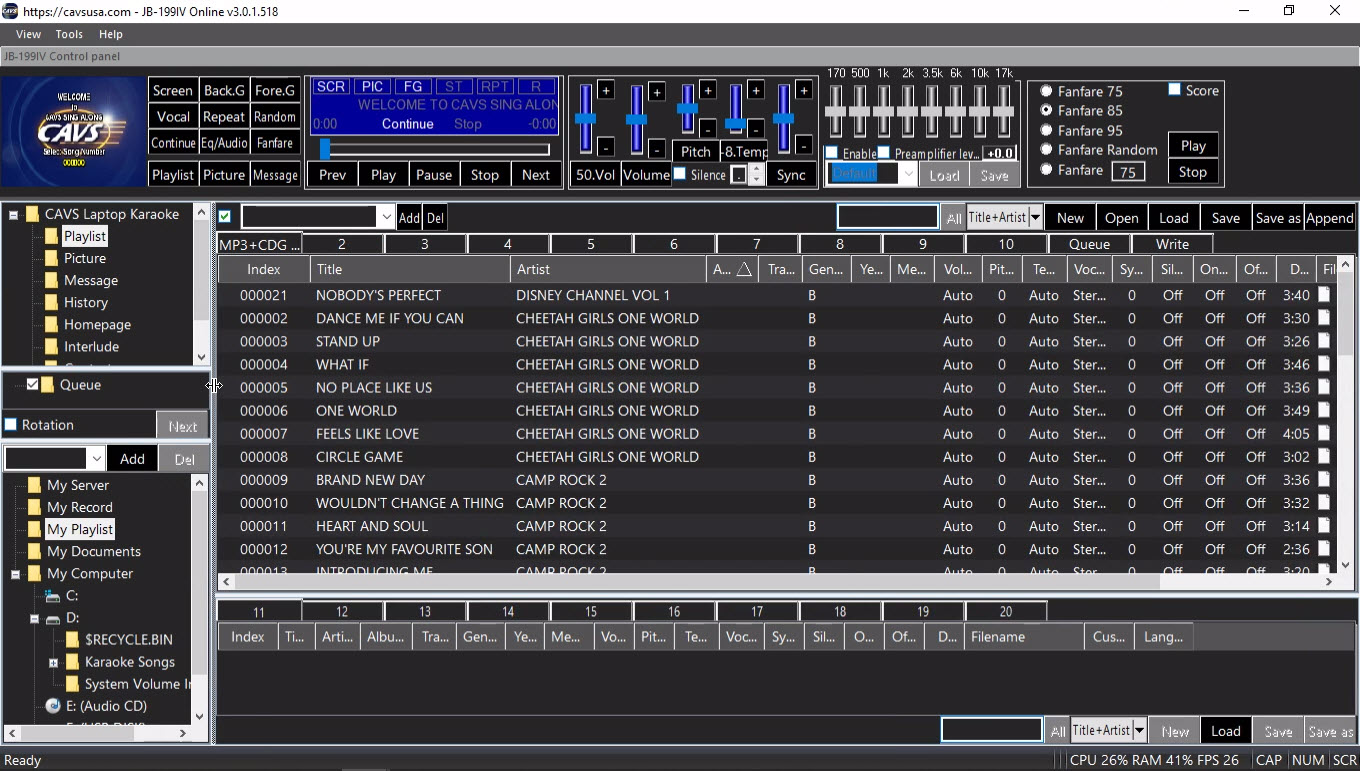
2.1. Playlist (1 - 10) Click on any one of the playlist slots 1 - 10. A following popup window will appear.
Select a slot among Playlists (1 - 10), Queue, and Write.
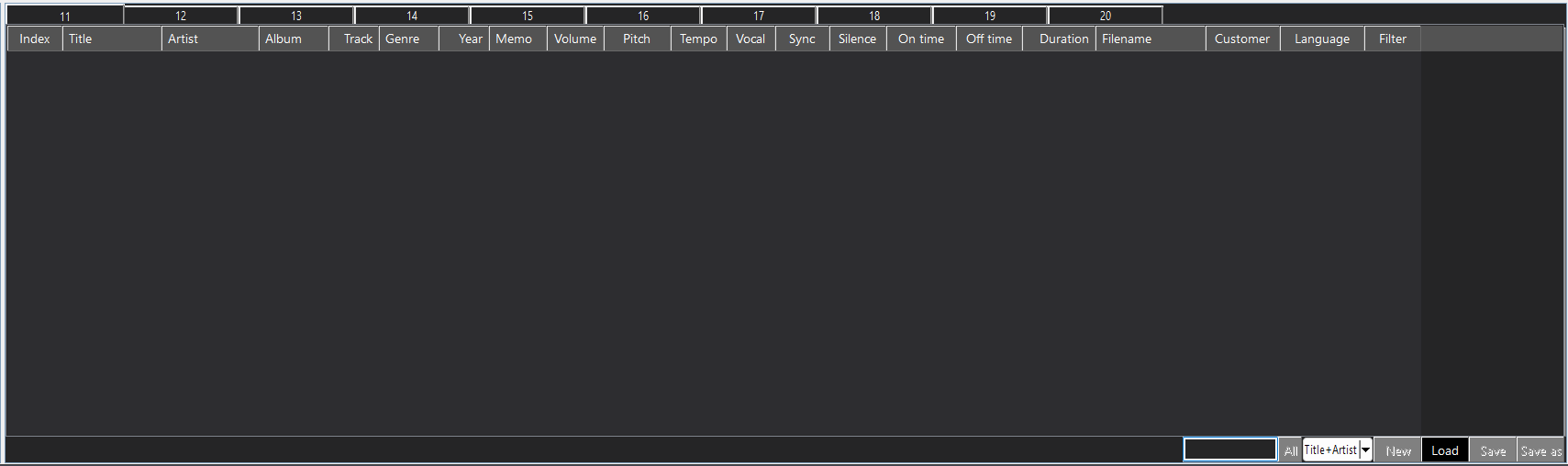
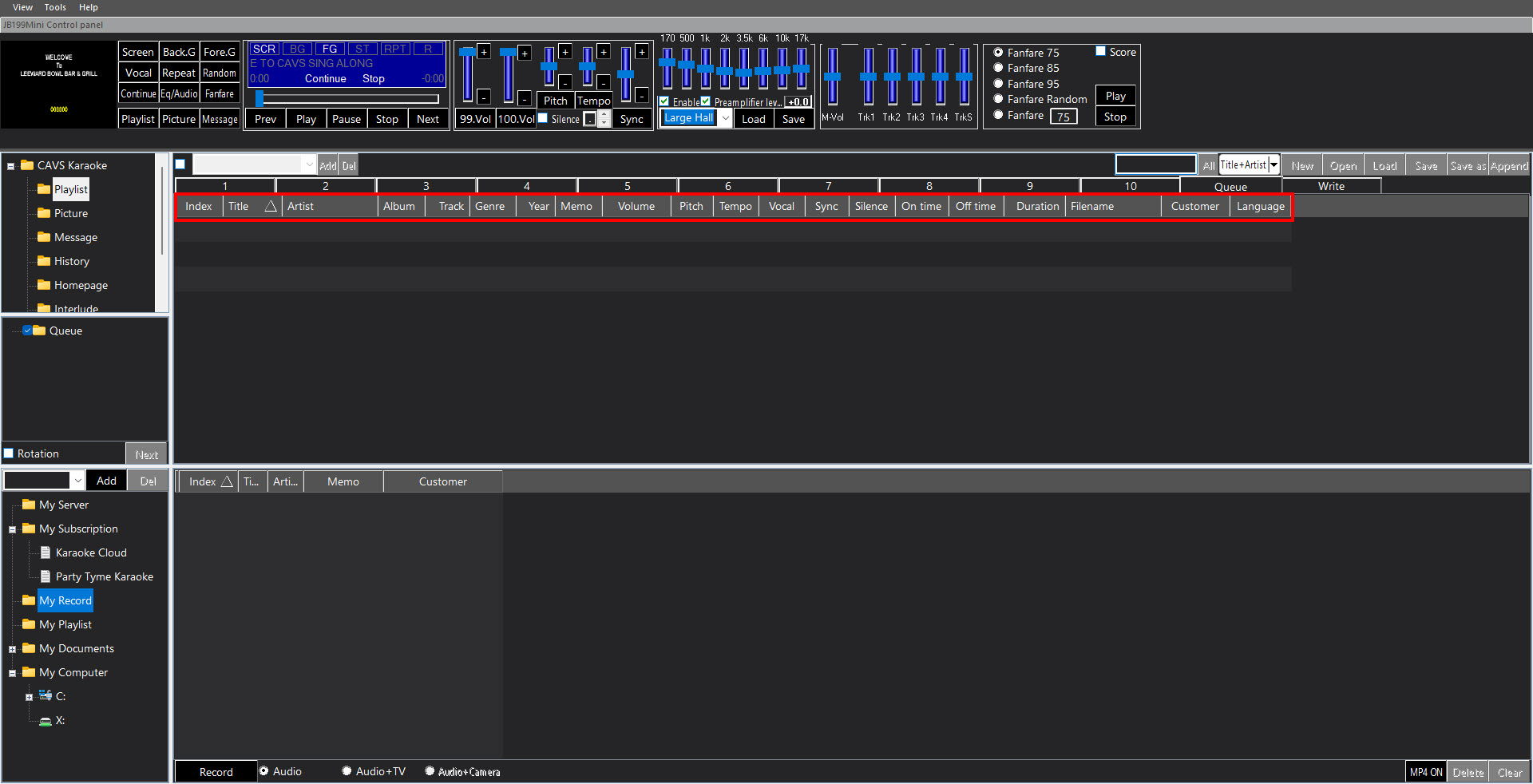
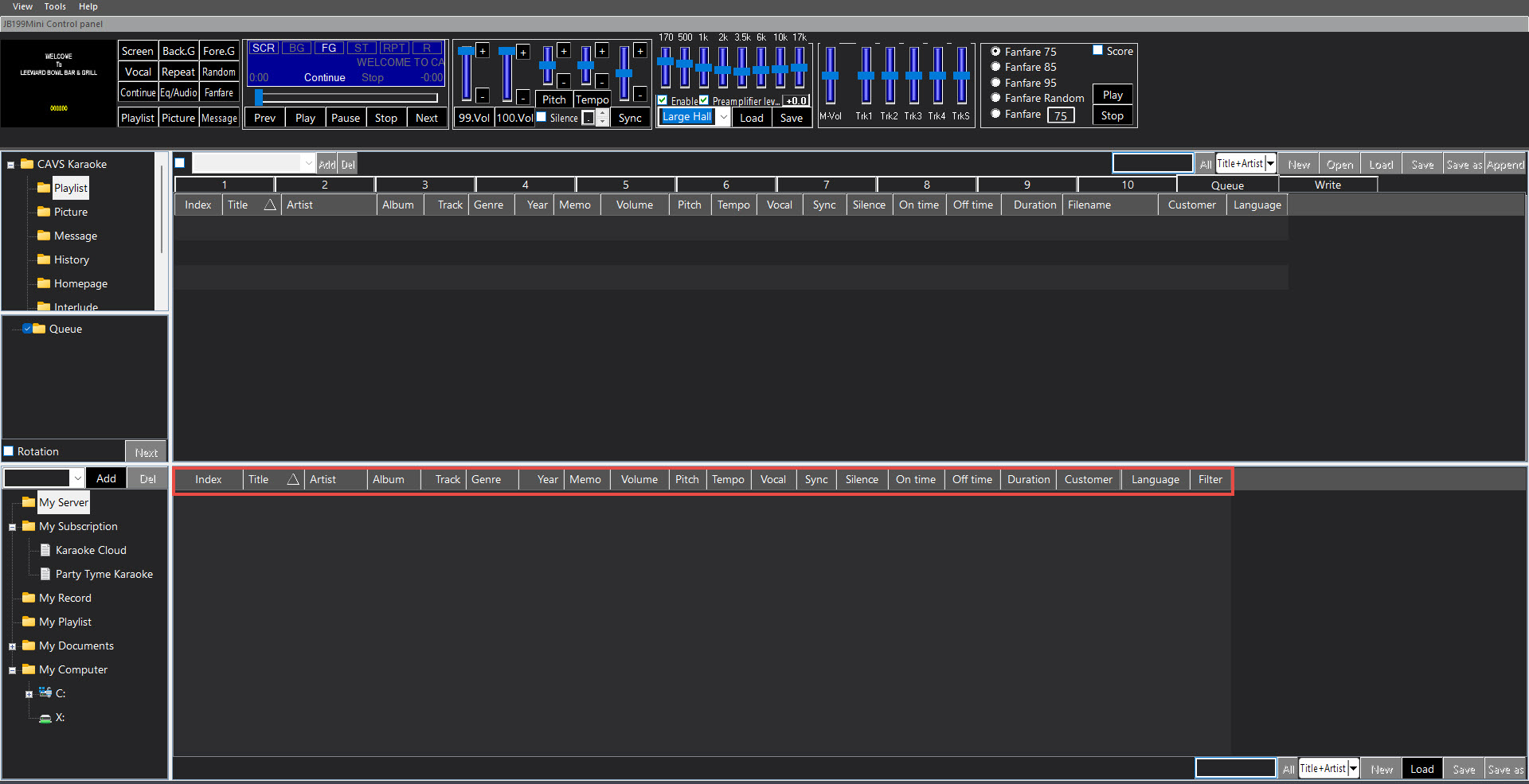
Input field names
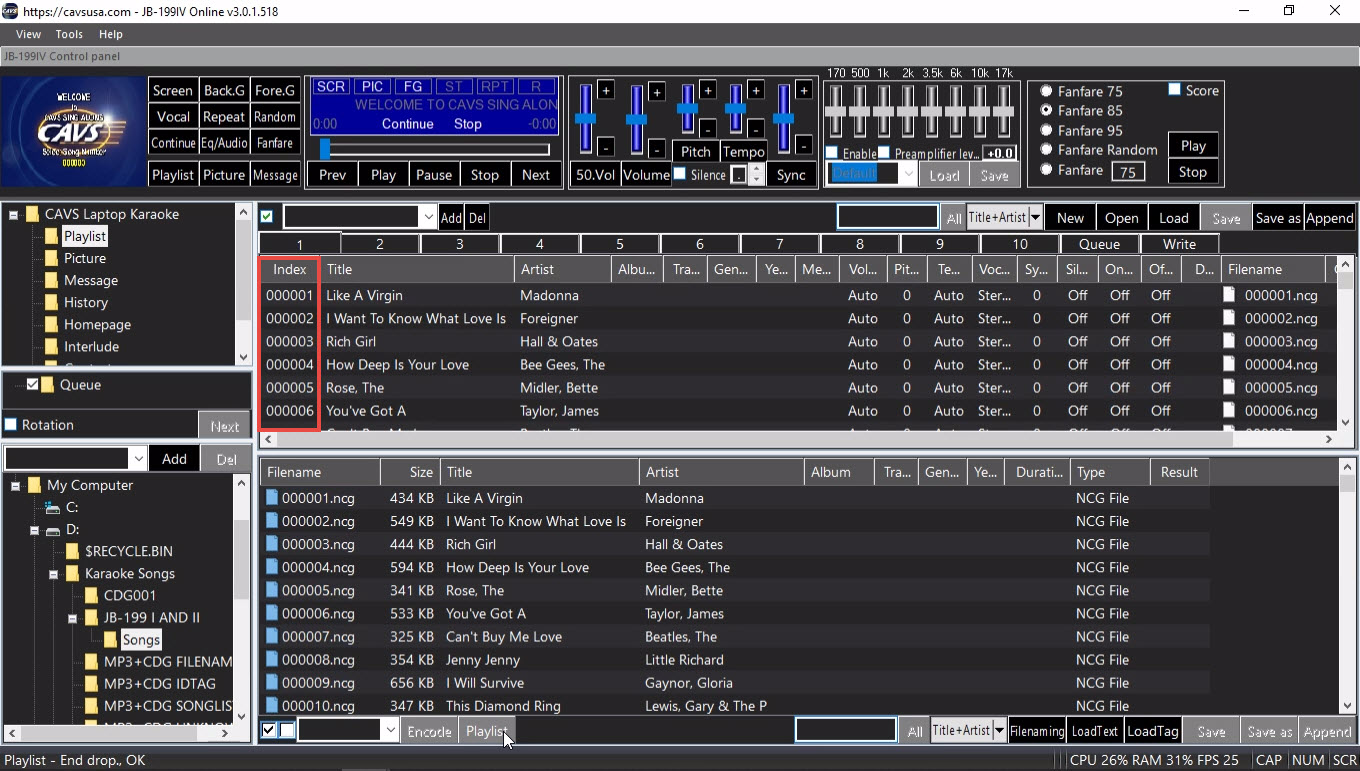
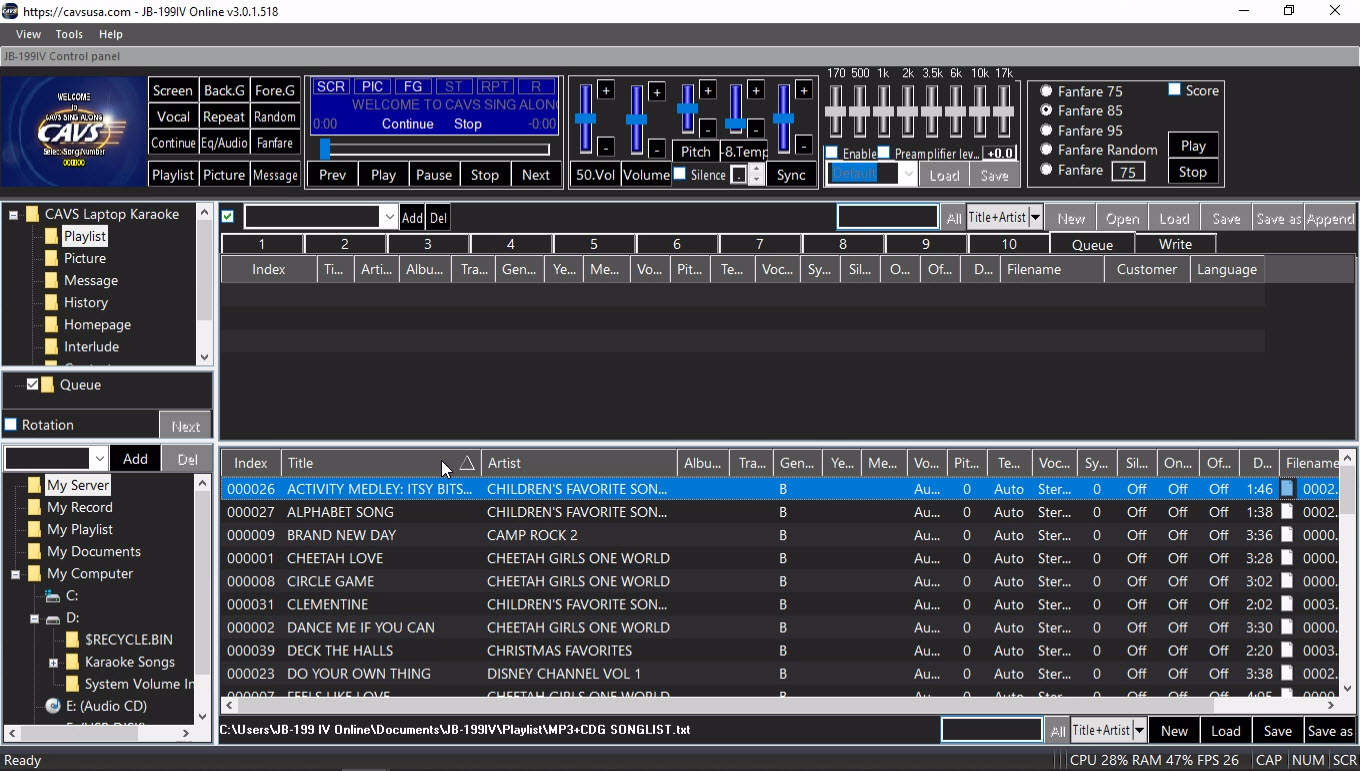
Index - Press to sort the songs by Index in ascending order. Press again to sort in descending order.
Title - Press to sort the songs by Title in ascending order. Press again to sort in descending order.
Artist - Press to sort the songs by Artist in ascending order. Press again to sort in descending order.
Album - Press to sort the songs by Album in ascending order. Press again to sort in descending order.
Track - Press to sort the songs by Track in ascending order. Press again to sort in descending order.
Genre - Press to sort the songs by Genre in ascending order. Press again to sort in descending order.
Year - Press to sort the songs by Year in ascending order. Press again to sort in descending order.
Memo - Press to sort the songs by Memo in ascending order. Press again to sort in descending order.
Volume
Pitch
Tempo
Voice Cancel
Sync
Silence Gap Remover
On time
Off time
Duration
Filename - Press to sort the songs by Filename in ascending order. Press again to sort in descending order.
Customer
Language
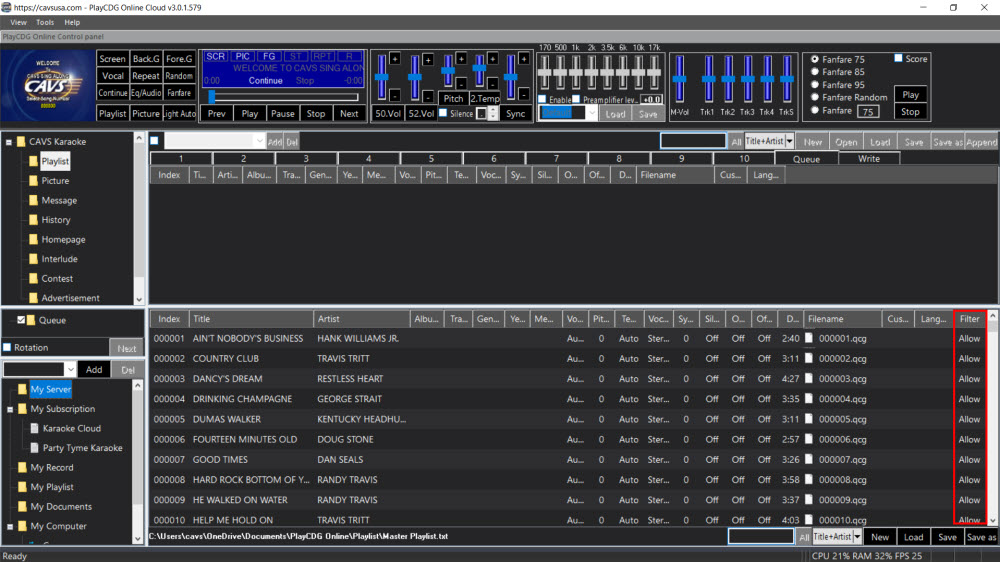
Filter
Input fields - After making changes, click on 16. Save to save.
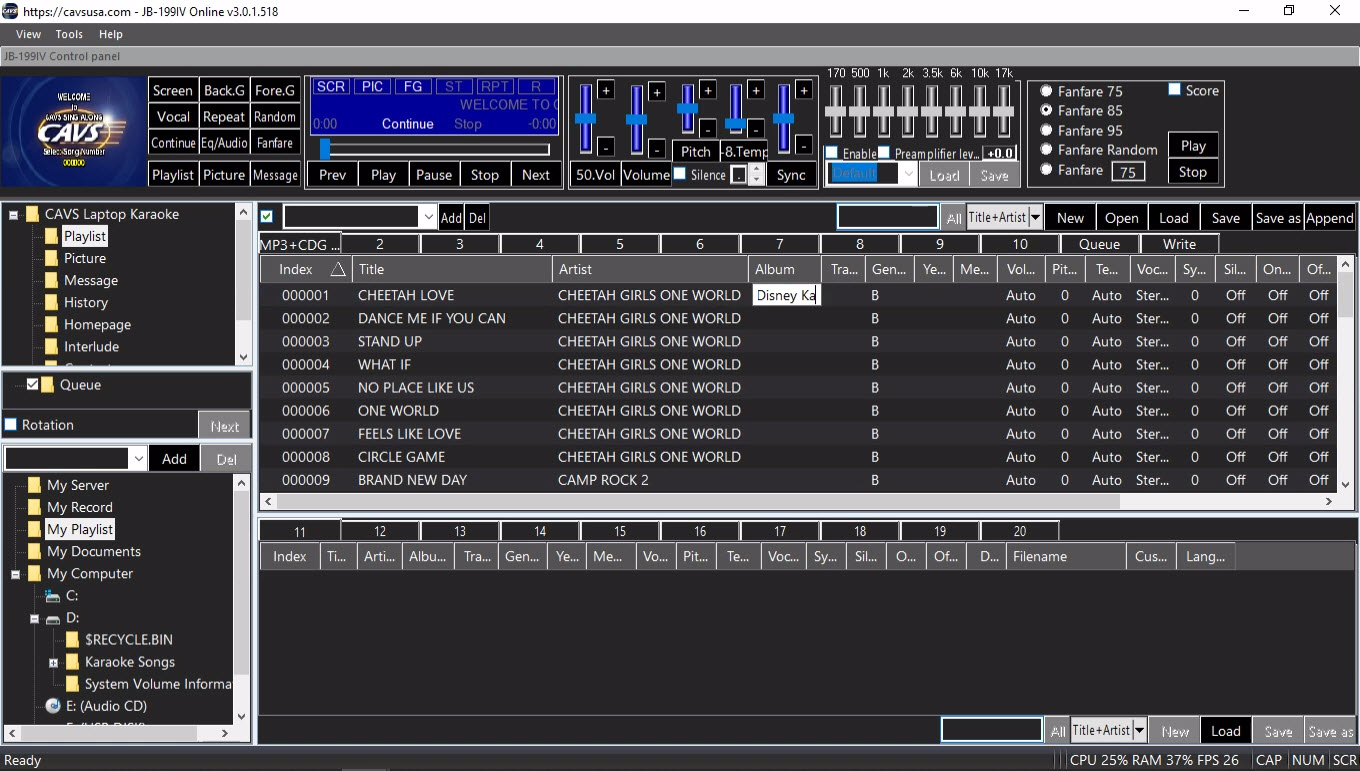
Index - Double click to edit and press Enter to finish.
Title - Double click to edit and press Enter to finish.
Artist - Double click to edit and press Enter to finish.
Album - Double click to edit and press Enter to finish.
Track - Double click to edit and press Enter to finish.
Genre - Double click to edit and press Enter to finish.
Year - Double click to edit and press Enter to finish.
Memo - Double click to edit and press Enter to finish.
Volume - Double click to set it at (1, 100). Default is Auto (0).
Pitch - Double click to set it at (-6, +6). Default is 0.
Tempo - Double click to set it at (-6, +6). Default is 0.
Voice Cancel - Double click to set it at Stereo (0), Left (1), or Right (2). Default is Stereo (0).
Sync - Double click to set it at (-75, +75). Default is 0.
Silence Gap Remover - Double click to set it at (-5, +5) in seconds. Default is Off.
On time - Double click to set the starting time of the song at (1, ...) in seconds. Default is off (0).
Off time - Double click to set the ending time of the song at (1, ...) in seconds. Default is off (0).
Duration - Indicate the time duration of the song.
Filename - Indicate the song file name. Double click to edit and press Enter to finish.
Customer - Double click to edit and press Enter to finish.
Language - Double click to edit and press Enter to finish.
Filter - Indicate the filter statis: Allow, Flag, or Block.
Turn on/off Auto Customer Naming - Automatically add the customer names when reserving songs.
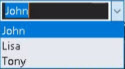
Customer Input field - Type in a new name to add or select an existing name to delete.
Press to display customer names.
Add a new customer name.
Delete a selected customer name.
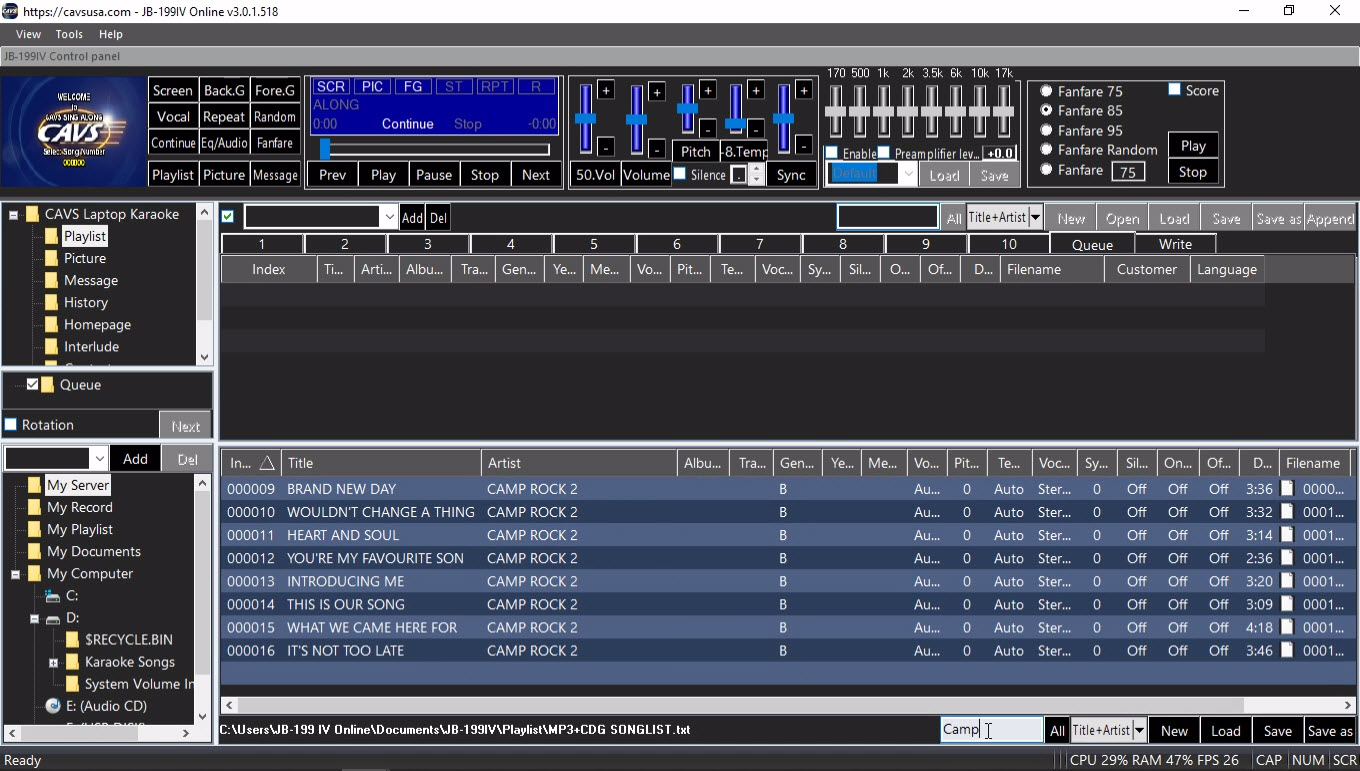
Search Input - Type in the words to search for.
Return to the total playlist.
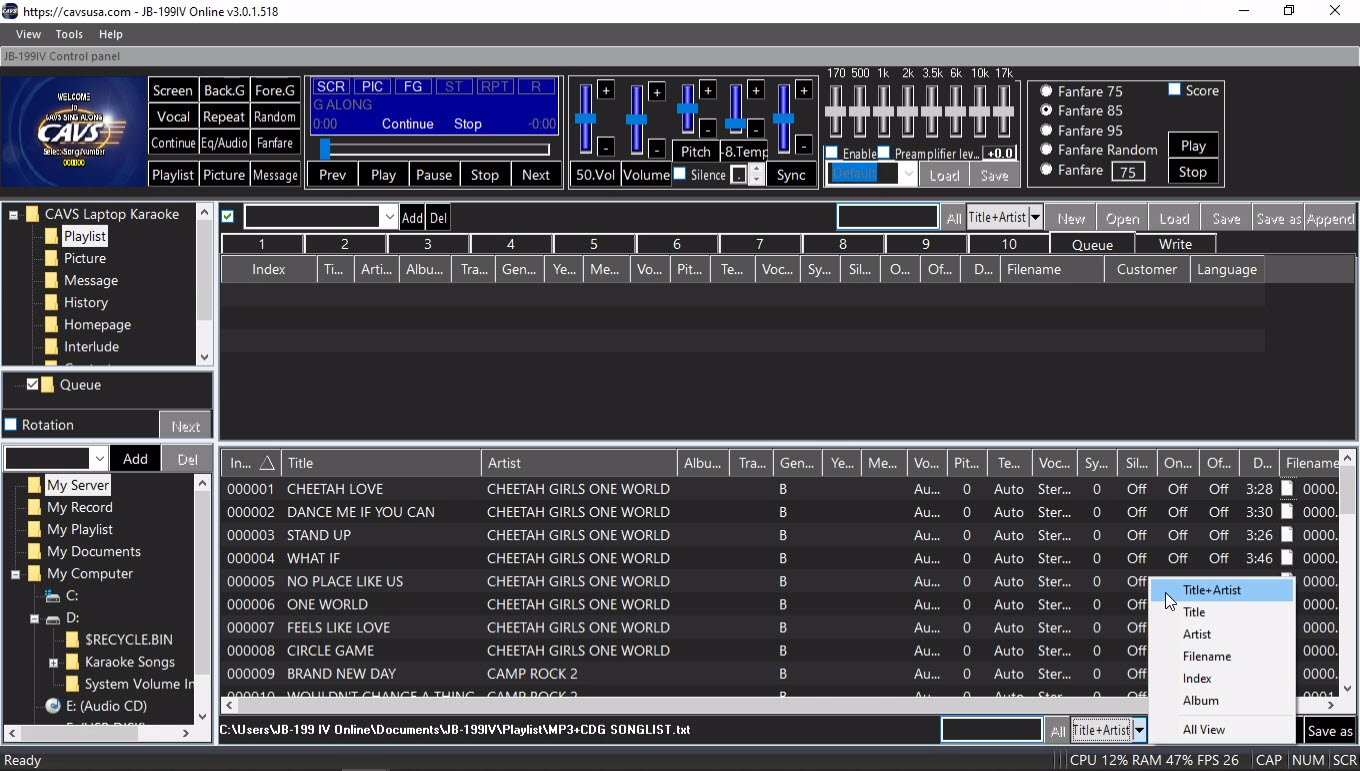
Indicate the current search category.
Select a search category.
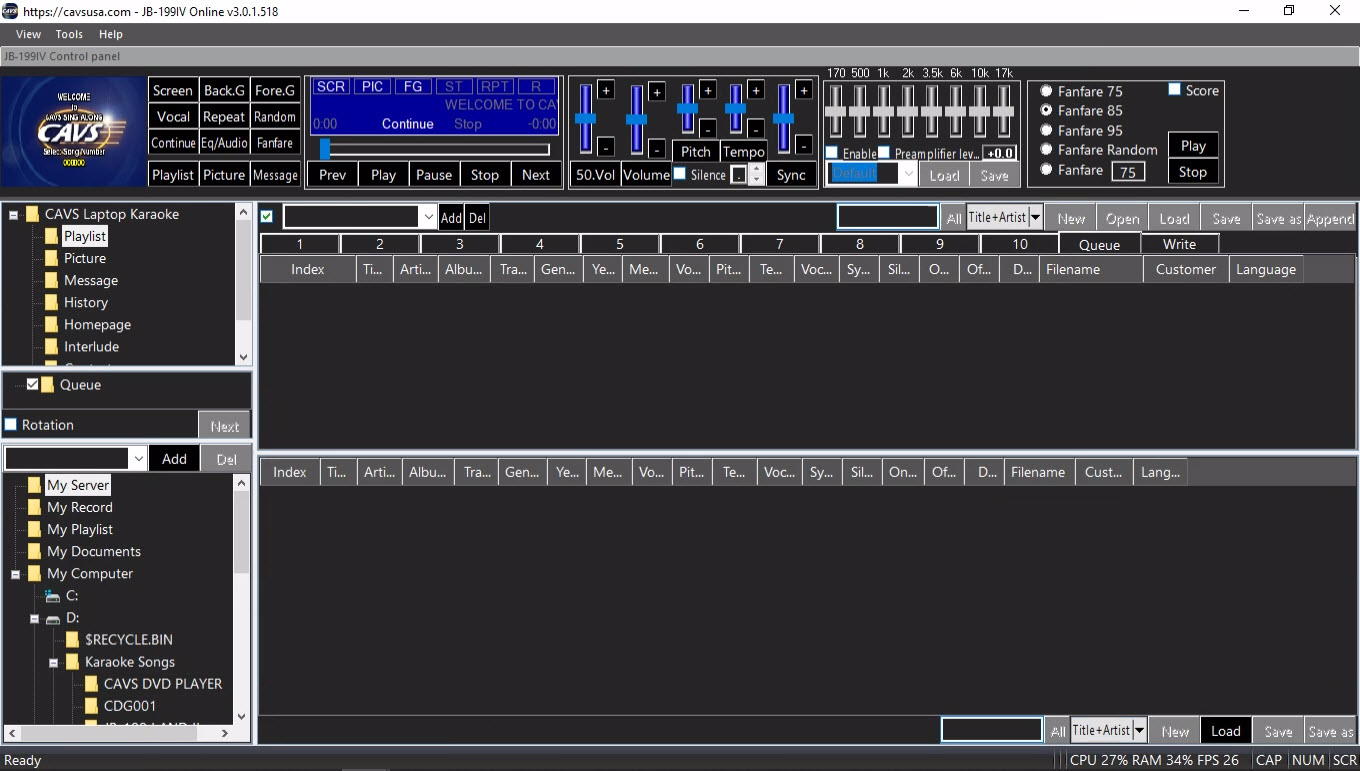
New - Clear the playlist slot.
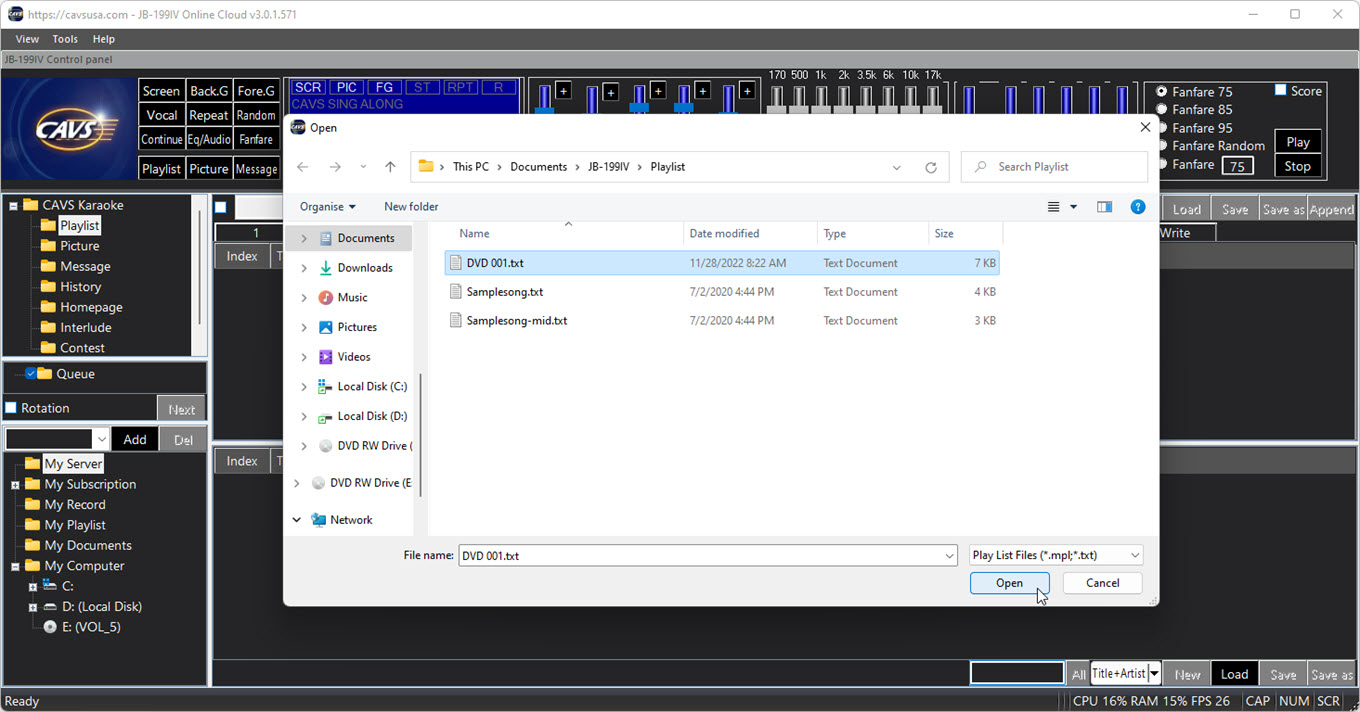
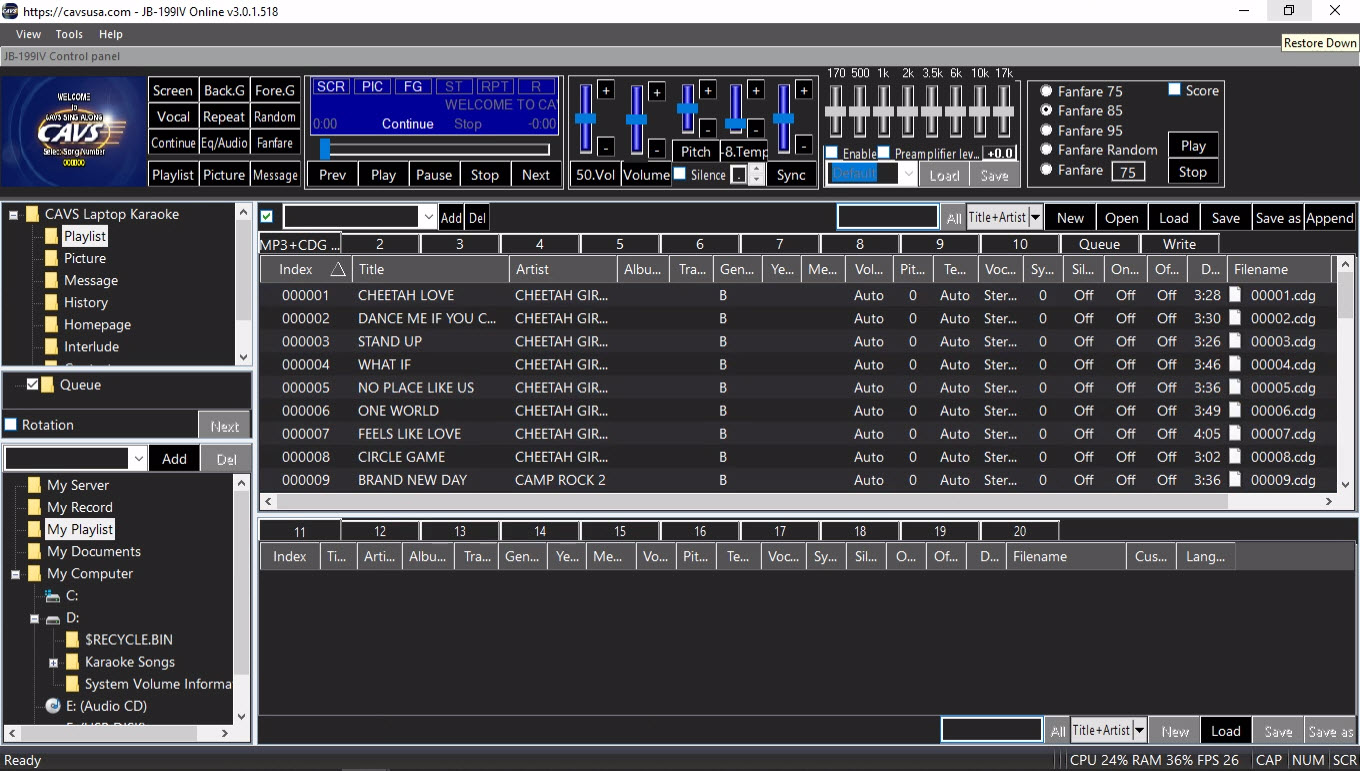
Open the MS File Explorer to select and load a playlist.
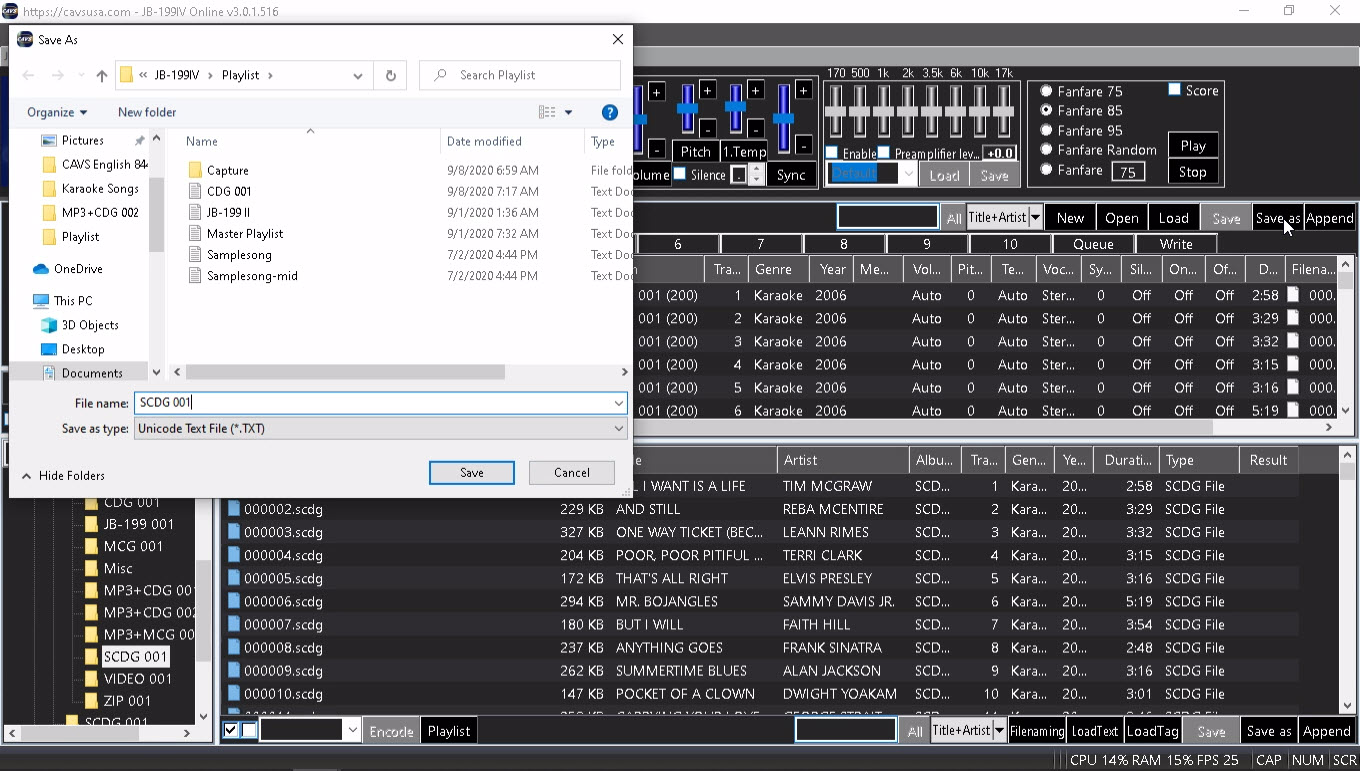
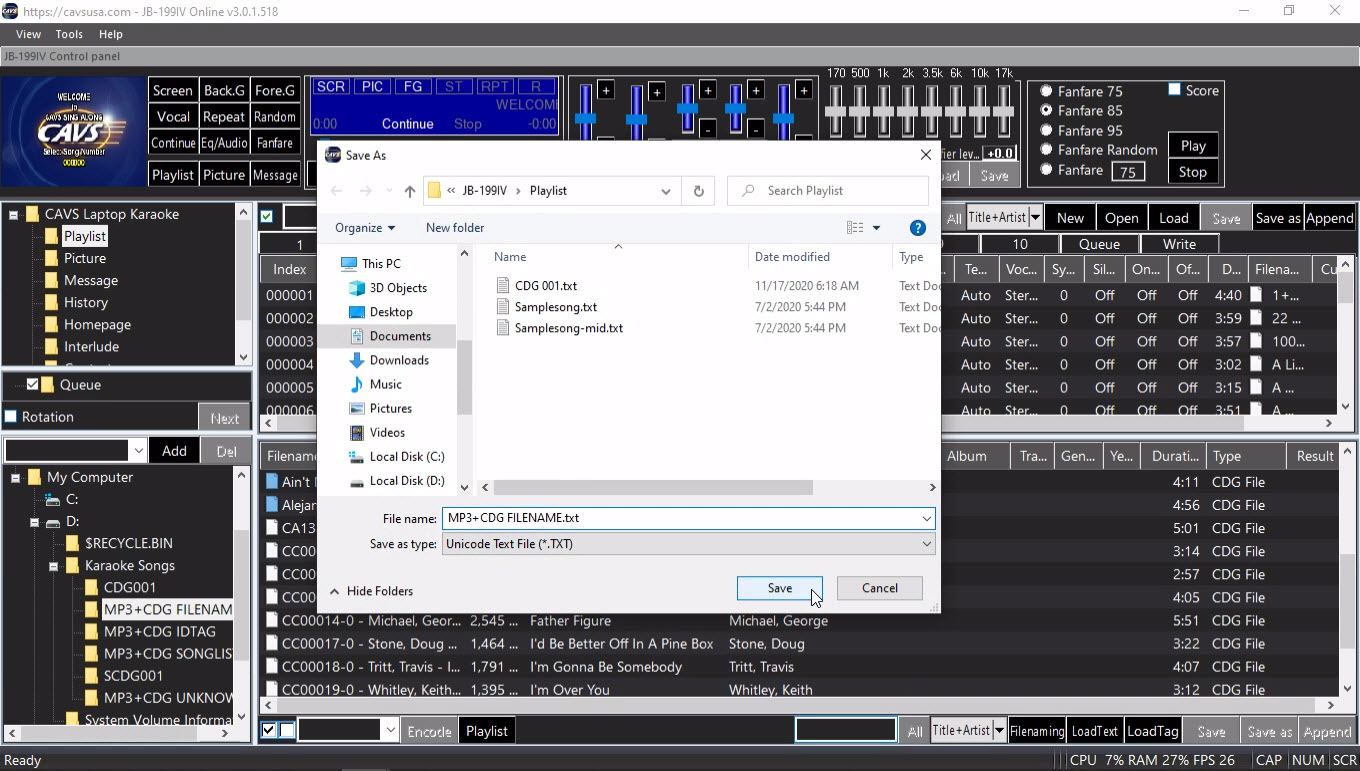
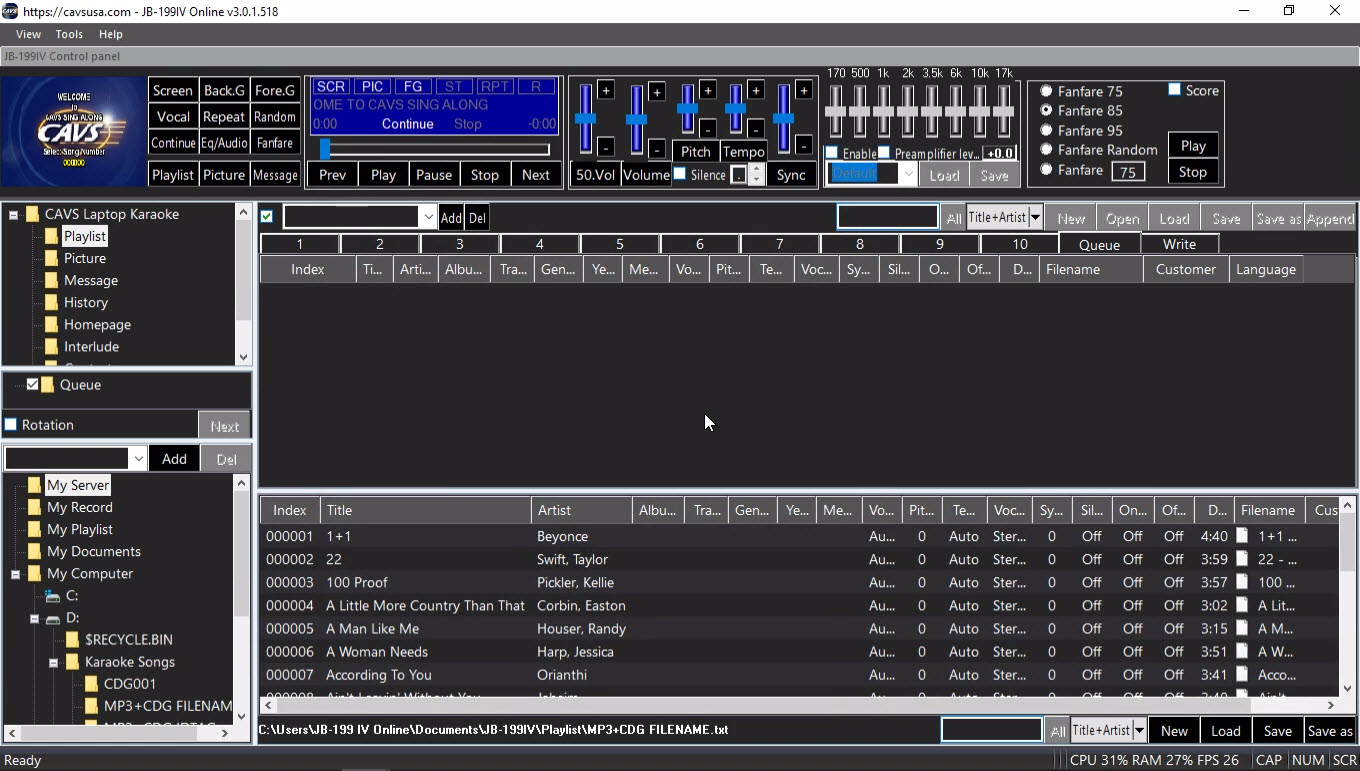
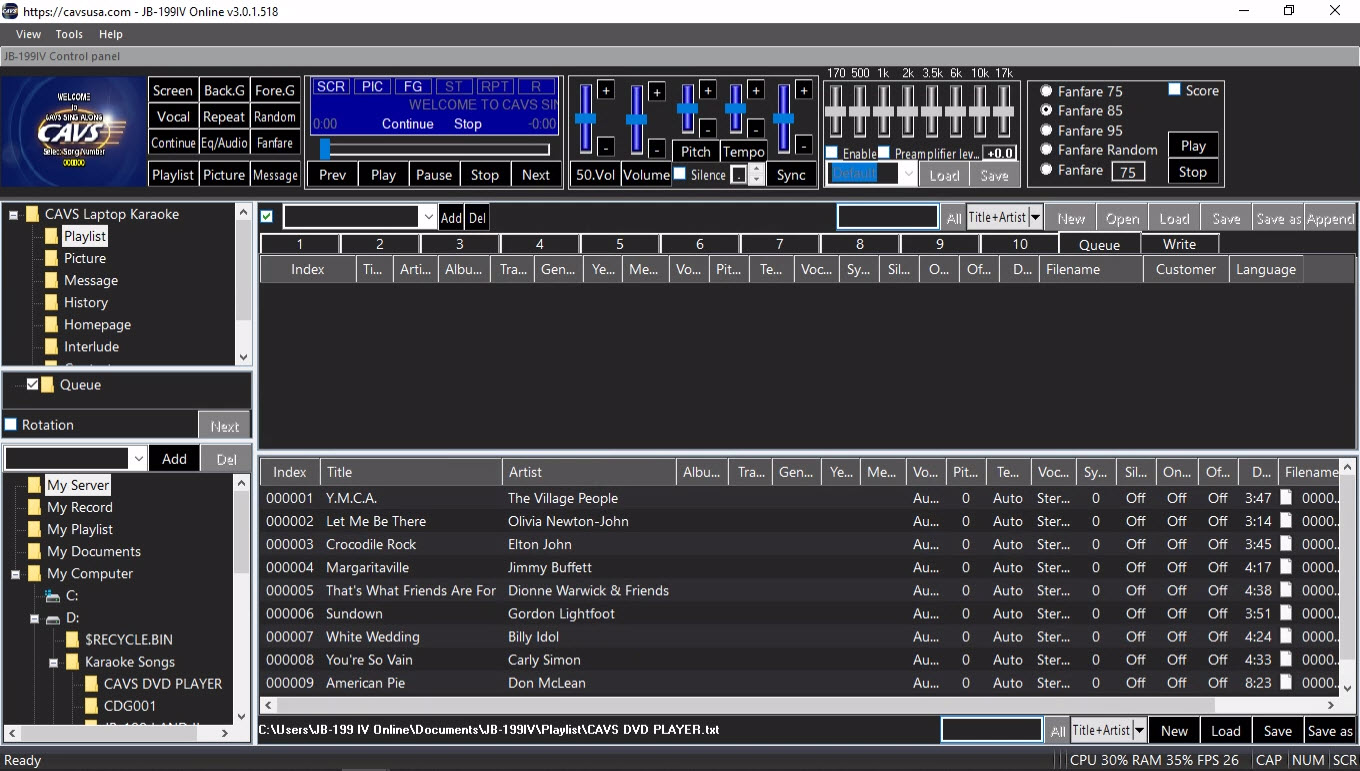
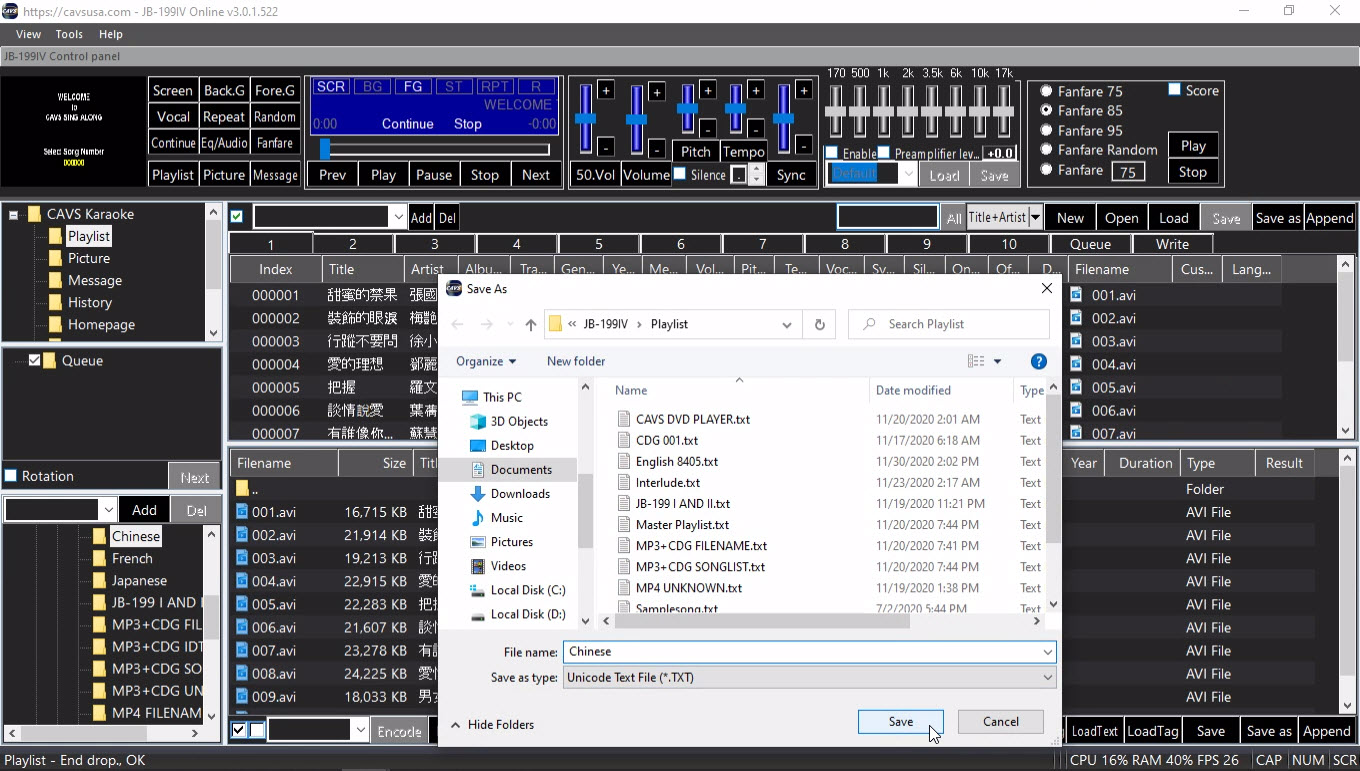
Load a playlist. By default the folder Documents > JB-199V > Playlist is opened.
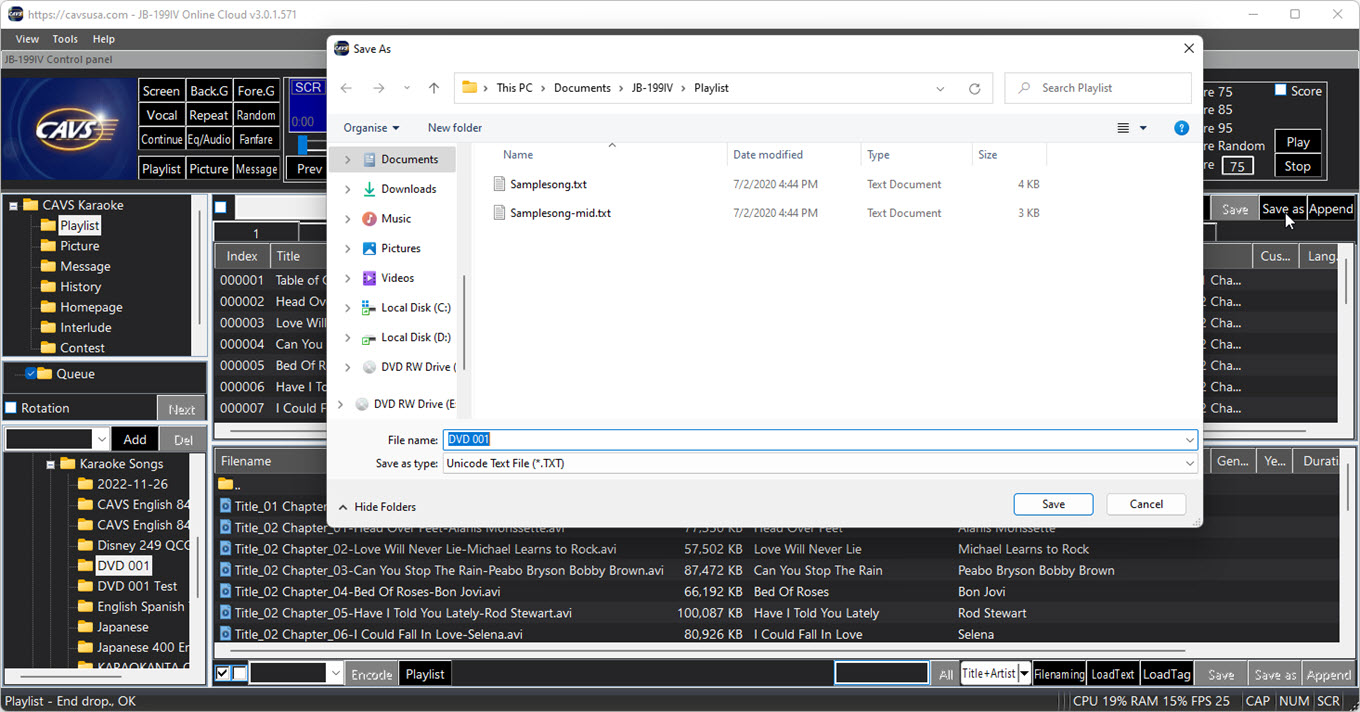
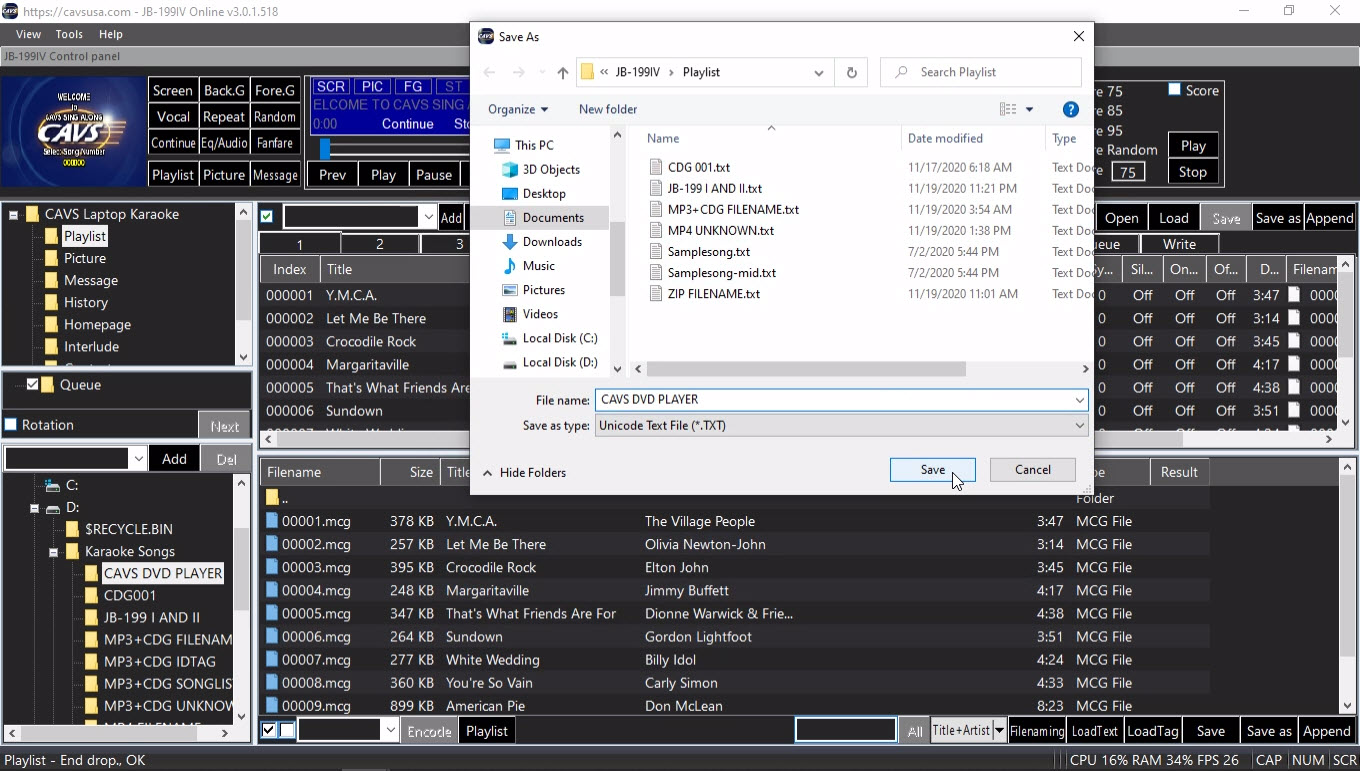
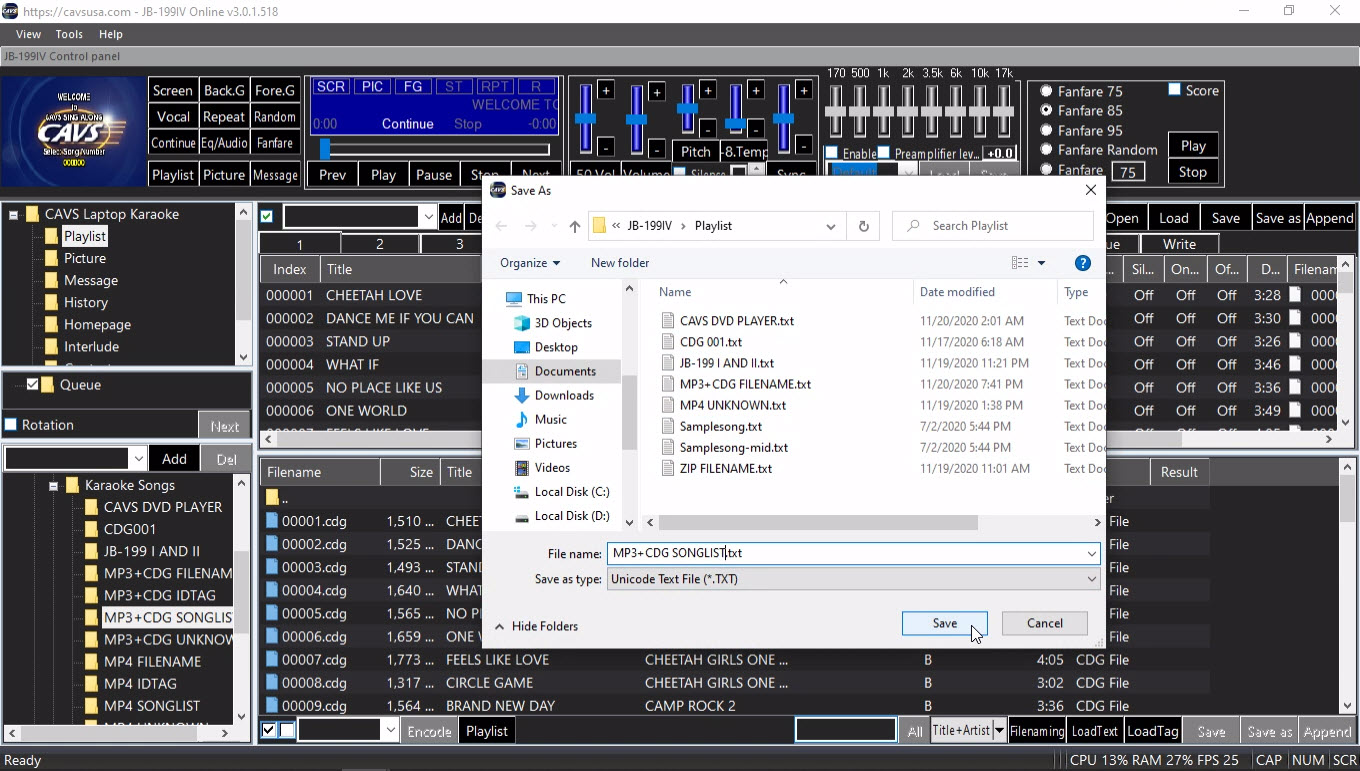
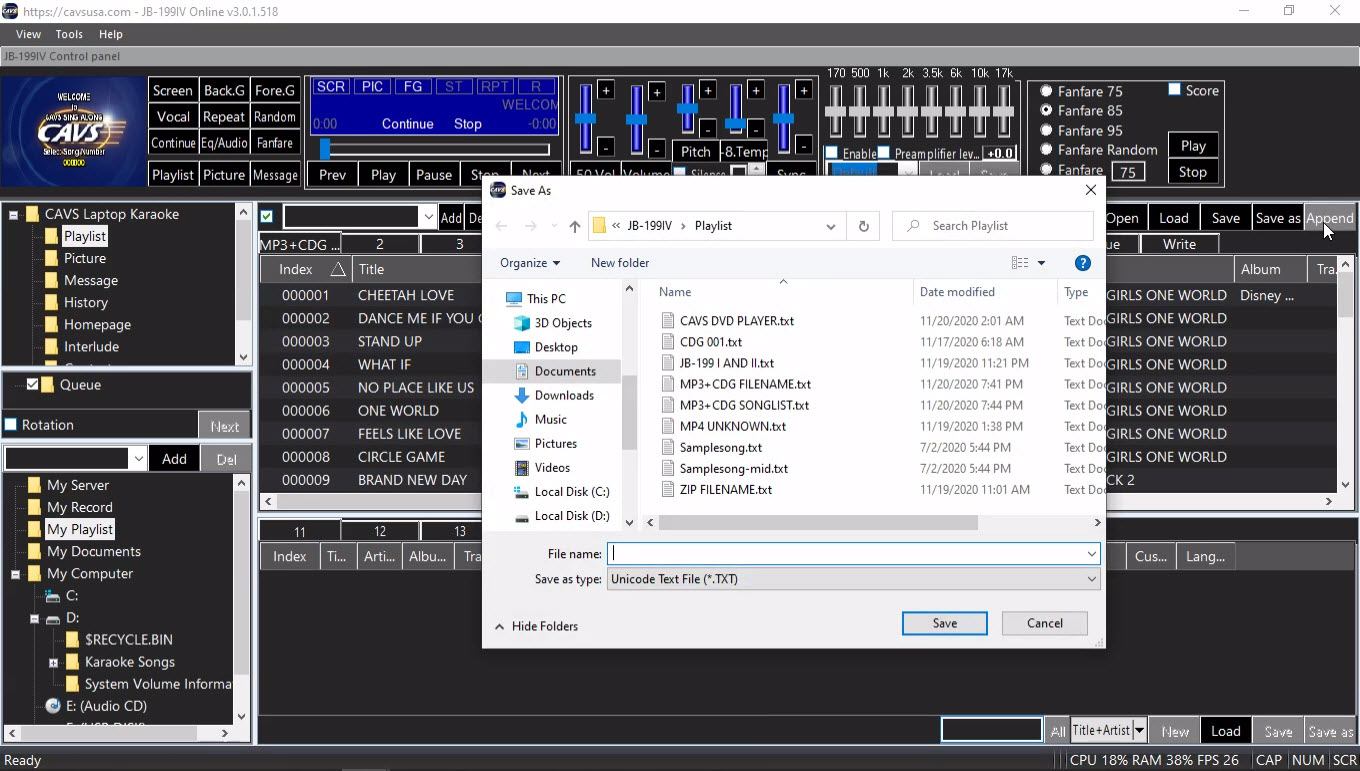
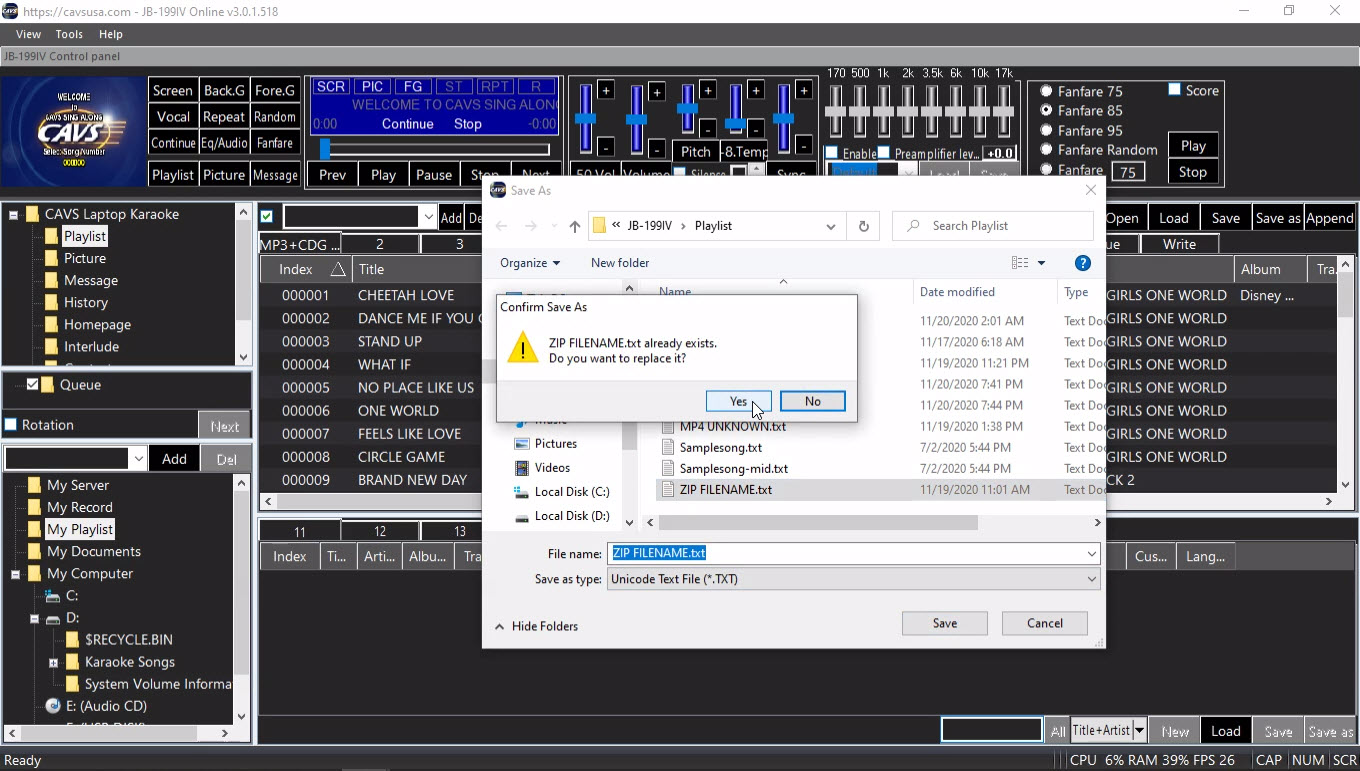
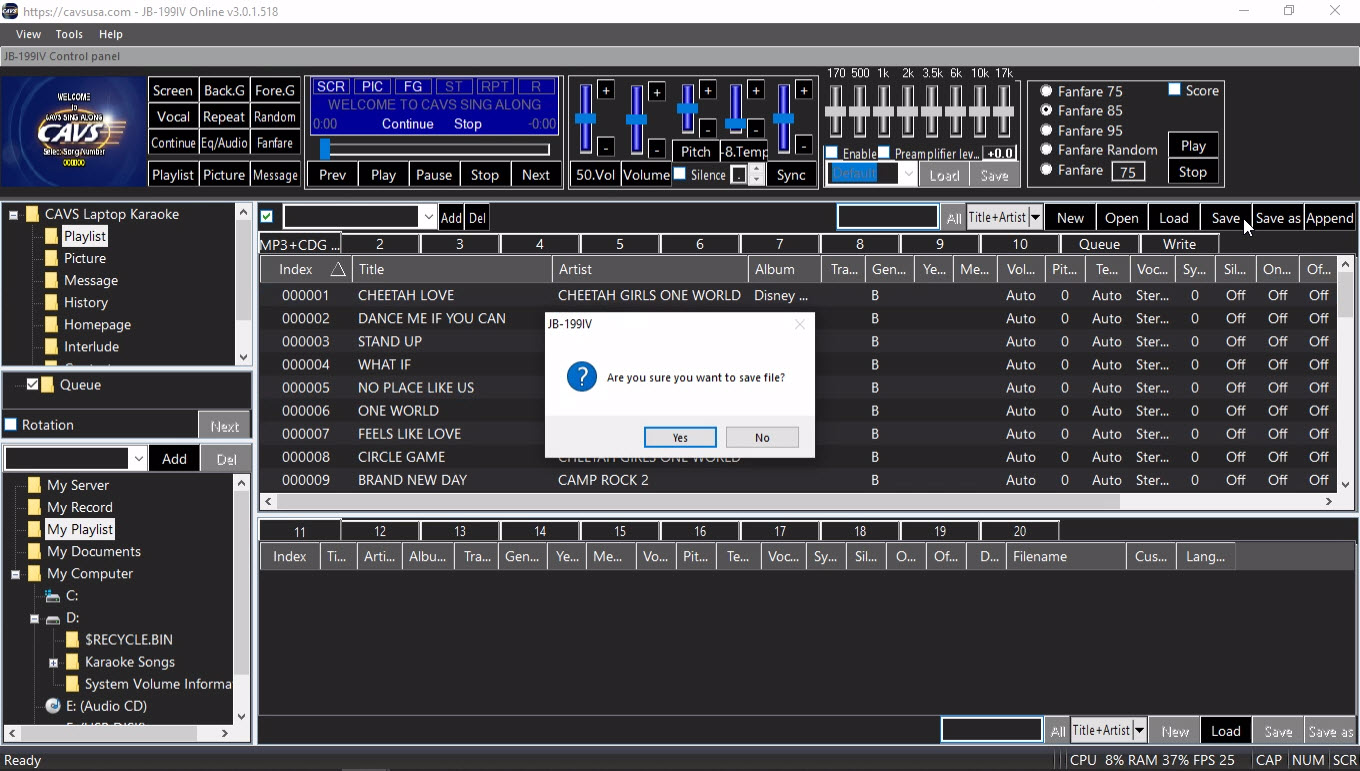
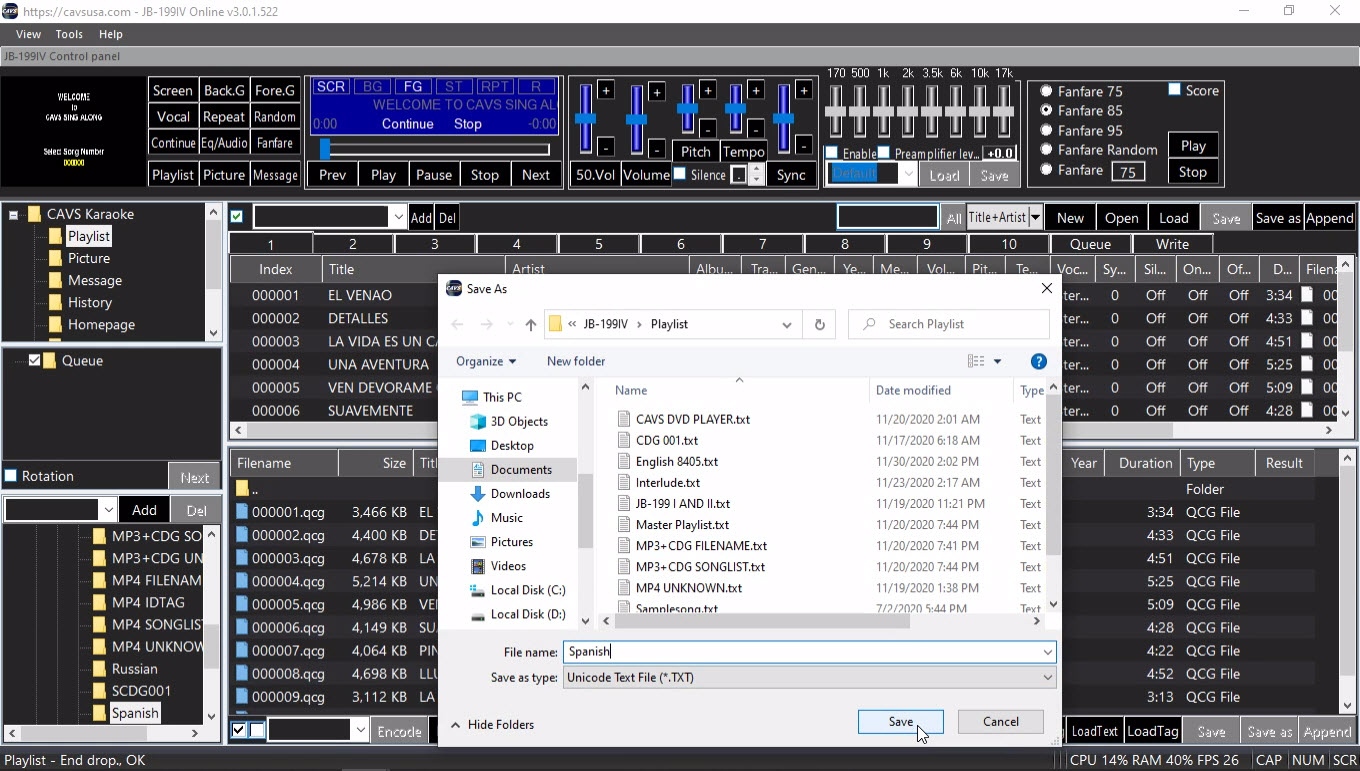
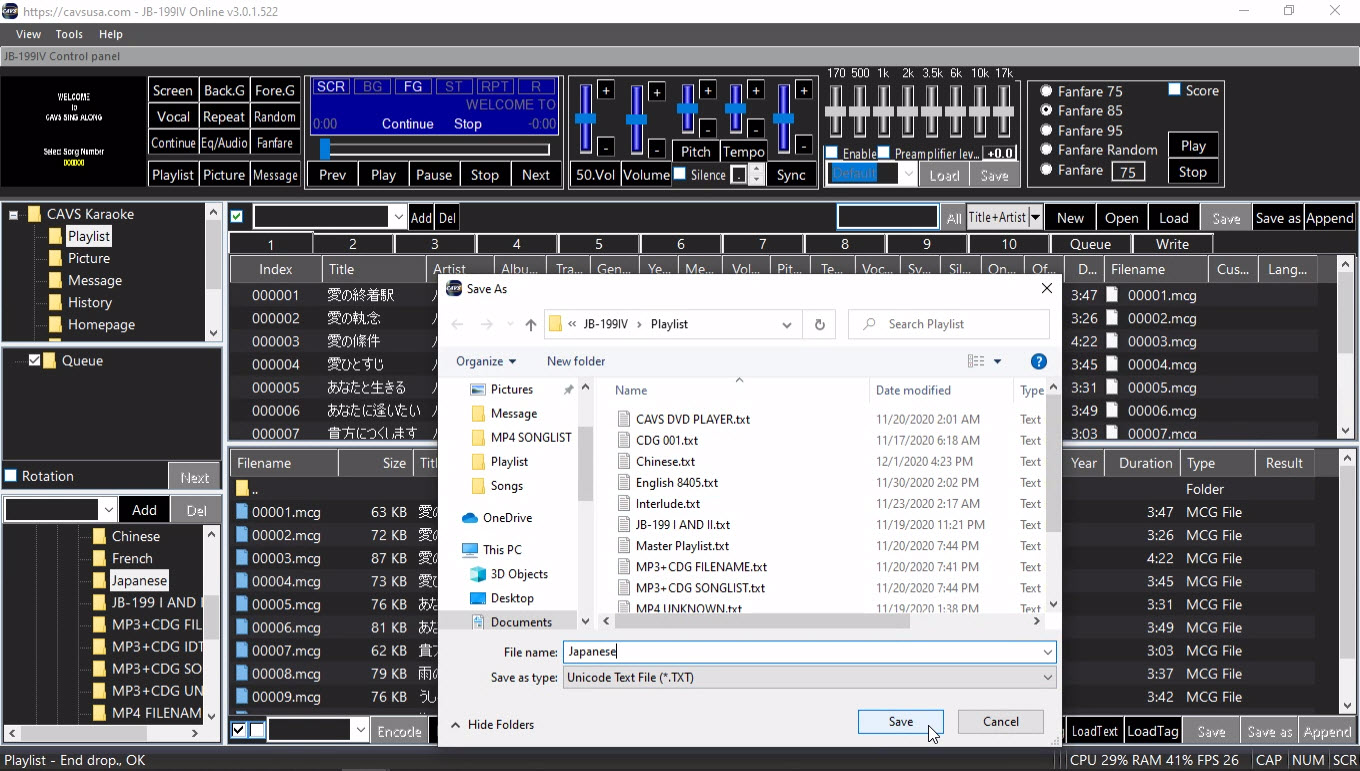
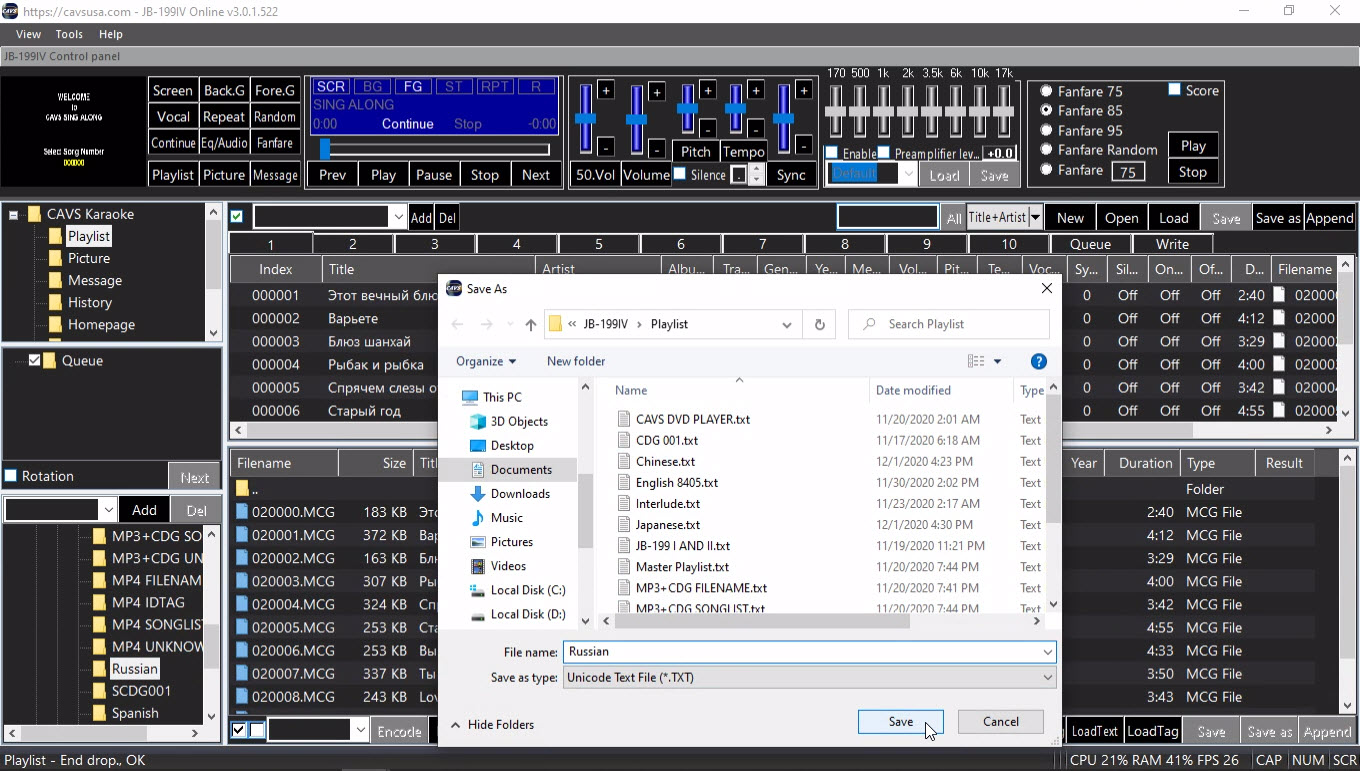
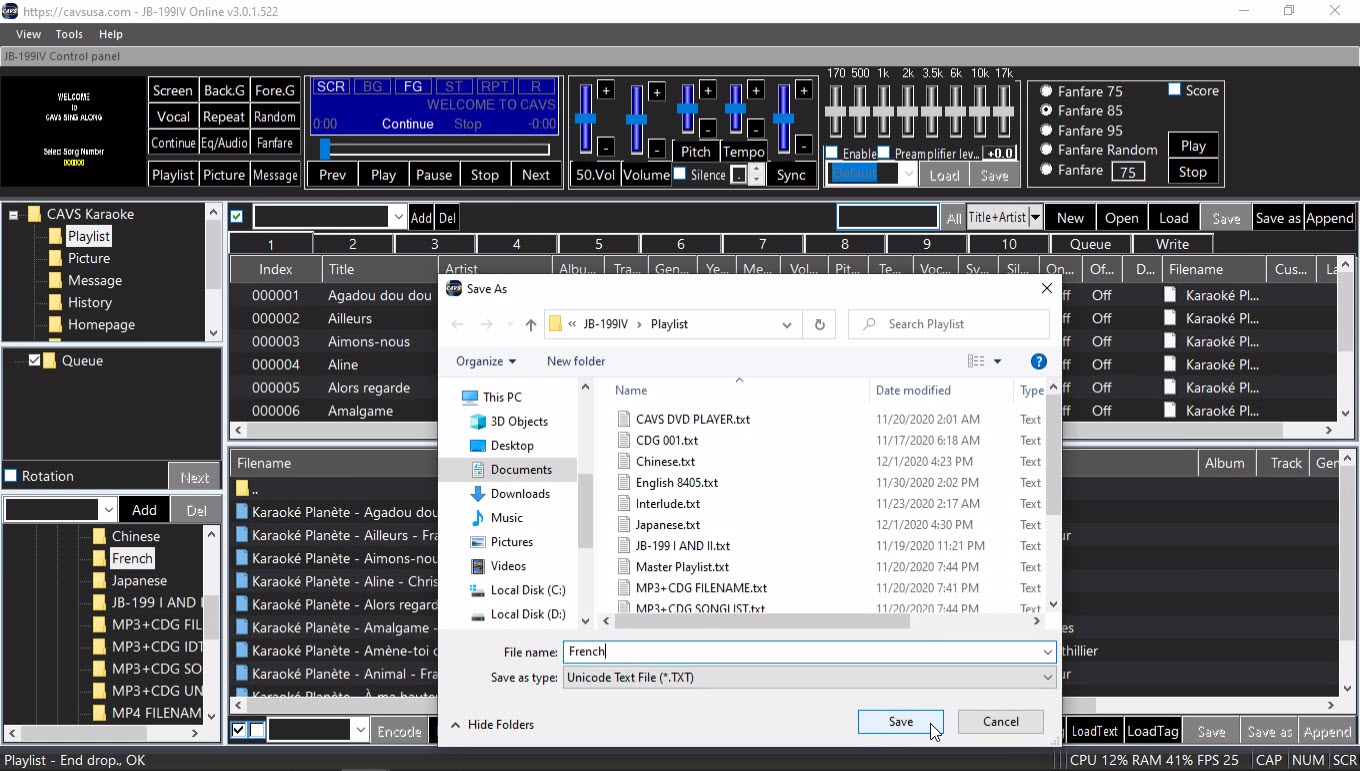
Save the current playlist. By default the folder Documents/JB-199IV/Playlist is opened.
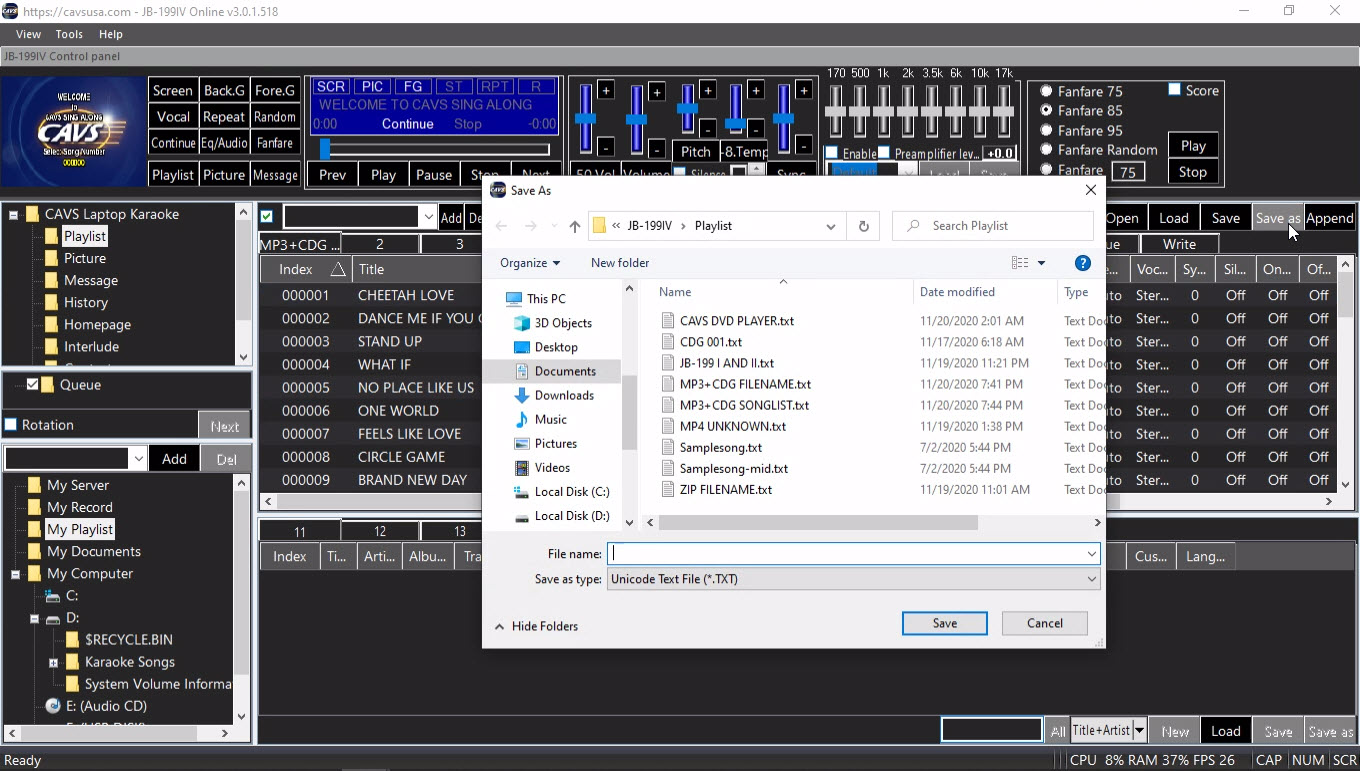
Save as the current playlist. By default the folder Documents/JB-199IV/Playlist is opened.
Append the current playlist to another playlist. By default the folder Documents/JB-199IV/Playlist is opened.
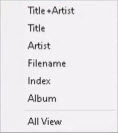
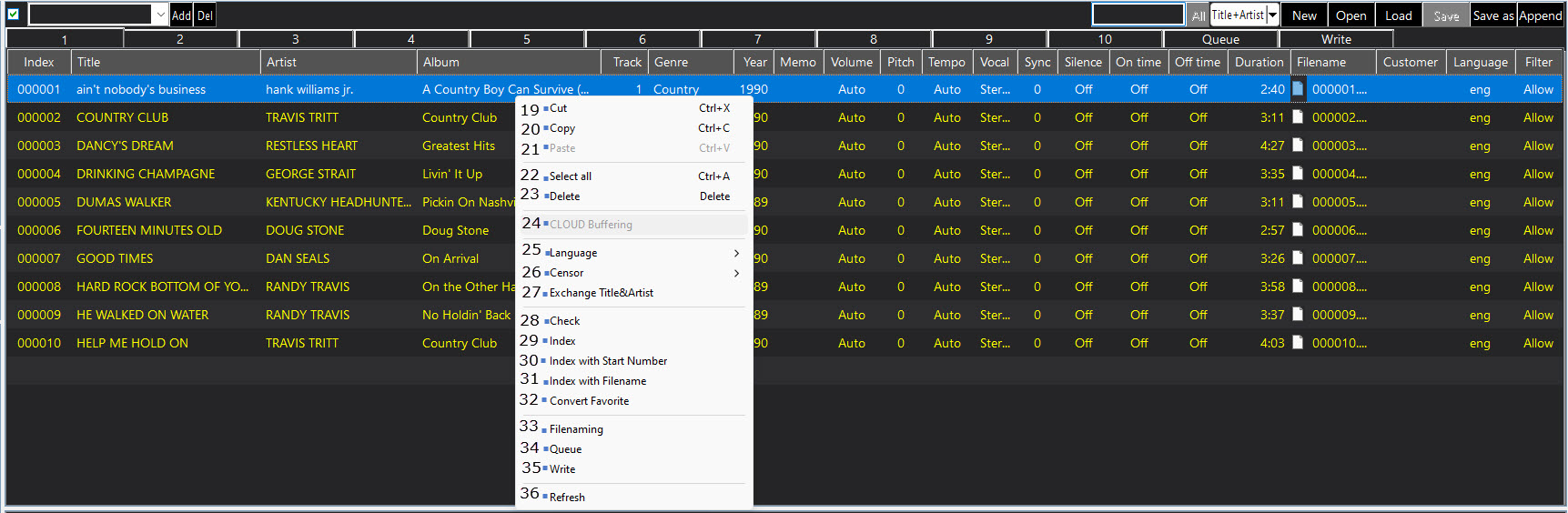
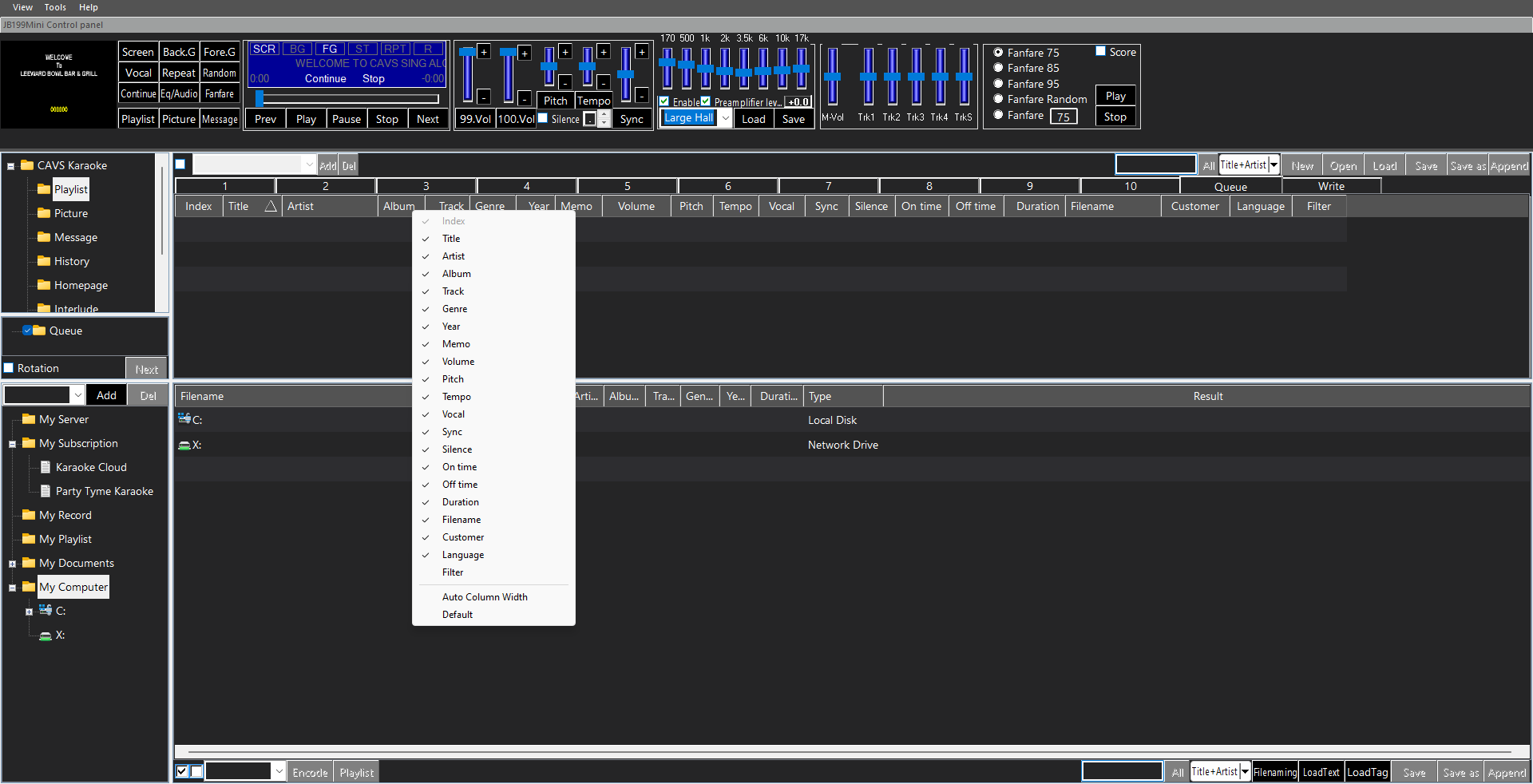
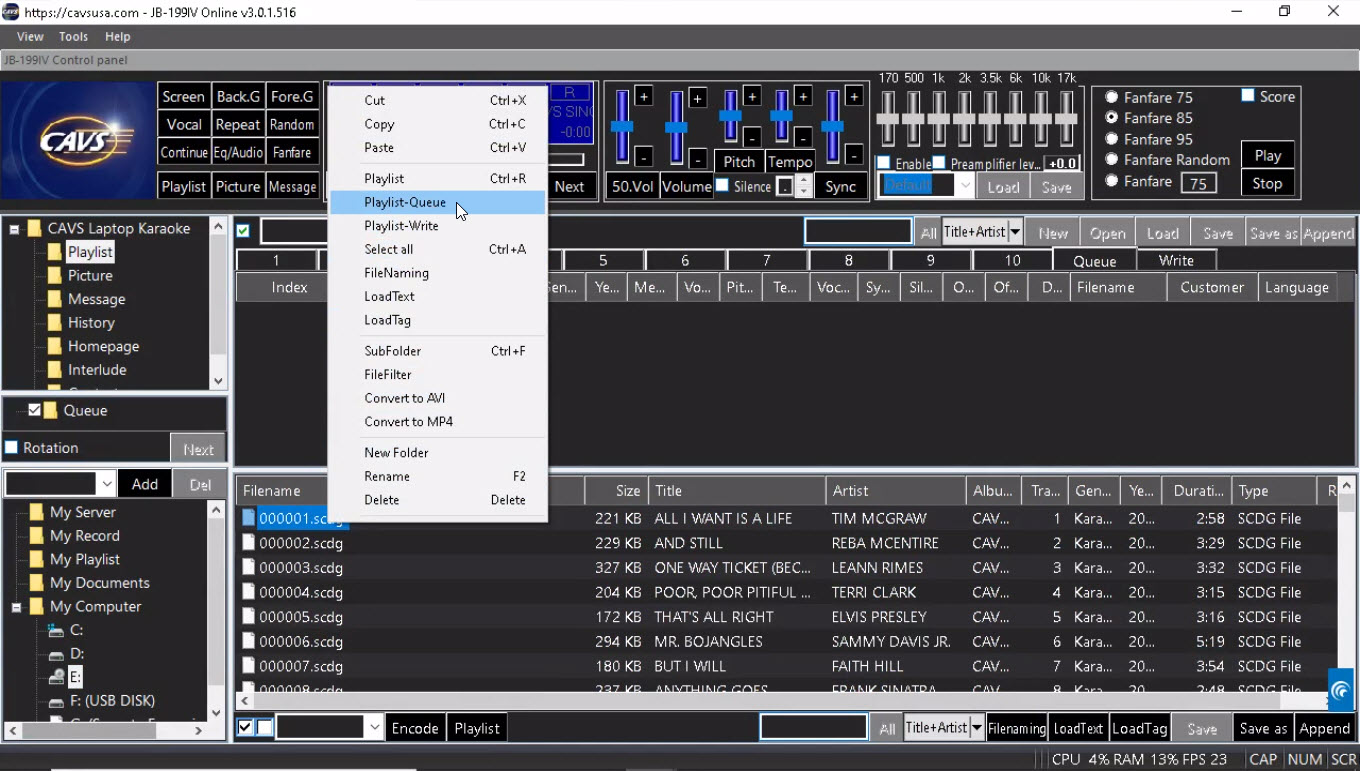
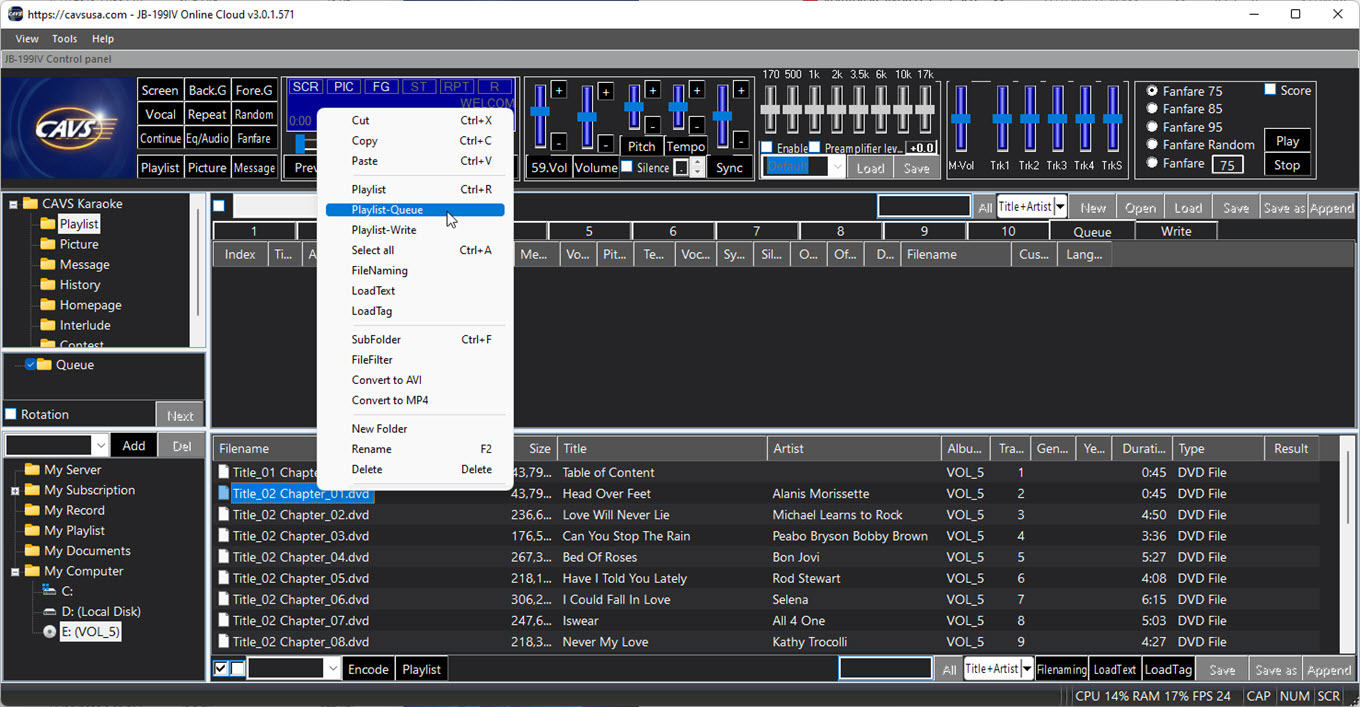
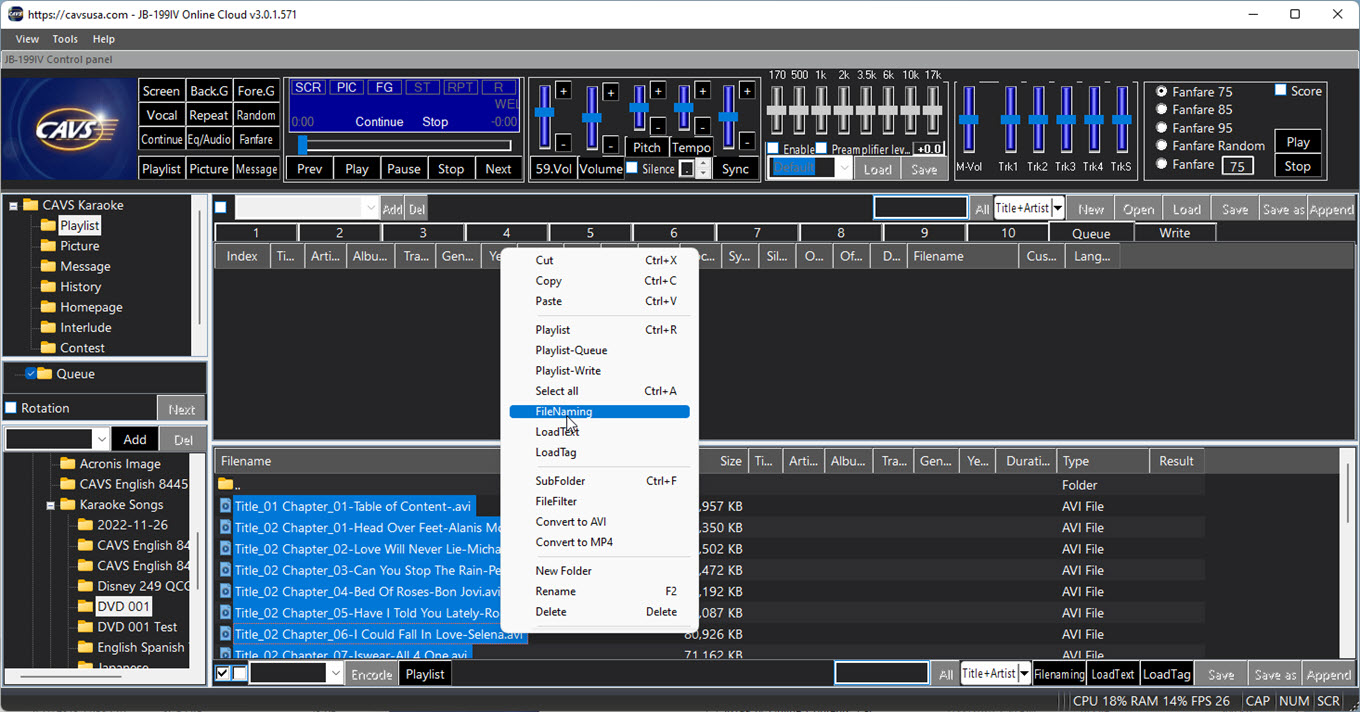
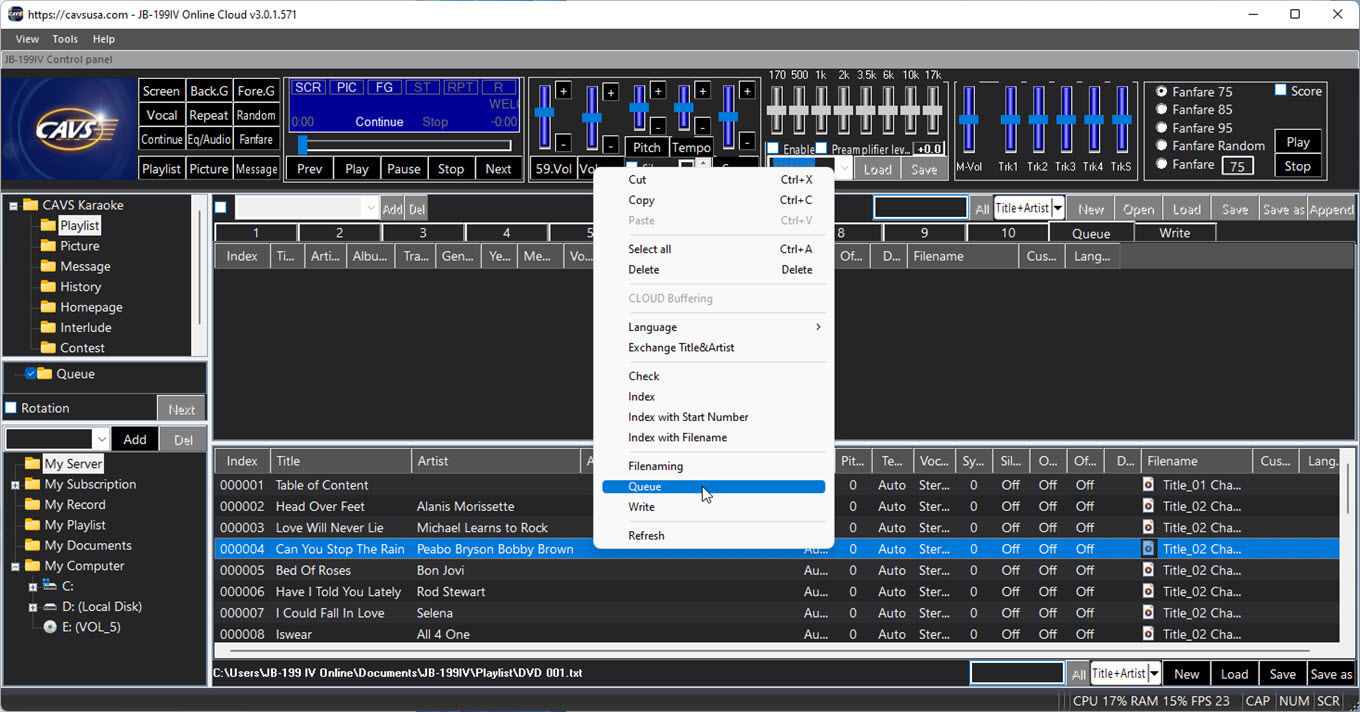
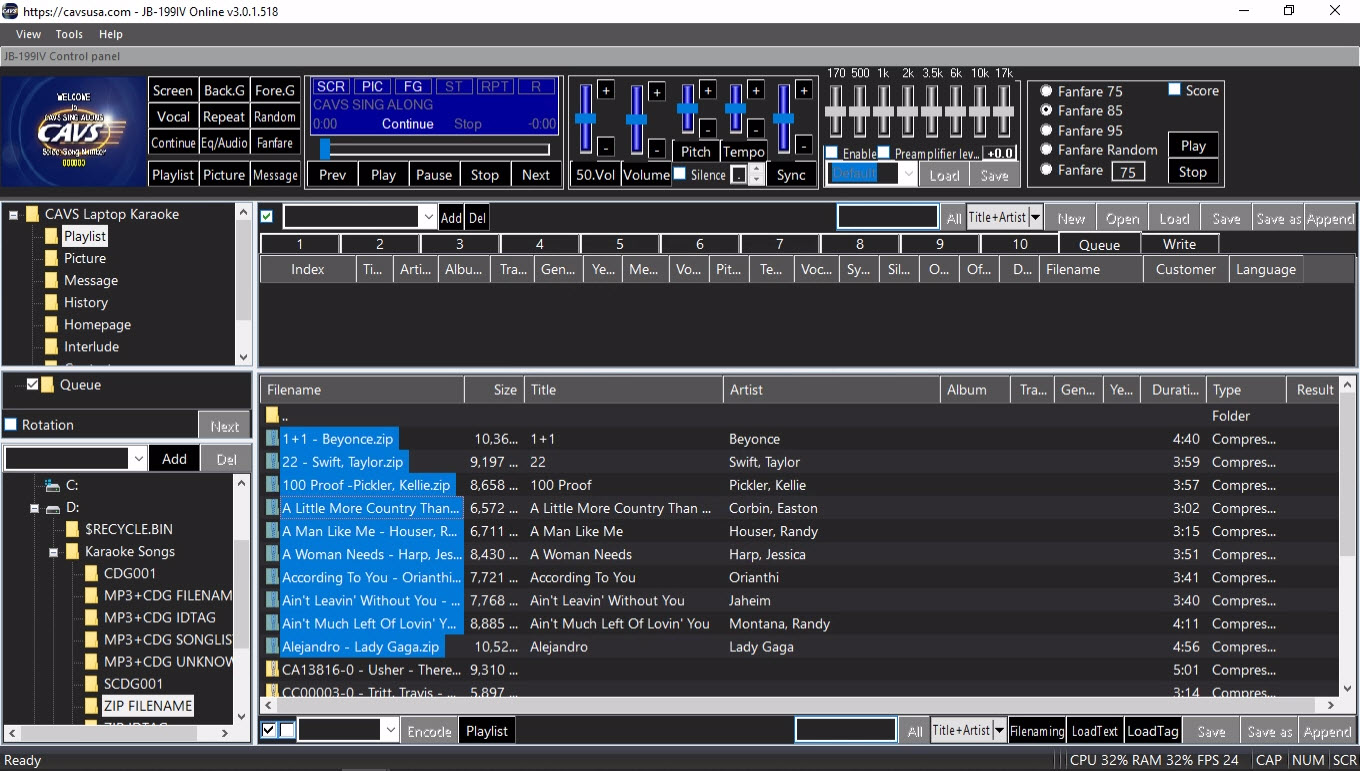
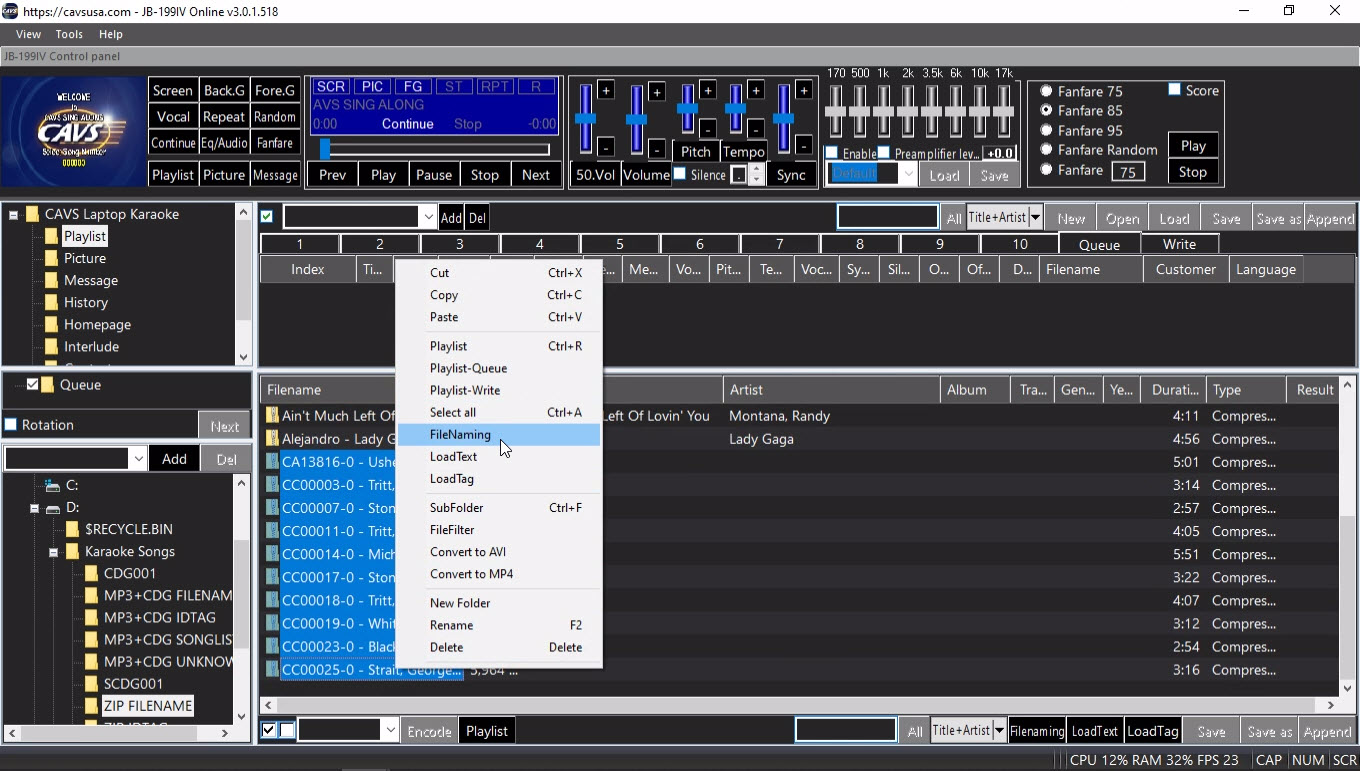
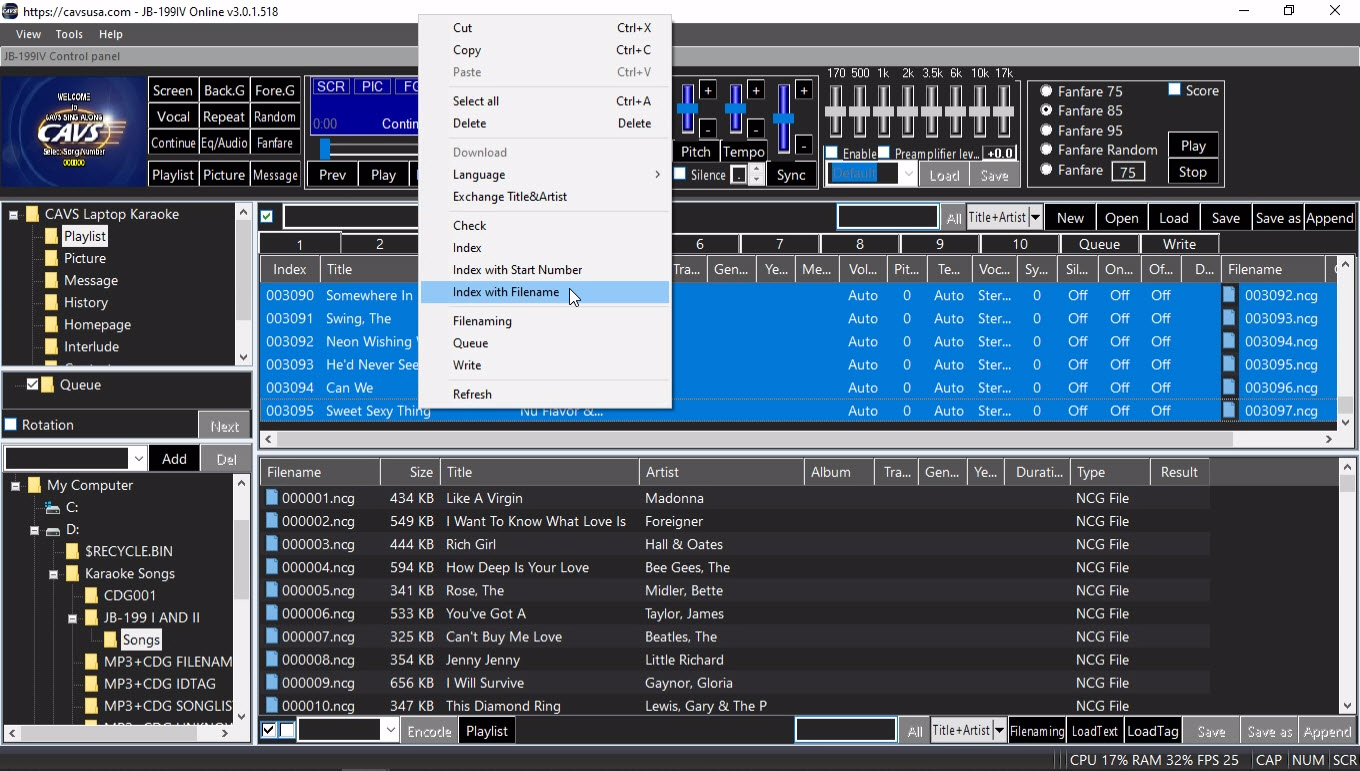
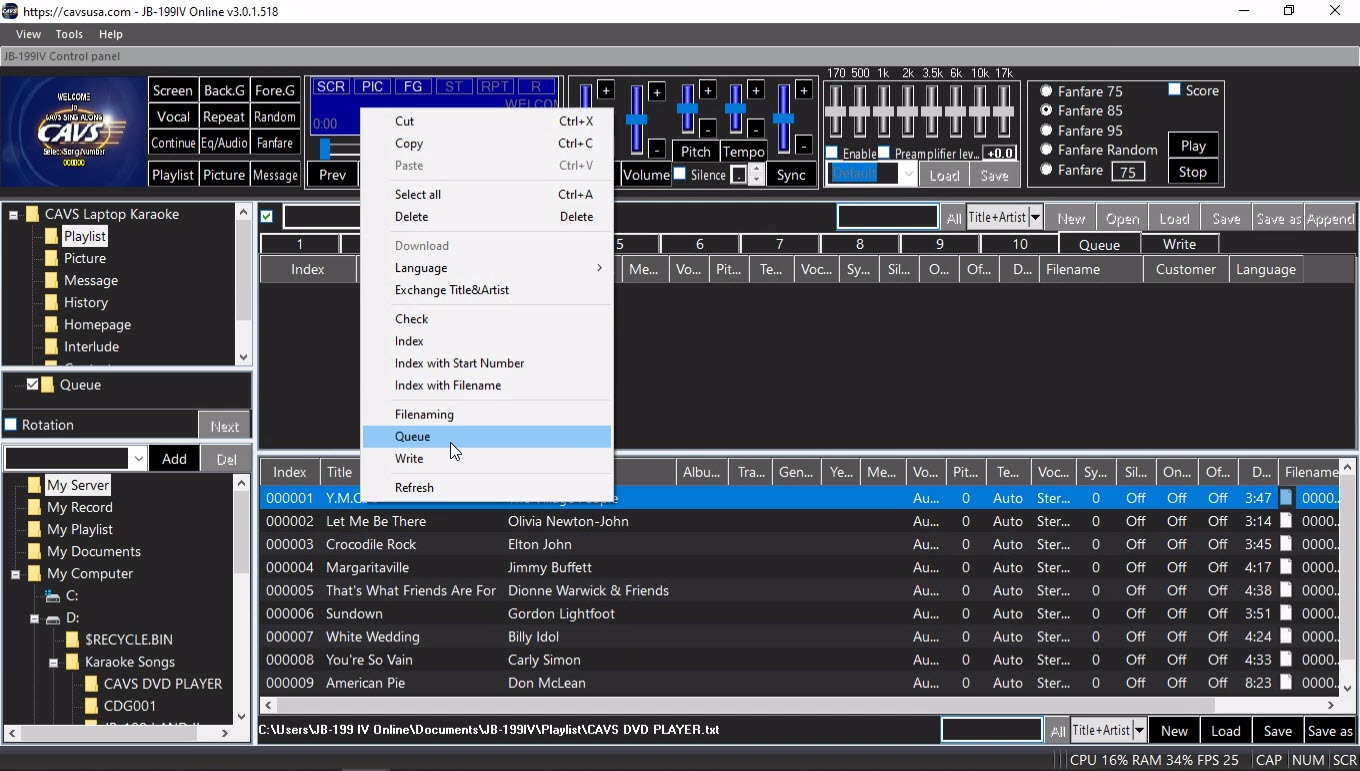
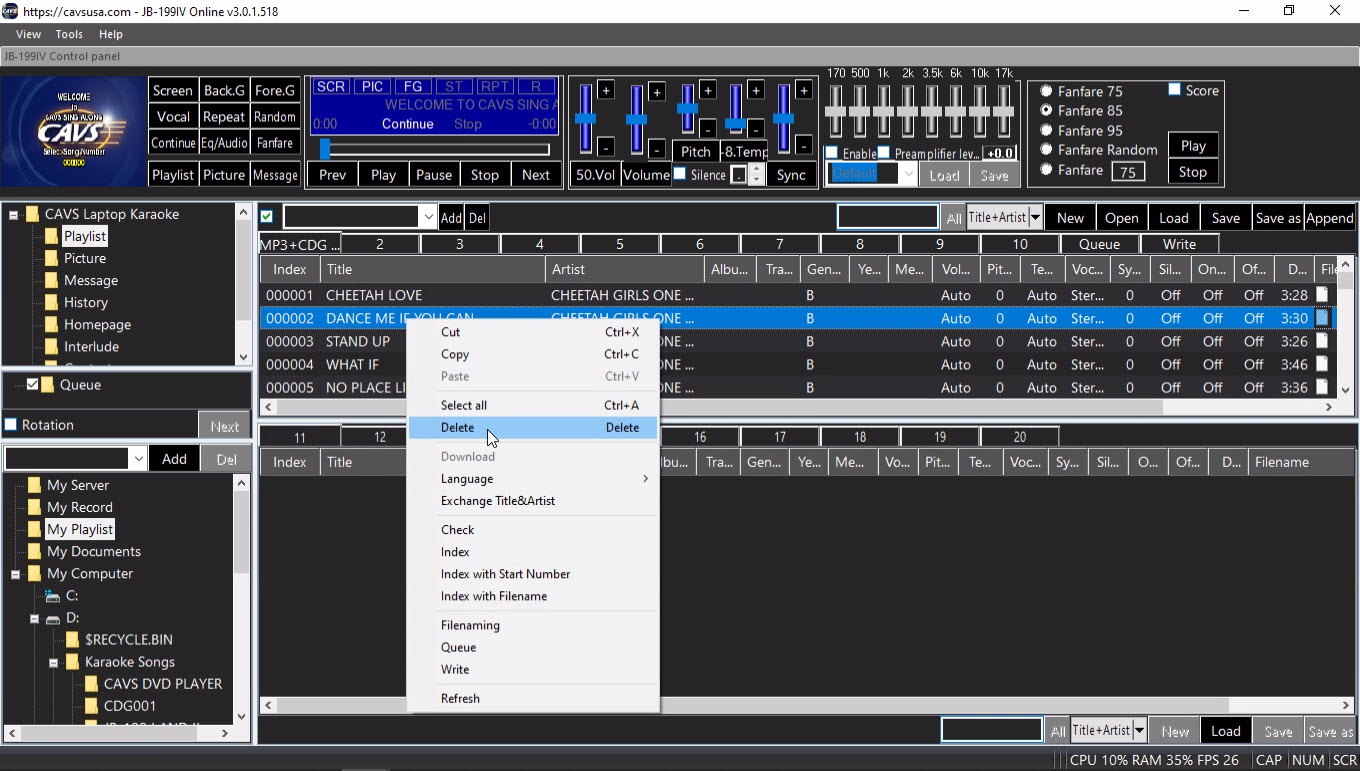
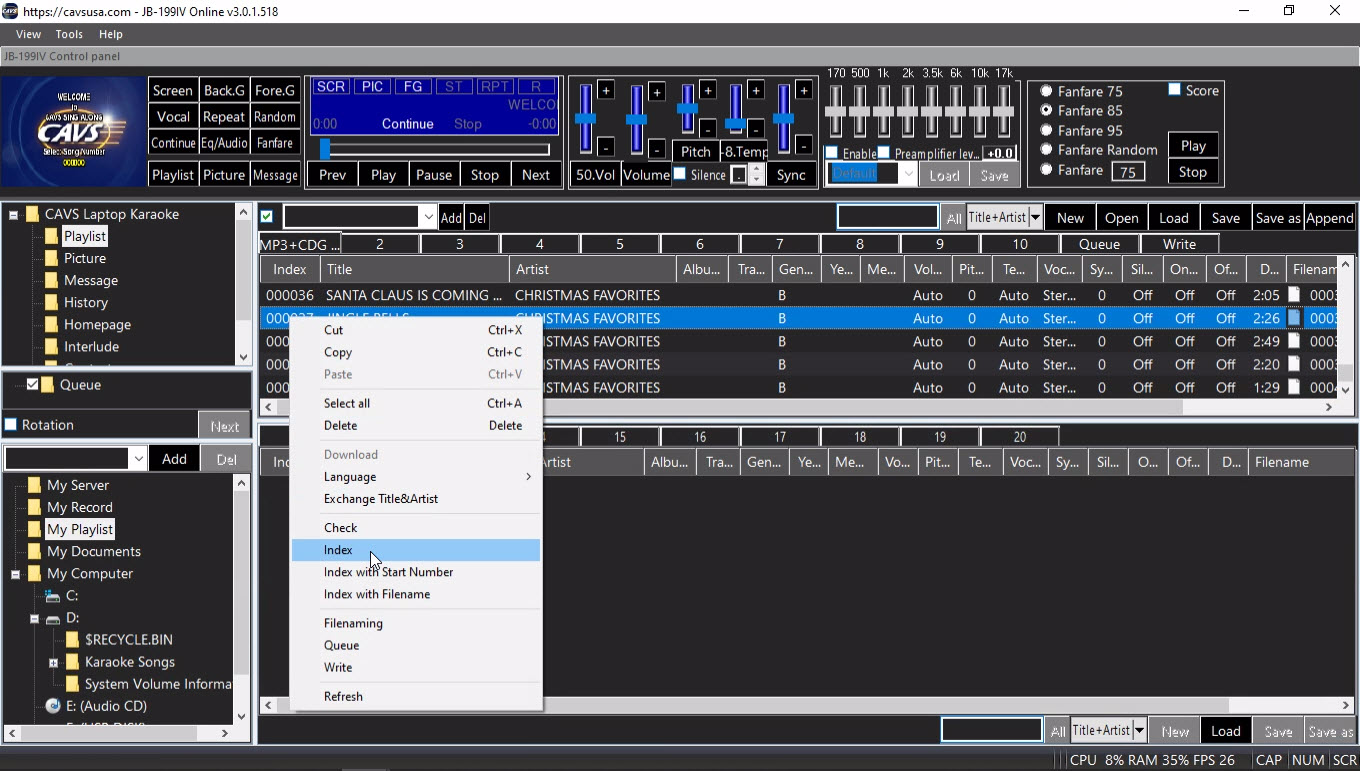
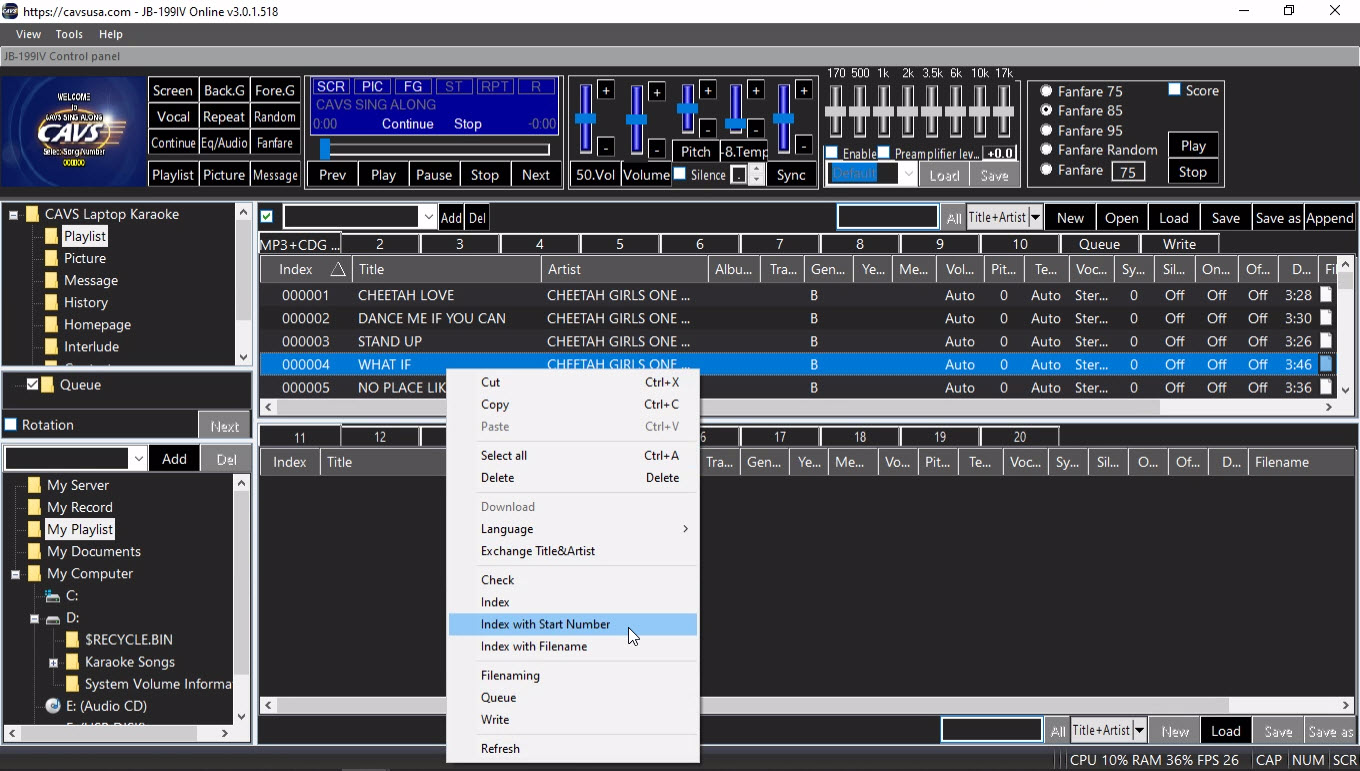
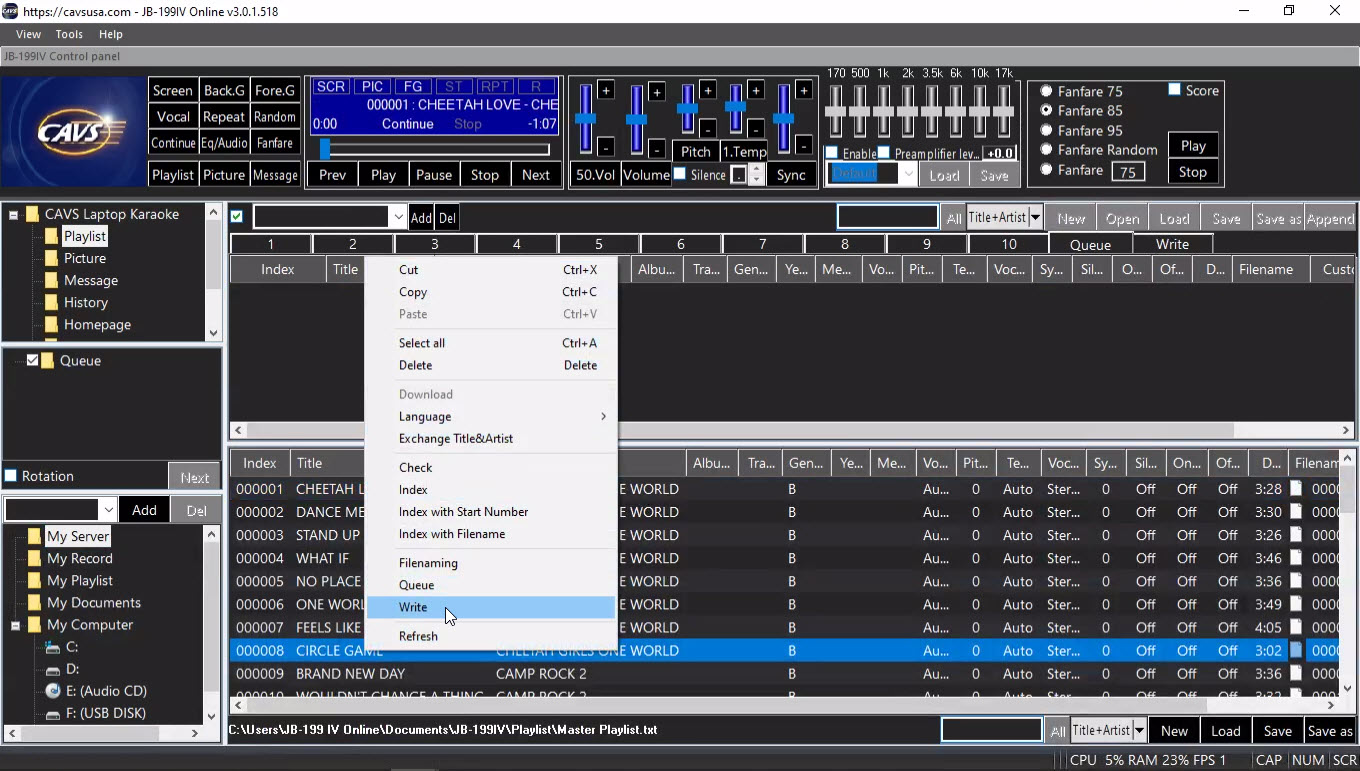
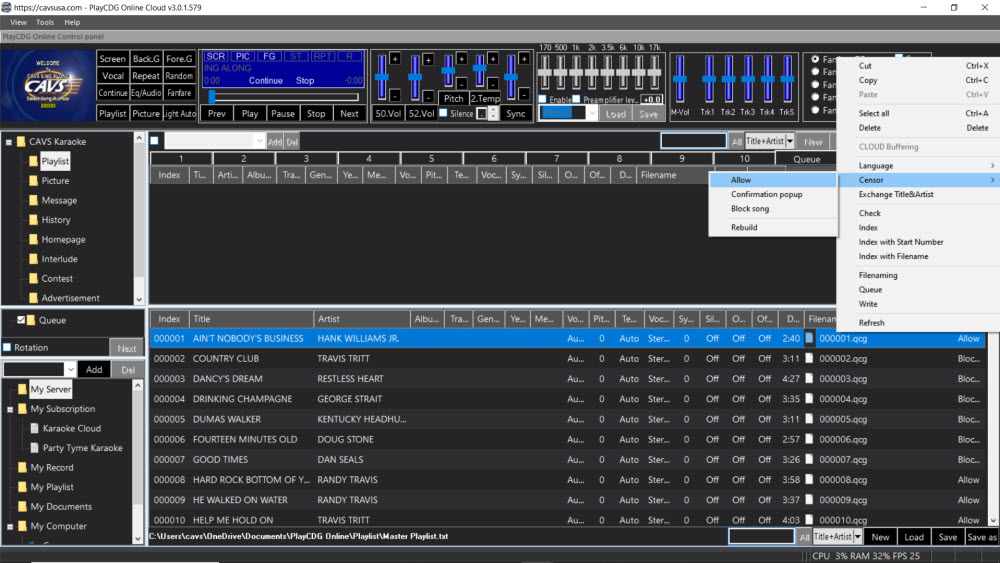
In a playlist, you can also right click on any song for the following popup window.
Cut
Copy
Paste
Select all songs in the playlist
Delete
Cloud Buffering - Load from cloud server
Language - Set language from available options
Censor - Set the filter status from Allow, Flag, or Block
Exchange Title and Artist
Check for duplicae Index
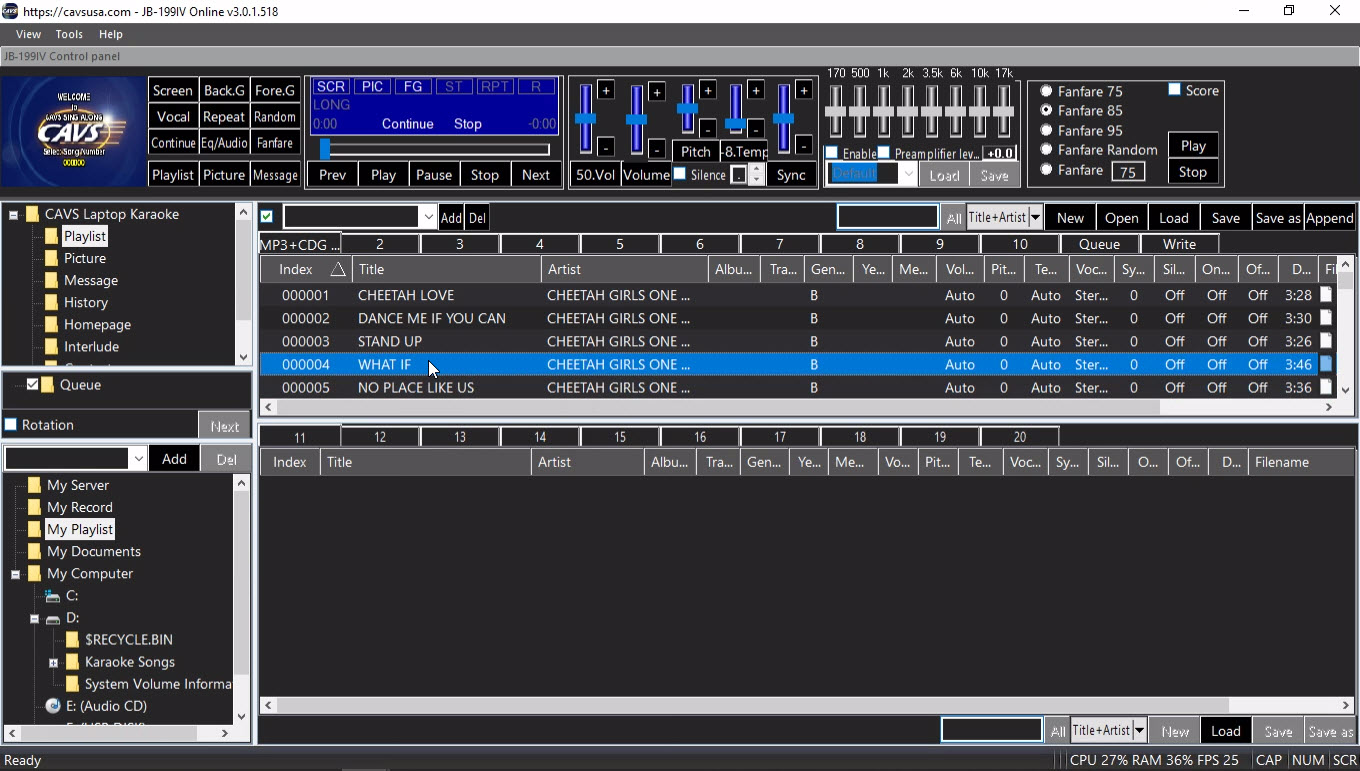
Index - Index or re-index all songs starting from 1
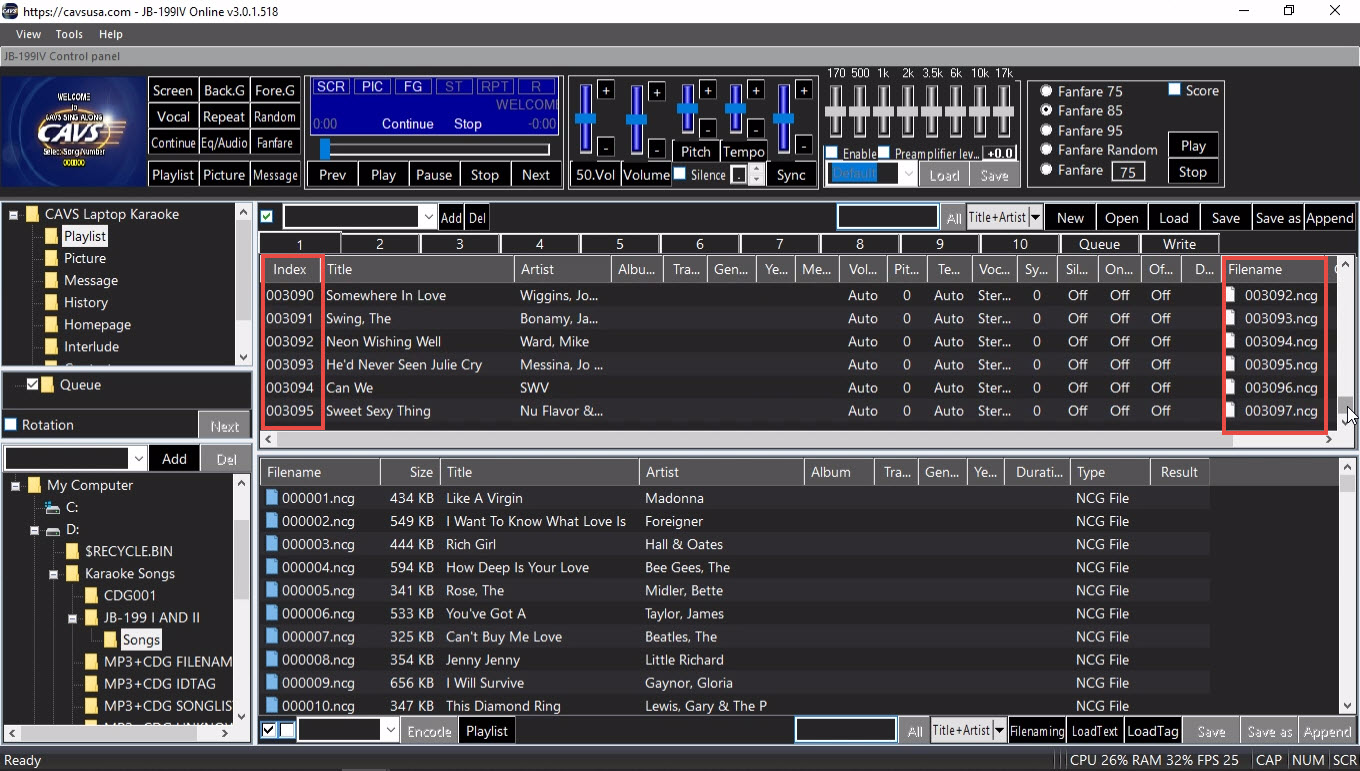
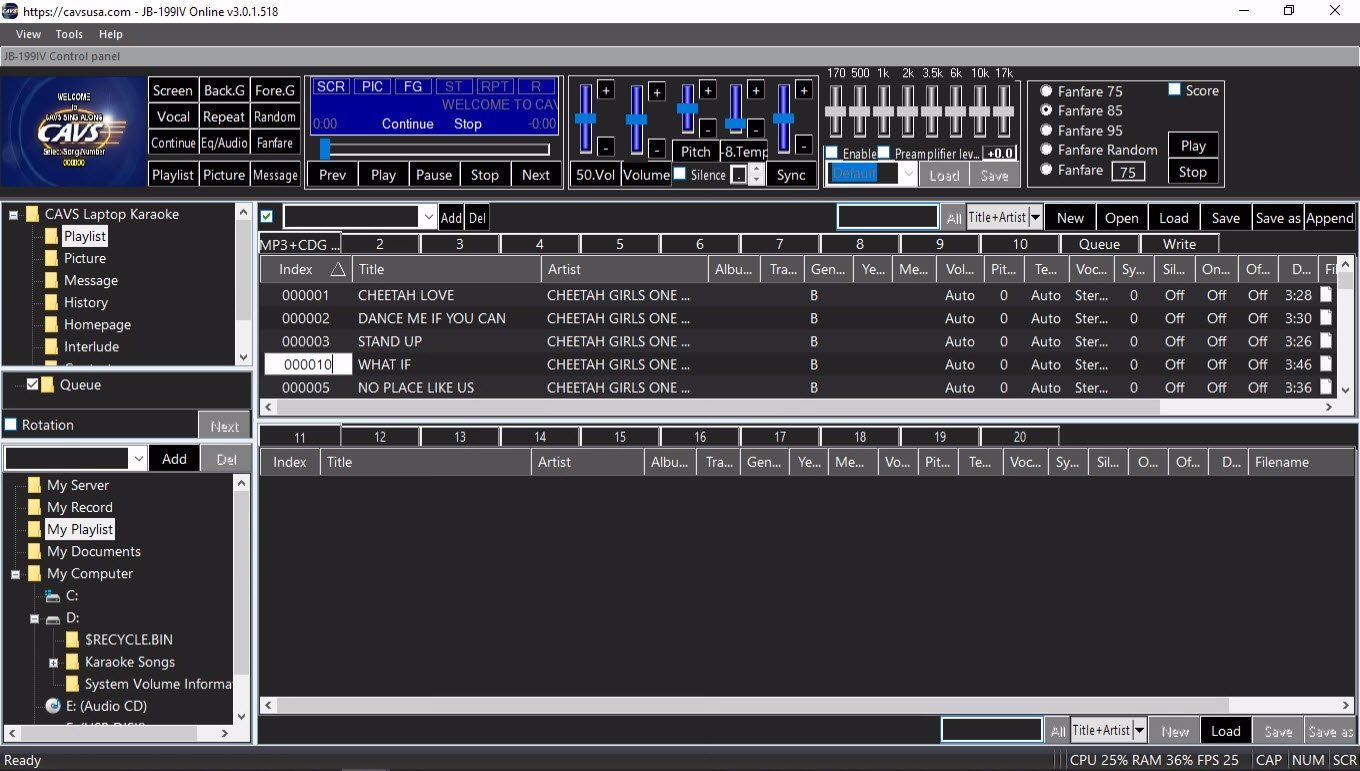
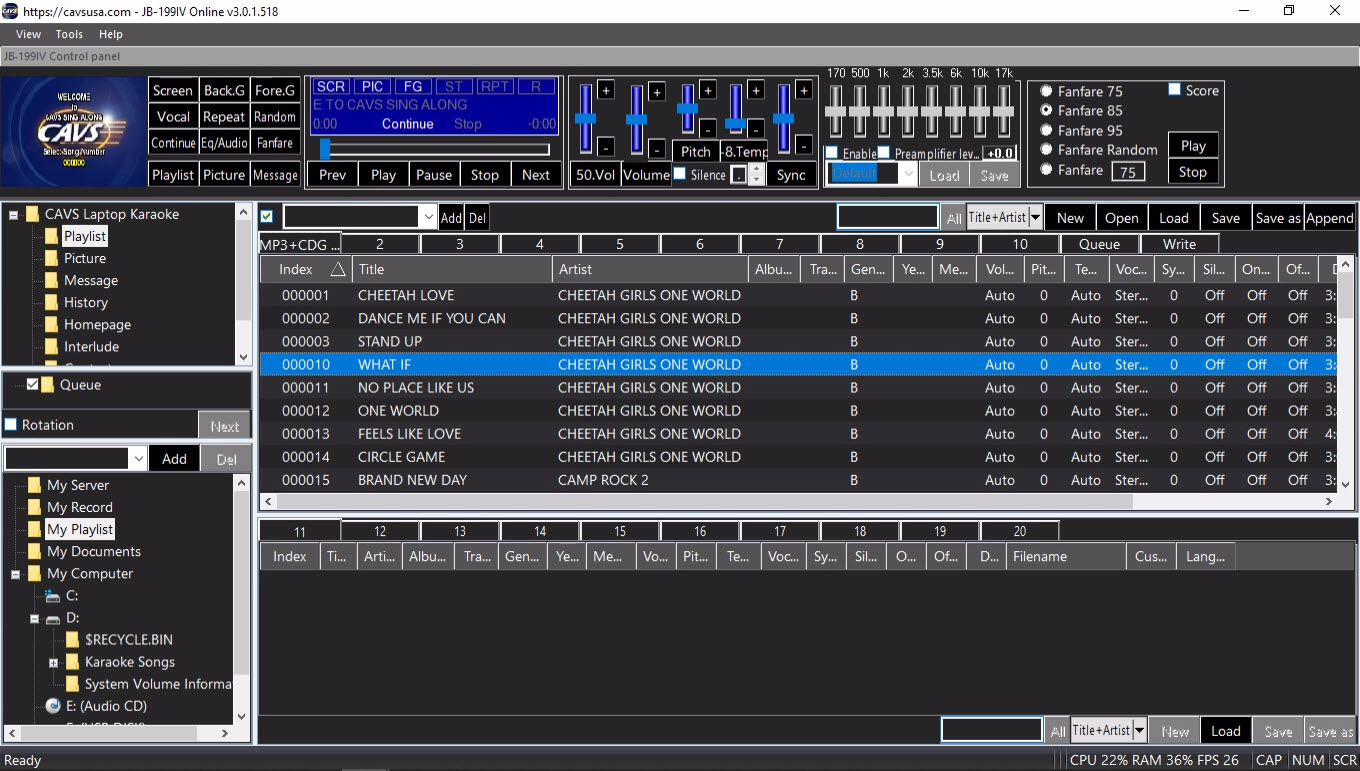
Index with Start Number - Re-index the selected song and the songs below starting from the Start number
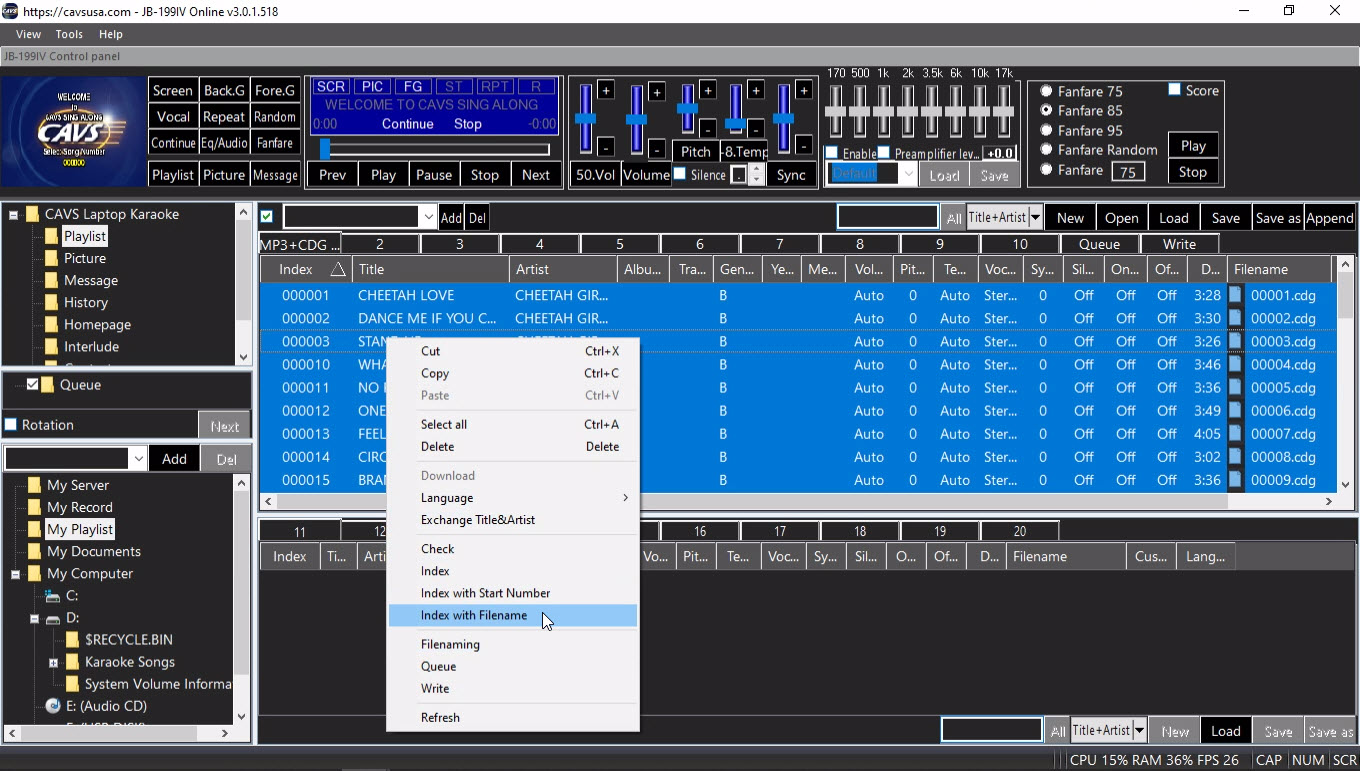
Index with Filename - Re-index selected songs with its filename
Convert Favorite list to be compatible to the karaoke player
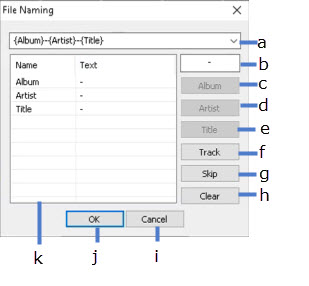
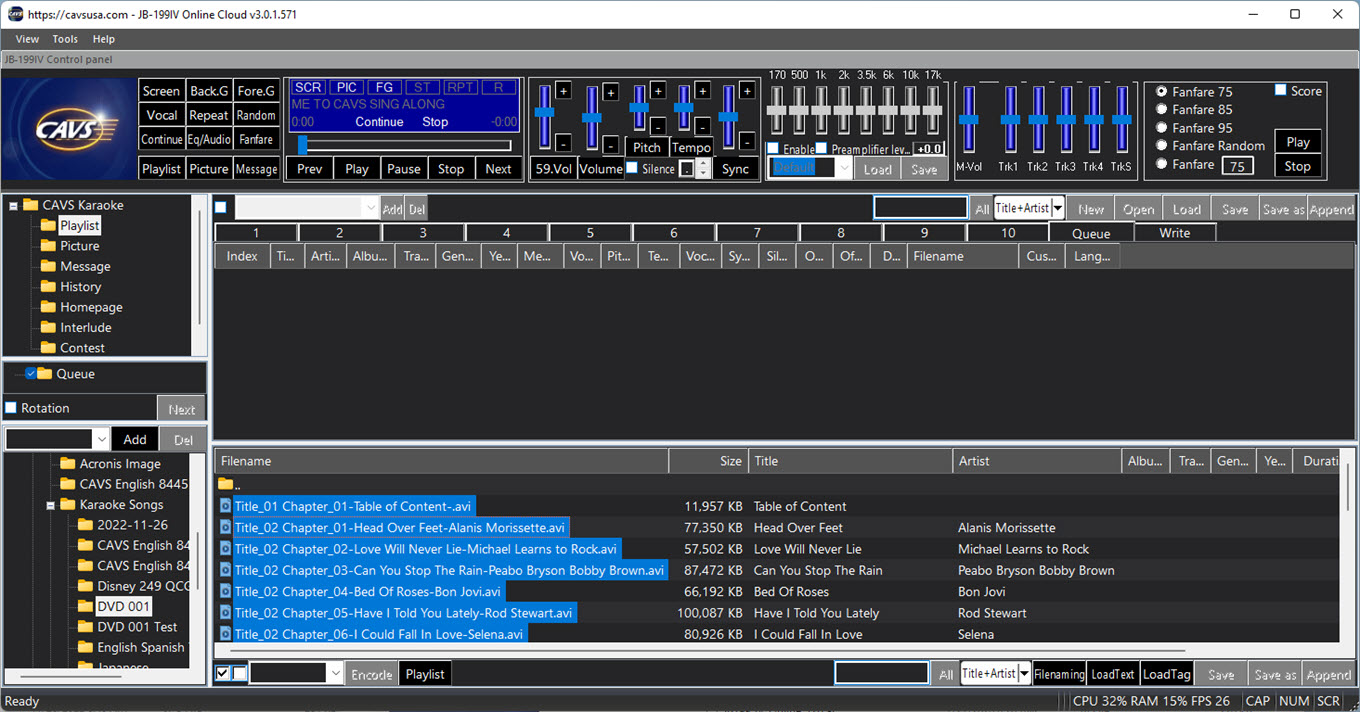
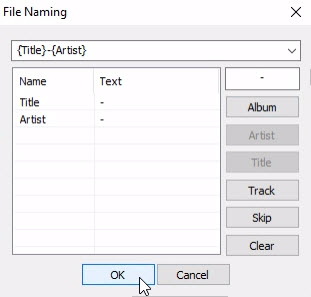
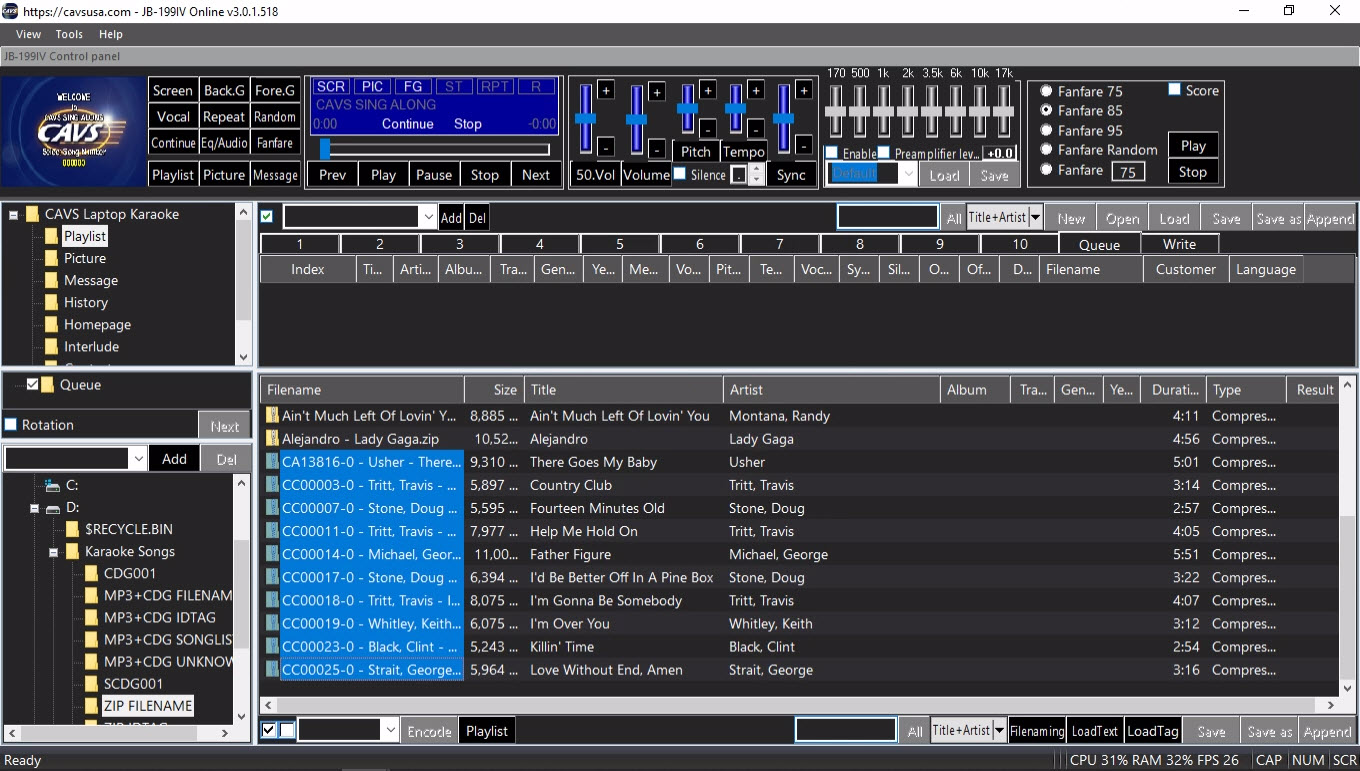
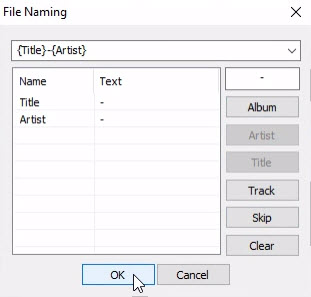
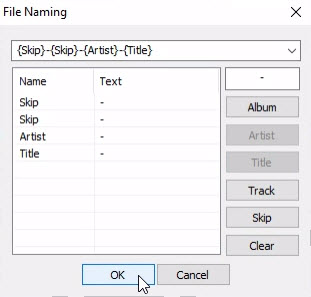
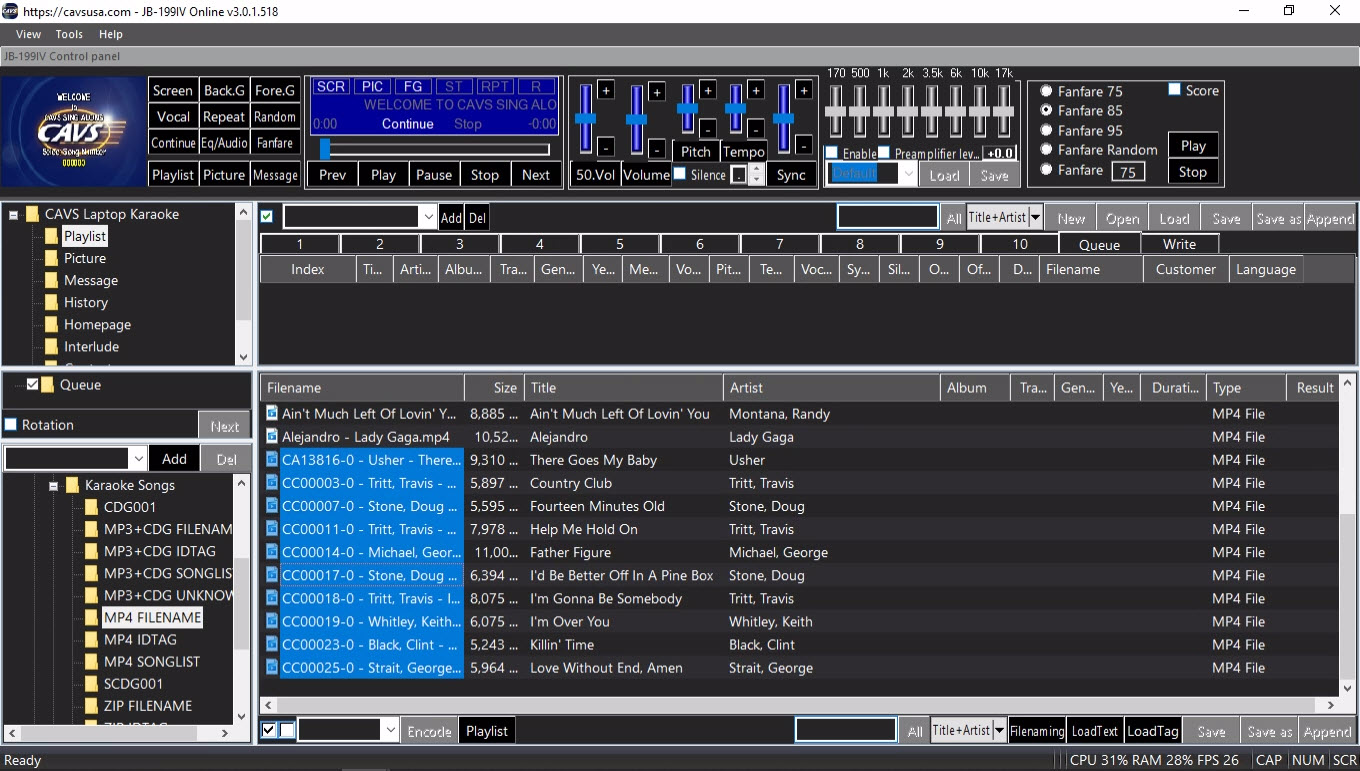
Filenaming - Extract title, artist, album, and track information from the filenames of the selected songs.
Display the extraction format
Separator - Input a separator in between fields in the filename
Album
Artist
Title
Track
Skip - Skip the field
Clear - Clear the format
Cancel
OK
Input fields - Double click any field to edit and press Enter to finish
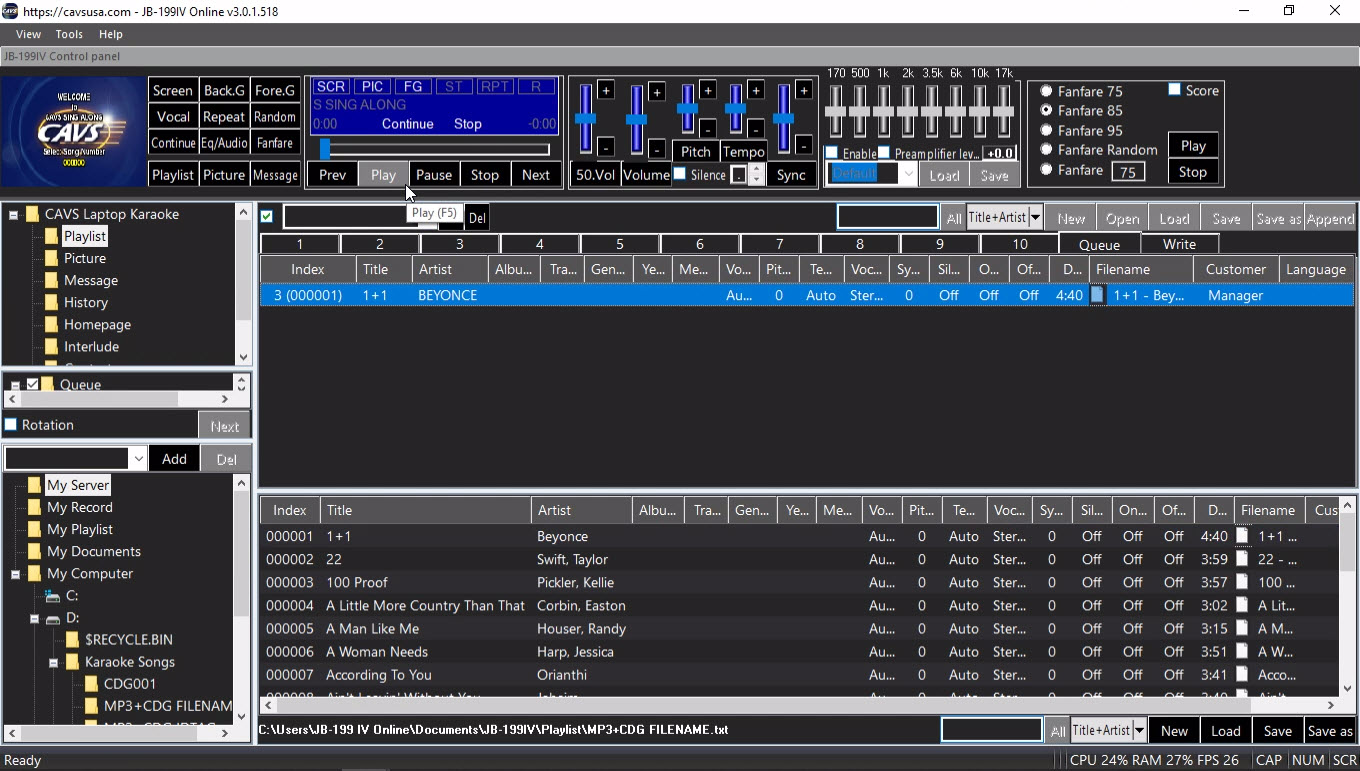
Queue - Reserve the selected song into Queue
Write - Send the selected song to Write
Refresh the playlist
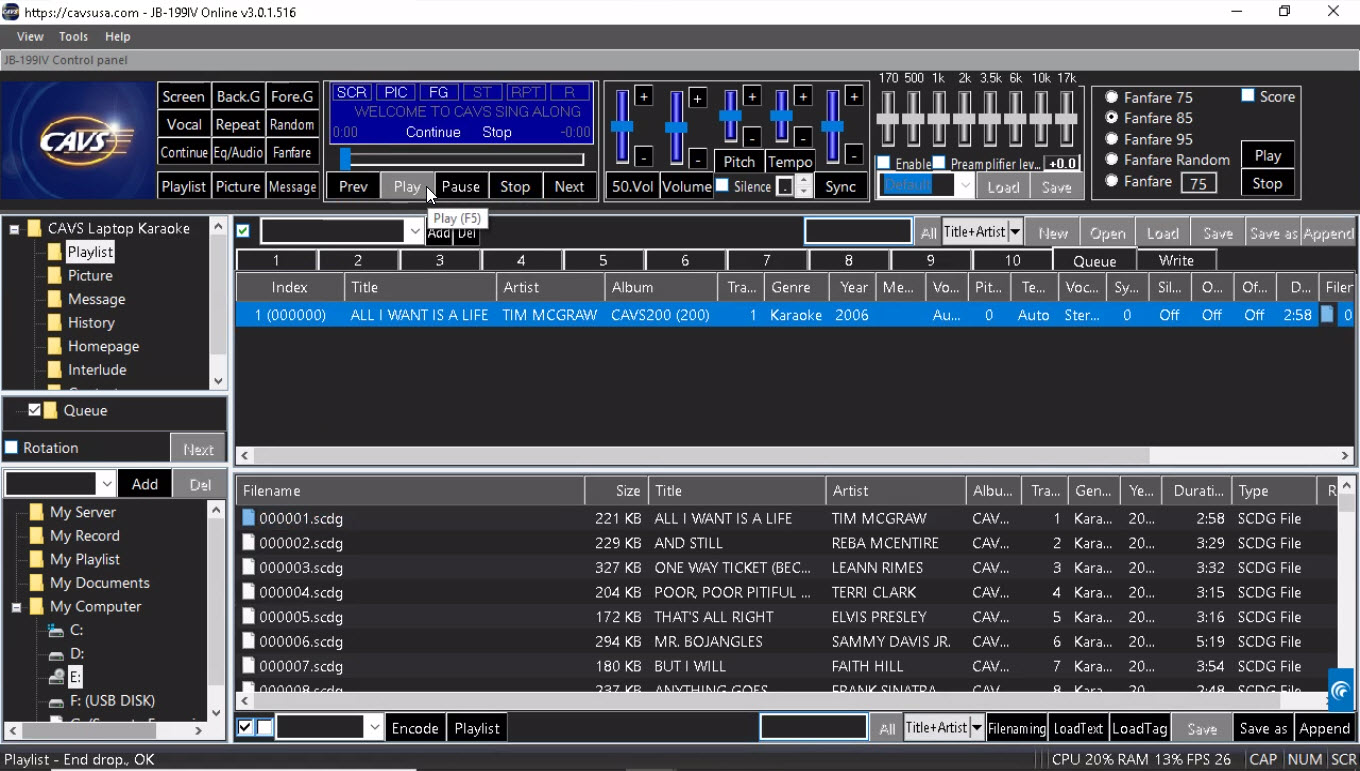
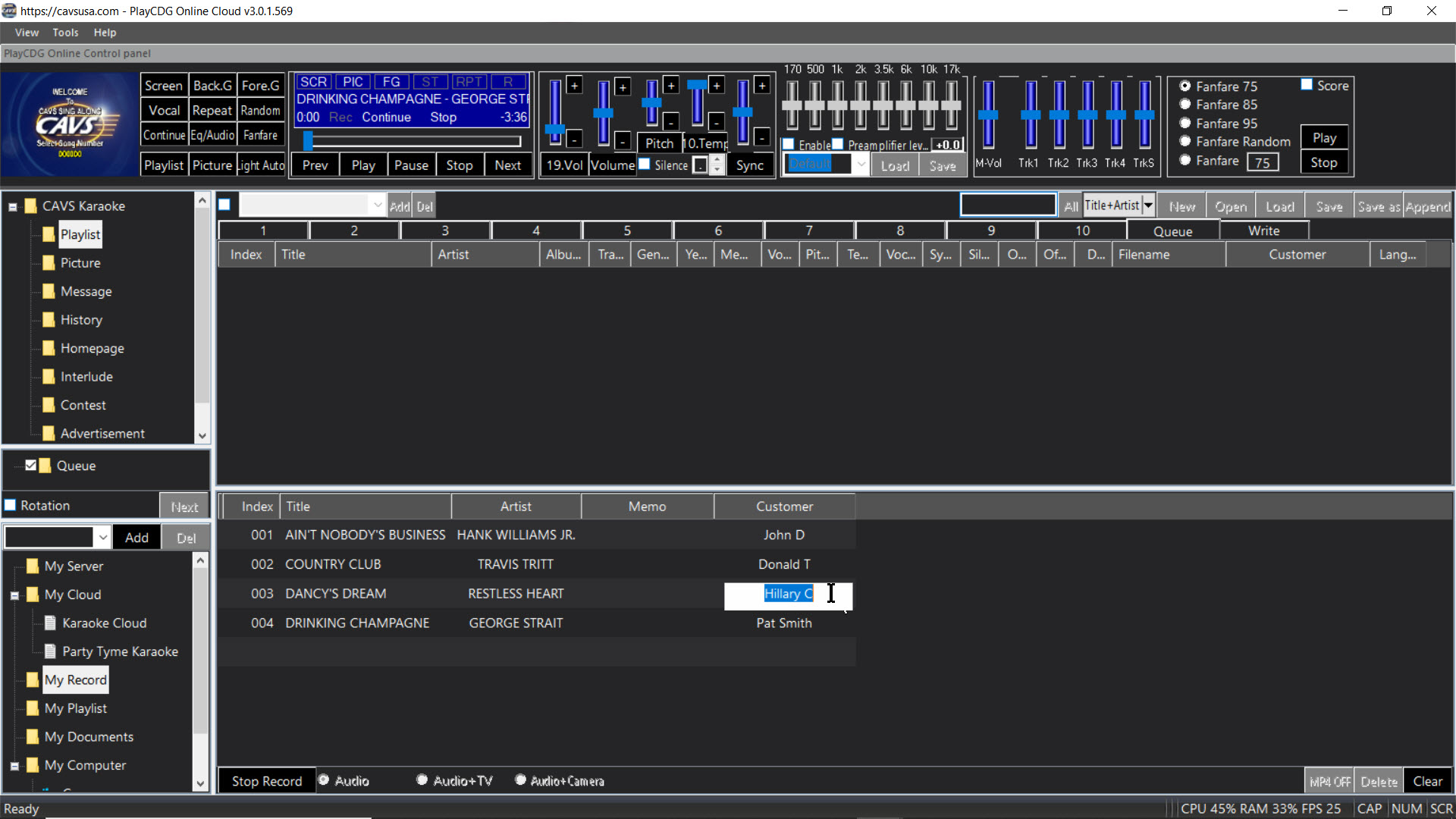
2.2. Queue
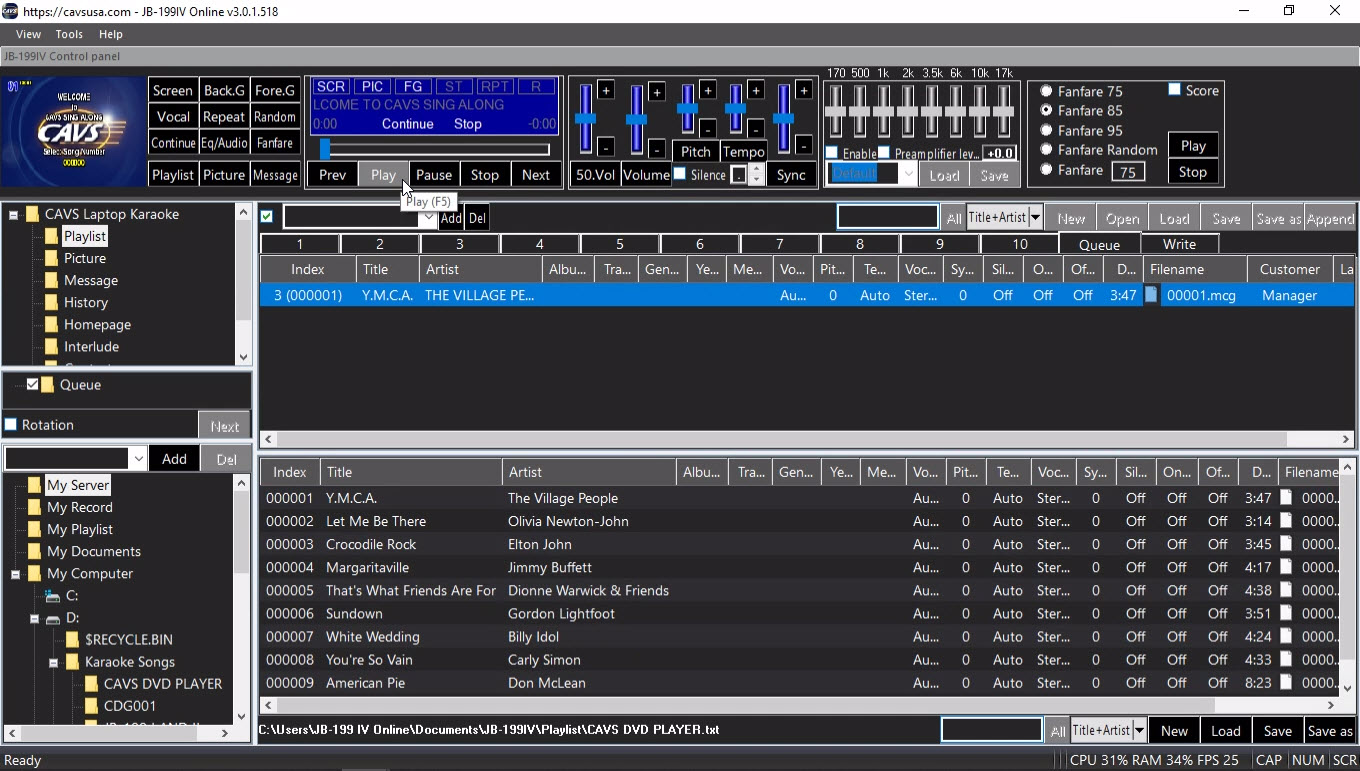
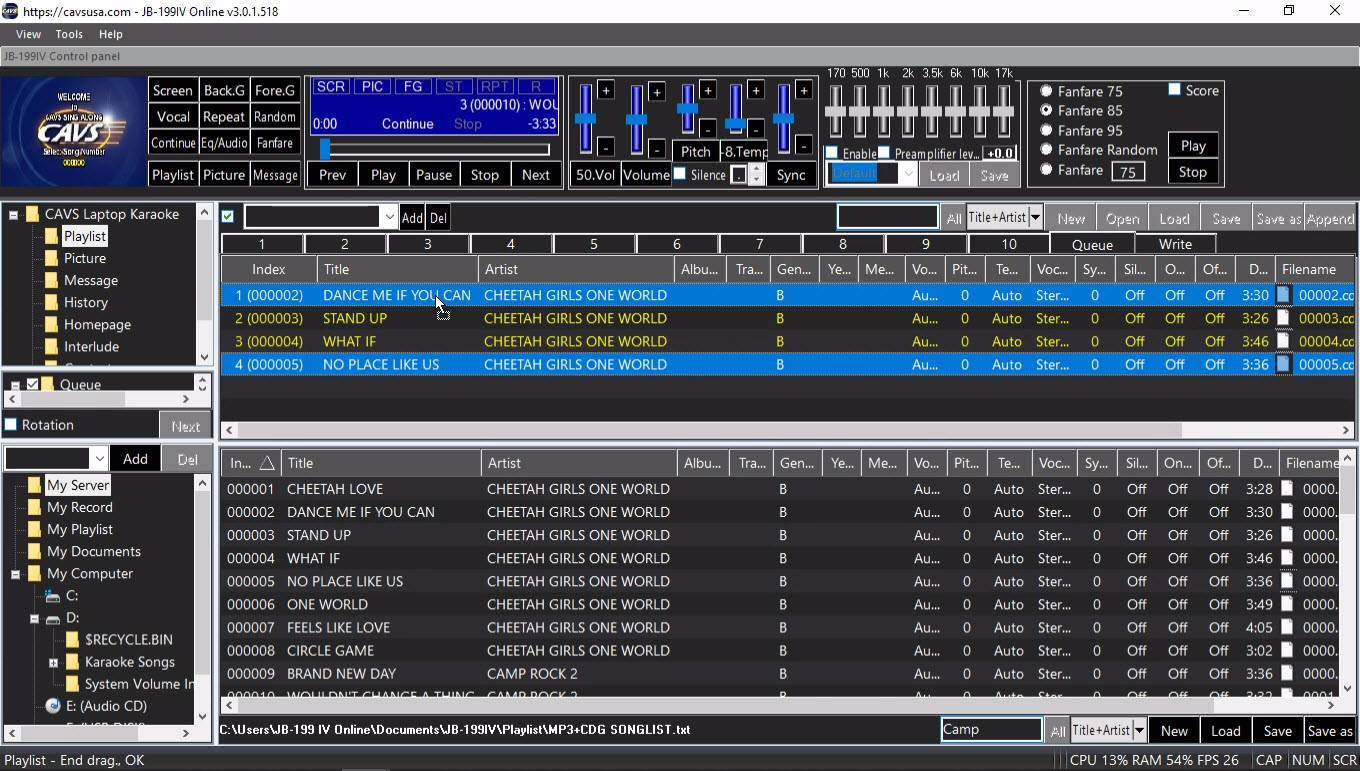
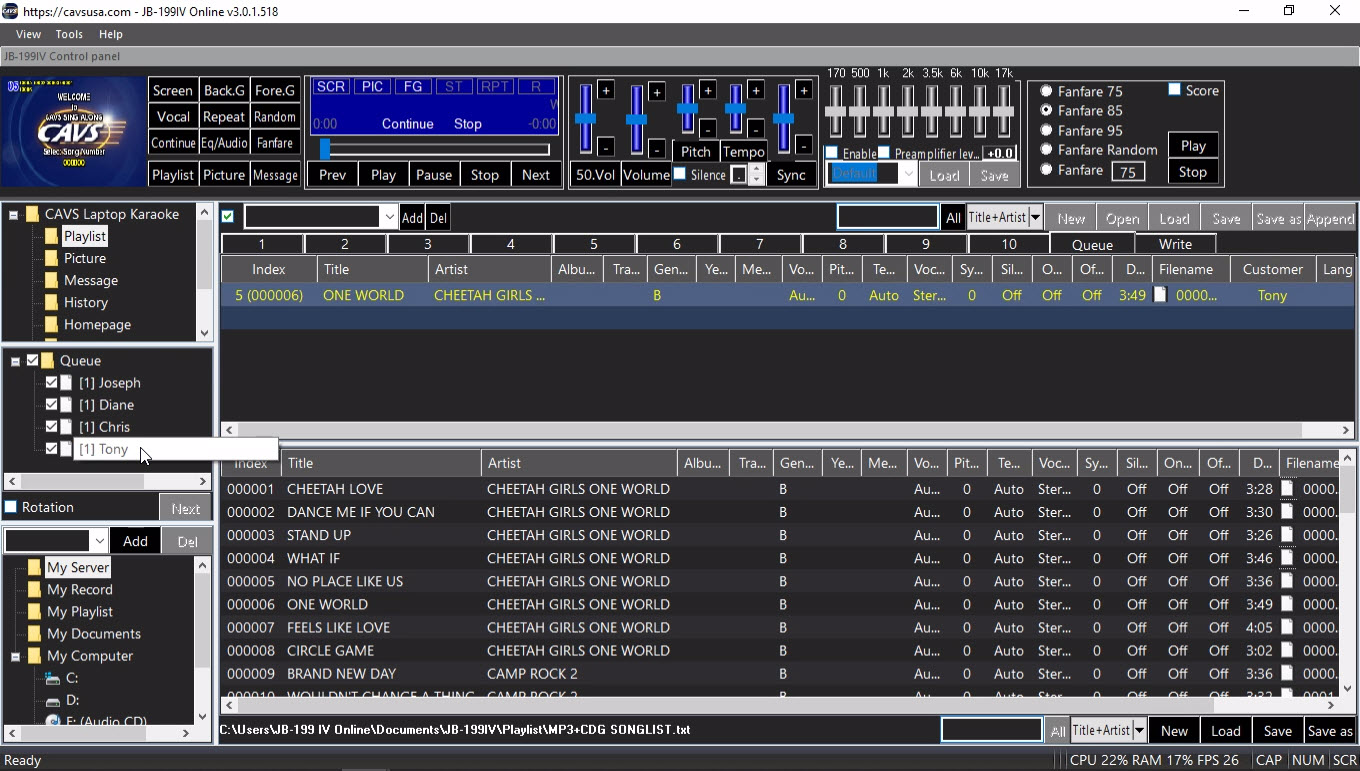
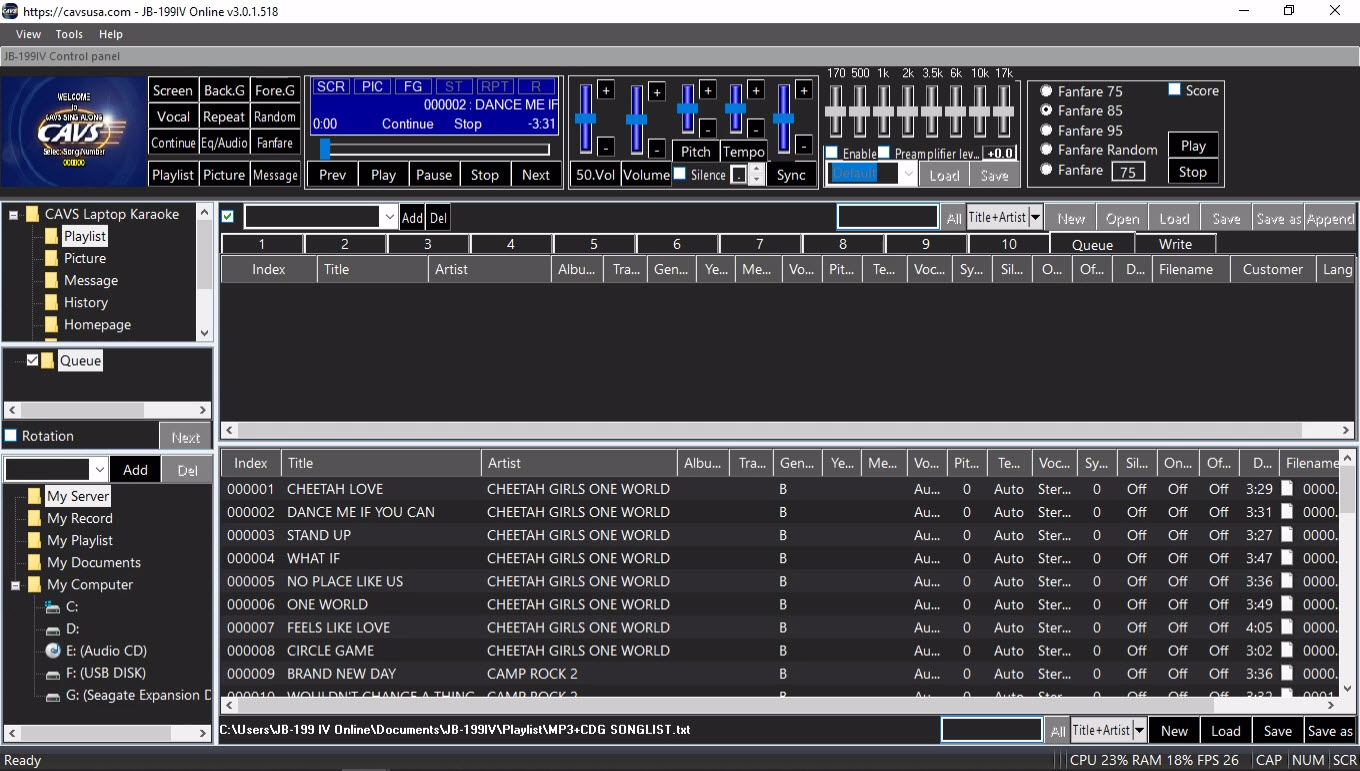
The Queue shows the reserved songs, which play from top to bottom. Songs are automatically removed once playerd.
The popup window that appears uses the same format as the Playlist. See 4.5.E.2.1 Playlist (1 - 10) for details.
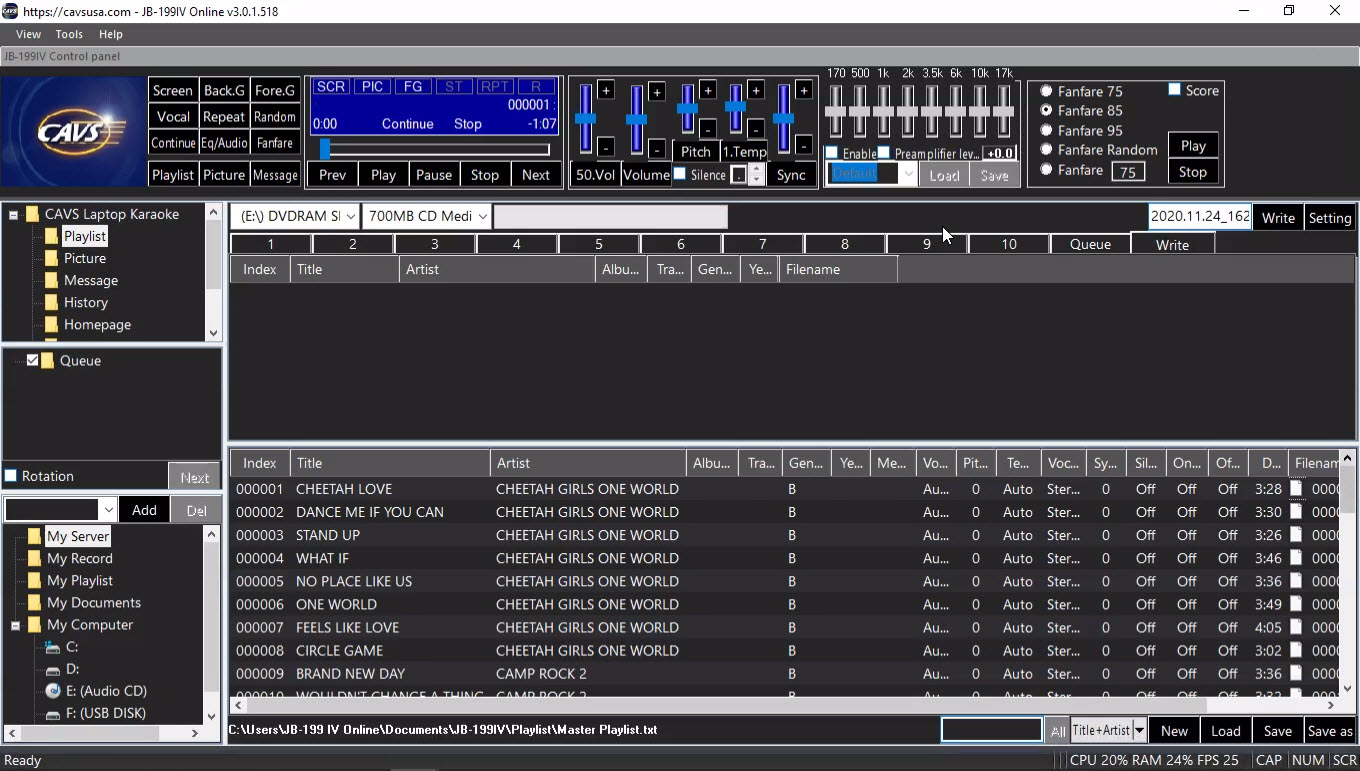
2.3. Write
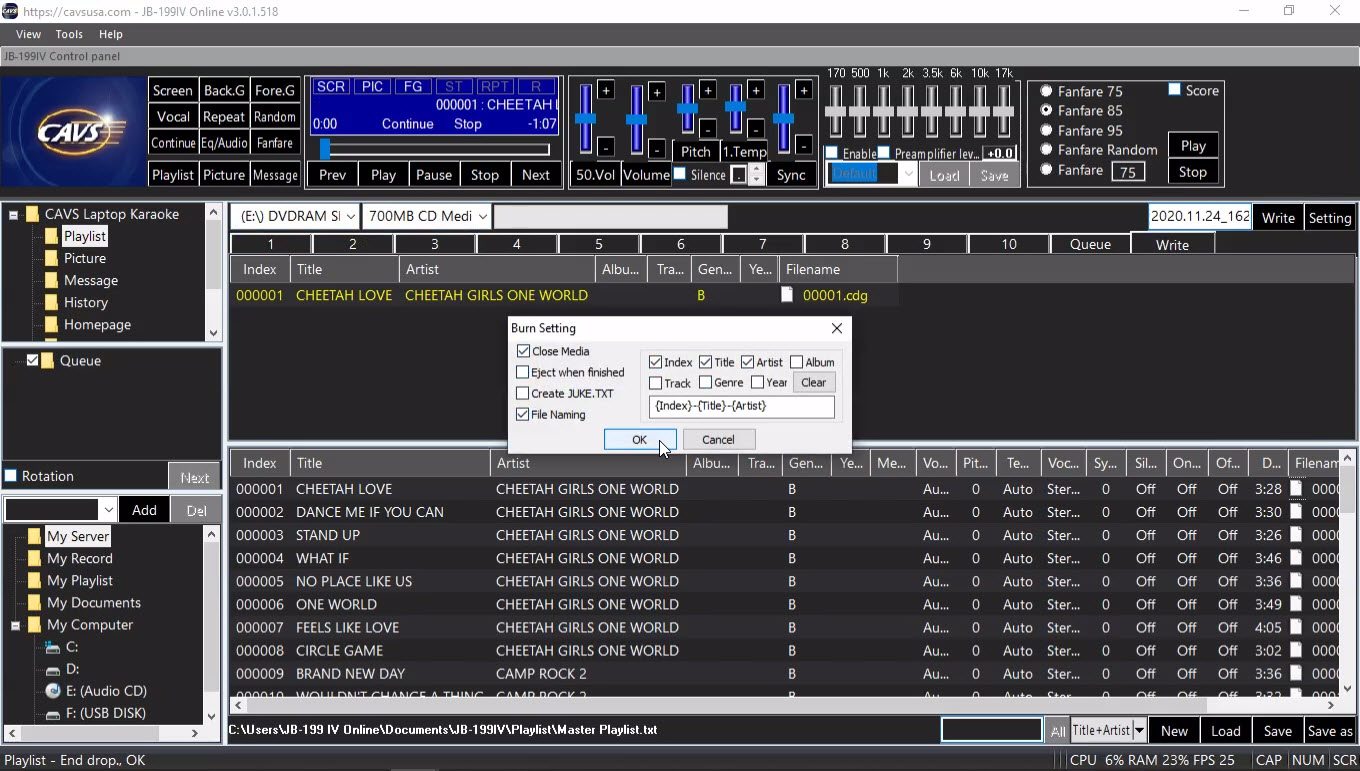
The Write displays the song files to be written/burn onto a disc or drive.
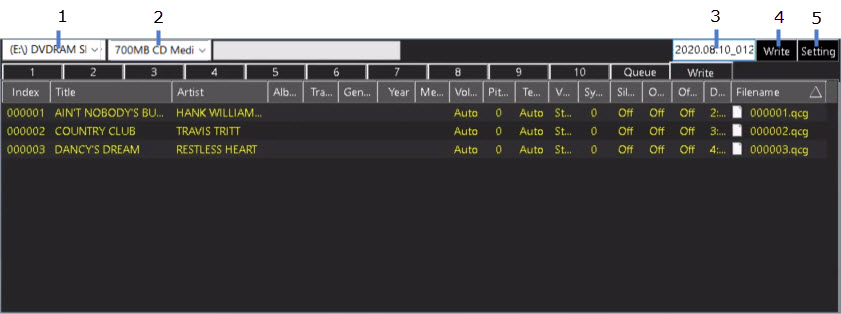
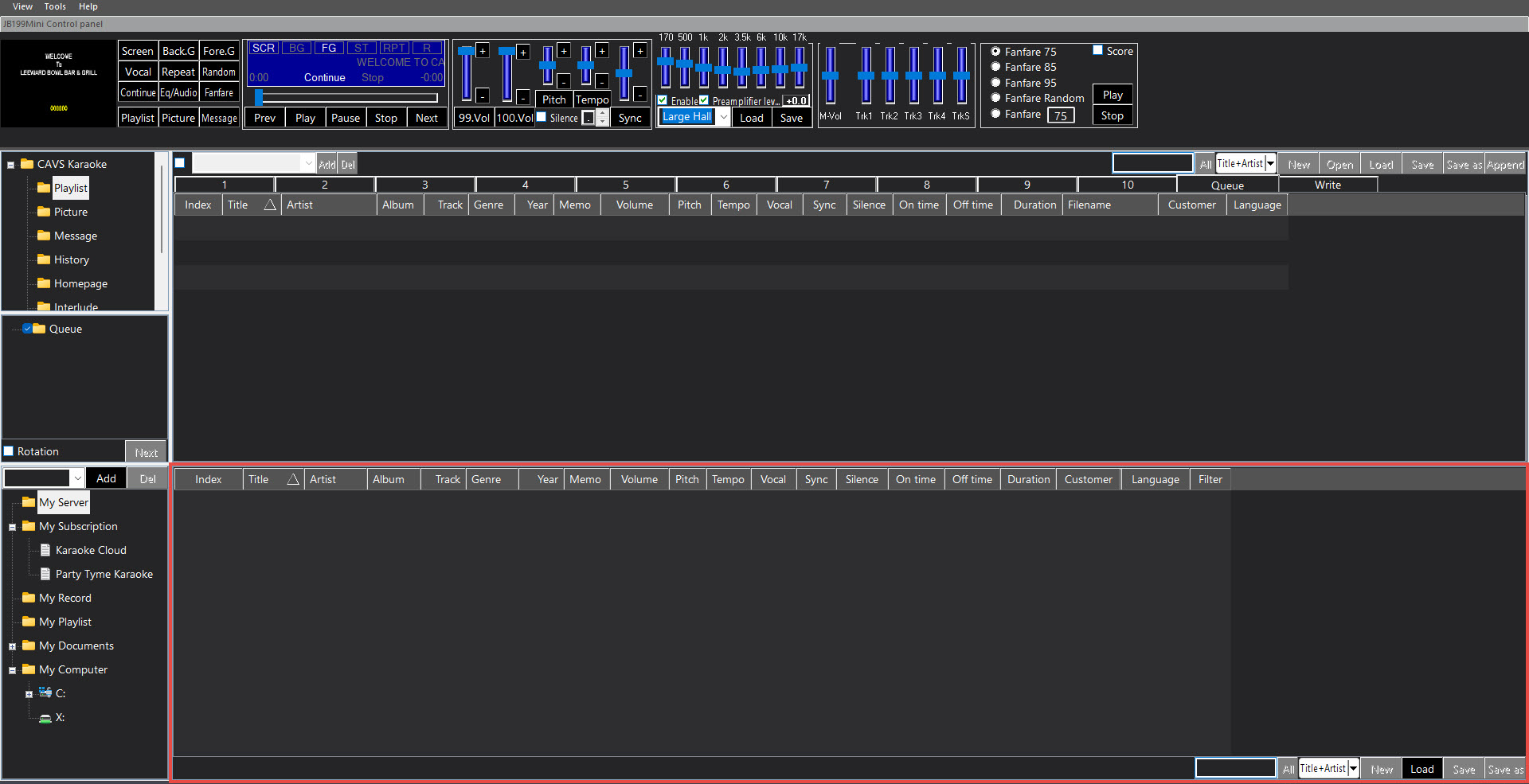
The following popup window will appear.
The input fields are same as in a playlist and for details, see 4.5.E.2.1 Playlist (1 - 10).
Select a drive to write the song files into.
Select a media, such as a 700MB CD or a 4.7GB DVD, into which the songs will be written.
Input the volume name of the media.
Write
Setting
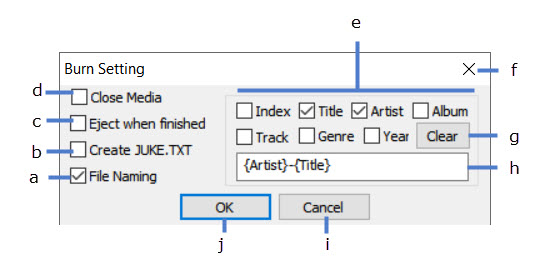
Name the song files as specified.
Create and write a song list JUKE.TXT
Eject when finished
Close media when done
Select the fields to be included in the filename
Close the popup window
Clear the selection
Display filename format
Cancel
OK
E.3 Picture
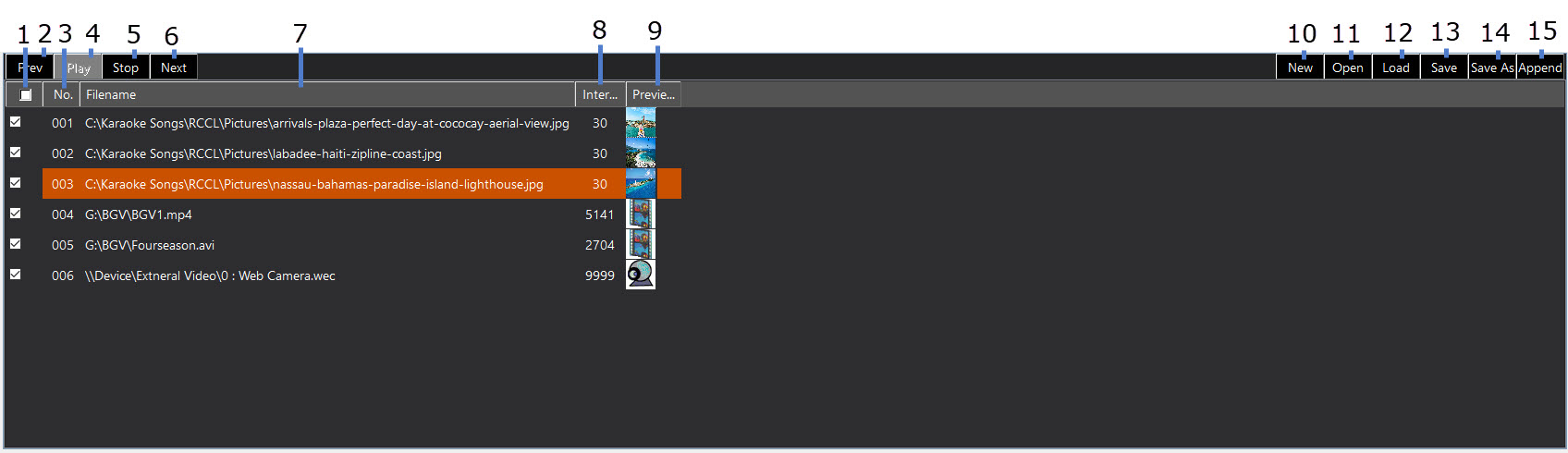
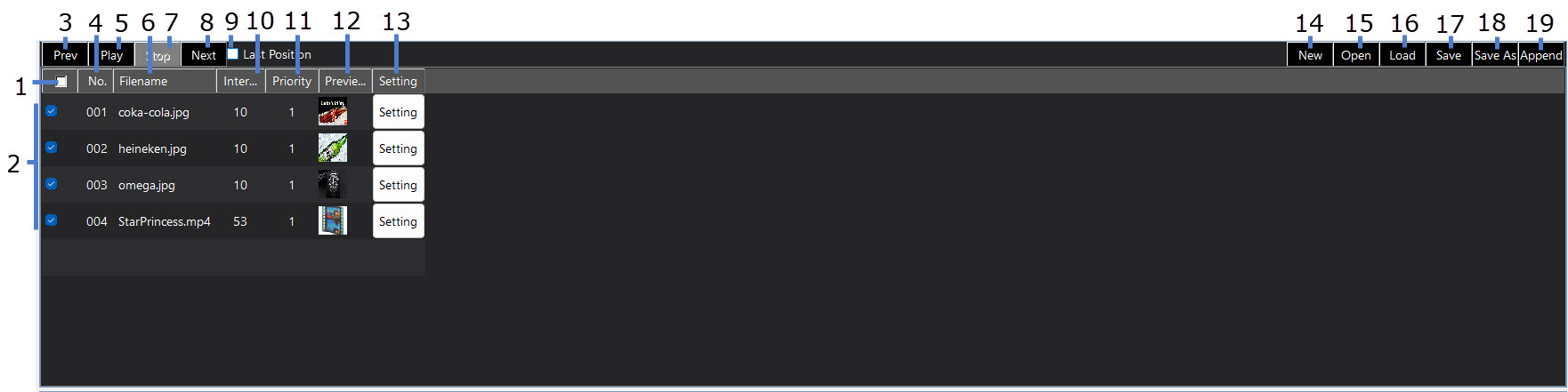
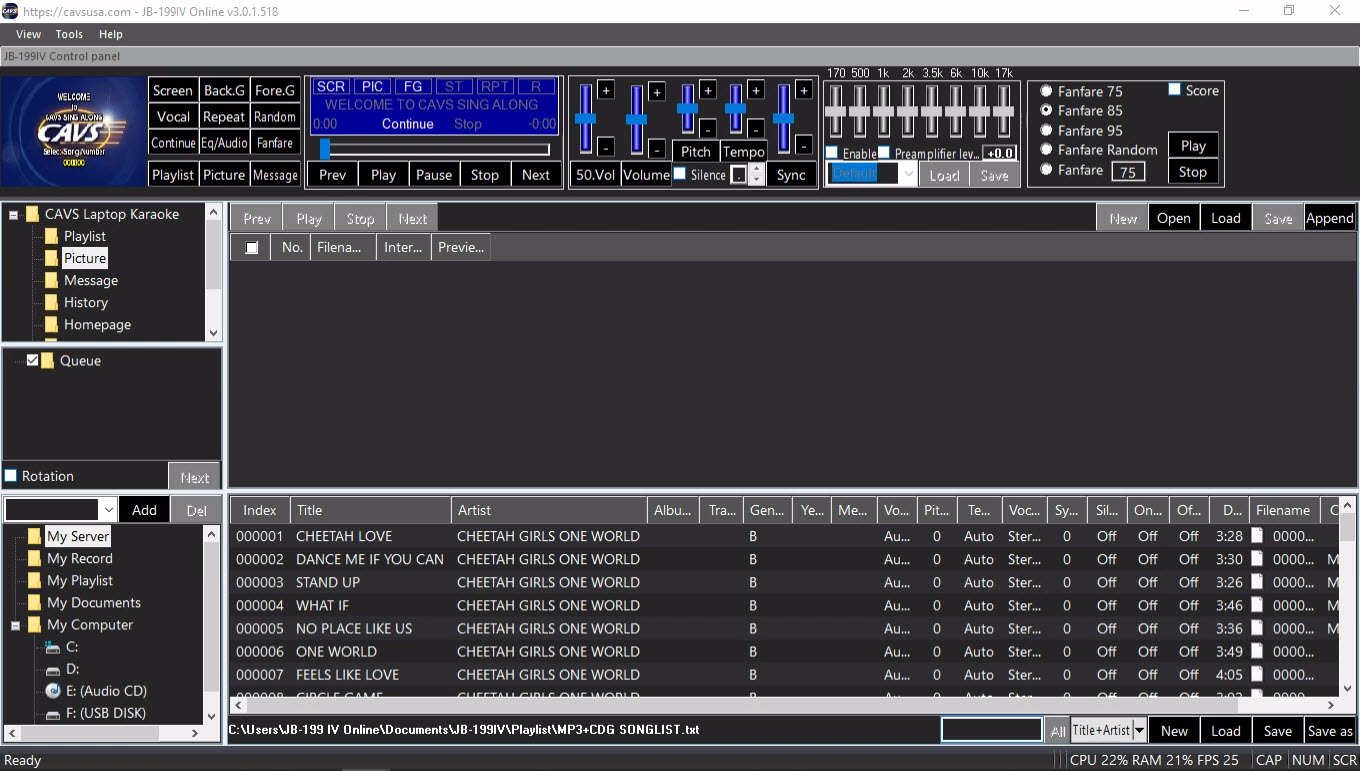
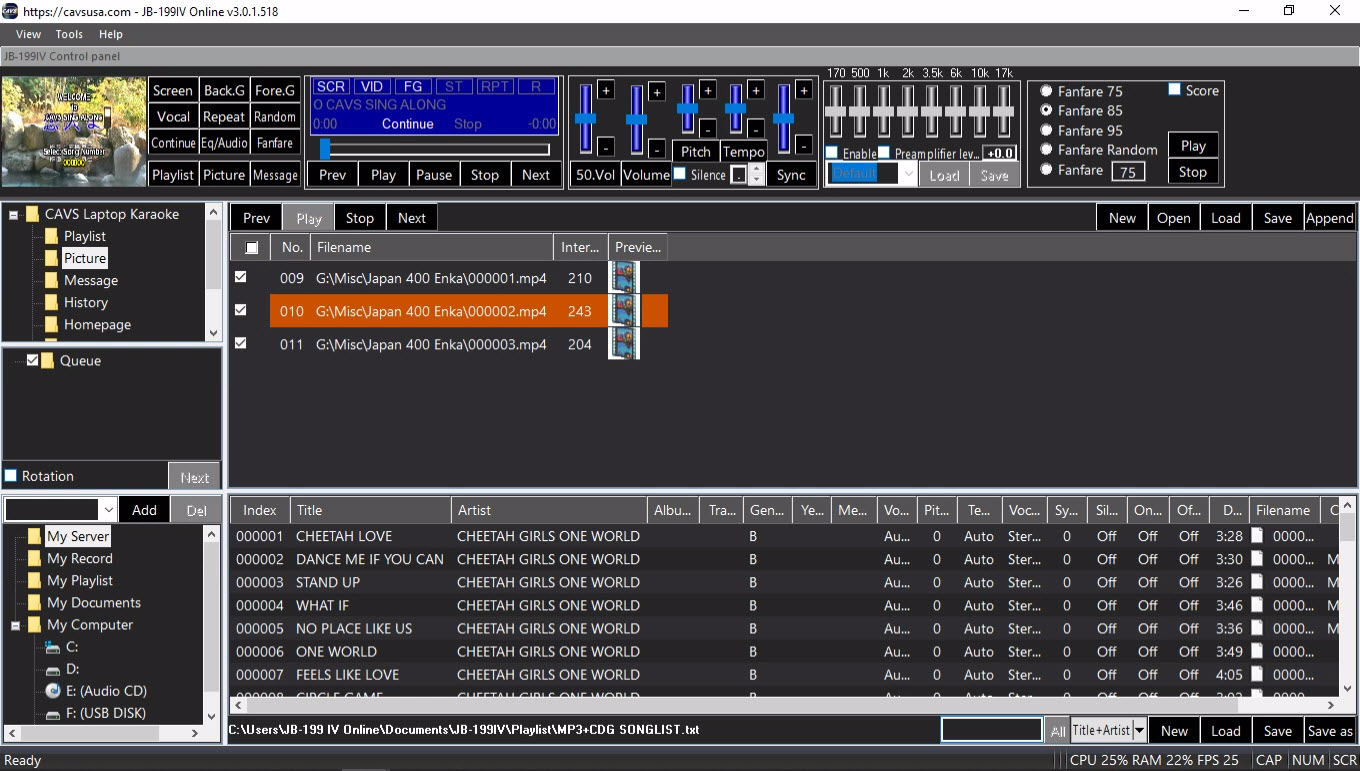
The Picture lists photos, videos, and webcams that can be used as background display of the CD+G screen.
Each item can be added, removed, enabled, disabled, or edited for its display time duration.
When done making changes, the Picture with its list of items can be saved and easily reloaded for use at a later time.
To turn on/off the Picture in the karaoke player, go to 4.5.B.4 Back.G.
Enable or disable all items. Play photos (PIC)/ videos (VID)/ webcam (WEC)/ Off using the 4.5.B.4 Back.G button.
View the previous item
Sort by Index
Sort by Filename
View the selected item
Stop the view
View the next item
Set the duration of play time (in seconds)
View screenshot
Clear the list
Open the MS File Explorer to add an item
Load a list previously saved
Save the current list
Save as the current list
Append the current list to an existing list
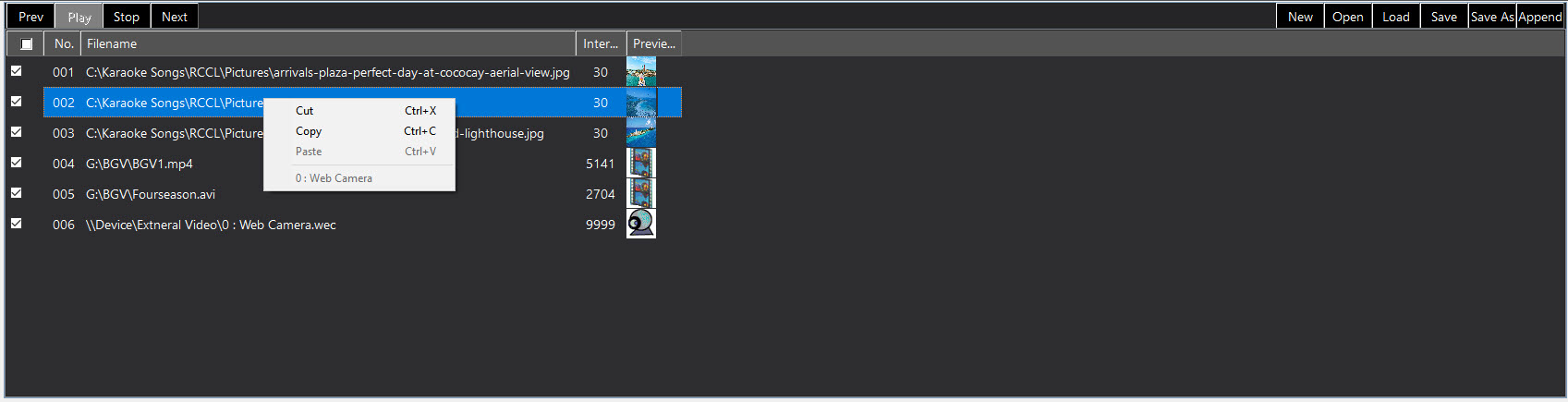
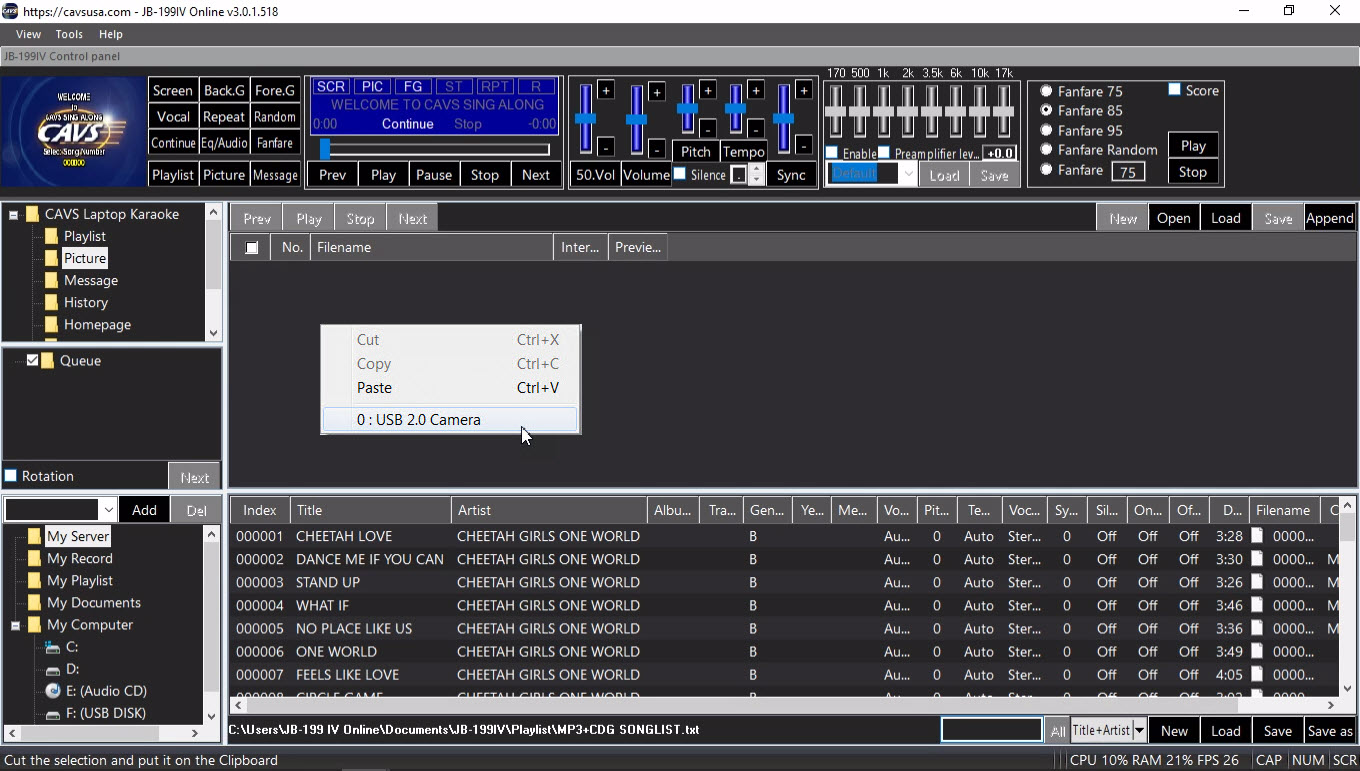
Right click on any item for the following window
Cut
Copy
Paste
0: USB 2.0 Camera - Add the webcam. This option will not be available when no webcam is detected.
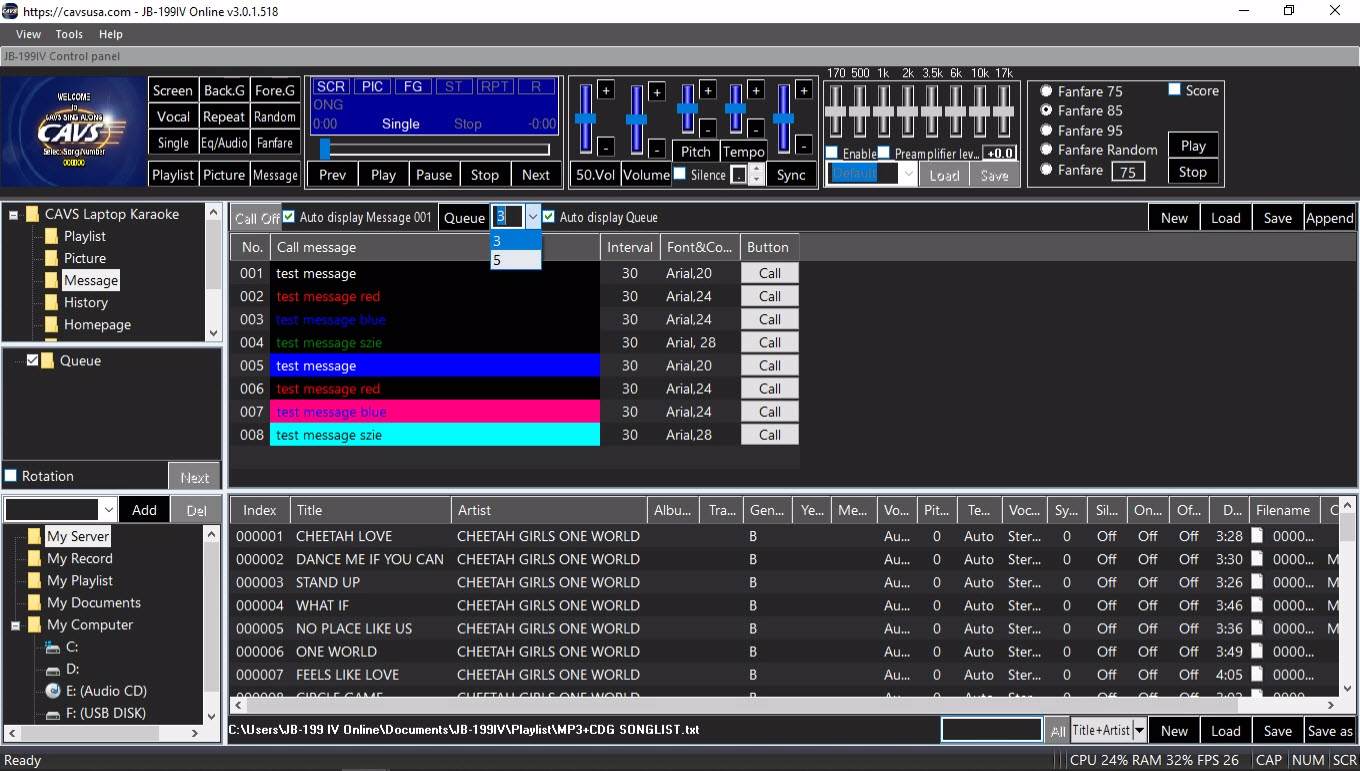
E.4 Message
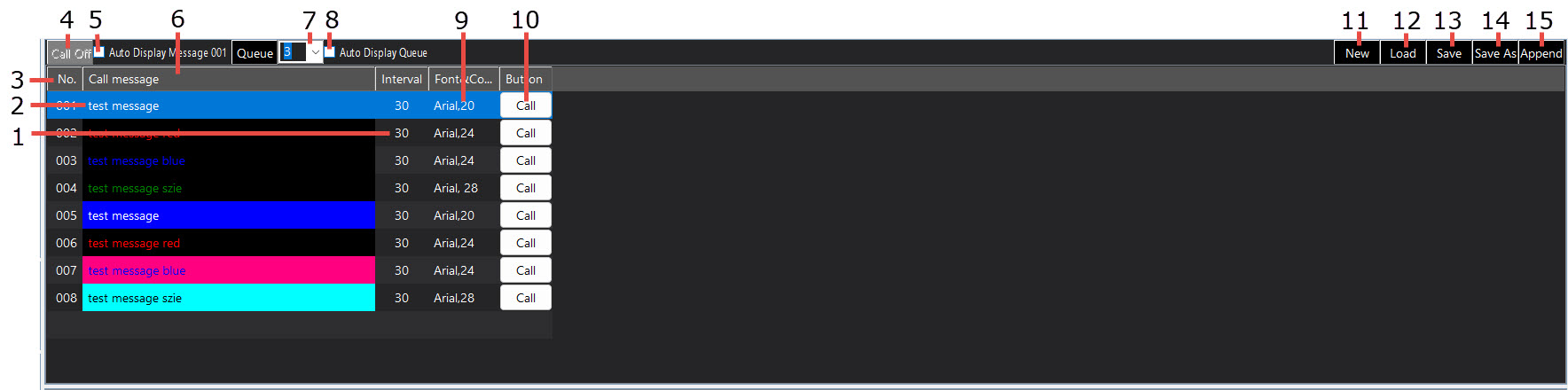
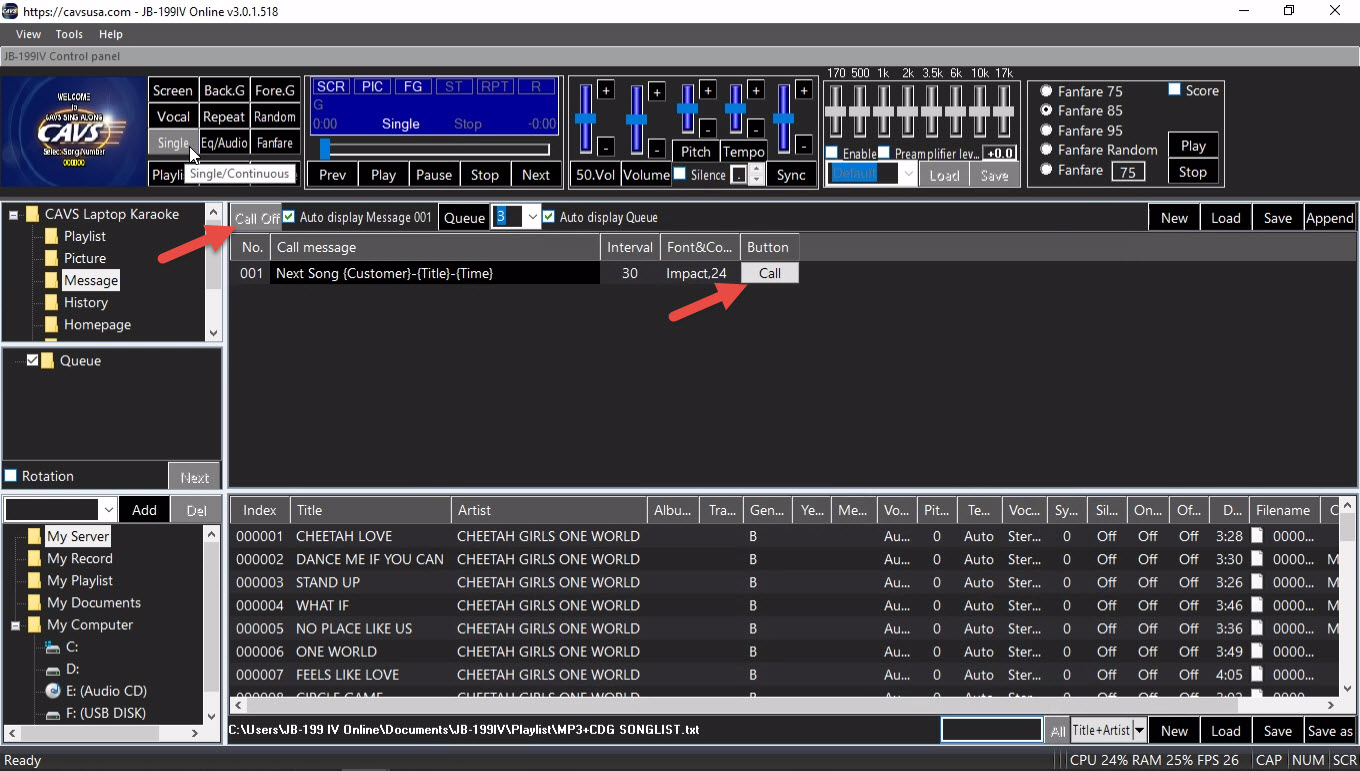
The Message lists notices to be displayed on the CD+G screen.
Each notice can be added, removed, or edited for their content, frequency, duration, font, and color.
When done making changes, the Message with its list of notices can be saved and easily reloaded for use at a later time.
Interval - Double click to edit the duration of display time in seconds for the selected notice.
Call message - Double click to edit the content of the selected notice. Press Enter to finish.
Index - Press to sort the notices by Index.
Call off - Stop the display in progress.
Auto Display Message 001 - Display the notice 001 at 1 minute remaining mark of a song in play.
Call message - Press to sort the notices by content.
Queue level - Select the number of reserved songs to display in Queue.
Auto display Queue - Check to display Queue in between karaoke songs.
Font & Color - Double click to choose font, font size, and color for the selected notice.
Call - Display the selected notice.
New - Clear Message.
Load - Load Message. By default the folder Documents/JB-199IV/Message is opened.
Save - Save Message. By default the folder Documents/JB-199IV/Message is opened.
Save as - Save as Message. By default the folder Documents/JB-199IV/Message is opened.
Append - Append Message to another Message. By default the folder Documents/JB-199IV/Message is opened.
In the Message, right click on any notice for the following window.
Cut
Copy
Paste - N/A
Delete
Insert
Append - N/A
Following Macros are available for the notices in the Message.
{title} - Title of the next song
{artist} - Artist of the next song
{customer} - Customer of the next song
Here are some sample notices using Macros.
Each macro term must be separated by a dash "-" in front and back except for the beginning and ending of the notice.
"{title}-{artist}-{customer}" - Title Artist Customer of the next song
"{title}-{artist}-{customer}-2" - Title Artist Customer of the next two songs
"Get ready-{customer}-for your song-{title}" - Get ready Customer for your song Title
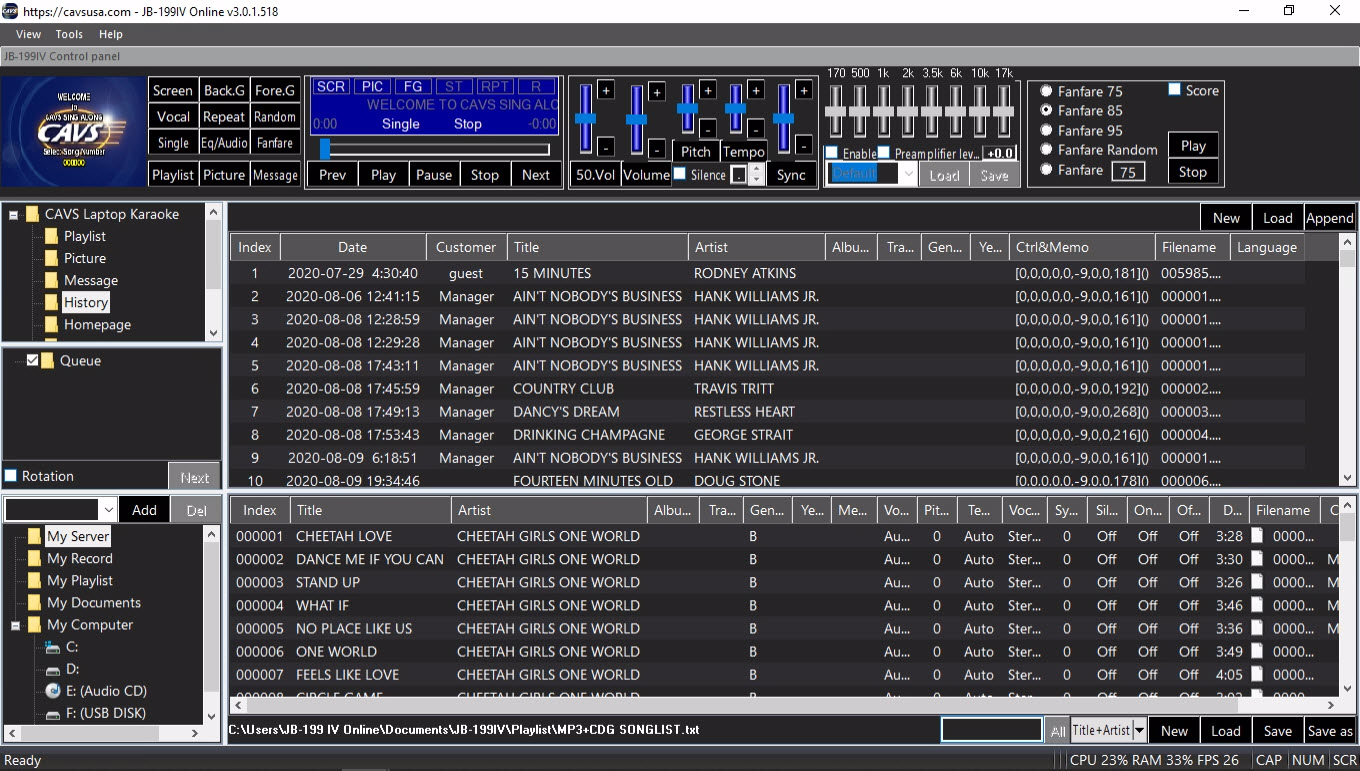
E.5 History
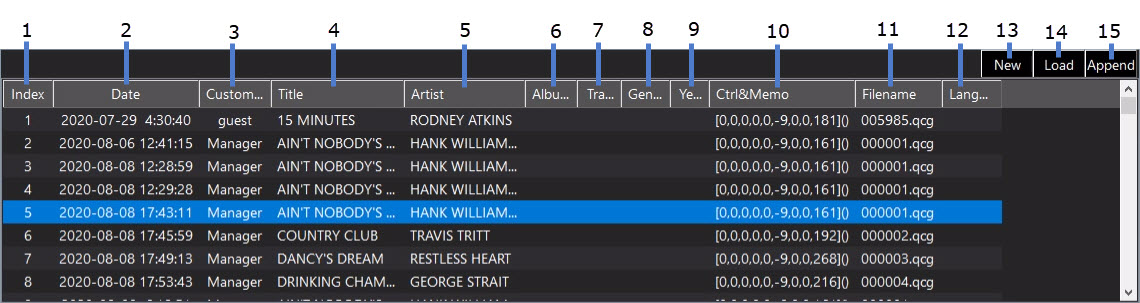
History shows the list of songs that were played in the past.
From History, you can send a song back to Queue, Playlist, or Write.
It is a useful way to accommodate the repeat customers.
Sort by Index
Sort by Date & Time
Sort by Customer
Sort by Title
Sort by Artist
Sort by Album
Sort by Track
Sort by Genre
Sort by Year
Controls and Memo
Sort by Filename
Sort by Language
Clear History
Load History - By default the folder Documents/JB-199IV/Hisotry is opened.
Append History to another History - By default the folder Documents/JB-199IV/Hisotry is opened.
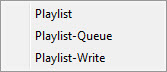
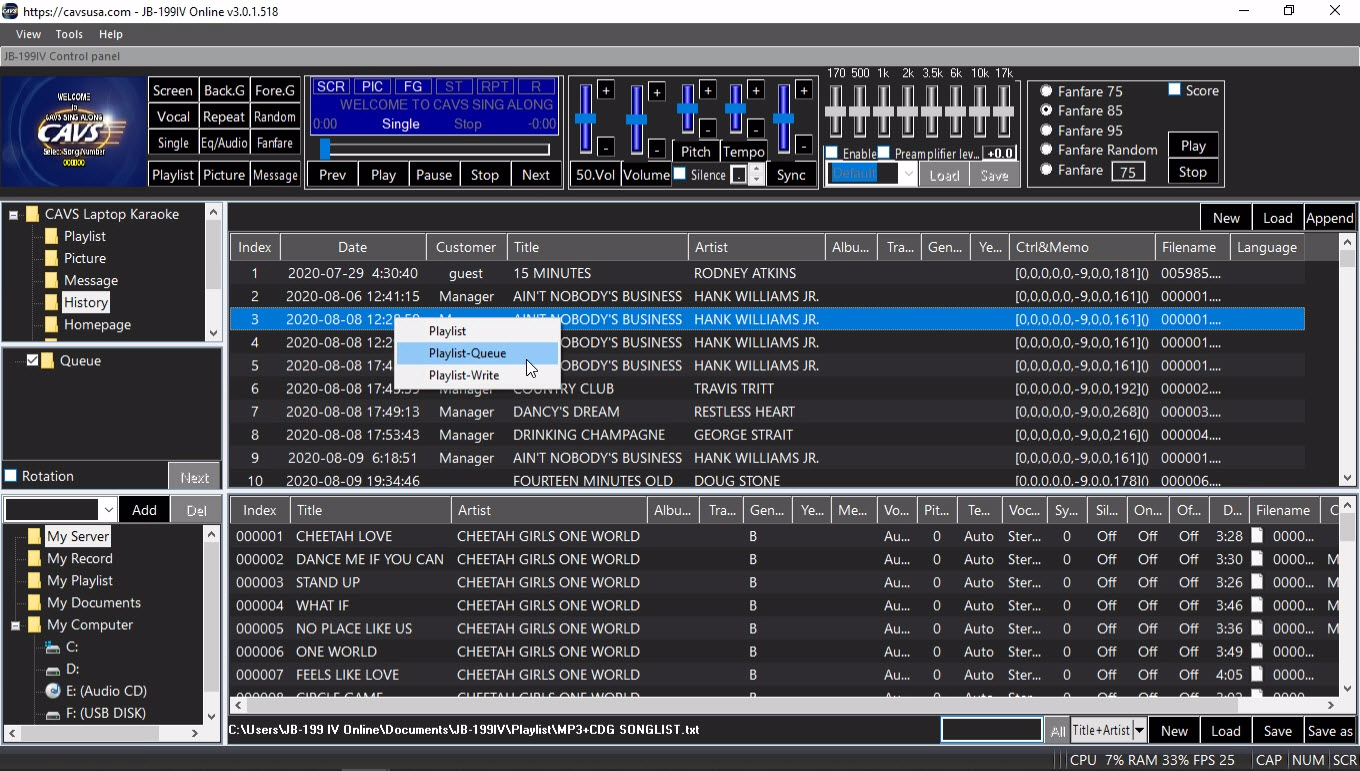
Right click on a song in the History and select to send the song to Playlist, Queue, or Write.
Playlist - Send to Playlist. By default a most recently opened playlist is used.
Playlist-Queue - Send to Queue
Playlist-Write: Send to Write
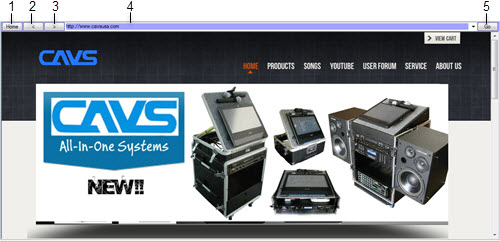
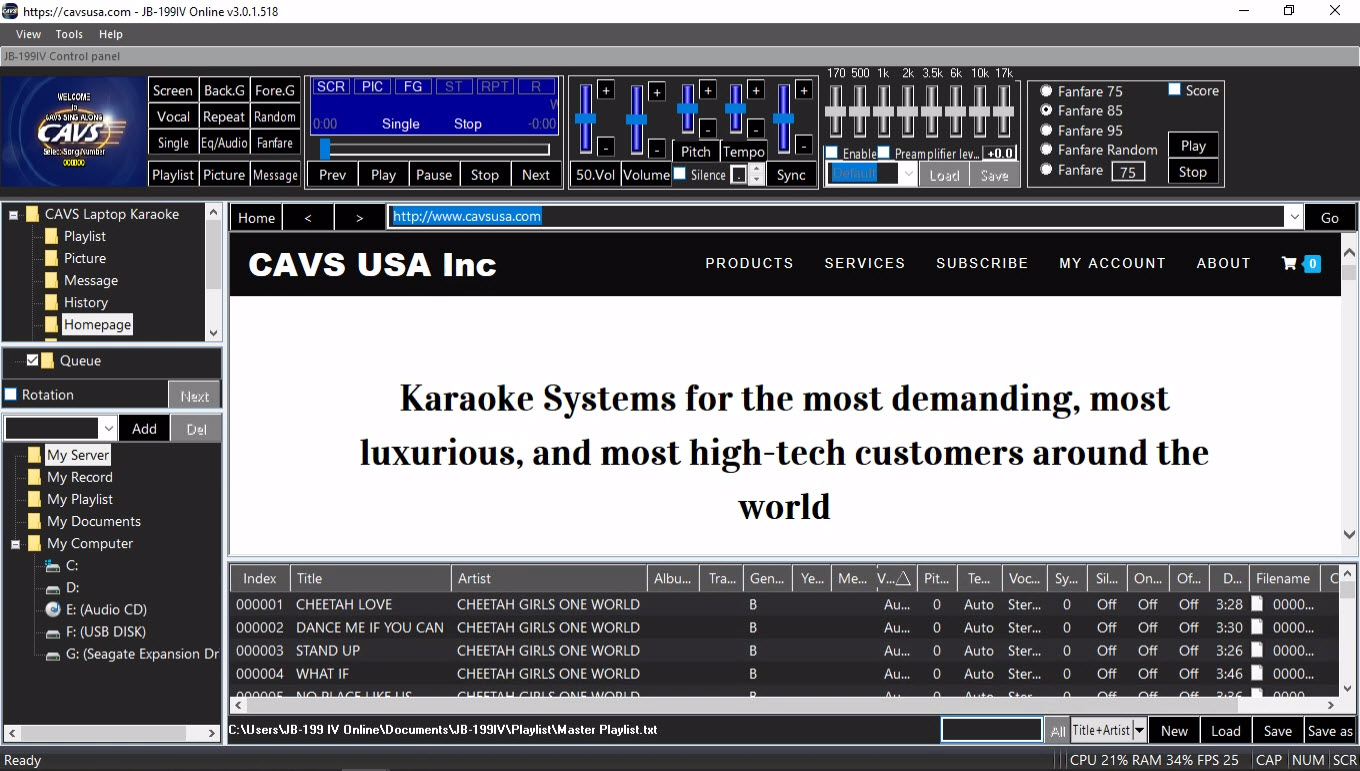
E.6 Homepage Homepage opens an web page set at 4.5.A.2.1.2 Control Panel. This section requires Internet connection.
Homepage
Go Back
Go Forward
URL Address Input Field
Go to URL address
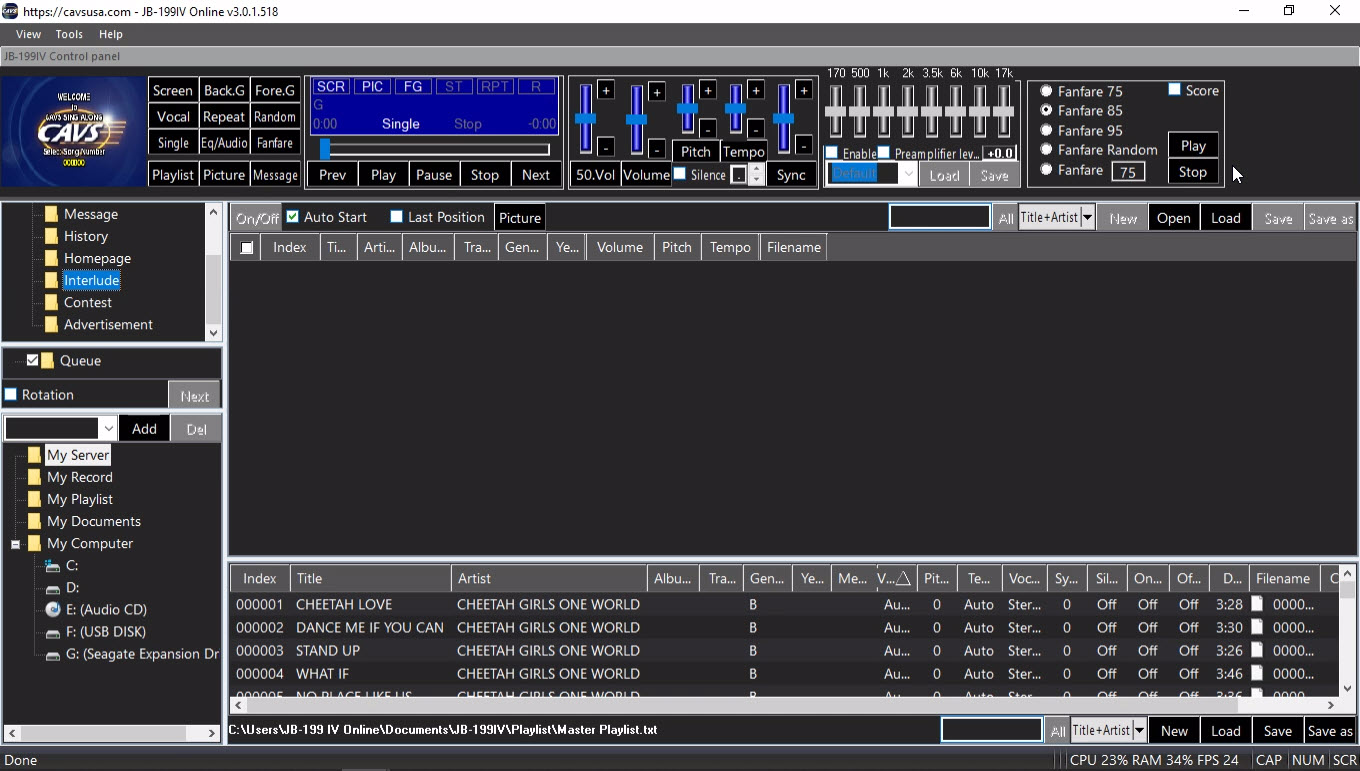
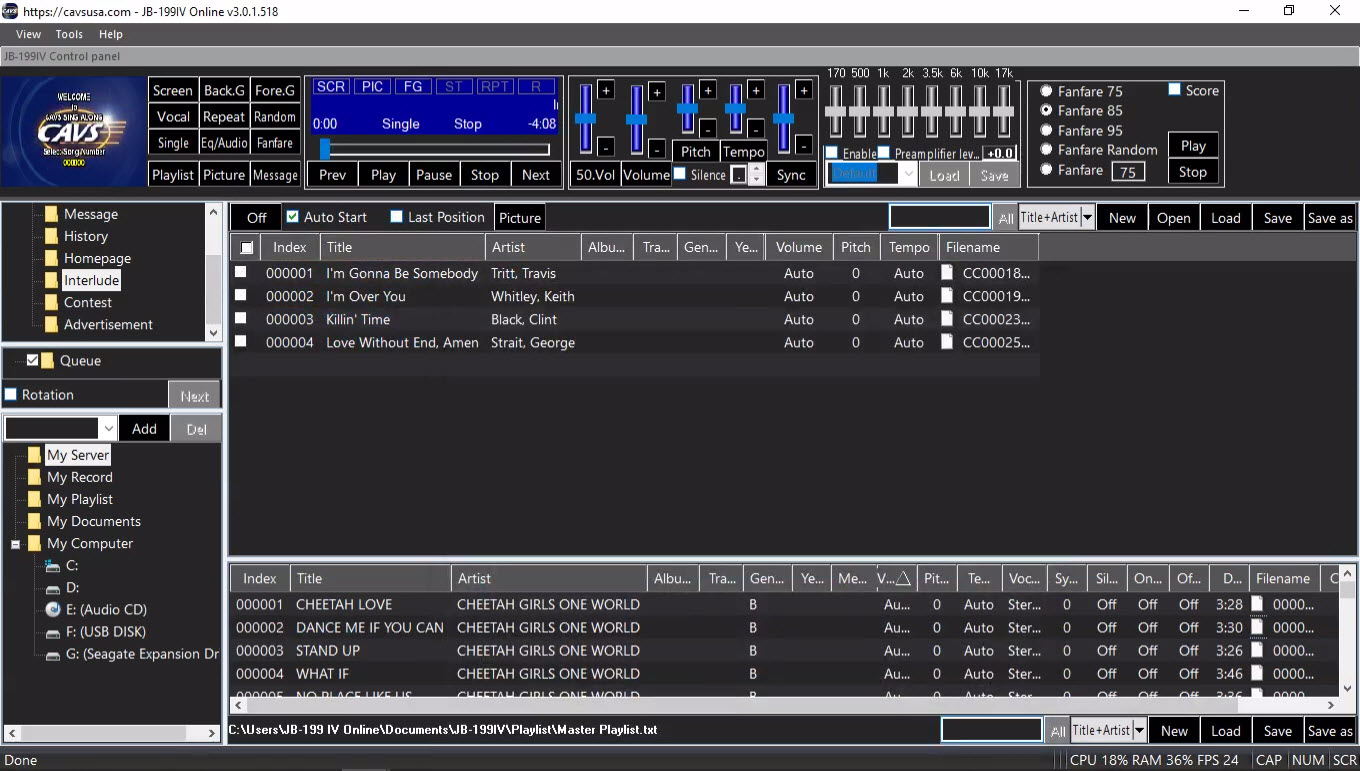
E.7 Interlude
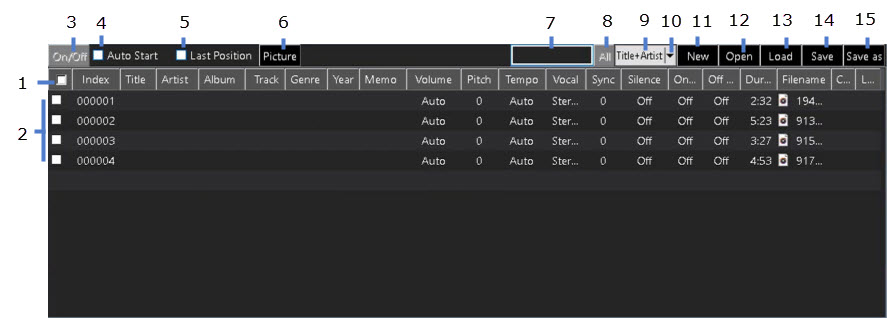
Interlude lists MP3 files that play as background music in-between karaoke songs.
The interlude files will automatically start with a fade-in when a karaoke song ends, and will stop with a fade-out when a new karaoke song starts.
The input fields for the MP3 files are same as in 4.5.E.2.1 Playlist (1 - 10).
Enable/disable all MP3 files
Enable/disable each MP3 file
Turn on/off Interlude - The Play mode in 4.5.B. Player must be set to Single for the Interlude to play.
Auto Start - Check to start Interlude automatically at the end of a karaoke song.
Last Position - Check to start Interlude music from the last ending position.
Picture - Select a photo to display while playing Interlude.
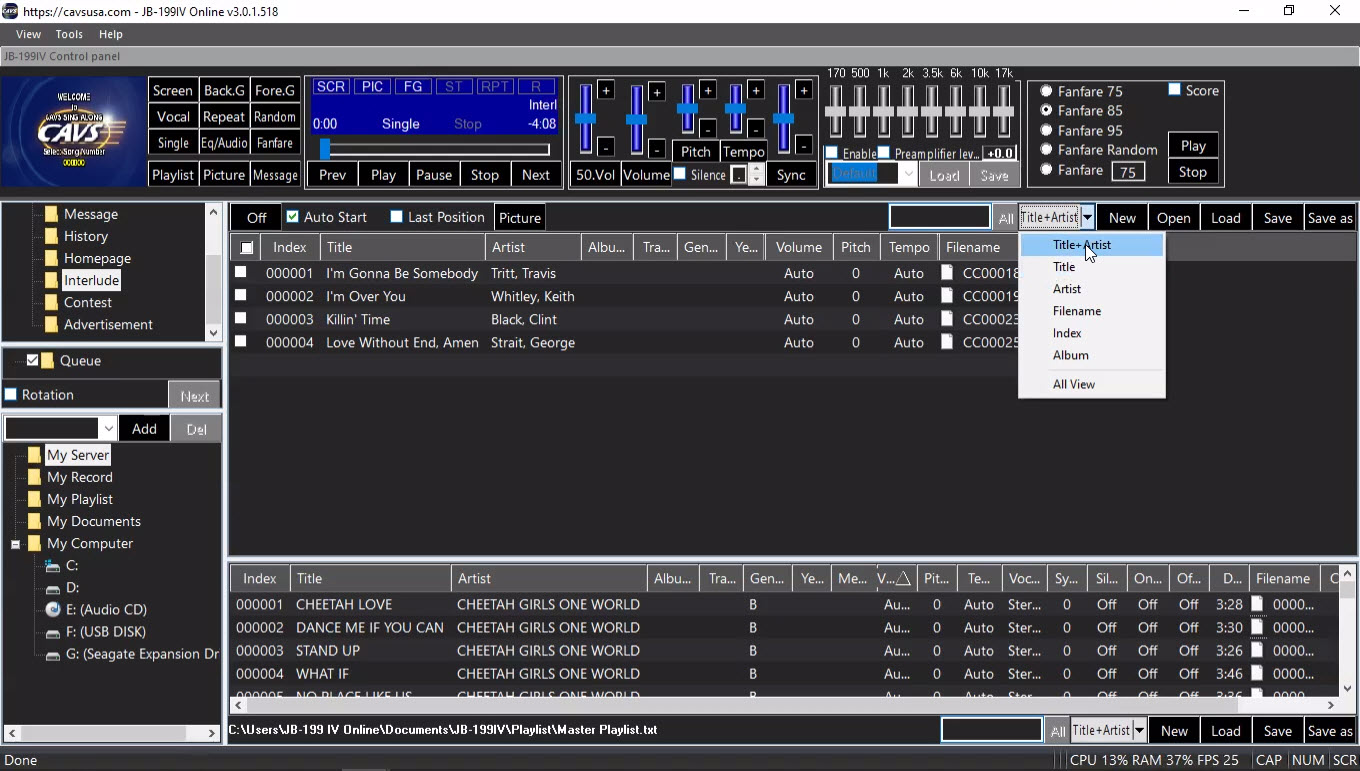
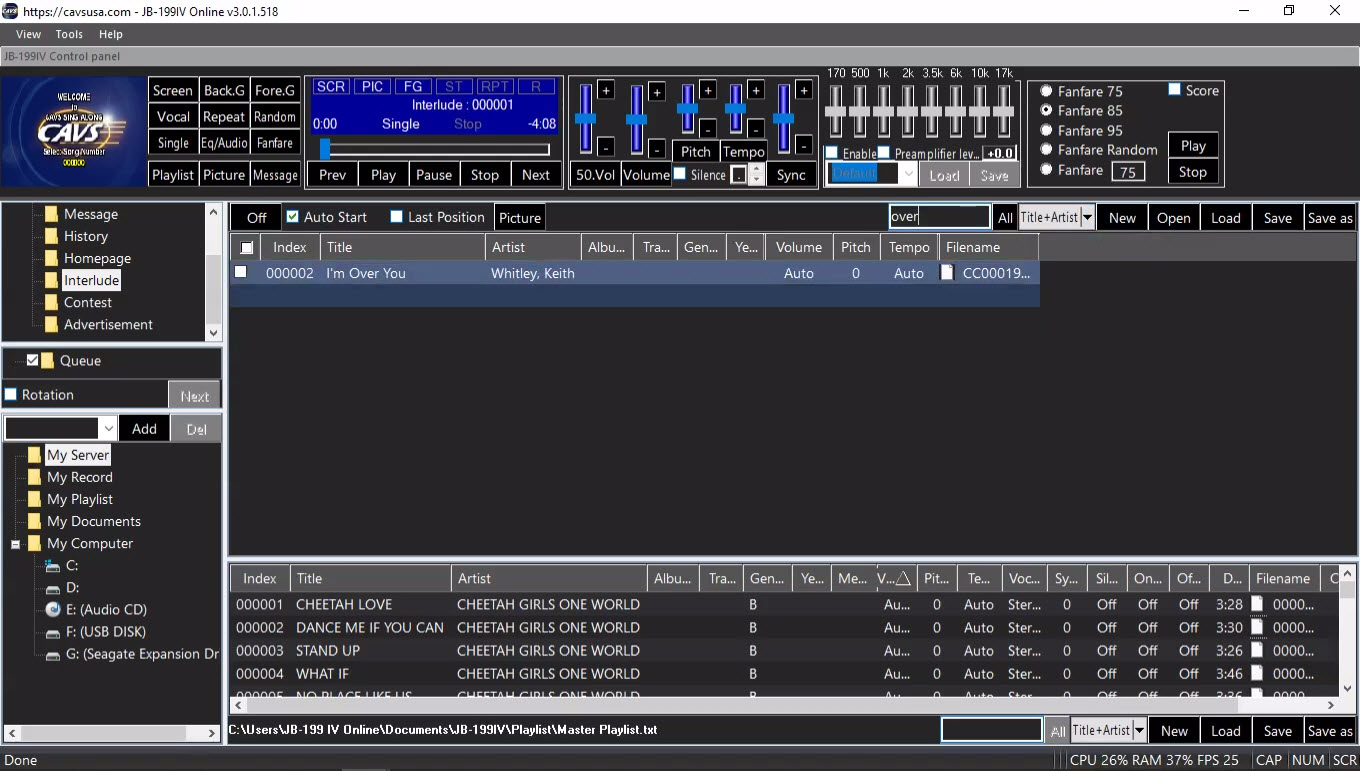
Search Input Field - Type in word(s) to search for.
Return to the total MP3 file list prior to search
Indicate the current search category
Select a search category
New - Clear Interlude
Open - Open MS File Explorer to find and add a MP3 file
Load - Load Interlude from the default folder Documents/JB-199IV/Playlist.
Save - Save Interlude into the default folder Documents/JB-199IV/Playlist.
Save as - Save as Interlude into the default folder Documents/JB-199IV/Playlist.
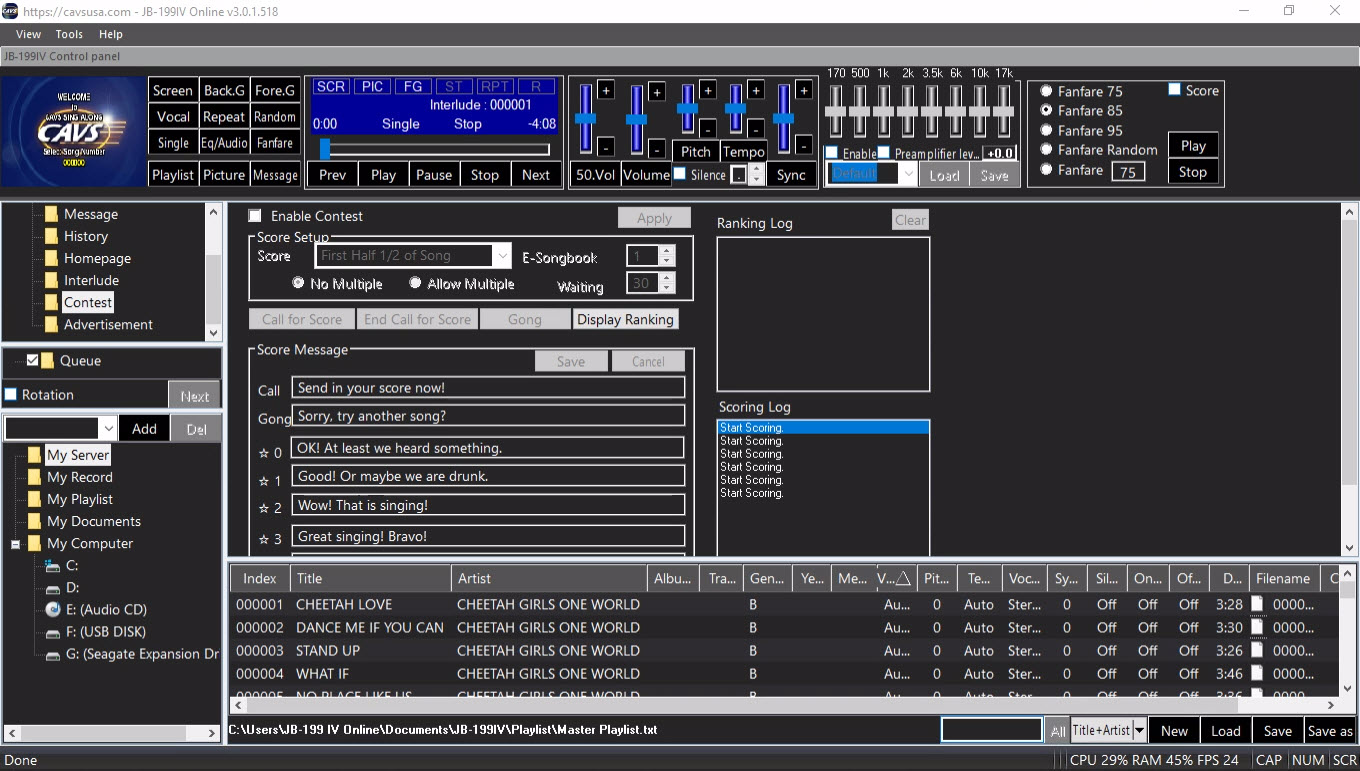
E.8 Contest
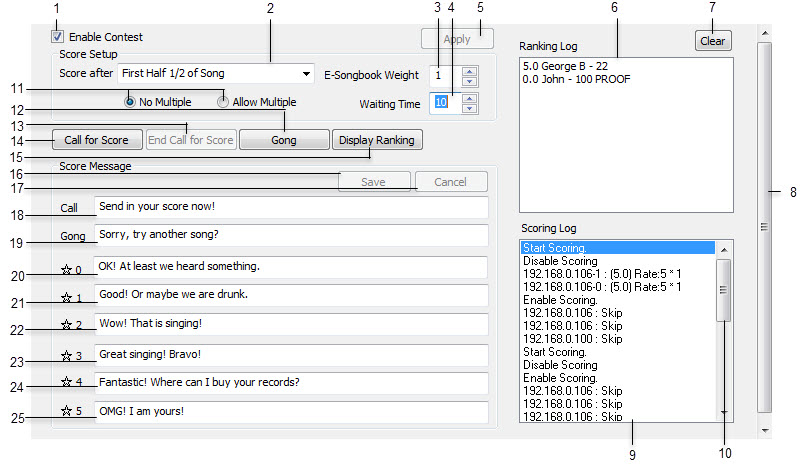
Contest shows the controls for conducting a karaoke contest using E-Songbooks, smartphones, tablets, or laptops.
All scores are sent from the guests wirelessly and tallied in the JB-199 V.
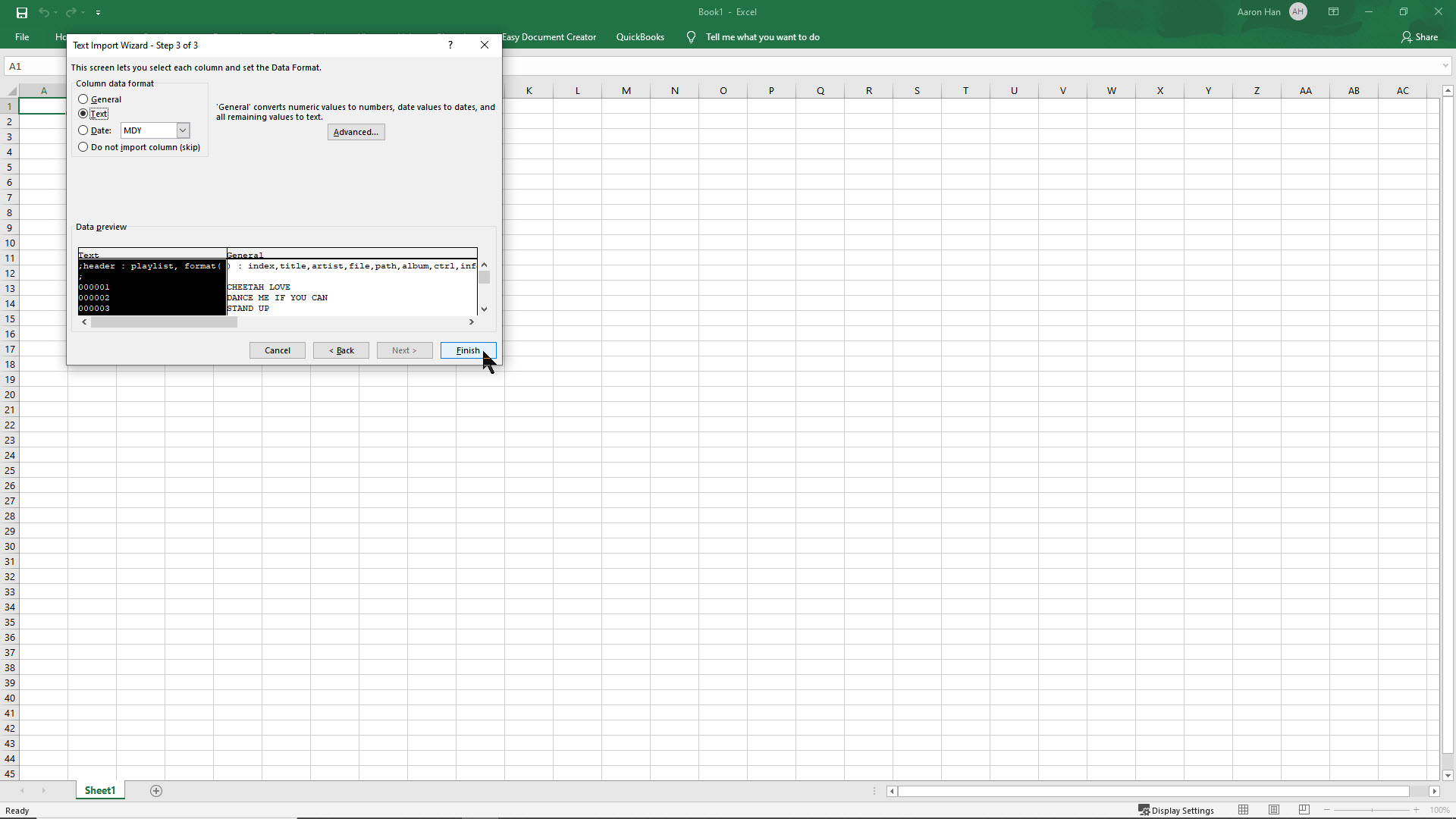
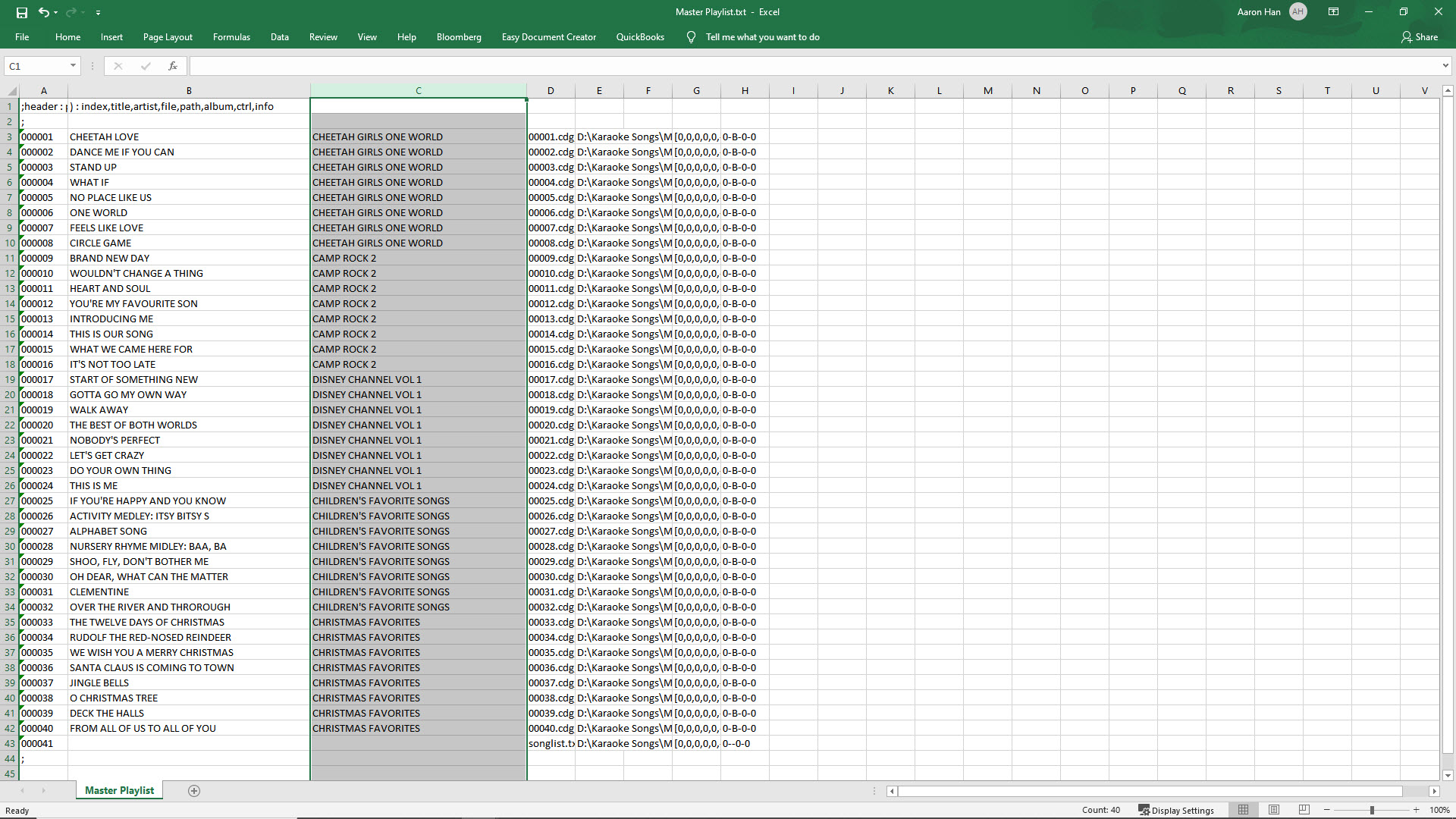
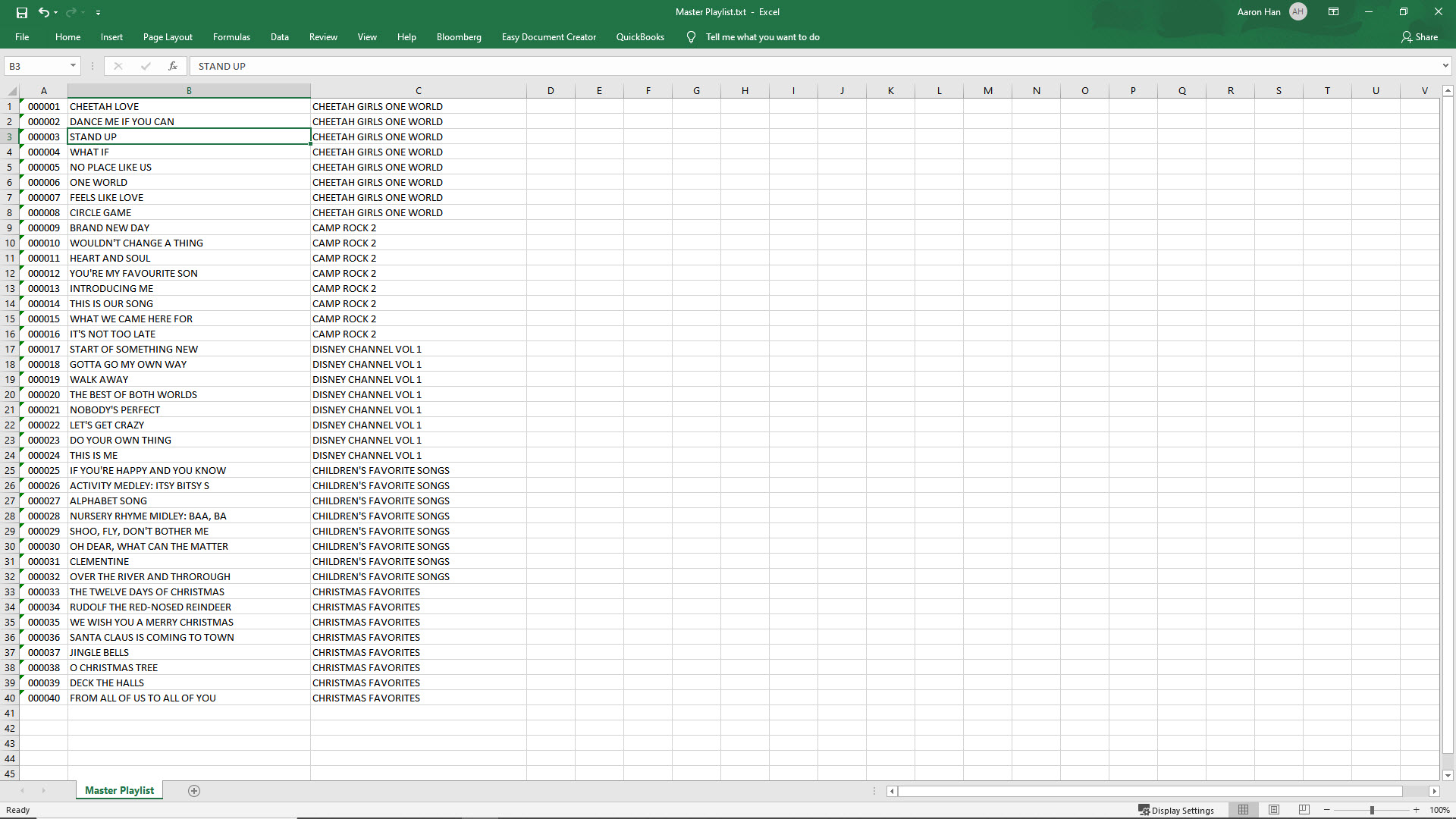
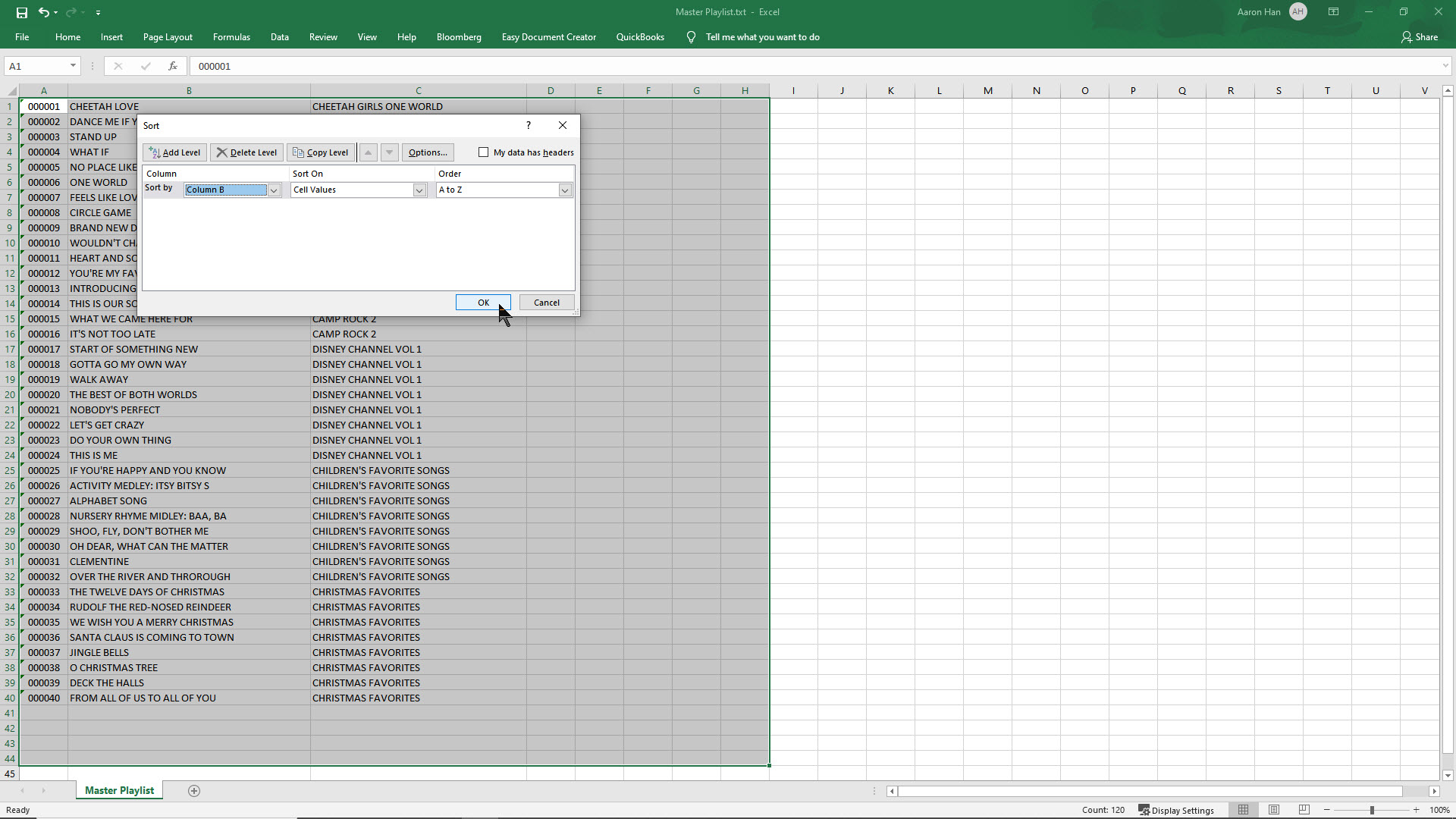
Turn on/off singing contest
Select scoring time to be after
First half 1/2 of song
Three Quarters 3/4 of song
Complete song
Select scoring weight for E-Songbooks. For example, 10 means that a score from an E-Songbook carries 10 times more weight than a score from guests using smartphones, tablets, or laptops.
This would be appropriate when the E-Songbooks are given only to the designated judges.
Select waiting time (in seconds) for scores after a song
Press to apply any changes made
Ranking Log - Shows ranking of contestants in their total score.
Clear Ranking Log
Scroll bar
Scoring Log - Shows all scores received.
Scroll bar for Scoring Log
Allow/Not allow multiple scores from a same device
Hit the gong
End the call for score and tally the already received scores
Call for score
Display the ranking of contestants
Save any changes made in the Score Messages
Cancel any changes made in Score Messages
Message sent out when Call for Score is pressed
Message sent out when Gong is hit
Message sent out for zero star score
Message sent out for one star score
Message sent out for two star score
Message sent out for three star score
Message sent out for four star score
Message sent out for five star score
E.9 Advertisement
Advertisement lists promotional photos or videos such as the commercials from local car dealers, neighborhood bowling alleys, or nearby real estate brokers.
They can be of format JPG (JPEG) for photos and MP4 for videos, both with audio.
They are played between karaoke songs while the play mode is set to Single in 4.5.B.Player.
Enable/disable all items
Enable/disable each item
Play/display the previous item
Index field - Press to sort the items by Index.
Play the selected item
Stop the play
Filename - Press to sort the items by Filename.
Play the next item
Last Position - Check to start play from the last ending position.
Interval - Set time duration for play.
Priority - Set the priority level (1 - Highest, 10 - Lowest)
Preview - Display screenshot
Set posting schedule
13.1 Set the time duration and priority
13.2 Check to enable
13.3 Set the date range
13.4 Set the intra day time schedule
13.5 Clear the settings
13.6 Set the dates using the calendar
13.7 Save and exit
13.8 Exit without saving
New - Clear the current list
Open - Open MS File Explorer to find and add an item
Load - Load Advertisement from a default folder Documents/JB-199IV/Picture
Save - Save Advertisement into a default folder Documents/JB-199IV/Picture
Save as - Save as Advertisement into a default folder Documents/JB-199IV/Picture
Append - Append Advertisement to another Advertisement in a default folder Documents/JB-199IV/Picture
Rotation manages customers to take turns to sing either as an individual or as a group.
For example, if the customers are sitting at 4 tables, the Rotation can assign every 4th song to each table.
It will display the queue for each table as well as for all.
Each table will stay in the Rotation as long as its queue is not empty.
Queue for all - Display groups in rotation
Group 1 Queue
Group 2 Queue
Group 3 Queue
Group 4 Queue
Enable/Disable Rotation
Show the Queue for next group in rotation
With the Rotation enabled, the following popup window will appear when reserving a song.
You can select an existing customer name or type in a new one.
Song being reserved
Key (Pitch) control
Tempo control
Customer name: Select from the list below or type in a new one
List of customers/groups
Save and exit
Exit without saving
Select a folder in the Folder Menu.
The contents will appear on the right side in 4.5.I File Browser.
Directory shortcut
My Server
My Subscription
Karaoke Cloud
Party Tyme Karaoke
My Record
My Playlist
My Documents
My Computer
Local C:\ Drive
Network X:\ Mapdrive
1. Directory Shortcut
Select a directory shortcut from the pulldown menu for quick access.
To add a shortcut, navigate using 9. My Computer to a folder you wish and press Add.
The file tree of the shortcut will appear in the 4.5.I File Browser.
To delete, select a shortcut from the pulldown menu and press Delete.
2. My Server My Server is a special playlist slot on the karaoke system.
When loaded with a playlist, it shares the playlist with all connected E-Songbooks, Phones, and Tablets.
It allows multiple devices to view, browse, reserve, or control the songs in the playlist.
If empty, it will by default try to auto-load a playlist named "Master Playlist" from "Documents > JB-199V > Playlist".
Click on My Server to see the its playlist in the 4.5.I File Browser.
Controls - See 4.5.E.2. Playlist for detail description.
Display of the loaded playlist
Search, New, Load, Save, and Save as - See 4.5.E.2. Playlist for detail description.
3. My Subscription
Commercial streaming services of karaoke songs are available with daily and automatic updates.
Expand to see all available services.
4. Karaoke Cloud
Click on the service for the following window on the 4.5.E.I File Browser.
Place a check mark to include the karaoke songs of the streaming service in 4.5.G.2. My Server.
Press Setting for the following window in which you can subcribte and activate the streaming service.
See 7.2 How to acticate subscriptions for details.
5. Party Tyme Karaoke
Click on the service for the following window on the 4.5.E.I File Browser.
Place a check mark to include the karaoke songs of the streaming service in 4.5.G.2. My Server.
Press Setting for the following window in which you can subcribte and activate the streaming service.
See 7.2 How to acticate subscriptions for details.
6. My Record
My Record shows the recorded files along with controls in the 4.5.I File Browser.
The recorded files are automatically parsed into each song when recorded.
Index - Sort by Index.
Title - Sort by Title.
Artist - Sort by Artist.
Memo
Customer
Recorded song files - Double click on any input field to edit. Press Enter to finish.
Record/Stop Record
Audio - Record audio only.To record the karaoke music together with singing voice, the mixed audio output must be looped back into the audio input in the back panel of the JB-199 V.
Audio + TV - Recording audio and the CD+G screen.
Audio + Camera - Record audio and camera
MP4 Off/MP4 On - Record in MP4 format.
Delete - Delete a recorded file.
Clear - Clear all recorded files.
7. My Playlist
My Playlist will show the playlist slots 11 - 20 in 4.5.I File Browser. They are additional to the playlist slots 1 - 10 in 4.5.E.2 Playlist.
Select My Documents for a quick access to the Documents folder in the karoake player.
A frequent task here is to go next to the folder named as the karaoke player, and see subfolders such as Playlist, Pictures, Message, etc.
These subfolders are used in default by the karaoke player to store the playlists, picture lists, message lists, etc.
Select My Computer to see the directory tree inside the karaoke player.
A frequent task here is to navigate to a folder holding the new song files.
You then creat a playlist to load into the karaoke player.
For the detail instruction on how to create playlists, go to 7.1. How to load and play karaoke songs.
List Browser displays the detail contents of the functions in the 4.5.E FUNCTION MENU.
For example, it shows the playlist slots (1 - 10), Queue, and Write for the function Playlist.
The List Browser also shows a list of photos, videos, and webcams for the function Picture, a list of calls for the function Message, a list of songs played for the function History, a list of music files for the function Interlude, etc.
For detailed description of each function, go to 4.5.E FUNCTION MENU.
The List Browser can be loaded with different playlists, different pictures, different messages, different interludes, etc.
That is, the contents can be changed according to your need.
To manage the contents, use the control buttons New, Open, Load, Save, Save as, and Append that are located on the upper right corner of List Browser.
For detail instructions, see 7.2. How to operate functions.
The content display of the List Browser can be changed as follows.
1. Press a field name to sort the content by the field.
For example, press Title to sort a song list by Title.
Press again to reverse the sort order.
The sort feature applies to all other fields under all other functions.
2. The width of each field in the List Browser can be adjusted.
Place the mouse cursor in between any tow field names.
Press and drag the mouse to left or right to expand or reduce the field width.
In the example below, the mouse cursor is placed in between the Artist and Album field names.
The adjustment can be made for all other fields under all other functions.
3. To hide or un-hide a field in the List Browser, right click on a field name.
A popup menu will appear showing all fields.
Uncheck any field to hide.
Check any field to un-hide.
You can also uncheck the "Auto Column Width" to make your field width changes permanent.
In the example below, the Album field name is right clicked to show the popup menu.
The same procedure applies for all other fields under all other functions.
File Browser shows the detail content of each folder in the 4.5.G FOLDER MENU.
For example, it shows a playlist slot for My Server.
It shows the song lists of streaming services for My Subscription.
It shows the recorded files for My Record.
It shows the the playlist slots (11 - 20) for My Playlist.
It shows the subfolders and files for My Documents and the directory tree for My Computer.
For detailed descriptions, go to 4.5.G FOLDER MENU.
For the playlist slots in My Server and My Playlist, different playlists can be loaded and edited according to your need.
The control buttons New, Load, Save, Save as are located on the lower right corner of the File Browser.
For the detail instructions, see 7.2. How to operate functions.
The content display of the File Browser can be changed as follows.
1. Press a field name to sort the content by the field.
For example, press Title to sort by Title.
Press again to reverse the sort order.
The sort feature applies to all other fields and all other folders.
2. Place a mouse cursor on a boundary between any two field names.
Press and drag the mouse to left or right to increases or decreases the width of the fields.
In the example below, the mouse cursor is placed in between the Artist and Album field names.
The width can also be adjusted for other fields and other folders.
Right click on a field name and uncheck the field in the popup menu to hide the field.
To un-hide, right click on any field name and check the field in the popup menu.
To make the change permanent, uncheck the "Column width Default" in the popup menu.
In the example below, the Album field name is right clicked to show the popup menu.
The same procedure applies for other fields and other functions.
Juke Server is built-in server in the karaoke player that provides the connectivity to all E-Songbooks, Phones, and Tablets.
It starts when the option to Start Juke Server in 4.5.A.2.1.5 Server & Browser of the Control Panel is checked.
When running, the Juke Server application can be opened or closed by pressing the following icon in the task bar.
Be sure to click OK to minimize, not close, the Juke Server.
Closing the Juke Server will terminate all communication between the karaoke player and the connected devices.
Log for Room management
Start Room management
Stop Room management
Sync Room management
Log for Juke Server
Restart Juke Server (without restarting Room management)
Stop Juke Server
Status - Display Juke Server status
Juke Server IP Address
*Clear - Clear log of Juke Server and NAT
Clear - Clear the log of Room management
Close - Terminate Juke Server and Room management
OK - Save changes and exit. The Juke Server and Room management will continue running.
Cam2Streamer controls the video streaming of the karaoke player.
It is set by default to a speed of 15 Frames Per Second (FPS) output in H.264 compression.
To open the Cam2Streamer window, press the following icon in the task bar.
The icon is made barely visible on purpose to discourage any accidental opening.
After making changes, be sure to click OK to minimize and not close the Cam2Streamer which will terminate the video streaming.
Note that the Cam2Streamer while running will show all setting as disabled. Press the Start/Stop button to enable making changes.
Input Devices - Select a video input source. The default is Screen-Capture-Recorder for the lyrics display.
Frame rate - Select frame rate per second 0 - 30. The default is 15.
Output Screen - Select output screen resolution.
Start/Stop - Start or stop video streaming.
Log - Display the module message.
FPS - Display output frame per second.
Options - Select from preset resoltuion and fps.
HTTP port - Output port number
Codec - Output codec
IP Address to view the video streaming in a local browser.
Capture Start/Stop - Start or stop video capture.
OK - Save changes and exit. The Cam2Streamer will continue running.
Close - Terminate Cam2Streamer.
The Remote Controller of JB-199 V works on 2.4 Ghz frequency range with the receiver dongle providing a long distance and non direct-line-of-sight performance.
It works as a remote controller for the karaoke program inside the JB-199 V player as well as as a PC keyboard & mouse for the JB-199 V unit as a computer.
To begin using the remote controller, connect the receiver dongle to any of the JB-199 V USB port.
The Remote Controller button assignment are as follows.
Note that the JB-199 V setting must be as shown in Section 6.2.1 to use the remote controller for the karaoke program.
For buttons with dual functions, one for the JB-199 V as a computuer and another for the karaoke program, we denote first the function for the computer, followed by /, and then the function for the karaoke program.
Power Off To disable this button in order to prevent accidental pressing, go to Windows Start > Settings > System > Power & sleep > Additional power settings > Choose what the power buttons do. Select "Do nothing" for "When I press the power button" option.
Fast Backward
Fast Forward
Search / Priority Program - Reserve a song as the first in the queue, i.e. at the top of the wait list.
Pause / Voice Cancel - Toggle between Stereo, Left, and Right channels.
Home / CD+G (Lyrics) screen
List / Power Off with password - To be followed by a numeric password input.
Enter / Play
Volume +
Vooume -
Mute
Numeric buttons
TV Switch the Remote Controller between Wi-Fi and IR interface.
The iR interface is available to control an external device such as a TV that supports NEC protocol for learning.
Four IR buttons 14, 15, 31, and 32 are available for customizing.
The instruction for customizing the IR buttons are as follows.
Align the remote controller to directly face the remote controller of the external device.
Hold down the IR button you wish to customize. The red LED light will flash quickly and then stop.
Release the button. After a brief pause, the red LED will begin to flash slowly indicating the button is in the learning mode.
Press a button on the remote controller of the external device. This button would be the one that you wish to duplicate in the remote controller of the JB-199 V.
When the code is received, the red LED light will turn solid.
Press the IR button and the solid LED light will begin flashing slowly indicating a successful learning.
Press the IR button again to exit the learning mode indicated by the red LED light turning off.
Repeat the above steps for each of the available IR buttons.
IR button
IR button
LED light - Indicate sending out signal
Go to End
Go to Start
Zoom out
Zoon in
Go back/Right Click
Directional buttons
Up, Down / Key +, Key -
Left, Right / Tempo -, Tempo +
Channel + / Program - Reserve a song
Channel - / Cancel - Cancel a reserved song
Mouse Pointer On or Off
Media Player / Play
Email / Pause
Open Gallery / Stop
Internet
Backspace - Delete
IR button
IR button
Special Combo Button Commands
To reduce the CD+G screen, press Enter + Enter while holding the pointer steady.
A. HOW TO LOAD THE BATTERIES
1. Open the bottom cover of the remote controller. 2. Load two batteries (1.5V) of "AAA" size with +/- polarities as specified. 3. Close the bottom cover.
B. PRECAUTIONS IN USING BATTERIES
1. When changing batteries
Check the +/- polarities of the batteries to be as specified on the case of remote controller.
Do not mix the types of two batteries even though they are of same size.
2. When using a battery charger
Use the battery charger only after checking carefully its charging time and voltage.
(Use only direct voltage of 2.4V to 3.6V for both batteries combined.)
3. When handling batteries
Do not over charge, heat, disassemble or short-circuit the batteries.
For long term storage, take out the batteries from remote controller as the batteries may leak electrolytic liquid which can damage the controller.
C. Operating range
1. The effective angle of remote controller is 60 degrees up/down and right/left from the front remote sensor in main body of the unit.
Use the remote controller within this range.
2. The effective distance of remote controller is 7 meters or 23 feet from the remote sensor in the main body of the unit.
Use the remote controller within this distance.
D. Precaution
1. After a bootup, it may take 1 or 2 inputs from the remote controller for JB-199 V unit to respond. 2. If remote controller is not working, check the batteries and also the AC power plug of the main unit.
3. If remote controller is malfunctioning, it may be due to cross interference from other equipment nearby.
Try using the remote controller at a closer distance and directly in front of the main unit.
The audio is shown as coming out of the 3.5 mm audio jack to an amplifier.
It can also come out through the HDMI or Display Port cable to the TV speakers.
The option is set in the Windows Sound Setting inside the JB-199 V.
The video is coming out of the Display Port of the JB-199 V. We first use a Display port to HDMI converter, and then HDMI to HDMI cable to a TV.
The video can also come out of the HDMI port of the JB-199 V. However we reserve the HDMI port for a second TV/monitor.
Wired keyboard & mouse instead of the remote controller are connected using the USB ports.
Note that a standard monitor is shown instead of a touch screen monitor since the touch control would duplicate the wired keyboard & mouse.
When needed, use a USB hub to increase the number of USB ports on the front or back of the JB-199 V.
The connections for an external disc drive, hard drive, flash drive, webcam, mirror ball, bill/coin acceptor are illustrated.
When needed, use a USB hub to increase the number of USB ports on the front or back of the JB-199 V.
To include the microphone output, the recording is made from an external audio source looping back into the JB-199 V.
Here an external sound card UCA-222 is used to first send out the audio from the JB-199 V to the amplifier and then the audio mixed with microphone is looped back from the amplifier into the JB-199 V for recording.
Note that the 3.5 mm audio jack can also be used to send out the audio from the JB-199 V to the amplifier.
Two cases are considered. First is when the participants are connecting through a local network using a local IP address.
Second is when the participants are connecting through Internet using a public IP address.
Connect the JB-199 V to a wireless router or a local network using Wi-Fi or the Ethernet (LAN) port.
Below we show the Ethernet port connection using a LAN cable.
Be sure to connect to a LAN port of the router when using a LAN cable.
After connecting, the local IP address of the JB-199 V can be found by going to Windows Start > Settings > Network > Internet > Status > Properties.
Scroll down to the bottom and look for IPv4 address.
It is likely of format 192.168.xxx.xxx where xxx.xxx will depend on each location.
For example, it shows as 192.168.1.20 below.
Any device in the local network can then connect to JB-199 V as shown below by opening the IP address 192.168.xxx.xxx:5000 in an Internet browser, such as MS Explorer, Google Chrome, Firefox, etc.
Not all participants are expected to be in the same local network as the JB-199 V.
In fact, many, if not all, participants are likely to connect from outside the local network using Internet.
To provide them a public IP address for simple connection, follow the steps below.
Connect the JB-199 V to the modem-router of the Internet Service Provider (ISP) using the Wi-fi or the Ethernet port.
Below we show the Ethernet port connection using a LAN cable.
Be sure to connect to a LAN port of the modem-router.
Then connect the Internet to the WAN port of the modem-router.
Note that the modem-router may come from the ISP with Internet connected.
Follow the instruction for the modem-router to enter into the administration setup page of the modem-router.
Set the the port forwarding of 5000 - 5010 ports to the local IP address of the JB-199 V.
The specific instruction for port forwarding will vary between different modem-routers.
An alternative to the port forwarding is to setup DMZ (or Super DMZ).
It is to forward all ports rather than a subset (5000 - 5010) of the ports to the IP address of the JB-199 V.
The specific instruction for setting up DMZ will also vary between different modem-routers.
See Examples below for the port forwarding and DMZ setup instruction in major ISP router-modems.
The final step of setting up the Internet is to find its public IP address.
Open an Internet browser and search for My Public IP Address.
Click on a link to find the Public IP address
In this example, the public IP address is 73.134.137.46.
And the IP address to send to your guests is public IP address:5000, which in this example is 73.134.137.46:5000.
A QR code of the IP address can be sent together with the IP address to the guests.
It would simplify the inputting of the IP address for devices such as smartphone which are equipped with a QR scanner.
To generate the QR code, use any program like QR Code Generator at qr-code-generator.com.
The QR code for the IP address 73.134.137.46:5000 is
Here are some examples of port forwarding and the DMZ setup instructions in commonly found modem-routers.
Verizon FIOS modem-router
First step is to find the local IP address and the DNS server of the JB-199 V.
Go to Windows Start > Settings > Network & Internet > Status > Properties.
Scroll down for the IPv4 address and the IPv4 DNS server as shown below.
Open an Internet browser and go to myfiosgateway.com or 192.168.1.1 which is the DNS server found above.
Press Proceed and input the password which is found on the modem-router device itself.
Press OK to enter the administration setup page as shown below.
Click on Port Forwarding from the left column for the following window.
Select Specify IPv4 address and input the local IP address of the JB-199 V. Select Custom Ports followed by Both for TCP/UDP and 5000-5010 as Custom Ports.
Press Add+ to create the new Port Forwarding rule as shown below.
The port forwarding is complete. Press Logout from the left column and exit to JB-199 V.
D-Link (DSR-250)
Check for the local IP address and the DNS server of the JB-199 V at Windows Start > Settings > Network > Internet > Properties.
Scroll down to the IPv4 address and the IPv4 DNS server.
Here the IPv4 address is 192.168.10.106 and the IPv4 DNS server is 192.168.10.1. Open an Internet browser and go to 192.168.10.1.
A warning page may show as below
Press Advanced and proceed to the address 192.168.10.1.
Input admin as both the Username and Password. Press Login to enter the administration setup page of the modem-router.
Go to Security > Custom Service.
Click on Add New Custom Service. Input any name such as JB-199IVOnine, Both as the Type, 5000 as Start port, and 5010 as Finish port.
Press Save and a confirmation wll appear.
Go to Security > Firewall Rules.
Click on Add New IPv4 Firewall Rule.
Select INSECURE (WAN) for From Zone, SECURE (LAN) for To Zone, ANY for Service, Always Allow for Action, Any for Source Hosts, Never for Log, 192.168.10.106 for Internal IP Address, and WAN for External IP Address.
Note that 192.168.0.106 is the local IP address of the JB-199 V.
Click Save and a confirmation message will appear.
The port forwarding in complete. Logout and exit to JB-199 V.
Comcast Xfinity modem-router
First check for the local IP address and the DNS server of the JB-199 V by going to Windows Start >Settings > Network & Internet > Status > Properties.
Scroll down to the bottom to find the IPv4 IP address and IPv4 DNS server.
Open an Internet browser and go to the DNS server to open the administration setup page.
Login using the Username and Password given on the modem-router itself. Go to Advanced > Port Forwarding.
Confirm that the port forwarding is enabled. Click on ADD SERVICE.
Select Others as Common Services.
Input any name for the Service Name, for example JB-199IVOnline.
Input the local IP address of the JB-199 V as Server IP Address.
Skip the Server IPv6 Address.
Input 5000 as the Start Port.
Input 5010 as the End Port.
Click on SAVE.
The port forwarding is completed. Logout of the modem-router.
AT&T Universe modem-router
This example shows how to setup DMZ for the JB-199 V Internet connection.
First check for the local IP address and the DNS server of the JB-199 V by going to Windows Start > Settings > Network > Internet > Status > Properties.
Scroll down to the bottom to find the IPv4 IP address and IPv4 DNS server. Here it is also important to have IP assignment as Automatic (DHCP).
Open an Internet browser and go to the DNS server 192.168.1.254 to open the administration setup page. Go to Settings > Firewall > Applications, Pinholes and DMZ.
Select the JB-199 V from the list of connected computers.
Scroll down and select the option for DMZ. Click Save.
A security window may appear asking for the modem-router password. The password is located on the bottom or a side of the modem-router itself. Input the password and Click Submit.
To complete the DMZ setup, reboot the JB-199 V.
This is an important step during which the local IP address of the JB-199 V will change to a new one with the desired DMZ feature.
Logout of the AT&T modem-router and go to Windows Start > Settings > Network > Internet > Status > Properties to find the new IPv4 IP address.
Multiple monitors can be connected to the JB-199 V and be used simultaneously.
Here we show how to set the screens of the JB-199 V to the monitors.
Note that there is no single right way and the screens can be rotated around the monitors for your convenience.
1. Control Panel
This is the main control screen of the JB-199 V.
Loading songs, pictures, interludes, messages, advertisement, etc. are done in the screen.
KJs will likely have the screen in a separate monitor along with a keyboard and a mouse for control.
2. CD+G Screen
CD+G screen, also known as lyrics screen, displays the song lyrics and the background pictures.
In local operation, it is viewed by the customers and set to a TV using HDMI or RCA connection.
In online operation, it is viewed by the guests through Customer Interface.
This screen is emulated in the Control Panel at the top left corner.
3. Customer Interface
This is the same screen as the customer interface used for the online guests.
It is available as a local screen with less controls but less frightening than the Control Panel.
That is, after pre-setting playlists and options, the customer interface can replace the Control Panel for more intuitive menu that can be enjoyed by both the local guests and the hosts.
To turn on or off the customer interface, go to 4.5.A.2.1.5 Server & Browser.
The Customer Interface works the best in a touch screen monitor.
The full screen version of the customer interface is particularly useful when there is only one monitor and it is shared for both selecting songs and displaying the lyrics.
Click on the Setting on the customer interface and select Screen.
The Screen setting will change from Window to Full and the customer interface will change as follows.
To select songs, click on the hamburger button (three bars) on the top left corner.
The menu for title, artist, queue, etc. will appear as in the original customer interface.
Select songs and press Back to return to the customer interface.
The Full mode of the customer interface will remain in setting when powering on and off the karaoke player or program.
Note: When using a single monitor, the customer interface will show a scrambled picture of screens within screens.
To avoid this, use a dummy HDMI plug inserted into a second HDMI connector to emulate a second monitor.
Screen settings for the JB-199 V depends on the number of connected monitor(s).
1. Single monitor
This is a minimum setup of a single monitor which is likely a TV being connected to the JB-199 V.
Henceforth the monitor is also addressed as the TV monitor.
There may actually be multiple TVs but they are connected to a same output of the JB-199 V using a video splitter and therefore they would be considered as one.
There may also be a separate audio system for the music and microphones.
Go to 5. How to Connect for the instruction on connecting devices.
Connect the TV monitor to the HDMI output of the JB-199 V.
Turn the TV monitor on and be sure to set the input source as the HDMI. Boot up the JB-199 V.
The CD+G screen will show on the TV monitor.
Double click to shrink the CD+G screen. The Control Panel will appear from behind.
Click on the Control Panel to bring it forward.
Using a keyboard and mouse, setup the Control Panel such as to enable the JB-199 V Server, enable the Customer Interface, load a playlist, enable the Standby Title, etc.
If the Customer Interface is enabled, it will appear in the TV monitor as follows.
To switch between the screens, use the icons in the Task bar.
To select the CD+G screen or the Control Panel, hover over the CAVS icon and select.
To select the Customer Interface, hover over the Google Chrome icon and select.
To select the JB-199 V Server, hover over the following icon and select.>/p>
To select the Cam2Streamer, hover over the following icon and select.>/p>
When done, select the CD+G screen and double click to expand.
The screens are now set and ready.
Online customers can join in using an Internet browser from smartphones, tablets, and laptops.
Offline customers can join in using the Front Panel or E-Songbooks of the JB-199 V.
Note that the screen in the TV monitor is shown to the customers both offline and online.
So any switch from the CD+G screen to the Control Panel or the Customer Interface, for example to change the settings, will be visible to the customers of both offline and online.
2. Dual monitors
This is a preferred setup where one monitor is used for the control and the other is used for TV.
Henceforth the monitors are addressed as the control monitor and TV monitor respectively.
Connect the control monitor to the VGA output of the JB-199 V.
Connect the TV monitor to the HDMI output.
Again there may be multiple TVs but sharing a single output, they are considered as one.
There may also be a separate audio system for the music and microphone.
Go to 5. How to Connect for the instruction on connecting devices.
Turn on the monitors. Be sure to set the input source for the control monitor to be VGA and for the TV monitor to be HDMI.
Boot up the JB-199 V.
The Control Panel will show in the control monitor.
The CD+G screen will show in the TV monitor.
If booting from a non-factory setting, the Control Panel may appear behind the CD+G screen in the TV monitor.
Double click to shrink the CD+G screen.
Click on the Control Panel to bring it forward. Then drag the Control Panel to the right (or left) into the control monitor.
When the whole Control Panel is inside the control monitor, click on the Maximize button to expand the screen.
Next setup the Control Panel such as to enable the JB-199 V Server, enable the Customer Interface, load a playlist, enable the Standby Title, etc.
If the Customer Interface is enabled, it will appear in the control monitor as follows.
Again if the Customer Interface appears in the TV monitor, drag the screen to the control monitor.
The screens are now set and ready.
Online customers can join in using an Internet browser from smartphones, tablets, or laptops.
Offline customers can join in using the Front Panel, the E-Songbooks, or the Remote Controller of the JB-199 V.
And having dual monitors, the Control Panel and the Customer Interface can be swapped at any time without interfering with the CD+G screen.
Follow the steps below to recover the correct screen settings for the JB-199 V.
1. Single monitor
Connect the monitor to the HDMI output of the JB-199 V.
Turn it on and be sure to set the input source as the HDMI.
Boot up the JB-199 V.
Following screen appears without any picture or icon.
Right click on any empty spot and select Display settings.
The Display settings window appears.
Scroll down to the bottom for Multiple displays and set it as Duplicate these displays.
When asked to confirm, press Keep changes.
Exit out of the Display setting window by clicking on the X mark at the top right corner.
The CD+G screen and Control Panel screen of the JB-199 V should now be back in the display.
If not, go down to the task bar and select them to open.
If the Display setting window does not appear, hold down the Windows key in the keyboard and press the Right arrow (→) key repeatedly until the Display setting window appears.
Scroll down in the Display settings window to the bottom for Multiple displays and set it as Duplicate these displays.
When asked to confirm, press Keep changes.
Exit out of the Display setting window by clicking on the X mark at the top right corner.
The CD+G screen and Control Panel screen of the JB-199 V should now be back in display.
If not, go down to the task bar and select them to open.
The CD+G screen appears without the Control Panel in behind.
Right click on any empty spot in the Windows desktop (outside of the CD+G screen). Select Display settings.
The Display settings window appears.
Scroll down to the bottom for Multiple displays and set it as Duplicate these displays.
When asked to confirm, press Keep changes.
Exit out of the Display setting window by clicking on the X mark at the top right corner.
The CD+G screen and Control Panel screen of the JB-199 V should now be back in display.
If not, go down to the task bar and select them to open.
If Display setting window does not appear, hold down on the Windows key in the keyboard and press the Right arrow (→) key repeatedly until the Display setting screen appears.
Scroll down in the Display settings window to the bottom for Multiple displays and set it as Duplicate these displays.
When asked to confirm, press Keep changes.
Exit out of the Display setting window by clicking on the X mark at the top right corner.
The CD+G screen and Control Panel screen of the JB-199 V should now be back in display.
If not, go down to the task bar and select them to open.
The Control Panel screen appears without the CD+G screen.
Right click on any empty spot in the Windows desktop (outside of the Control Panel). Select Display settings.
The Display settings window appears.
Scroll down to the bottom for Multiple displays and set it as Duplicate these displays.
When asked to confirm, press Keep changes.
Exit out of the Display setting window by clicking on the X mark at the top right corner.
The CD+G screen and Control Panel screen of the JB-199 V should now be back in display.
If not, go down to the task bar and select them to open.
If the Display setting windows does not appear, hold down on the Windows key in the keyboard and press the Right arrow (→) key repeatedly until the Display setting screen appears.
Scroll down in the Display settings window to the bottom for Multiple displays and set it as Duplicate these displays.
When asked to confirm, press Keep changes.
Exit out of the Display setting window by clicking on the X mark at the top right corner.
The CD+G screen and Control Panel screen of the JB-199 V should now be back in display.
If not, go down to the task bar and select them to open.
2. Dual monitors
Connect the TV monitor to the HDMI output and the control monitor to the VGA output of the JB-199 V.
Turn the TV monitor and the control monitor. Set the input source as the HDMI and VGA respectively.
Boot up the JB-199 V.
The two monitors are duplicated showing the same screens.
Right click on any empty spot in the Windows desktop, outside of the Contrl Panel and the CD+G screen.
The Display settings window will appear.
Scroll down to the bottom for Multiple displays and set it as Extend these displays.
When asked to confirm, press Keep changes.
Scroll up to the top for the drawing of two monitors 1 and 2.
Click on Identify to find which monitor in the drawing matches with the TV monitor, and which matches with the control monitor.
Click on the monitor in the drawing that matches with the control monitor.
Scroll down to the bottom and check the option Make this my main display.
Exit out of the Display settings by clicking on the X mark at the top right corner.
Set the screens by sliding the CD+G screen to the TV monitor and the Control Panel to the control monitor.
The CD+G screen and the Control Panel appear switched in the monitors.
Shrink the CD+G screen by double click.
Shrink the Control Panel by pressing the Restore down button.
Slide the screens left or right to their respective monitors.
The CD+G screen and the Control Panel appear together in a single screen.
In this example, both screens are appearing in the TV monitor.
Shrink the size of the Control Panel and slide it into the control monitor.
3. Customer Interface
The Customer Interface has an embedded display area which is designed to show the CD+G Screen.
This is acheived by making the embedded display area duplicate the monitor that shows the CD+G Screen.
A correct setting will show the Customer Interface with the CD+G Screen inside as follows.
The Customer Interface shows repeated reflections.
This happens when the monitor showing the Customer Interface is the same monitor showing the CD+G Screen.
The Customer Interface will then show itself within the embedded display area and lead to repeated reflections.
In case of Single monitor, the Customer Interface should be disabled.
The single monitor should be showing the CD+G Screen at all time.
Go to the Control Panel > Tools > Setting > Server & Browser.
Uncheck the "Enable Customer Interface".
Refresh the Customer Interface showing in E-Songbooks.
In case of Dual monitors, the Customer Interface and the CD+G Screen should be showing in separate monitors.
The CD+G Screen should be on the TV showing the lyrics at all time.
The Customer Interface should be in the control monitor which also shows the Control Panel.
After moving the screens, restart the JB-199 IV Online karaoke program.
Refresh the Customer Interface showing in E-Songbooks.
The Customer Interface shows off-center CD+G Screen.
This happens when the Windows scale and resolution settings of the monitor showing the CD+G Screen are not compatible.
Right click on any empty spot in the Windows desktop, outside of any screens.
Select Display Settings.
The Display settings window will appear.
In the display drawing at the top, select the monitor showing the CD+G screen. You can find the monitor by clicking on Identify.
Scroll down to Scale and Layout.
Select the Scale to be 100% and the Display resolution to be the minimum that fills the CD+G screen to the monitor.
Close the Display settings.
Refresh the Customer Interface.
This section describes how to operate the JB-199 V.
It begins with how to load and play karaoke songs from discs and files.
It next shows how to operate the main functions such as the background pictures, message, advertisement, singing lesson, etc.
It next describes how to use the new E-Songbook which can play music and lyrics as well select songs.
It then concludes with how to conduct online karaoke events using the new Customer Interface.
The JB-199 V plays the following formats of karaoke songs.
CD+G discs
Super CD+G discs
DVD discs
MP3 + CDG files
MP3 + MCG files
MP3 + NCG files (from JB-199 players)
ZIP files (compressed MP3 + CDG files)
ZIP files (compressed MP3 + MCG files)
DAT files (Super CD+G)
AVI files
WMV files
MP4 files
MIDI files
KAR files
For file types that are not listed, contact techsupport@cavsusa.com for possible inclusion in a future upgrade.
For playing a disc or extracting song files from a disc, an optional external disc drive is required.
Any DVD RW drive that read and write the discs can be used.
1. Start the JB-199 V and go to the Control Panel.
2. Insert the CD+G disc into the disc drive.
Wait for the disc to be recognized and then click on the disc drive in the Folder Menu.
The track information of the disc will appear as a list of CDA files in the File Browser.
Note that the title and artist information for each track has been added automatically from an online database.
Be sure to have the JB-199 V connected to Internet to use this feature.
To manually input the title and artist information, double click on each field, type in a title or artist name, and press Enter to save.
3. To play a song, right click on the song and select Playlist-Queue to load the song into the Queue in the List Browser.
The song can also be drag & drop into the Queue.
4. An alternate way to play a song is to extract the song files from the disc into the JB-199 V hard drive, make a playlist, and then play from the playlist.
An advantage of extracting is that when hundreds or thousands of discs are extracted, all their songs become available simultaneously, unlike in discs which requires constant switching of discs.
An advantage of using a playlist is that the playlist is efficient to scroll, sort, and search.
It is a text file containing the song information such as file names, formats, titles, artists, etc. and is tagged with the locations of song files.
It can be merged or appended without ever touching the song files and can combine all the song files seamlessly across the formats and locations into a single master playlist.
To see how to extract the song files and make a playlist, go to 7.1.2.1 Extracting disc: CD+G disc.
1. Start the JB-199 V and go to the Control Panel.
2. Insert the Super CD+G disc into the disc drive.
Wait for the disc to be recognized and then click on the disc drive in the Folder Menu.
The track information will appear as a list of SCDG files in the File Browser.
The title and artist information for each track is added automatically from the disc.
3. To play a song, right click on the song and select Playlist-Queue to load the song into the Queue in the List Browser.
The song can also be drag & drop into the Queue.
4. An alternate way to play a song is to extract the song files from the disc into the JB-199 V hard drive, make a playlist, and then play from the playlist.
An advantage of extracting is that when hundreds or thousands of discs are extracted, all their songs become available simultaneously, unlike in discs which requires constant switching of discs.
An advantage of using a playlist is that the playlist is efficient to scroll, sort, and search.
It is a text file containing the song information such as file names, formats, titles, artists, etc. and is tagged with the locations of song files.
It can be merged or appended without ever touching the song files and can comrbine all the song files seamlessly across the formats and locations into a single master playlist.
To see how to extract the song files and make a playlist, go to 7.1.2.2 Extracting disc: Super CD+G disc.
1. Start the JB-199 IV and go to the Control Panel.
2. Insert the DVD disc into the disc drive.
Wait for the disc to be recognized and then click on the disc drive in the Folder Menu.
The track information will appear as a list of DVD files in the File Browser.
Note that the title and artist information for each track has been added automatically from an online database.
Be sure to have the JB-199 IV connected to Internet to use this feature.
To manually input the title and artist information, double click on each field, type in a title or artist name, and press Enter to save.
3. To play a song, right click on the song and select Playlist-Queue to load the song into the Queue in the List Browser.
The song can also be drag & drop into the Queue.
4. An alternate way to play a song is to extract the song files from the disc into the JB-199 IV hard drive, make a playlist, and then play from the playlist.
An advantage of extracting is that when hundreds or thousands of discs are extracted, all their songs become available simultaneously, unlike in discs which requires constant switching of discs.
An advantage of using a playlist is that the playlist is efficient to scroll, sort, and search.
It is a text file containing the song information such as file names, formats, titles, artists, etc. and is tagged with the locations of song files.
It can be merged or appended without ever touching the song files and can comrbine all the song files seamlessly across the formats and locations into a single master playlist.
To see how to extract the song files and make a playlist, go to 7.1.2.3 Extracting disc: DVD disc.
When extracting discs, it is recommended to use one folder per disc guideline.
The folders can then be easily identified with a disc and replaced when song files within become corrupt and problematic.
In the example, D:\Karaoke Songs is created as a main folder for all karaoke song files and further divided into sub-folders CDG 001, CDG 002, CDG 003, etc. for each CD+G disc.
1. Start the JB-199 V and go to the Control Panel.
2. Insert the CD+G disc into the disc drive.
Wait for the disc to be recognized and then click on the disc drive in the Folder Menu.
The tracks will appear as a list of CDA files in the File Browser.
The title and artist information for each track has been added automatically from an online database.
Be sure to have the JB-199 V connected to Internet to use this feature.
To manually input the title and artist information, double click on each field, type in a title or artist name, and press Enter to save.
3. Click on the check mark at the bottom of the screen to select all songs . Press the Encode button.
Select a folder into which the extracted song files will be stored.
In this example, the folder D:\Karaoke Songs\CDG 001 is selected.
It can be further divided by checking the Date, Artist name, or Album name options.
Next select a way to name the extracted files by checking the Album, Track, Title, Artist, and Filename options.
Be sure to name them such that the extracted files will not share a same name and overwrite each other.
At the minimum, the files can be named as Track 01, Track 02, etc. by checking the Advanced option.
Next choose the Bitrate and Speed of the extraction.
Be sure to place a check mark on CD+G option for CD+G discs.
Press OK.
5. The extraction will begin and show the progress in each track.
It is important that the disc itself is clean and without scratches to expedite the extraction process.
For problems in extracting certain discs or tracks, contact techsupport@cavsusa.com.
Note that at the bottom of the screen the progress of the total extraction process is shown.
6. When the extraction is complete, open the folder with the extracted files in the Folder Menu.
In this example, the folder is D:\Karaoke Songs\CDG 001.
The extracted files will appear in the File Browser.
Note that the CD+G disc in the disc drive can be taken out now or anytime hereafter.
7. To make a playlist, select a playlist slot 1 - 10 in the List Browser.
In this example, the playlist 1 slot is selected.
Select all songs in the File Browser by pressing the Check mark at the bottom of the screen.
Next press the Playlist button at the bottom of the screen to load the song files from the File Browser to the playlist 1 slot.
The list created in the playlist 1 slot is the playlist.
It has all the song information, such as file names, formats, titles, artists, etc., copied from the File Browser.
Also unseen to the viewers, it is tagged with the location of the actual song files.
In this example, the location is the folder D:\Karaoke Songs\CDG 001.
Press the Save as button and name the playlist.
In this example, the playlist is named as CDG 001.
Press Save.
8. Next step is to load the playlist and play from the playlist.
First reset the Control Panel to its default form by clearing the File Browser and the List Browser.
Press New to clear the playlist 1 slot and press Queue to set the List Browser.
Press My Server in the Folder Menu and clear the File Browser.
The playlist CDG 001 can be loaded into any playlist slot 1 - 10, 11 - 20, or My Server.
Note that My Server is a playlist slot with a difference that a playlist loaded into My Server is shared with online guests and E-Songbooks.
In this example, the playlist is loaded into My Server.
Press to highlight My Server.
Press the Load button in the bottom right corner of the File Browser.
Select CDG 001 playlist and press Open.
A playlist can be sorted or searched by title, artist, album, filename, etc.
It can also be cut, merged, and appended to add or remove songs.
For detail instruction on how to edit a playlist, go to 7.1.4 Playlist.
When extracting a disc, it is recommended to use one folder per disc guideline. The folders can then be easily identified with a disc and replaced when the song files within become corrupt and problematic.
In the example, D:\Karaoke Songs is created as a main folder for all karaoke song files and further divided into subfolders SCDG 001, SCDG 002, SCDG 003, etc. for each Super CD+G disc.
1. Close the JB-199 V karaoke program by pressing the X mark at the top right corner of the Control Panel.
The JB-199 V will exit out to Windows Desktop.
Insert the Super CD+G disc into the disc drive.
Wait for the disc to be recognized and open the Windows File Explorer.
When done copying, right click on the folder CAVS_MCG in the D:\Karaoke Songs.
Select Rename and change the name of the folder. In this example, the folder is renamed as SCDG 001.
3. Restart the JB-199 V karaoke program and go to the Control Panel.
In the Folder Menu, go to D:\Karaoke Songs\SCDG 001.
The songs of the Super CD+G disc will appear on the File Browser.
The title and artist information of each song will also appear automatically in the File Browser.
4. Select a playlist slot 1- 10 in the List Browser.
In this example, the playlist 1 is selected.
Press the Check mark at the bottom of the screen to select all songs in the File Browser.
Press the Playlist button at the bottom of the screen to load all the songs from the File Browser into the playlist 1 slot.
The list created in the playlist 1 is the playlist.
It has all the song information, such as file names, formats, titles, artists, etc., copied from the File Browser.
Also unseen to the viewers, it is tagged with the location of the song files.
In this example, the location is the folder D:\Karaoke Songs\SCDG 001.
Press the Save as button on the top right corner of the List Browser.
A popup window will appear.
Input a name for the list and press Save.
In this example, the playlist is named as SCDG 001.
5. Next step is to load the playlist and play from the playlist.
First reset the Control Panel to its default form by clearing the File Browser and the List Browser.
Press New to clear the playlist 1 slot and press Queue to set the List Browser.
Press My Server in the Folder Menu and clear the File Browser.
The playlist SCDG 001 can be loaded into any playlist slot 1 - 10, 11 - 20, or My Server.
Note that My Server is a playlist slot with a difference that a playlist loaded into My Server is shared with online guests and E-Songbooks.
In this example, the playlist is loaded into My Server.
Press to highlight My Server.
Press the Load button in the bottom right corner of the File Browser.
Select SCDG 001 playlist and press Open.
A playlist can be sorted or searched by title, artist, album, filename, etc.
It can also be cut, merged, and appended to add or remove songs.
For detail instruction on how to edit a playlist, go to 7.1.4 Playlist.
When extracting discs, it is recommended to use one folder per disc guideline.
The folders can then be easily identified with a disc and replaced when song files within become corrupt and problematic.
In the example, D:\Karaoke Songs is created as a main folder for all karaoke song files and further divided into sub-folders DVD 001, DVD 002, DVD 003, etc. for each DVD disc.
1. Start the JB-199 IV and go to the Control Panel.
2. Insert the DVD disc into the disc drive.
Wait for the disc to be recognized and then click on the disc drive in the Folder Menu.
The tracks will appear as a list of dvd files in the File Browser.
The title and artist information for each track has been added automatically from an online database.
Be sure to have the JB-199 IV connected to Internet to use this feature.
To manually input the title and artist information, double click on each field, type in a title or artist name, and press Enter to save.
3. Click on the check mark at the bottom of the screen to select all songs . Press the Encode button.
Select a folder into which the extracted song files will be stored.
In this example, the folder D:\Karaoke Songs\DVD 001\ is selected.
It can be further divided by checking the Date, Artist name, or Album name options.
Next select a way to name the extracted files by checking the Album, Track, Title, Artist, and Filename options.
Note that when extracting a DVD disc, the resulting files, AVI or MP4, may not have the tags to contain information such as title and artist.
So it is important to attach the relevant information to the file names.
Here we attach the title and artist to the file names.
Next choose the Audio channel for the extraction.
There may be multiple channels in DVD song files from which you need to select one. You can check each channel by using the Test button to find the correct instrumental background music for karaoke.
Press OK.
5. The extraction of the songs will produce AVI files and show the progress in each song.
It is important that the disc itself is clean and without scratches to expedite the extraction process.
For problems in extracting certain discs or tracks, contact techsupport@cavsusa.com.
Note that at the bottom of the screen the progress of the extraction for the disc as a whole is shown.
6. When the extraction is complete, open the folder with the extracted files in the Folder Menu.
In this example, the folder is D:\Karaoke Songs\DVD 001.
The extracted files will appear in the File Browser.
Note that the DVD disc in the disc drive can be taken out now or anytime hereafter.
7. The extracted files in DVD 001 folder show the filenames but not the title or artist in their separate fields.
Using the Filenaming function as shown in Section 7.1.3.3.3, parse the title and artist informtion from the Filenames.
Note that the extracted AVI files can be treated in the exact same manner as the MP4 files in the 7.1.3.3.3 section.
Here we describe breifly the Filenaming procedure using the current example. Highlight all the song files, right click, and select Filenaming.
The window for Filenaming function will appear.
Click on Skip, Title, and Artist buttons in order.
The basis for the selection is that the Skip corresponds to the first part of the extracted file names such as "Title_02 Chapter_01".
The Title corresponds to the second part such as "Head Over Feet".
The Artist corresponds to the third part such as "Alanis Morissette".
And each part is divided by a separator which in this exmaple is a dash "-".
Also if needed, click on Clear button to clear the selection and start new.
8. Next, to make a playlist, select a playlist slot 1 - 10 in the List Browser.
In this example, the playlist 1 slot is selected.
Select all extracted files in the File Browser by pressing the Check mark at the bottom of the screen.
Next press the Playlist button at the bottom of the screen to load the song files from the File Browser to the playlist 1 slot.
The list created in the playlist 1 slot is the playlist.
It has all the song information, such as file names, formats, titles, artists, etc., copied from the File Browser.
Also unseen to the viewers, it is tagged with the location of the actual song files.
In this example, the location is the folder D:\Karaoke Songs\DVD 001.
Press the Save as button and name the playlist.
In this example, the playlist is named as DVD 001.
Press Save.
9. Next step is to load the playlist and play from the playlist.
First reset the Control Panel to its default form by clearing the File Browser and the List Browser.
Press New to clear the playlist 1 slot and press Queue to set the List Browser.
Press My Server in the Folder Menu and clear the File Browser.
The playlist DVD 001 can be loaded into any playlist slot 1 - 10, 11 - 20, or My Server.
Note that My Server is a playlist slot with a difference that a playlist loaded into My Server is shared with online guests and E-Songbooks.
In this example, the playlist is loaded into My Server.
Press to highlight My Server.
Press the Load button in the bottom right corner of the File Browser.
Select DVD 001 playlist and press Open.
A playlist can be sorted or searched by title, artist, album, filename, etc.
It can also be cut, merged, and appended to add or remove songs.
For detail instruction on how to edit a playlist, go to 7.1.4 Playlist.
This section describes how to load song files from external hard drive, flash drive, SD card, or any database into the JB-199 V.
Following three file types are considered. They are representative of many different file types that are supported in the JB-199 V.
MP3 + CDG (MP3+G)
- This section also applies to MP3 + MCG files.
ZIP of MP3 + CDG
- This section also applies to ZIP files of MP3 + MCG files.
MP4
- This section also applies to AVI, MPG, and WMV files
There are also special cases considered for loading song files.
JB-199 I and II song files
- How to transfer song files from JB-199 I and II
CAVS DVD player song files
- How to transfer song files from CAVS DVD-105G, 203G, 205G, 303G, 305G players
MP3 + CDG is the most common format of karaoke song files.
But not all MP3 + CDG files have the same way of storing the song information such as title and artist.
For example, the files may have generic names as
00001.mp3, 00001.cdg
00002.mp3, 00002.cdg
...
These files are likely keeping the song information in a separate song list or ID tags.
The files may also have names as
CA13816-0-Usher-There Goes My Baby.mp3, CA13816-0-Usher-There Goes My Baby.cdg
These files have the song information right on their file names.
Below, the MP3 + CDG files are considered in four different cases.
Song information is stored in a song list (for example, songlist.txt)
Song information is stored in the ID tag
Song information is stored on the file names (for example, CA13816-0-Usher-There Goes My Baby.xxx)
Song information is not available
Note that the song information is considered to be title and artist in this section. It can be narrowed, for example, to title or artist only or expanded, for example, to album, genre, etc.
Note also that all instruction in this section applies to MP3 + MCG files of CAVS.
1. Song information is stored in a song list (for example, songlist.txt)
Close the JB-199 V karaoke program by pressing the X mark at the top right corner of the Control Panel.
Exit out to Windows Desktop and open the folder in which the song files are stored.
In this example, the folder is G:\MP3+CDG SONGLIST. There are MP3 files, CDG files and songlist.txt.
Double click on the songlist.txt to open it in a text editor. In this example, the file is opened in Windows Notepad.
Notice that the information for each song file is organized as the filename, title, and artist, each separated by "|" sign. "|" is called the pipe sign which is typed by keystrokes Shift-\.
The song files MP3 and CDG will load into the File Browser showing as a list of CDG files.
The title and artist information in the songlist.txt file will also load automatically.
If the title and artist information does not loaded automatically, press LoadText button at the bottom right corner of the File Browser. A pop-up window will appear.
Select the file songlist.txt and press Open.
Another pop-up window will appear confirming how many songs are to be updated with title and artist information.
Confirm the number of the songs to be updated and press Yes.
The title and artist information will load into the File Browser.
2. Song information is stored in the ID Tag
Close the JB-199 V karaoke program by pressing the X mark at the top right corner of the Control Panel. Exit out to Windows Desktop and open the folder in which the files are stored.
In this example, the folder is G:\MP3+CDG IDTAG which contains the MP3 + CDG song files with embedded ID Tags.
The ID Tags in particular are embedded in the MP3 files with title and artist information.
Next, start the JB-199 V karaoke program. Open the folder D:\Karaoke Songs\MP3+CDG IDTAG in the Folder Menu.
The song files MP3 + CDG will load into the File Browser showing as a list of CDG files.
Next the title and artist information will automatically fill in from the ID tags.
If the title and artist information does not fill in automatically, select all song files in the File Browser by pressing the X mark at the bottom of the screen.
Press the LoadTag button at the bottom right corner of the File Browser.
It will begin the ID Tag reading.
The progress of the ID Tags reading will be shown by the green bar at the bottom of the screen.
Double click on Cancel at the bottom to stop the ID Tag reading.
When done, the title and artist information will appear in the File Browser.
3. Song information is stored in the song filenames (for example, CA13816-0-Usher-There Goes My Baby.xxx)
Close the JB-199 V karaoke program by pressing the X mark at the top right corner of the Control Panel.
Exit out to Windows Desktop and open the folder in which the files are stored.
In this example, the folder is G:\ZIP FILENAME.
There are ZIP files with the file names consisting of title and artist.
There are also ZIP files with the file names consisting of album, track, artist, and title.
Song files with such file name styles are common in the external hard drives and website downloads.
When the copying is complete, the pasted folder may be renamed. In this example, the folder name is unchanged.
Next, start the JB-199 V karaoke program.
Open the folder D:\Karaoke Songs\ZIP FILENAME in the Folder Menu.
The ZIP song files will load into the File Browser showing as a list of ZIP files.
In the files, there are two groups each using a different file name structure.
First ten song files are named as {Title} - {Artist}.
Second ten song files are named as {Album} - {Track} - {Title} - {Artist}.
Both are using "-" as the field separator.
Select the first 10 song files by click and shift-click.
Press the Filenaming button Right lick on the marked song files and select Filenaming.
The File Naming window will pop up.
Click on Title followed by Artist into the Name field.
The file name structure at the top will show {Title}-{Artist}.
Note that "-" is used as the separator.
Any blank spaces before and after each field are automatically ignored.
In the File Naming window, press Clear to clear any previously used file name pattern.
Click on Skip, Skip, Title, and Artist.
The file name pattern at the top will show {Skip}-{Skip}-{Title}-{Artist}.
The Skip is used to jump over a field that is not relevant.
Alternatively a new file name pattern can be {Album}-{Track}-{Title}-{Artist}.
Again the "-" is used as the separator and any spaces before and after each field are automatically ignored.
The Filenaming is a powerful tool to pick off the title and artist information from the song file names.
In practice, due to lack of a standard in file naming, several or more different file name patterns are likely needed to handle all the song files.
4. Song information is not available with the song files
Close the JB-199 V karaoke program by pressing the X mark at the top right corner of the Control Panel.
Exit out to Windows Desktop and open the folder in which the files are stored.
In this example, the folder is G:\MP3+CDG UNKNOWN which has MP3 + CDG song files without the title and artist information.
Go to a folder in the JB-199 V, for example, D:\Karaoke Songs.
Right click on an empty spot and select Paste.
The folder G\MP3+CDG UNKNOWN will begin copying.
When the copying is done, the pasted folder may be renamed. In this example, the folder name is unchanged.
Next, start the JB-199 V karaoke program.
Open the folder D:\Karaoke Songs\MP3+CDG UNKNOWN in the Folder Menu.
The song files MP3 + CDG will load into the File Browser showing as a list of CDG files.
Next double click on any title or artist field of a song file.
Type in the title or artist name followed by pressing Enter.
This is the last resort of manually typing in the song information.
This completes the four cases.
In each case, the MP3 + CDG song files are copied into the JB-199 V and then opened in the File Browser where the titles and artists are filled in.
Next to make a playlist, click on any playlist 1 - 10 slot in the List Browser.
In this example, the playlist 1 is selected.
Note that the MP3+CDG FILENAME folder of the case 3 is pictured above.
The instruction to make a playlist and play is the same for all four cases.
Select all songs in the File Browser by clicking on the Check mark at the bottom of the screen.
Press the Playlist button at the bottom of the screen to load the marked songs into the playlist 1 slot.
This is the playlist.
Press Save as button in the upper right corner of the List Browser.
A popup window will appear.
Name the playlist and click Save.
In this example, the playlist is named MP3+CDG FILENAME.
Next step is to load the playlist and play from the playlist.
First reset the Control Panel to its default form by clearing the File Browser and the List Browser.
Press New to clear the playylist 1 slot and press Queue to set the List Browser.
Press My Server in the Folder Menu and clear the File Browser.
The playlist MP3+CDG FILENAME can be loaded into any playlist slot 1 - 10, 11 - 20, or My Server.
Note that My Server is a playlist slot with a difference that a playlist loaded into My Server is shared with online guests and E-Songbooks.
In this example, the playlist is loaded into My Server.
Press to highlight My Server.
Press the Load button in the bottom right corner of the File Browser.
Select MP3+CDG FILENAME playlist and press Open.
A playlist can be sorted or searched by title, artist, album, filename, etc.
It can also be cut, merged, and appended to add or remove songs.
For detail instruction on how to edit a playlist, go to 7.1.4 Playlist.
The ZIP files of MP3 + CDG song files are often found in external hard drives and online websites.
The ZIP files can be loaded and played in the JB-199 V as they are without unzipping.
The ZIP files can also be of MP3 + MCG files loading and playing in the exact same way.
Not all ZIP files have the same way of storing the song information such as title and artist.
For example, the files may have generic names as
00001.zip
00002.zip
...
These files are likely keeping the song information in a separate song list or ID tags.
The files may also have names as
CA13816-0-Usher-There Goes My Baby.zip
CA00003-0-Tritt, Travis-Country Club.zip
...
These files have the song information right on their file names.
Below, the ZIP files are considered in four different cases.
Song information is stored in a song list (for example, songlist.txt)
Song information is stored in the ID tag
Song information is stored on the file names (for example, CA13816-0-Usher-There Goes My Baby.zip)
Song information is not available
Note that the song information is considered to be title and artist in this section. It can be narrowed, for example, to title or artist only or expanded, for example, to album, genre, etc.
1. Song information is stored in a song list (for example, songlist.txt)
Close the JB-199 V karaoke program by pressing the X mark at the top right corner of the Control Panel.
Exit out to Windows Desktop and open the folder in which the song files are stored.
In this example, the folder is G:\ZIP SONGLIST. There are ZIP files and songlist.txt.
Double click on the songlist.txt to open it in a text editor. In this example, the file is opened in Windows Notepad.
Notice that the information for each song file is organized as the filename, title, and artist, each separated by "|" sign. "|" is called the pipe sign which is typed by keystrokes Shift-\.
The ZIP song files will load into the File Browser.
The title and artist information in the songlist.txt file will also load automatically.
If the title and artist information does not loaded automatically, press LoadText button at the bottom right corner of the File Browser. A pop-up window will appear.
Select the file songlist.txt and press Open.
Another pop-up window will appear confirming how many songs are to be updated with title and artist information.
Confirm the number of the songs to be updated and press Yes.
The title and artist information will load into the File Browser.
2. Song information is stored in the ID Tag
Close the JB-199 V karaoke program by pressing the X mark at the top right corner of the Control Panel. Exit out to Windows Desktop and open the folder in which the files are stored.
In this example, the folder is G:\ZIP IDTAG which contains the ZIP song files with embedded ID Tags.
The ID Tags in particular are embedded with title and artist information in the MP3 files within the ZIP files.
Next, start the JB-199 V karaoke program. Open the folder D:\Karaoke Songs\ZIP IDTAG in the Folder Menu.
The ZIP song files will load into the File Browser.
Next the title and artist information will automatically fill in from the ID tags.
If the title and artist information does not fill in automatically, select all song files in the File Browser by pressing the X mark at the bottom of the screen.
Press the LoadTag button at the bottom right corner of the File Browser.
It will begin the ID Tag loading.
The progress of the ID Tags loading will be shown in the green bar at the bottom of the screen.
Double click Cancel at the bottom to stop the ID Tag loading.
When done, the title and artist information will appear in the File Browser.
3. Song information is stored in the song filenames (for example, CA13816-0-Usher-There Goes My Baby.zip)
Close the JB-199 V karaoke program by pressing the X mark at the top right corner of the Control Panel.
Exit out to Windows Desktop and open the folder in which the files are stored.
In this example, the folder is G:\ZIP FILENAME.
There are ZIP files with the file names consisting of title and artist.
There are also ZIP files with the file names consisting of album, track, artist, and title.
Song files with such file name styles are common in the external hard drives and website downloads.
When the copying is complete, the pasted folder may be renamed. In this example, the folder name is unchanged.
Next, start the JB-199 V karaoke program.
Open the folder D:\Karaoke Songs\ZIP FILENAME in the Folder Menu.
The ZIP song files will load into the File Browser.
In the files, there are two groups each using a different file name structure.
First ten song files are named as {Title} - {Artist}.
Second ten song files are named as {Album} - {Track} - {Title} - {Artist}.
Both are using "-" as the field separator.
Select the first 10 song files by click and shift-click.
Press the Filenaming button Right lick on the marked song files and select Filenaming.
The File Naming window will pop up.
Click on Title followed by Artist into the Name field.
The file name structure at the top will show {Title}-{Artist}.
Note that "-" is used as the separator.
Any blank spaces before and after each field are automatically ignored.
In the File Naming window, press Clear to clear any previously used file name pattern.
Click on Skip, Skip, Title, and Artist.
The file name pattern at the top will show {Skip}-{Skip}-{Title}-{Artist}.
The Skip is used to jump over a field that is not relevant.
Alternatively a new file name pattern can be {Album}-{Track}-{Title}-{Artist}.
Again the "-" is used as the separator and any spaces before and after each field are automatically ignored.
The Filenaming is a powerful tool to pick off the title and artist information from the song file names.
In practice, due to lack of a standard in file naming, several or more different file name patterns are likely needed to handle all the song files.
4. Song information is not available with the song files
Close the JB-199 V karaoke program by pressing the X mark at the top right corner of the Control Panel.
Exit out to Windows Desktop and open the folder in which the files are stored.
In this example, the folder is G:\ZIP UNKNOWN which has ZIP song files without the title and artist information.
Go to a folder in the JB-199 V, for example, D:\Karaoke Songs.
Right click on an empty spot and select Paste.
The folder G\ZIP UNKNOWN will begin copying.
When the copying is done, the pasted folder may be renamed. In this example, the folder name is unchanged.
Next, start the JB-199 V karaoke program.
Open the folder D:\Karaoke Songs\ZIP UNKNOWN in the Folder Menu.
The ZIP song files will load into the File Browser.
Next double click on any title or artist field of a song file.
Type in the title or artist name followed by pressing Enter.
This is the last resort of manually typing in the song information.
This completes the four cases.
In each case, the ZIP song files are copied into the JB-199 V and then opened in the File Browser where the titles and artists are filled in.
Next to make a playlist, click on any playlist 1 - 10 slot in the List Browser.
In this example, the playlist 1 is selected.
Note that the ZIP files of the case 3 is pictured above.
The instruction to make a playlist and play from the playlist is the same for all four cases.
Select all songs in the File Browser by clicking on the Check mark at the bottom of the screen.
Press the Playlist button at the bottom of the screen to load the marked songs into the playlist 1 slot.
This is the playlist.
Press Save as button in the upper right corner of the List Browser.
A popup window will appear.
Name the playlist and click Save.
In this example, the playlist is named ZIP FILENAME.
Next step is to load the playlist and play from the playlist.
First reset the Control Panel to its default form by clearing the File Browser and the List Browser.
Press New to clear the playlist 1 slot and press Queue to set the List Browser.
Press My Server in the Folder Menu and clear the File Browser.
The playlist ZIP FILENAME can be loaded into any playlist slot 1 - 10, 11 - 20, or My Server.
Note that My Server is a playlist slot with a difference that a playlist loaded into My Server is shared with online guests and E-Songbooks.
In this example, the playlist is loaded into My Server.
Press to highlight My Server.
Press the Load button in the bottom right corner of the File Browser.
Select ZIP FILENAME playlist and press Open.
A playlist can be sorted or searched by title, artist, album, filename, etc.
It can also be cut, merged, and appended to add or remove songs.
For detail instruction on how to edit a playlist, go to 7.1.4 Playlist.
The MP4 is a video file format commonly found in Youtube and download websites.
They are popular for their live and high resolution background video.
The MP4 song files are however large in file sizes often reaching 20 to 50 times the size of MP3 + CDG files.
And the file size is directly proportional to the required bandwidth for streaming.
The MP4 files will thus restrict the number of online guests and E-Songbooks that can connect at any one time.
There are many different encoding programs to create the MP4 files.
They can be found online under the name MP4 Encoder or Video Encoder.
The diversity of the encoding programs however can cause an incompatibility issue that some files play in certain players but some do not.
To remedy this, the JB-199 V has a feature to convert the MP4 file to the FFMPEG standard format of the MP4 files.
Not all MP4 files have the same way of storing the song information such as title and artist.
For example, the files may have generic names as
00001.mp4
00002.mp4
...
These files are likely keeping the song information in a separate song list or ID tags.
The files may also have names as
CA13816-0-Usher-There Goes My Baby.mp4
CA00003-0-Tritt, Travis-Country Club.mp4
...
These files have the song information right on their file names.
Below, the MP4 files are considered in four different cases.
Song information is stored in a song list (for example, songlist.txt)
Song information is stored in the ID tag
Song information is stored on the file names (for example, CA13816-0-Usher-There Goes My Baby.mp4)
Song information is not available
Note that the song information is considered to be title and artist in this section. It can be narrowed, for example, to title or artist only or expanded, for example, to album, genre, etc.
1. Song information is stored in a song list (for example, songlist.txt)
Close the JB-199 V karaoke program by pressing the X mark at the top right corner of the Control Panel.
Exit out to Windows Desktop and open the folder in which the song files are stored.
In this example, the folder is G:\MP4 SONGLIST. There are MP4 files and songlist.txt.
Double click on the songlist.txt to open it in a text editor. In this example, the file is opened in Windows Notepad.
Notice that the information for each song file is organized as the filename, title, and artist, each separated by "|" sign. "|" is called the pipe sign which is typed by keystrokes Shift-\.
The MP4 song files will load into the File Browser.
The title and artist information in the songlist.txt file will also load automatically.
If the title and artist information does not loaded automatically, press LoadText button at the bottom right corner of the File Browser. A pop-up window will appear.
Select the file songlist.txt and press Open.
Another pop-up window will appear confirming how many songs are to be updated with title and artist information.
Confirm the number of the songs to be updated and press Yes.
The title and artist information will load into the File Browser.
2. Song information is stored in the ID Tag
Close the JB-199 V karaoke program by pressing the X mark at the top right corner of the Control Panel. Exit out to Windows Desktop and open the folder in which the files are stored.
In this example, the folder is G:\MP4 IDTAG which contains the MP4 song files with embedded ID Tags.
Next, start the JB-199 V karaoke program. Open the folder D:\Karaoke Songs\ZIP IDTAG in the Folder Menu.
The ZIP song files will load into the File Browser.
Next the title and artist information will automatically fill in from the ID tags.
If the title and artist information does not fill in automatically, select all song files in the File Browser by pressing the X mark at the bottom of the screen.
Press the LoadTag button at the bottom right corner of the File Browser.
It will begin the ID Tag loading.
The progress of the ID Tags loading will be shown in the green bar at the bottom of the screen.
Double click Cancel at the bottom to stop the ID Tag loading.
When done, the title and artist information will appear in the File Browser.
3. Song information is stored in the song filenames (for example, CA13816-0-Usher-There Goes My Baby.mp4)
Close the JB-199 V karaoke program by pressing the X mark at the top right corner of the Control Panel.
Exit out to Windows Desktop and open the folder in which the files are stored.
In this example, the folder is G:\MP4 FILENAME.
There are MP4 files with the file names consisting of title and artist.
There are also MP4 files with the file names consisting of album, track, artist, and title.
Song files with such file name styles are common in the external hard drives and website downloads.
When the copying is complete, the pasted folder may be renamed. In this example, the folder name is unchanged.
Next, start the JB-199 V karaoke program.
Open the folder D:\Karaoke Songs\MP4 FILENAME in the Folder Menu.
The MP4 song files will load into the File Browser.
In the files, there are two groups each using a different file name structure.
First ten song files are named as {Title} - {Artist}.
Second ten song files are named as {Album} - {Track} - {Title} - {Artist}.
Both are using "-" as the field separator.
Select the first 10 song files by click and shift-click.
Press the Filenaming button Right lick on the marked song files and select Filenaming.
The File Naming window will pop up.
Click on Title followed by Artist into the Name field.
The file name structure at the top will show {Title}-{Artist}.
Note that "-" is used as the separator.
Any blank spaces before and after each field are automatically ignored.
In the File Naming window, press Clear to clear any previously used file name pattern.
Click on Skip, Skip, Title, and Artist.
The file name pattern at the top will show {Skip}-{Skip}-{Title}-{Artist}.
The Skip is used to jump over a field that is not relevant.
Alternatively a new file name pattern can be {Album}-{Track}-{Title}-{Artist}.
Again the "-" is used as the separator and any spaces before and after each field are automatically ignored.
The Filenaming is a powerful tool to pick off the title and artist information from the song file names.
In practice, due to lack of a standard in file naming, several or more different file name patterns are likely needed to handle all the song files.
4. Song information is not available with the song files
Close the JB-199 V karaoke program by pressing the X mark at the top right corner of the Control Panel.
Exit out to Windows Desktop and open the folder in which the files are stored.
In this example, the folder is G:\MP4 UNKNOWN which has MP4 song files without the title and artist information.
Go to a folder in the JB-199 V, for example, D:\Karaoke Songs.
Right click on an empty spot and select Paste.
The folder G\MP4 UNKNOWN will begin copying.
When the copying is done, the pasted folder may be renamed. In this example, the folder name is unchanged.
Next, start the JB-199 V karaoke program.
Open the folder D:\Karaoke Songs\MP4 UNKNOWN in the Folder Menu.
The MP4 song files will load into the File Browser.
Next double click on any title or artist field of a song file.
Type in the title or artist name followed by pressing Enter.
This is the last resort of manually typing in the song information.
This completes the four cases.
In each case, the MP4 song files are copied into the JB-199 V and then opened in the File Browser where the titles and artists are filled in.
Next to make a playlist, click on any playlist 1 - 10 slot in the List Browser.
In this example, the playlist 1 is selected.
Note that the MP4 files of the case 4 is pictured above.
The instruction to make a playlist and play from the playlist is the same for all four cases.
Select all songs in the File Browser by clicking on the Check mark at the bottom of the screen.
Press the Playlist button at the bottom of the screen to load the marked songs into the playlist 1 slot.
This is the playlist.
Press Save as button in the upper right corner of the List Browser.
A popup window will appear.
Name the playlist and click Save.
In this example, the playlist is named MP4 UNKNOWN.
Next step is to load the playlist and play from the playlist.
First reset the Control Panel to its default form by clearing the File Browser and the List Browser.
Press New to clear the playlist 1 slot and press Queue to set the List Browser.
Press My Server in the Folder Menu and clear the File Browser.
The playlist MP4 FILENAME can be loaded into any playlist slot 1 - 10, 11 - 20, or My Server.
Note that My Server is a playlist slot with a difference that a playlist loaded into My Server is shared with online guests and E-Songbooks.
In this example, the playlist is loaded into My Server.
Press to highlight My Server.
Press the Load button in the bottom right corner of the File Browser.
Select MP4 FILENAME playlist and press Open.
A playlist can be sorted or searched by title, artist, album, filename, etc.
It can also be cut, merged, and appended to add or remove songs.
For detail instruction on how to edit a playlist, go to 7.1.4 Playlist.
CAVS JB-199 I and II stores the song files in a folder called Songs at C:\NJB99\ or D:\ depending on its release date and the upgrades performed thereafter.
Locate the Songs folder and copy it into the JB-199 V using an external drive as a go-between.
That is, connect an external drive to the JB-199 I or II and copy out the Songs folder.
Then connect the external drive to the JB-199 V and copy the Songs folder into the JB-199 V.
In this example, the Songs folder is copied from G:\JB-199 I AND II\ of an external drive into D:\JB-199 I AND II\ of the JB-199 V.
The Songs folder of JB-199 I or II has multiple subfolders JB000000, JB001000, etc.
It is essential to copy the whole folder including all subfolders.
Start the JB-199 V karaoke program.
Open the folder D:\Karaoke Songs\JB-199 I AND II\Songs in the Folder Menu.
The song files of the JB-199 I or II will appear in the File Browser as a list of NCG files.
The title and artist fields will fill in automatically just as they were in the JB-199 I or II.
Next press the Playlist button at the bottom of the screen to send a copy of all highlighted songs in the File Browser to the playlist 1.
This new list in the playlist 1 slot is the new playlist for the songs of the JB-199 I or II.
It contains the song information copied from the File Browser and unseen to the users, is tagged with the location of the song files.
In this example, the location is the D:\Karaoke Songs\JB-199 I AND II\Songs.
They do not in this example.
The two sets of numbers diverge as the song number increases.
This likely happens because some song numbers are skipped in the old JB-199 I or II.
The new Index numbers now match the old.
Press the Save as button at the top right corner of the List Browser.
Name the playlist and click Save.
In this example, the playlist is saved as JB-199 I AND II.
Next step is to load the playlist and play.
First reset the Control Panel to its default form by clearing the File Browser and the List Browser.
Press New to clear the playlist 1 slot and press Queue to set the List Browser.
Press My Server in the Folder Menu and clear the File Browser.
The playlist JB-199 I AND II can be loaded into any playlist slot 1 - 10, 11 - 20, or My Server.
Note that My Server is a playlist slot with a difference that a playlist loaded into My Server is shared with online guests and E-Songbooks.
In this example, the playlist is loaded into My Server.
Press to highlight My Server.
Press the Load button in the bottom right corner of the File Browser.
Select JB-199 I AND II playlist and press Open.
A playlist can be sorted or searched by title, artist, album, filename, etc.
It can also be cut, merged, and appended to add or remove songs.
For detail instruction on how to edit a playlist, go to 7.1.4 Playlist.
CAVS DVD players, such as 105G-USB, 203G-USB, 305G-USB, and the latest 205G-USB, play MP3 + MCG song files stored in an external USB hard drive or flash drive.
To load the MP3 + MCG song files into the JB-199 V, connect the USB device to the JB-199 V.
The USB device will show the following file structure.
Next start the JB-199 V karaoke program and select the CAVS DVD PLAYER folder in the Folder Menu.
The songs will appear in the File Browser as a list of MCG files and have title and artist information automatically loaded.
Copy all the files MP3, MCG, and Juke.txt into the folder D:\Karaoke Songs\CAVS DVD PLAYER.
Select CAVS DVD PLAYER in the Folder Menu.
As before, the MP3 + MCG files will appear in the File Browser as a list of MCG files and have the title and artist fields loaded.
To make a playlist, select any of playlist slots 1 - 10 in the List Browser.
In this example, the playlist 1 slot is selected.
Mark all the songs in the File Browser by pressing the Check mark at the bottom of the screen.
Press the Playlist button at the bottom of the screen to copy all songs into the playlist 1 slot.
The new copy in the playlist 1 slot is the playlist.
It contains all the song information in the File Browser.
It also contains, unseen from users, the locations of the song files.
In this example, the location is D:\Karaoke Songs\CAVS DVD PLAYER.
Press the Save as button at the top right corner of the List Browser.
Name the playlist and click Save.
In this example, the playlist is saved as CAVS DVD PLAYER.
Next step is to load the playlist and play.
First reset the Control Panel to its default form by clearing the File Browser and the List Browser.
Press New to clear the playlist 1 slot and press Queue to set the List Browser.
Press My Server in the Folder Menu and clear the File Browser.
The playlist CAVS DVD PLAYER can be loaded into any playlist slot 1 - 10, 11 - 20, or My Server.
Note that My Server is a playlist slot with a difference that a playlist loaded into My Server is shared with online guests and E-Songbooks.
In this example, the playlist is loaded into My Server.
Press to highlight My Server.
Press the Load button in the bottom right corner of the File Browser.
Select CAVS DVD PLAYER playlist and press Open.
A playlist can be sorted or searched by title, artist, album, filename, etc.
It can also be cut, merged, and appended to add or remove songs.
For detail instruction on how to edit a playlist, go to 7.1.4 Playlist.
The core of the JB-199 V karaoke program is the use of a playlist which is a text file list of the songs.
The playlist is faster and safer in all aspect of file handling than working directly with song files.
In particular, the playlist can add or remove a song simply by adding or removing a line in the list.
It can sort, search, merge, and append simply by text editing without ever touching actual song files.
The previous sections 7.1.1 - 7.1.3 show how to load and play songs of various formats in the JB-199 V.
There are four steps in the process and can be summarized as follows.
Copy the song files into the JB-199 V
Copy the song files into the JB-199 V hard drive.
If from discs, the song files may require extraction first.
Technically this step is not needed as the JB-199 V can play song files from any external devices.
However it is recommended since the external devices can be slow in speed or removed accidentally.
Load the song files into the File Browser
In the Folder Menu, navigate to the folder with the song files.
The song files will list in the File Browser.
Fill in the song information such as title, artist, album, track, genre, etc.
Use any technique such as Songlist, ID Tags, Filenaming, or Manual typing available in the JB-199 V.
Create a playlist
Copy the song information collected in the File Browser to a playlist slot.
Unseen to the viewers, the copy is tagged with links to the physical location of the song files.
The copy is the playlist of the song files.
Save the playlist.
Play from the playlist
Load the playlist into any of playlist slot 1 - 20 or My Server.
Select a song and send it to Queue.
Press play.
Next the four steps above are demonstrated using the MP3 + CDG files considered in 7.1.3.1 MP3 + CDG (MP3+G) files.
Copy the song files into the JB-199 V
The MP3 + CDG files are copied from an external device into the JB-199 V.
For the case 1 in particular, the MP3 + CDG files along with songlist.txt are copied from G:\MP3+CDG SONGLIST into the D:\Karaoke Songs\MP3+CDG SONGLIST.
In the Folder Menu, the folder D:\Karaoke Songs\Mp3+CDG SONGLIST is selected.
The MP3 + CDG files are listed in the File Browser.
The title and artist information is filled in automatically from the songlist.
The four steps above to load the song files and make a playlist in the JB-199 V apply to all supported file formats considered in 7.1 How to load and play karaoke songs.
A playlist can be loaded into any of 21 playlist slots in the JB-199 V.
Or up to 21 playlists such as Wedding, Birthday, Christmas, Pop, Rock, 70's, 80's, etc. can be loaded simultaneously at any one time in the JB-199 V.
Press Playlist in the Function Menu. The playlist 1 - 10 slots appears in the List Browser
Press My Server in the Folder Menu. A playlist slot appears in the File Browser.
This slot is different from others that a playlist when loaded is shared with online guests and E-Songbooks.
This section shows how to edit a playlist to perform the following tasks.
Delete a song
Add a song
Merge songs
Re-index songs
Change song information
Preset controls
Save changes
Adjust display
In this example, the MP3+CDG SONGLIST playlist created in 7.1.3.1 MP3 + CDG (MP3+G) files is used.
It is loaded into the playlist 1 slot in the List Browser.
Note that changes made in the playlist do not affect the song files.
A song can be added from another playlist or from a song file.
To add from another playlist, open the other playlist in the playlist 11 slot.
In this example, ZIP FILENAME playlist is opened in the playlist 11 slot.
Drag & drop the song from the playlist 11 slot to the playlist 1 slot.
To add a song from a song file, navigate in the Folder Menu to the folder containing the song file.
The song file will appear in the File Browser.
Add the song information such as title and artist for the song in the File Browser.
Drag & drop the song from the File Browser to the playlist 1.
The same procedure can be used to add a group of songs from a playlist or song files.
Use click and shift-click to mark multiple songs in a playlist or the File Browser.
Drag & drop the marked songs into the playlist 1 to add.
The merging songs is an extension of the procedure shown in 7.1.4.3.2 Add a song.
It can also be done by appending one playlist to another.
Press the Append button at the upper right corner of the List Browser.
Select a playlist to which the current playlist MP3+CDG SONGLIST will be appended.
Click Yes.
The MP3+CDG SONGLIST playlist is appended to the ZIP FILENAME playlist.
It means that the ZIP FILENAME playlist now contains the songs of both playlists and the appended songs are indexed sequentially after the original ZIP FILENAME playlist.
The MP3+CDG SONGLIST playlist is not changed.
Note that the Append procedure becomes handy when creating a master playlist containing all songs in the JB-199 V.
After collecting song files from variety of sources, the multiple playlists can be appended in series to a single master playlist.
The songs in a playlist can be re-indexed in various ways.
Re-index sequentially starting from 1 -
Right click on any song in the playlist and select Index.
All songs will be re-indexed sequentially starting from 1.
Songs starting from 000004 is re-indexed to start from 000010 and sequentially thereafter.
This feature is commonly used to skip a number or a group of numbers in Index.
It can also be used to index a particular group of songs in a particular range of song numbers.
Re-index with file names -
Mark all the songs to re-index with file names.
Note that the file names in the old JB-199 I or II are numeric and represent their song numbers.
Any song information such as title, artist, album, track, genre, year, and memo can be edited in the playlist.
Double click on a field, for example album, and input a new value.
Press Enter when done to exit.
Songs in a playlist can be preset with control values for volume, pitch, tempo, sync, vocal, silence gap, on-time, off-time, and Memo.
Double click on any field and input the values in the ranges shown below.
The display window for a playlist can be adjusted in various ways.
Adjust the field width -
Place the mouse cursor in between any two field names.
Drag the mouse to the left or right to decrease or increase the width of the fields.
In this example, the cursor is placed in between the Title and Artist.
Hide or un-hide the fields -
Right click on any field name.
A popup menu appears. Uncheck to hide or check to un-hide any fields.
To make the change permanent, uncheck the Column Width Default.
Adjust the List Browser/File Browser display windows-
Place the mouse cursor in between the List Browser and the File Browser.
Drag the mouse up or down to increase or decrease the height of the List Browser/File Browser.
Place the mouse cursor in between the List Browser and the Function Menu.
Drag the mouse left or right to increase or decrease the display width of List Browser/File Browser.
Adjust the line height of listings in the List Browser/File Browser-
Click on Tools and select Settings.
Click on Control Panel and check the Enable Adjusted List Item Height.
Increase or decrease the setting to adjust the line height.
The default value is 8.
Click OK.
To sort, press a field name. Press the field name again to reverse the sort order.
In this example, the Title field name is pressed to sort the playlist by title.
To search, click the down arrow at the lower right corner of the File Browser.
A popup menu will appear showing the available search categories.
Select a search category, for example Title+Artist, which means that the search will be conducted for a match in the title or artist fields.
To return to view all songs in the playlist, press the All button at the lower right corner of the File Browser.
A common setup to start the JB-199 V is to load a playlist into My Server and set the List Browser to Queue.
In this example, MP3+CDG SONGLIST playlist is loaded into My Server and the List Browser is showing the Queue.
To reserve a song, right click on the song and select Queue.
Up to 999 songs can be reserved and they play from the top down in the Queue.
To change the order, simply by drag & drop the songs up or down in the Queue.
In this example, the song NO PLACE LIKE US is moved from the 4th position to the 1st by drag & drop.
The reserved songs will play continuously when the JB-199 V is in the Continuous mode. The reserved songs will play one song at a time when the JB-199 V is in the Single play mode.
To set the Continous/Single play mode, go to 4.5.B PLAYER.
For each reserved songs, a customer name can be added manually.
Double click on the customer field, type in a name, and press Enter to finish.
The customer names can also be added automatically using the Auto Add feature in the List Browser.
Turn on the Auto Add by checking the check box.
Click on the pull down menu to search for the customer name.
If the customer name is not found, type in the customer name and press the Add button.
To delete a name, select the name and press the Del button.
When the reserved songs are tagged with customer names, the Queue can display the reserved songs for all or each customer.
Click Queue on the left column to see the reserved songs for all.
This is a common way to setup for a karaoke show loading the Master Playlist into My Server and opening the Queue window in the List Browser.
The Master Playlist would contain all song files in the JB-199 V and be shared with online guests and E-Songbooks.
Another way to setup is to load multiple playlists such as Wedding, Birthday, Christmas, 70's, 80's, Pop, Rock, etc. into the playlist slots 1 - 20.
The playlists may also be the Favorite lists of the customers.
To play, double click on the index of any song in any playlist.
Or reserve the song first into Queue and press Play.
Before playing a song, the Key, Tempo, Sync, Vocal, Volume, etc. can be preset as shown 7.1.4.3.5 Pressing controls.
When in play, they can be changed using the controls at 4.5.C CONTROLLER.
The name Master Playlist for a playlist has a special meaning in the JB-199 V.
At boot up, if My Server is empty, the JB-199 V automatically looks for a playlist named Master Playlist in the folder Documents\JB-199IV\Playlist.
If found, the Master Playlist is loaded into My Server.
So there is a benefit to name the playlist that is most used or has the most number of songs to be Master Playlist.
In this example, the MP3+CDG SONGLIST playlist is most used and is henceforth renamed as Master Playlist.
Subscription services provide non-ending supply of new karaoke songs that are fully licensed and updated daily and automatically in JB-199 V.
The songs are delivered via streaming technology which does not store the song files locally, and the Internet connection is required at all time, i.e., for use in a show, the Internet connection must be maintained throughout the show.
The subscription services are currently available from Party Tyme and Karaoke Cloud, of which you can subscribe to one or both.
1. Start the JB-199 V player and select 'My Subscription" in the Control Panel as shown below.
Note that if the Internet connection is not detected, 'My Subscription' will not appear.
2. Click '+' to see all available services, currently from Karaoke Cloud and Party Tyme (1).
Select a service and press the 'Setting' button in the bottom right corner (2).
3. A popup screen will appear asking for Username and Password as shown below.
First click on the link 'click here' and follow the online instruction to purchase a subscription directly from the service provides.
Username and Password will be issued to you upon your purchase.
Insert the Username and Password into their respective fields and click 'OK'.
4. Upon inserting your credentials, a playlist of the songs available in the service will appear on the right side window.
You can select a song from the playlist and play just as a song from any other playlist.
Here we show the Party Tyme subscription service.
5. Note that in My Server, the Master Playlist of your own songs becomes merged with the playlist of the subscription service.
The merged playlist will also show in the Customer Interface, thus in all of the customers' phones and tablets.
6. If you do not wish to merge the playlists, uncheck the option 'Append "Subscription Library" to My Server' at the bottom of the screen.
Reload the Master Playlist of your own songs into My Server and the Master Playlist will remain separated.
7. When restarting the JB-199 V, your credentials for the subscription service will automatically reload and bring up the latest playlists of the subscription services.
For any interruption or break in the services, click on Setting, confirm or insert the credentials, and reconnect.
The JB-199 V program can display different backgrounds to the lyrics, such as still pictures, motion videos, or live webcams.
Click on the Picture in the List Menu.
Press the Open button at the upper right corner of the List Browser and navigate to pictures of JPEG, TIF, or BMP format.
In this example, C:\JB-199IV\Sample\Pictures is opened.
Highlight the picture files and press Open.
The picture files will appear on the List Browser with preview icons.
Place a check mark to select the pictures and specify the display interval.
Press the Back G button in the 4.5.B PLAYER to PIC to begin the slide show.
Videos can also be added as the background pictures.
After pressing the Open button at the upper right corner of the List Browser, navigate to the video files in AVI, WMV, or MP4 format.
Select the video files and open.
The video files will appear in the List Browser.
Place the check marks to select the files.
Press Back G button in the 4.5.B PLAYER to VID to begin the video play.
Live webcam can also be added for the background display.
In the List Browser, right click and select a webcam.
All webcams that are enabled in the JB-199 V will appear in the menu.
Note that the JB-199 V does not come with a built-in webcam.
When the photos, videos, and webcams are opened in the List Browser, press the Save button at the upper right corner of the List Browser.
All items including the webcams will be saved in a list which can easily be reloaded at any time.
The JB-199 V can display notices including calls for the next customers.
It provides macro variables of customer name, title, artist, and time left of the next three reserved songs for use in notices.
Click on the Message in the List Menu and press the Load button at the upper right corner of the List Browser.
Two files Nextsong and Samplemsg will appear in a popup window.
Load the Nextsong first.
Message 001 will appear with the content “Next Song {Customer}-{Title}-{Time}”.
This notice will display on TV the next customer name, next song title, and the time until the next song.
[Click to view large picture]
Place a check mark at the Auto Display Message 001 and the notice will go out automatically at the 1 minute remaining mark of the song in play.
Note that the Auto Display Message 001 only works under the Single play mode which is set at 4.5.B PLAYER.
Macros variables that can be used in notices are:
{Customer} - Customer name of the next song
{Title} - Title of the next song
{Artist} - Artist name of the next song
{Time} - Time left until the next song
X - Number (1 - 3) of next songs
Here are some examples of notices using the macros.
Next Song {Customer}-{Title}-{Artist}-{Time} :
Next Song - Customer name of the next song - Title of the next song - Artist of the next song - Time left until the next song
Next {Customer}-{Time}-2 :
Next - Customer name of the next song - Title of the next song - Customer name of the next next song - Title of the next next song
Get Ready {Customer}-3 :
Get Ready - Customer name of the next song - Customer name of the next next song - Customer name of the next next next song
A notice can be launched by pressing the Call button. It can be turned off by pressing the Call Off button.
Next press the Load button at the upper right corner of the List Browser and open the Samplemsg file.
Several sample notices in different fonts and colors will appear.
They can be customize as needed.
Customized notices can be saved by pressing the Save button at the upper right corner of the List Browser.
Select a name and press Save.
The notices can also be appended to an existing list of notices by pressing the Append button.
Select an existing list file and press Save.
The JB-199 V can display the Queue on the TV for customer viewing.
Place a check mark on the Auto Display Queue.
Press the pull down menu to select 3 or 5 which indicates how many reserved songs in the Queue will be displayed on the TV.
Note that the Auto Display Queue only works in the Single Play mode which can be set at 4.5.B PLAYER.
The Queue will be displayed in between the karaoke songs.
Select History in the List Menu.
Songs that played previously, at least for 10 seconds, will appear in the List Browser.
The songs can be sorted by Index, Date, Customer, Title, Artist, Album, Track, Genre, or Year.
The songs also show the preset values that were used to play.
The song will be copied to a playlist, Queue, or Write respectively.
A playlist would mean the playlist slot that is opened in the List Browser when the Playlist in the List Menu is highlighted.
Copy & Paste commands can also be used to copy a song from the History to a playlist, Queue, or Write.
Copy a song in the History, select a playlist and click inside the playlist, and paste the song.
Press Save at the upper right corner of the List Browser.
Enter a name and click Save to save the History.
Press Append at the upper right cornet of the List Browser.
Select an existing file and click Save to append the History.
Press New at the upper right cornet of the List Browser to clear the History.
The History can be particularly useful for finding songs for repeat customers.
Go to the History, sort by Customer, right click on a song, and select Queue.
The song along with the preset values will be copied to the Queue.
Select the Homepage in the List Menu to open the Internet.
Search for new songs or the updated user manuals.
Be sure to connect the JB-199 V to Internet for this function.
Interlude plays background music in between karaoke songs with automatic fade in and fade out.
Note that the Interlude will only work in the Single play mode which is set at 4.5.B PLAYER.
Press Interlude in the List Menu.
Check the Auto Start to turn on the Interlude.
Check the MP3 files to be used.
Check the Last Position if the background music is to start from the last ending position instead of starting from the top each time.
The files will play in circle.
Press Save at the upper right corner of the List Browser.
Select a name and press Save.
All files and setting in the Interlude will be saved for easy reload at a later time.
Place a check mark on the Enable Contest to start the Singing Contest.
Be sure that the JB-199 V Server is also enabled at 4.5.A.2.1.5 Server & Browser.
The JB-199 Server is needed to wirelessly receive the scores from online guests and E-Songbooks.
In the Score Setup of the Singing Contest, set the following options.
Score after -
Specify the play time after which the call for scores will be issued and the scores will be accepted by the JB-199 V.
Midpoint mark of song
Three Quarters mark of song
End of song
No Multiple / Allow Multiple -
Restrict each guest or E-Songbook to send in a score only once / Allow the guests and E-Songbooks to send in multiple scores.
Note that an effort to send in multiple scores may reflect the singer's performance.
E-Songbook -
Set the weight of E-Songbook scores against the guest scores. For example, if set to 10, the E-Songbook scores will be counted 10 times more than the guest scores.
Invited judges may be given the E-Songbooks to score and the public uses their smartphones to score as guests.
Waiting -
Set the time period after a song to submit and accept scores.
The time period can be 1 - 99 in seconds.
Save the setting by pressing the Apply button at upper right corner of the Score Setup.
Note that the changes will take effect starting from the next song.
In the Score Message, input the customized messages to go out with each outcome.
Call - Call for scores.
This message will go out automatically as specified in the Score Setup or by pressing the Call for Score button at the top of the Score Message.
Gong - Gong message.
Press the Gong button at the top of the Score Message to sound the Gong and send out the message.
Scores 0 - 5 - Score messages.
These messages will go out automatically with the scores.
After changes, press the Save button on top of the Score Message.
Or press the Cancel button to exit without saving.
Having set the Score Setup and the Score Message, return to the Playlist in the List Menu and proceed with karaoke show.
The Singing Contest will run in the background automatically calling, accepting, tally, and announcing the scores as shown below.
There are a few way you can interject the Contest while running a show.
Call for Score - Press the Call for Score button at the top of the score message anytime during a song.
It will immediately display the Call message and accept scores.
End Call for Score - Press the End Call for Score button at the top of the Score Message to stop the Call message.
It will displays the total score at the end of the song.
It overrides the Waiting Time in the Score Setup.
Gong - Press the Gong button at the top of the Score Message to stop the song in play.
It will sound out the Gong and send out the Gong message.
No score will be displayed.
Display Ranking - Press the Display Ranking button at the top of the Score Message.
It will show the rankings of the singers competing in the contest.
Press again to turn off the display.
Press the Open button at the upper right corner of the List Browser and select the JPG or MP4 files for the Advertisement.
In this example, two JPG and one MP4 files each with priority and interval are opened.
The priority 1 - 99 determines which files play first.
Lower numbers indicate higher priorities.
The interval determines the time duration for play.
For videos, the interval is automatically set by the file length.
Place a check mark on the Range of dates and select the Start on and End by dates.
The dates can also be chosen using the calendar.
Next select the time to be All day, AM, PM, or a range of hours.
Press OK to save and exit.
Having set the controls, press Play to begin the Advertisement.
Check the Last Position to start playing from the previous ending position.
If uncheck, the Advertisement will always start according to the priority and from the top.
Press the Save button at the upper right corner of the List Browser to save the Advertisement.
Enter a name and press Save.
All files and schedules will be saved and can be easily reloaded at any later time.
The Rotation is used when the guests are in a number of groups that will take turns to sing.
To activate, place a check mark on the Rotation as shown in 4.5.F ROTATION.
In this example, there are four groups named as Group 1, Group 2, Group3, and Group 4.
When reserving a song, a popup window will appear asking for a group name to assign the song.
Select a group name from the list shown in the popup windows.
A new name can also be added by typing in.
Press OK.
The reserved songs will play in rotation giving turns to each group automatically.
Customers' singings can be recorded from the start of a show to the end by a simple press of Record button.
The recordings will then be parsed automatically and become instantly downloadable to the customers to their phones and tablets.
Sound is recorded using an external sound card as shown in 5.1 How to Connect: Local Devices.
Go to 4.2.A.2.1.4 Sound Device and set the Capture device of the JB-199 V accordingly.
Next to start recording, select My Record in the Folder Menu.
Recording options will appear at the bottom of the File Browser.
Select an option and press Record.
Audio
Music and voice are recorded in MP3 format.
The configuration is referred to as Loop Back, recording the final mixed sound going out to the speakers.
Audio + TV
Music and voice are recorded along with the video display on the CD+G screen, described at 6.2 CD+G Screen. The recording is made in the MP4 file format.
When the MP4 OFF button is pressed, the recording will be made in the AVI file format.
Audio + Camera
Music and voice along with video captured in a webcam are recorded in the MP4 file format.
Select a webcam as shown in 4.2.A.2.1.4 Sound Device.
When the MP4 OFF button is pressed, the recording will be made in the AVI file format.
The recorded files will play in the JB-199 V just as any other song files.
Drag & drop the recorded file into the Queue and press Play in the Control Panel.
Note that if the recording in turned on when playing a recorded file, it would result in recording a recorded file.
View and Play Recordings
To enable customers to see and play the recorded files, go to 4.2.A.2.1.5 Server & Browser and check Display Recordings followed by OK.
Let the customers refresh the Customer Interface screen in their phones and tablets to see a new item Record as shown below.
Press Record and a list of recordings will appear on the right.
Press Preview to play any of the recorded files through their phones or tablets.
The recordings become availabe for listening instantly after the singings.
Note that each recording is tagged with a customer field which is automatically transferred from the Queue.
It would thus be a good practive to insert a customer name when reserving a song into the Queue.
It would ease the finding of recordings by the customers.
If the customer field is left blank or inserted incorrectly, go to My Record in the Control Panel.
Double click on the customer field and make changes.
Press Enter to save.
The customers can see the changes when the Customer Interface in their phones or tablets are refreshed.
In this example, check marks are placed on Close Media and File Naming where Index, Title, and Artist are chosen to form the file name.
Insert a blank disc into the disc drive and click on the Write button at the upper right corner of the List Browser to start writing.
The process of the writing will be shown by the progress bar at the bottom of the screen.
E-Songbook for the JB-199 V offers remote access in ways and scope that were not available or even possible before.
7.3.1 E-Songbook features
Ease of Access
E-Songbook accesses the JB-199 V using a standard Internet Browser such as the Google Chrome, MS Edge, Apple Safari, and Firefox.
It no longer requires an App to download or install.
It requires only an IP address or a QR code to connect to the JB-199 V.
Open Hardware
E-Songbook can be any device with Wi-Fi.
It can be your smartphone, tablet, or laptop.
It requires no additional software or hardware.
Full Control
E-Songbook can access, search, and select the songs in the JB-199 V.
It can also reserve, play, cancel, and stop the songs.
It can pitch control, tempo control, sync control, and voice cancel.
It can create and manage unlimited number of Favorite lists.
Mixer Control
E-Songbook can control the music volume, master volume, microphone volume, balance, echo, and reverb of the JB-199 V audio output.
Working seamlessly with CAVS DK3 or Soundcraft Ui mixer, it provides complete control of the JB-199 V and its mixer.
Play Music and Video
E-Songbook can now play the music and video of the JB-199 V right from its own screen and speaker.
It is no longer just a song book display but a full karaoke player on its own.
It receives and plays the music and video streaming from the JB-199 V.
Karaoke-on-demand
E-Songbook can select any song in the JB-199 V and play independently from the JB-199 V or other E-Songbooks.
It can be set to preview the songs in the JB-199 V or provide full service Karaoke-On-Demand with music and video for any song.
7.3.2 Connecting to a network
Connect the JB-199 V to a local network as shown in 5.1 How to Connect: Network: Local Network.
Go to 4.5.A.2.1.5 Server & Browser and place check marks on
The JB-199 V Server is enabled for the communication between the E-Songbook and the JB-199 V.
Audio and video streaming is enabled for the E-Songbook to play the music and lyrics.
The Enable Customer Interface is checked.
It enables an E-Songbook within the JB-199 V and allows the operator to use the E-Songbook as an alternative to the Control Panel.
The Enable Controls (PLAY, STOP, ... PITCH, TEMPO, VOCAL) is also checked.
It enables the Controls of the JB-199 V in each E-Songbook, which may not be ideal with unruly guests.
7.3.3 Starting an E-Songbook
E-Songbook can be any device equipped with Wi-Fi.
It can be a smartphone, tablet, laptop, etc.
Using such a device, open the Settings and go to Wi-Fi.
In this example, an iPhone is used as the device.
Turn on and connect the Wi-Fi to the network to which the JB-199 V is connected.
The network name would be known to the JB-199 V operator.
It can be shared as a QR code for ease of inputting the details such as the name and password.
In this example, the network name is CAVS Network.
Close the Setting and open an Internet browser such as Google Chrome, MS Edge, or Apple Safari.
In this example, Apple Safari is opened.
Input the IP address of the JB-199 V in the browser.
The Customer Interface of the JB-199 V will appear.
The IP address of the JB-199 V can be found at 4.5.A.2.1.5 Server & Browser.
It would be known to the JB-199 V operator and can be shared by a QR code for ease of inputting.
7.3.4 Operating E-Songbook
The Customer Interface will vary slightly in colors and proportions depending on the E-Songbook device.
The Customer Interface for iPhone 6 in particular was shown in the previous section.
The Customer Interface in full screen is as follows.
For detail instruction, go to 4.4 Customer Interface.
It is highly recommended to read 4.4 Customer Interface for full understanding of the controls and options.
Only a brief guide to the main functions is shown here.
Press the right arrow button at the lower right corner of the CD+G screen.
The button will change to the Home button indicating that the screen is now showing the CD+G screen of the JB-199 V.
It may show a song playing, a standby title, or no activity depending on what the JB-199 V is engaged in doing at that moment.
Press the audio button at the upper right corner of the Customer Interface to un-mute the sound.
The sound playing in the JB-199 V will now play through the Customer Interface.
Adjust the volume level using the Volume control slider.
Click on Number, Title, Artist, or Lang at the top of the song list to sort the song list by number, title, artist, or language respectively.
Click again on the field name to reverse the sort order.
Click on a song title or number to reserve the song.
A popup window will appear with options to input a guest name, preset the pitch and tempo controls, and reserve the song to play or place it in a Favorite list.
Click on an artist for the artist's available song list.
From the list, songs can be sorted, searched, and reserved as before.
Search for a song by selecting a search category and inputting a word or phrase to search for.
When done, be sure to clear the search word or phrase to return to the complete song list.
Filter the songs by language.
Available languages depend on the loaded song list.
Click on a preview button to play the song independently from the JB-199 V.
A separate popup window will appear to play the lyrics.
The music will also begin playing.
Be sure to mute the music from a song playing in the JB-199 V by pressing the audio button at the upper right corner of the Customer Interface.
The time duration of the preview play can be set at 4.5.A.2.1.5 Controls and Functions: Control Panel: Server & Browser.
Unlimited time duration enables the Preview to become the Karaoke-On-Demand service.
To reserve a song, click on a song number or title for the following popup window.
To delete, click on Delete button at each reserved song.
To edit the Customer name, double click on the name at each reserved song.
To shuffle the order, drag & drop any reserved songs into new positions.
Note that Delete, Edit, and Shuffle functions in Queue will be disabled when the Enable Controls button is uncheck at 4.5.A.2.1.5 Server & Browser.
The details of controls and options in the Customer Interface is described in 4.4 Customer Interface.
Careful reading of the section is strongly recommended.
7.3.5 How to search songs using Voice Command
This section describes how to search the songs using Voice Command.
Start by connecting your E-Songbook, phone, or tablet to the JB-199 V.
After connecting, open the Customer Interface.
Here we demonstrate using the Microsoft Surface Go tablet. For intruction on other devices, refer to the examples at the end of the section
The Language button will toggle between additional languages loaded in the device. The keyboard layout will also change accordingly.
Next press the microphone button, and when it turns blue, speak the search word(s) in the language selected.
To add or remove additional languages in the device, refer to the user manual of the device.
In the following, we repeat the above instruction on how to search songs using Voice Command for some popular device models, such as Aaple and Android.
Start by connecting the iPhone 6S to the JB-199 V.
After connecting, open the Customer Interface.
The global button will toggle between additional languages loaded in the device. The keyboard layout will also change accordingly.
Next press the microphone button, and the keyboard changes to Voice Command, speak the search word(s) in the language selected.
To add or remove additional languages in the device, refer to the user manual of the device.
Start by connecting the Samsung Galaxy S7 to the JB-199 V.
After connecting, open the Customer Interface.
The Shift key will toggle between additional languages loaded in the device. The keyboard layout will also change accordingly.
Next press the microphone button and when it changes to blue in color, speak the search word(s) in the language selected.
To add or remove additional languages in the device, refer to the user manual of the device.
Set the Internet connection for the JB-199 V as shown in 5.2.2 How to Connect: Network: Internet.
The JB-199 V is now ready for 10, 20, 50, or even 100 online guests to connect using their smartphones, tablets, and laptops.
Invite your friends and family to online karaoke party.
Guests can access the JB-199 V using a standard Internet Browser such as the Google Chrome, MS Edge, Apple Safari, and Firefox.
They do not need to download or install an App.
They need only the public IP address or the QR code of the JB-199 V.
Open Hardware
Guests can use any device with Internet connection.
They can use their smartphones, tablets, or laptops.
Full Control
Guests can access, search, and select the songs in the JB-199 V.
They can also reserve, play, cancel, and stop the songs.
They can pitch control, tempo control, sync control, and voice cancel.
They can create and manage unlimited number of Favorite lists.
Karaoke Room and Karaoke-On-Demand
Guests can join in a karaoke room sharing the music and lyrics with others.
They can also enjoy the service of Karaoke-On-Demand playing any songs at any time.
The JB-199 V Server is enabled for the communication between the online guests and the JB-199 V.
Audio and video streaming is enabled for the online guest to enjoy the music and lyrics.
The Enable Customer Interface is checked.
It activates the Customer Interface within the JB-199 V and allows the operator to use the Customer Interface as an alternative to the Control Panel.
The Enable Controls (PLAY, STOP, ... PITCH, TEMPO, VOCAL) is checked.
It enables the Controls of the JB-199 V by each online guests in the karaoke room.
It may be uncheck with unruly guests.
Guests can use on any device with Internet access.
It can be a smartphone, tablet, laptop, etc.
In this example, an iPhone 6 is used and it is connected to Internet by the 4G service provider.
Open an Internet browser such as Google Chrome, MS Edge, or Apple Safari.
In this example, Apple Safari is opened.
Input the public IP address of the JB-199 V in the browser.
The Customer Interface of the JB-199 V will appear.
The public IP address of the JB-199 V can be found following the instruction at 5.2.2 How to Connect: Network: Internet.
It would be known to the JB-199 V operator and shared with the guests by a QR code for ease of inputting.
The Customer Interface will vary slightly in colors and proportions depending on the devices used by the guests.
The Customer Interface for iPhone 6 in particular was shown in the previous section.
The Customer Interface in full screen is as follows.
For detail instruction, go to 4.4 Customer Interface.
It is highly recommended to read 4.4 Customer Interface for full understanding of the controls and options.
Only a brief guide to the main functions is shown here.
Press the right arrow button at the lower right corner of the CD+G screen.
The button will change to the Home button indicating that the screen is now showing the CD+G screen of the JB-199 V.
It may show a song playing, a standby title, or no activity depending on what the JB-199 V is engaged in doing at that moment.
Press the audio button at the upper right corner of the Customer Interface to un-mute the sound.
The audio is now playing from the JB-199 V.
Click on Number, Title, Artist, or Lang at the top of the song list to sort the song list by number, title, artist, or language respectively.
Click again on the field name to reverse the sort order.
Click on a song title or number to reserve the song.
A popup window will appear with options to input a guest name, preset the pitch and tempo controls, and reserve the song to play or place it in a Favorite list.
Click on an artist for the artist's available song list.
From the list, songs can be sorted, searched, and reserved as before.
Search for a song by selecting a search category and inputting a word or phrase to search for.
When done, be sure to clear the search word or phrase to return to the complete song list.
Filter the songs by language.
Available languages depend on the loaded song list.
Click on a preview button to play the song independently from the JB-199 V.
A separate popup window will appear to play the lyrics.
The music will also begin playing.
Be sure to mute the music playing from the JB-199 V by pressing the audio button at the upper right corner of the Customer Interface.
The time duration of the preview play can be set at 4.5.A.2.1.5 Controls and Functions: Control Panel: Server & Browser.
Unlimited time duration transforms the Preview to become the Karaoke-On-Demand service.
To reserve a song, click on a song number or title for the following popup window.
Be sure that the Preview time duration is set to Unlimited in the 4.5.A.2.1.5 Controls and Functions: Control Panel: Server & Browser.
Start the Customer Interface.
Click on the Preview button of a song.
A popup window will appear to play the lyrics.
The music will also begin playing.
Be sure to mute the music playing from the JB-199 V by pressing the audio button at the upper right corner of the Customer Interface.
With the time duration set to Unlimited, the song will play in entirety.
Karaoke-On-Demand is available in the Title and Artist pages.
This section shows how to use the JB-199 V with a video chatting program such as Skype, Zoom, Facebook Live, etc. for online karaoke show.
It describes one of many configurations that are possible.
7.5.1 Video chatting
Start a meeting and invite your guests with the Invite Link.
The meeting can be hosted from any device which is not necessarily the JB-199 V.
The guests can join the meeting using their smartphones, tablets, or laptops.
In this example, a Zoom meeting is hosted in a laptop.
For the host, press the Participants button at the bottom of the Zoom meeting screen.
The meeting number and password will be found and can be shared with the guests.
For description of how to run a Zooom meeting in particular, go to support.zoom.us/hc/en-us.
7.5.2 Combining Video chatting with JB-199 V
Ask each guest to open an Internet browser.
The browser is apart from the window opened to join the meeting.
The browser in fact can be opened in a different device than the meeting.
Using the browser, ask each guest to login to the JB-199 V as shown in 7.4.3 Preparing the guest.
If both the browser and the meeting are opened in the same device, the two windows can be set side by side as follows.
If the browser and the meeting are opened in two different devices, the two screens can be set side by side as follows.
For each guest, be sure to have the audio and microphone enabled in the meeting.
For each guest, be sure to have turned on the CD+G screen of the JB-199 V and un-muted the audio in the Customer Interface.
For instruction, go to 7.4.3 Preparing the guest.
Next reserve a song into Queue and play.
Each guest will hear the music coming from the JB-199 V.
Each guest will also see the lyrics play in the Customer interface.
A guest who reserved the song can sing along in solo or any guests can join in making it a duet, quartette, etc.
The singing voices will be shared with all guests in the meeting.
Once a song begins play, the guests should minimize making any changes in their devices.
Change such as plugging and unplugging of earphone or headphone can cause unnecessary latency in audio especially in smartphones due to their interface with external peripherals.
The latency will only arise in devices having made the changes.
7.5.2 Adding echo and reverb
A karaoke mixer can enhance your singing by adding echo and reverb to your voice.
Elephant Ear karaoke mixer of www.Cinet.com is recommended.
It has a built-in microphone with 10 step echo and reverb levels which delivers excellent sound.
Connect the ElephantEar karaoke mixer to the microphone input of the smartphone, tablet, or laptops which is used to join the meeting.
Now sing like a pro in solo, duet, quartette, etc.
This section shows how to censor, block, or flag inapropriate songs from playing in the karaoke player. The censor control is needed, for example, to filter out songs of adult content or foul languages for the audience of families and minors.
In the Control Panel, go to Tools > Setting. The Setting window will appear showing the censor controls (for the program versions higher than v579).
7.6.1 Enable local censor
Check the Enable local censor and click OK.
Next go to My Server for the loaded playlist and you will see an added field "Filter" at the end of each song.
Right click on a song and select Censor.
You will see the following three options.
Allow: Allow the song to play
Confirmation popup: Flag the song for confirmation before play
Block song: Block the song from play
Note that you can change the control value for a group of songs at a time using Click and Shift-Click.
Finally, when done changing the control value(s), right click anywhere in the playlist and select Censor followed by Rebuild.
Clicking on Rebuild is important as it sends the changed control information to the server, which then sends to each of the E-Songbooks and devices connected to the player.
7.6.2 Enable word filter
In the Tools > Setting, check the Enable word filter.
Next select words to filter in the title and artist fileds of the songs.
For example, you may select a word such as "(clean)" which is attached to the title for the songs that contain foul languages but cleaned in lyrics. You may select an artist name whose songs are prone to contain adult languages.
Then for each word, select
Confirmation popup: Flag the song for confirmation before play
Block song: Block the song from play
Next click on Add.
To delete a word in the filter, select the word and press Delete.
Press Clear to delete all words in the filter.
When done selecting words, click OK to close the Setting window, which will activate the word filter.
Note that the word filter does not differenciate between upper case and lower case.
Subscription services to play the latest and most popular songs are available from online providers such as Karaoke Cloud and Party Tyme.
The services remove the hassles of searching and loading new songs by updating daily and automatically.
The services also provide the full commercial licenses to play the songs in bars, restaurants, etc.
This section shows how to activate the subscription services in the karaoke player.
In the Control Panel, go to Folder Menu and select Subscriptions. You will see available services, such as Karaoke Cloud and Party Tyme.
Click on any one, for example Party Tyme, and the Setting button will appear on the right bottom corner.
Click on the Setting button and a pop-up window will appear.
If it is your first time, click on "click here" link and follow the on-screen instruction to activate the subscription.
It is important that you purchase the subscription through this link, and not through the service company's general webapge.
Upon your completion of activation, you will be given Username and Password.
The subscription is available for one day, one month, one year, etc.
When you have your Username and Password from activation, insert them into the popup window and press OK.
You will see the song list of the subscription populate in the File Browser.
Next you can choose to display the subscription song list in My Server by checking the option as below.
When choosen, the subscription songs along with all other songs that are in My Server will appear together in the Customer Interface.
Note that displaying the subscription songs in the Customer Interface will enable guests or customers connecting through phones and tablets to view the songs and select.
Be sure to upgrade the JB-199 V player to the latest program version, v.3.0.1.581 or above.
Here we demonstrate using an USB/RS232 bill acceptor ICT PA7.
All USB/RS232 bill acceptors such as Mars, Conlux, etc. are supported.
Contact sales@cavsusa.com for any modification needed.
Older generation pulse bill acceptors can also be used when combined with USB/RS232 interface, such as PULSE-PC, WAFER, etc.
Connect the USB bill acceptor using a USB cable, likely with the USB-B end going to the bill acceptor and the USB-A end going to the JB-199 V player.
There are 4 USB connectors on the JB-199 V player but if needed, use a USB HUB to expand the available connectors.
The bill acceptor can accept power supply from 110V-120V AC or 12V DC. Connect the power supply using appropriate power connector.
There are DIP switchs on the bill acceptor to select different currencies and different pulse interfaces. Refer to the bill acceptor user manual for details.
In the Control Panel, go to Tools > Serial > USB Bill Acceptor.
A popup window will appear.
To fill in the Serial Setup details on the left side, go to the Device Manager in Windows.
Go to Ports > Prolific USB-to-Serial Comm Port.
Right click on the Prolific USB-Serial Comm Port and select Properties. Copy the infomration that appears to the Serial Setup.
Going back to the USB Bill Acceptor popup window, check Enable Bill Acceptor Port and fill in the Credit Setup on the right side.
You can choose how many credit each $1 of input will earn, and how many debit each song will spend.
The Karaoke song and Regular song can differ in the debit amount.
We further Select No Escrow and Enable BA.
Click OK.
You are now ready to accept payment through the bill acceptor. The bill acceptor should be blinking green lights indicating its readyness.
You should also see the credit amount 00 on the top right cornet of the lyrics screen and the price per song indicated in the middle of the screen.
Duplicate Remover is based on comparing karaoke songs of their audio contents.
It bypasses the file names or the file formats that can be misleading and goes straigth to the meat of the songs, the audio content.
The process is done in two parts.
First it generates the digital finger prints of each song using Fourier Transform of the original wave forms.
Second it compares the digital finger prints reporting the closeness in percentages ranging from 0% to 100%.
There are manuy different ways to utilize the Duplicate Remover, starting from simply checking on an unnamed song to cleaning your entire song library.
Here we describe the Duplicate Remover feature in details and also recommend a practice that would allow you to maintain a well organized song library.
In the Control Panel, go to Tools > Setting.
Go to Control Panel Layout and check Enable Compare. Click OK.
Next click on Compare in the Function Menu and the Duplicate Remover screen will appear on the right side.
The Duplicate Remover is designed to compare the songs that are in Group A to the songs that are in Group B.
Selecting the Group B to be same as the Group A would be to compare all songs with each other in the Group A.
Note that a song does not compare with itself.
So when the Group B is chosen to be same as the Group A, a song is compared with all other songs in the group.
Click on Group A and press the Add folder button. A popup window Browse For Folder will appear.
Select a folder to add. Song files of format CD+G, MP3+G, ZIP, MP4, or AVI are supported.
Also using the Add File button, you can add an individual song or a playlist that is generated for the JB-199 V.
Click on Group B and select songs.
Note that songs can be of different file formats than the Group A.
As all songs are converted back to their original wave forms for the digital finger printing, they can be of any supported file formats, even within a group.
Here we selected a folder of MP4 files for Group B.
Next click on Compare and press Run.
Each song of Group A will be compared with the songs of Group B.
The progress of the comparison is shown by the green bar at the bottom.
When completed, the result of Compare will be shown as below.
By default, the result will contain only the matches with higher than 75%.
And they are sorted first (primary) by Group A, and then sorted (secondary) by Group B.
To change the display settings, click on the Setting button.
A popup window of Compare Dialog will appear.
To change the percentage of the matches shown, check the Content and select the percentage by moving the slider.
To change the primary sort of the display, check the Primary and select the Ascending or Descending order.
To change the secondary sort of the display, check the Secondary and select the Ascending or Descending order.
Next to delete the duplicates, mark the matches you wish to delete in the result.
Multiple matches can be marked by Click and Shift-Click.
Right click on the marked matches adn select:
Delete 'Group A' - delete the duplicate songs found in Gourp A.
Delete "Group B' - delete the duplicate songs found in Group B.
Select All - mark all matches found.
Warning: The songs deleted above will be permanently removed from their directory.
Next to export the result of Compare, click on the Save button. A popup window will appear and you can create a text file in which the result is saved.
Recommended practice
A likely goal in using the Duplicate Remover is to maintain a song library that is free of duplicate songs and also to continue adding only the new songs.
To acheive this, we recommend a practice as follows.
Make Group A and Group B to be your existing song library. Run the Compare to find and delete duplicate songs in the song library.
For each set of new songs to add, run Compare with Group A to be the new songs and Group B to be your song library. Find and delete duplicates before adding.
Note that running Compare for the firat time on your song library may require much time and CPU resources due to a large number of songs.
Operating in JB-199 V with i5-1235P 12 core CPU, 16G DDR4 RAM, and M.2 2T SSD, we found that cleaning a 5,050 song library requires 120 seconds and a 20,000 song library requires 780 seconds.
Note that with caching of digital finger prints, running Compare repeatedly or running Compare against the same song library will require muich less time.
Be sure to upgrade the karaoke player to the latest program version.
Here we demonstrate using CAVS KX-880 karaoke mixer.
Contact sales@cavsusa.com for support on other karaoke mixers.
Connect the karaoke mixer using an enclosed RS232 cable, with the RS232 end going to the karaoke mixer and the USB-A end going to the karaoke player.
If needed, use a USB HUB to expand the available USB connectors on the karaoke player.
Use an RCA R/L cable to connect the audio output of the karaoke player to the audio input (AUX1 or AUX2) of the karaoke mixer.
USE XLR cables to connect the audio outputs XLR MR/ML of the karaoke mixer to the your sound system which may be an amplifier with speakers or powered speakers.
Connect the wired or wireless microphones to the MIC IMPUT jacks of the karaoke mixer. There are 4 input jacks on the karaoke mixer, 2 in front and 2 in back.
Connect the karaoke mixer to 110V-120V AC power outlet using an enclosed power supply cable.
Next, in the Control Panel of the karaoke program, go to Tools > Mixer.
A popup window will appear. Select KX880 Controls tab.
To fill in the Serial Setup details on the left side, go to the Device Manager in Windows.
Go to Ports > USB-to-Serial CH340 Comm Port.
Right click on the USB-Serial CH340 Comm Port and select Properties. Copy the infomration that appears to the Serial Setup.
Next in the Mixer Settings window, check Enable Mixer and check the controls on the right side to be displayed in the Customer Interface.
Click OK.
The karaoke mixer is now connected and ready for use.
Open the Customer inteface from the control monitor or E-Songbook. You should see the Mixer button in the display. If not, restart or refresh the customer interface.
Click on the Mixer button for the controls.
A touch screen monitor requires two connecting cables from the JB-199 V player.
First is the video cable, HDMI or VGA, from the JB-199 V to the touch screen monitor.
Second is the USB cable, connecting USB-B end to the touch screen monitor and USB-A end to the JB-199 V player.
In some cases, the touch screen monitor may come with a driver to install into the JB-199 V player.
And in some cases, the touch screen monoitor may require a calibration using an app in the JB-199 V player.
In Windows 10 and 11 where JB-199 V operates, such tasks are no longer necessary.
Thus the installing a touch screen monitor to the JB-199 V player is simple and standard.
Next we address the question of how to enable the on-screen keyboard to pop up when using a touch screen monitor.
This would be the case when a customer is searching for a song by Title or Artist, and presses on a search field with a finger tip.
The customer would then need to type in a word or phrase to search for, and it would be convenient to have the on-screen keyboard to type in.
To enable the on-screen keyboard to popup, follow the instructions below.
Windows 10
Go to Start > Settings > Devices > Typing > Touch Keyboard.
Turn on the "Show the touch keyboard when not in tablet mode and there's no keyboard attached".
Windows 11
Go to Start > Setting > Time & Language > Typing > Touch Keybaord.
Select "Show the touch keyboard" to be "Always".
*To test the on-screen keyboard after a change of setting, you must use your finger tips on the touch screen monitor to see the change.
The Trivia feature can be added to a CAVS karaoke player by upgrading the player software to Version 601 or later and installing the CAVS Trivia Database.
The Trivia database contains questions in the following seven categories:
Music
Movies
Sports
Science
History
Geography
General Knowledge
Users may select a single category or any combination of categories for playback.
Each trivia question is presented in synchronized audio and video format. The Trivia database is available in the following languages:
English
Spanish
Japanese
Chinese
Arabic
For information about additional language versions, please contact Service@cavsusa.com.
7.12.1 Enable Trivia
In the Control Panel, go to Tools > Setting.
Next select Control Panel Layout in the left column and check Enable Trivia Factory in the menu.
Click OK.
7.12.2 Setting Trivia
Having enabled Trivia, go to the Function Menu and click on Trivia.
Next on the right side, click on Trivia Setting. As shown below, the Trivia Setting Dialog window will pop up.
7.12.3 Language and Category
Select the language(s) and category(s) to include during playback. Multiple languages and multiple categories may be selected simultaneously.
To maintain fairness, no Trivia question is duplicated in different language databases.
Click OK in the lower-right corner of the Trivia Setting Dialog window to save your selections and close the dialog.
To restart the Trivia sequence from the beginning, click Reset in the lower-left corner of the Trivia Setting Dialog window.
Use this option only if you want to restore the factory-default question sequence.
7.12.4 Starting Trivia
The selected Trivia questions will show in the List Browser window. Press the Play button to start Trivia.
Trivia questions will continue playing until the next karaoke song begins.
7.12.5 Return the Control Panel layout for karaoke
Trivia is now set to play automatically in-between karaoke songs. Next to return the Control Panel layout for karaoke, click Playlist in the Function Menu.
If Single mode is not already selected, click the Continue/Single toggle button until Single mode is enabled.
In Single mode, karaoke songs are played one at a time. After each song finishes, playback pauses and waits for for a command to start the next song.
If a karaoke song is stopped manually by pressing the Stop button, the Trivia feature is automatically disabled and will no longer start between karaoke songs.
To resume Trivia playback, follow the procedure described in Section 7.12.4.
After enabling the Trivia feature as described in Section 7.12.1, all Trivia settings and controls can be accessed from the Customer Interface.
This allows the show host to conveniently manage Trivia from a phone or tablet connected to the Customer Interface.
To access the Trivia controls, log in to the Customer Interface with Host or Administrator privileges. This is done by appending \host or \admin to the Customer Interface URL.
For example, if the Customer Interface URL is "192.168.0.100:5000", login as host "192.168.0.100:5000\host" or administrator "192.168.0.100:5000\admin".
After logging in, the Customer Interface will show menus with Trivia.
Click on Trivia and you will be asked to put in the host or admin password. The factory default password is "cavs". Input the password and press Login.
Again click on Trivia for the display below.
7.13.1 Setting Trivia
Click on Setting and the Trivia Setting Dialog will open.
Select the language(s) and category(s) to include during playback. Multiple languages and multiple categories may be selected simultaneously.
To maintain fairness, no Trivia question is duplicated in different language databases.
Click OK in the lower-right corner of the Trivia Setting Dialog window to save your selections and close the dialog.
To restart the Trivia sequence from the beginning, click Reset in the lower-left corner of the Trivia Setting Dialog window.
Use this option only if you want to restore the factory-default question sequence.
7.13.2 Starting Trivia
The selected Trivia questions will show in the display. Press the Play button to start Trivia.
Trivia questions will continue playing until the next karaoke song begins.
7.13.3 Return to karaoke
Trivia is now set to play automatically in-between karaoke songs. Click on Home, Title, Artist, Queue, etc. to return to the karaoke operation.
If a karaoke song is stopped manually by pressing the Stop button, the Trivia feature is automatically disabled and will no longer start between karaoke songs.
To resume Trivia playback, follow the procedure described in Section 7.13.2.
E-Songbook for the JB-199 V has the convenience shown in 7.3 How to use E-Songbook.
However a paper songbook may be required in some circumstances and can be printed as follows.
First locate the playlist to print.
The playlists by default are saved in Documents\JB-199IV\Playlist folder inside the JB-199 V.
Copy the playlist onto an external device to take the file to a laptop/PC which will be used to print.
The laptop/PC is assumed to have the Microsoft Excel program.
The playlist will appear with separate columns for Index, Title, Artist, Filename, etc. Adjust the width of each column for clear view of the divisions.
Next trim the playlist by deleting the first two rows, and deleting un-needed columns.
In this example, only the columns of Index, Title, and Artist are kept.
Similarly, the playlist can be sorted by Column C, the Artist.
Since there may be more than one song under each artist, click on Add level to sort thereafter by title.
Save the file in The Excel file format indicating that it is sorted by Artist.
Next print the saved files for the paper song books.
Playing songs of different languages has not been a problem in karaoke.
The song files in CD+G or MP4 play the graphics, and whether the graphics contain the foreign fonts or not would not matter.
The lyrics shown on TV are simply the result of the graphics playing.
Displaying the song lists in foreign fonts and searching the song lists in foreign fonts, however, are very different and serious problems.
To display the song lists in foreign language, the karaoke player requires a system that is powerful enough to support the international fonts.
To search the song list in foreign language, the karaoke player requires an input device such as a keyboard or touch pad that supports the foreign language.
The JB-199 V has the support to both display and search the song lists in foreign language.
Loading songs of foreign language follows the same steps as in 7.1 How to load and play karaoke songs.
The difference is that the playlist will be in foreign fonts instead.
In this example, the songs of following foreign languages are loaded and made into playlists.
Note that the QCG is a subscription file format that can be scheduled with a preset time period in days, months, or years for use.
It is managed exactly the same way as other file formats in the JB-199 V.
For inquiry on the QCG file format, contact techsupport@cavsusa.com.
Next, to make a playlist,
Open the Playlist 1 slot in the List Browser
Press the Check mark at the bottom of the File Browser to highlight all songs
Press the Playlist button at the bottom of the File Browser to send the list up to the Playlist 1 slot
Press Save as button in the List Browser to save the playlist as Spanish.
Japanese songs in MP3 + MCG file format are loaded from the folder D:\Karaoke Songs\Japanese.
The song title and artist information is filled in from a songlist.
Russian songs in MP3 + MCG file format are loaded from the folder D:\Karaoke Songs\Russian.
The song title and artist information is filled in from a songlist.
French songs in MP3 + CDG file format are loaded from the folder D:\Karaoke Songs\French.
The song title and artist information is filled in from the file names using the Filenaming function.
The playlists Spanish, Chinese, Japanese, Russian, and French are appended to the Master Playlist which contains the English songs as shown in 7.1 How to load and play karaoke songs.
Follow the instruction at 7.1.4.3 Editing playlist to append the playlists.
Open the Playlist 1 slot in the List Browser
Press the Load button and select a playlist, such as Spanish
Press the Append button and select the Master Playlist
Press Save and Press Yes when asked to replace
Repeat the steps from above for other playlists such as Chinese, Japanese, Russian, and French
Next, close the JB-199 V karaoke program and exit out to Windows Desktop.
Open the File Explorer and go to Documents\JB-199IV\Playlist.
Right click on the Master Playlist.txt, select Open with, and select Notepad.
The following window of Notepad will open.
Save the Master playlist.
There can be multiple blocks of songs belonging to a same language in the list. In such cases, add the same header for each of the multiple blocks.
The list of headers for the foreign languages is below.
For any language that is not found in the list, contact techsupport@cavsusa.com
For the foreign languages including Chinese, Japanese, Russian, and French, new language packs and the handwriting tools can be downloaded and installed into the JB-199 V from Microsoft.
Boot up the JB-199 V player.
Close the JB-199 V karaoke program and exit out to Windows Desktop.
Go to Start and Setting.
Select a language.
In this example, Chinese is selected.
Note that for Chinese and some other languages, there are many different versions including Simplified and Traditional.
A correct version depends on the song files and their origins.
In this example, Chinese (Traditional, Taiwan) is selected.
An assigned keyboard appears.
In this example, it is Microsoft Bopomofo.
It can be replaced or supplemented with another by pressing Add a keyboard button.
The selection will depend on which is most familiar to the users.
Follow the steps above for each of the languages to download the language pack and the handwriting if available.
When done, restart the JB-199 V player.
Start the JB-199 V and its server.
Load the Master playlist with international songs into My Server.
Go to the Customer Interface as an online guest or using an E-Songbook.
A list of languages available in the songs appears.
Select a language to display only the songs of the selected language.
Or select All languages to display all songs.
In this example, Chinese is selected.
Next to search for a song, press the language indicator in the Taskbar to select a keyboard.
In this example, Chinese (Traditional, Taiwan) Microsoft Bopomofo is selected.